The US alone had 24.7 million downloads of Google Maps in 2022. The data clearly shows the popularity and inclination of users toward Google Maps. And its popularity can be seen in the corporate world as well. Professionals use Google Maps as a CRM mapping solution to locate leads, contacts, accounts, or opportunities and visualize them like never before.
Google Maps in Dynamics 365 can be seen on Dashboards, record forms, while filtering records, to create an optimized route, and more.
Dynamics 365 CRM users find it difficult to find a tool that offers Google Maps integration because most mapping tools use Bing Maps as their default mapping solution.
However, Dynamics 365 map offers both Google Maps and Bing Maps integration for its users to plot locations on maps.
There are three significant ways to use Google Maps as your CRM mapping solution:
1. Geocode CRM records on Google Maps
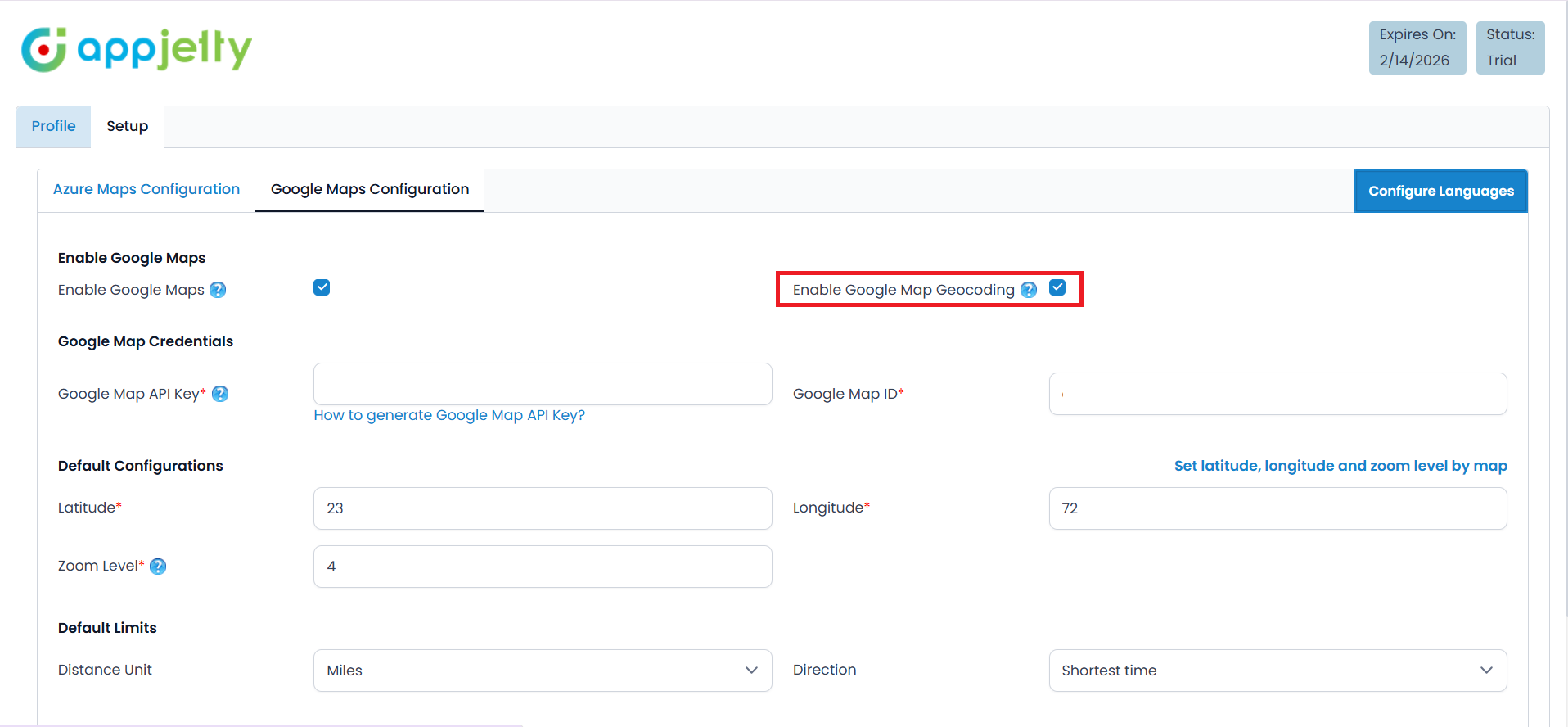
We also have a detailed blog on how to configure Google Maps in MappyField 365 and how you can geocode locations.
2. View CRM records on Google Maps
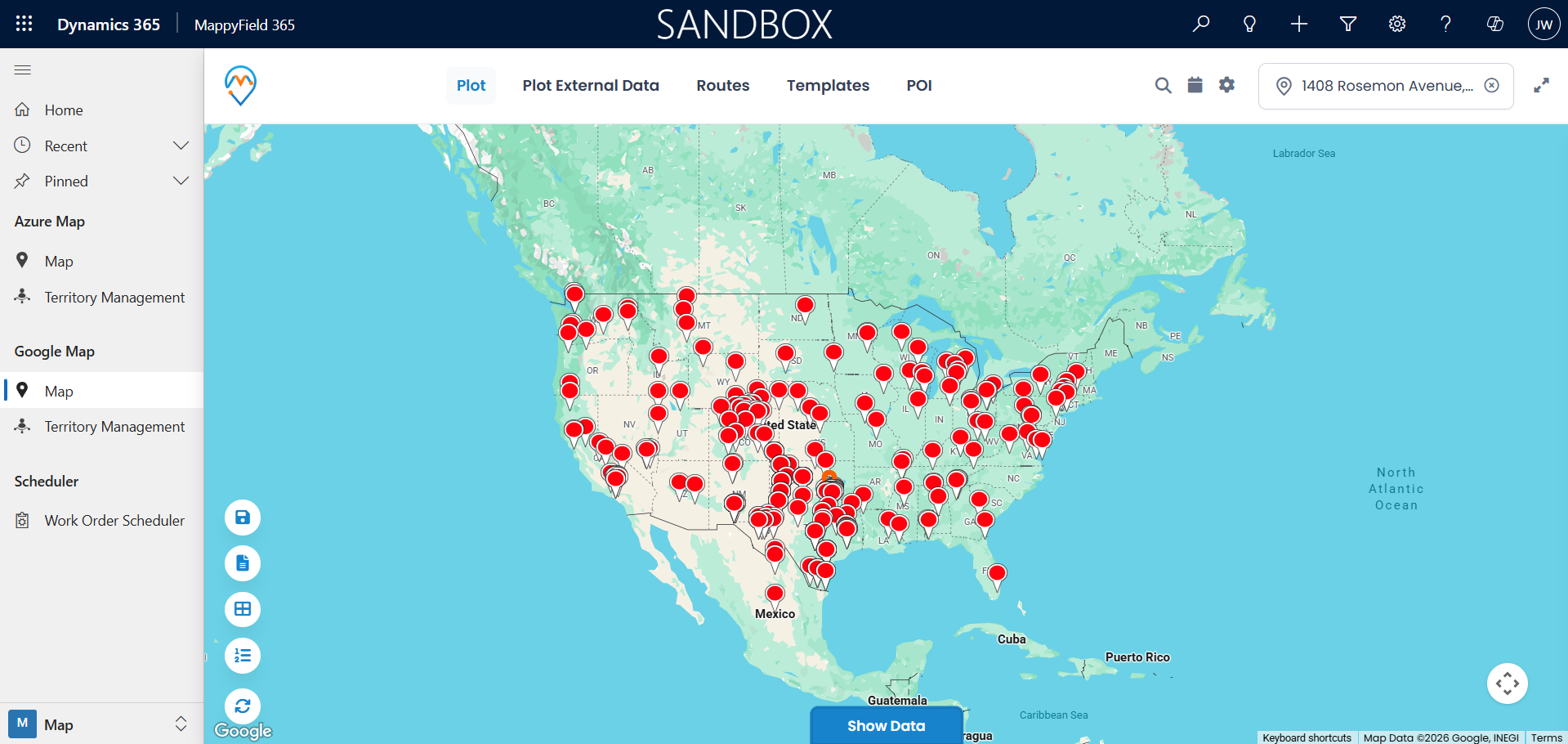
3. Route Optimization using Google Maps
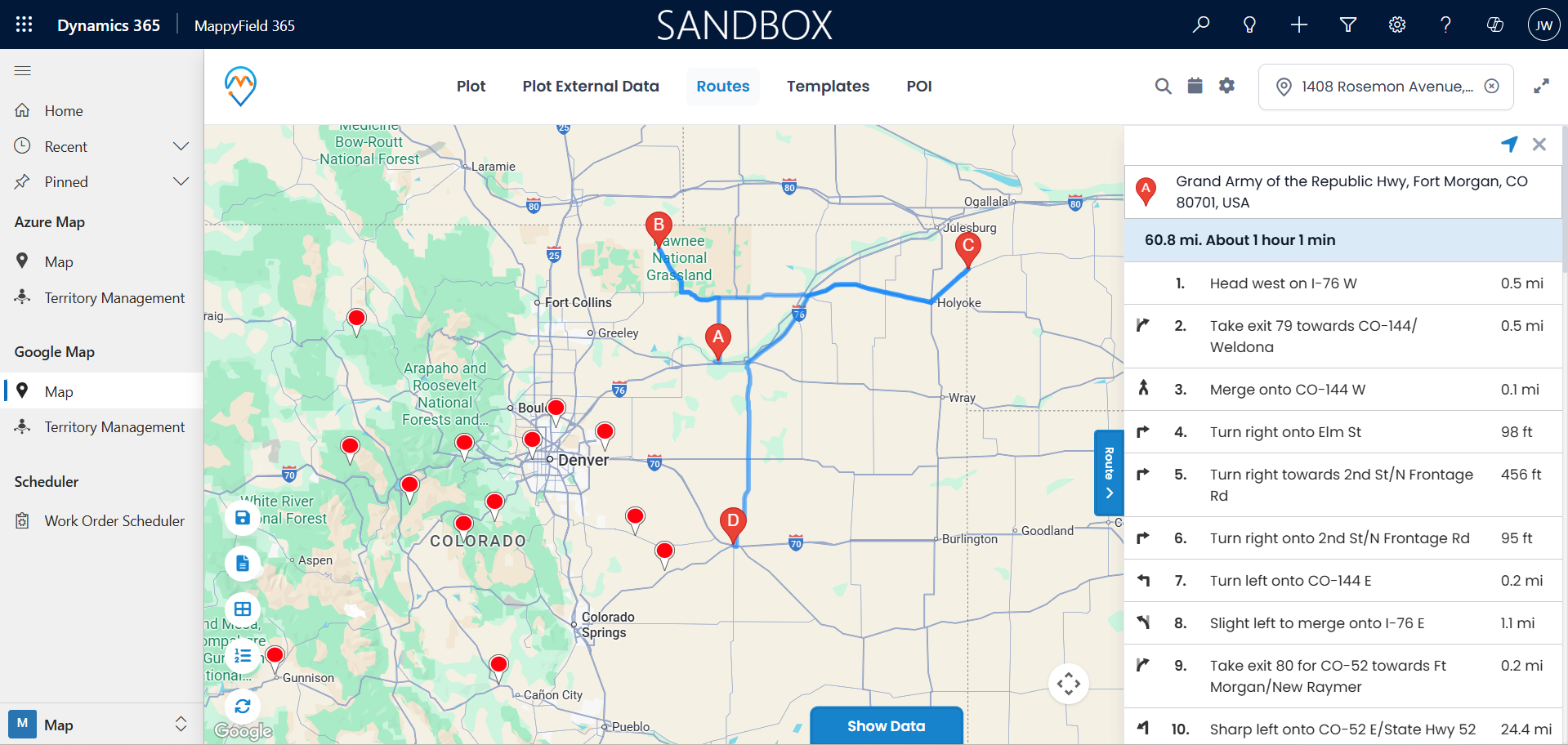
MappyField 365 lets you add routes and navigate directly to Google Maps. If you want to learn how you can do it, we have a detailed blog explaining how to configure it.
If you wish to use Google Maps for geocoding locations, data plotting, or while optimizing routes, MappyField 365 got you covered. Use Google Maps for Dynamics 365 CRM using MappyField. Contact our sales team for more information about MappyField and how it uses Google Maps to ease your sales team’s life at [email protected]. If you want to have a real time experience of this, book a demo with us.
All product and company names are trademarks™, registered® or copyright© trademarks of their respective holders. Use of them does not imply any affiliation with or endorsement by them.