
|
275x/day
How often employees are interrupted during core work hours by meetings, emails, or chats (Microsoft Work Trend Index, 2025)
|
57%
Share of meetings that happen as ad hoc calls with no calendar invite at all (Microsoft Work Trend Index, 2025)
|
$635.6M -> $1.9B
Global appointment scheduling software market, 2026 to 2034, 14.70% CAGR (Fortune Business Insights)
|
4.97/5
Calendar 365 rating on Microsoft AppSource across 33 reviews, 99% positive
|
Setting up leave requests inside a Dynamics 365 calendar should take an afternoon. If it’s taken longer, the breakdown almost always happened at the same spot: the setup guide you found. Same story if your team is still tracking leave in a shared spreadsheet next to a calendar that’s supposed to already handle this.
Microsoft’s own 2025 Work Trend Index found that employees are interrupted every two minutes during core work hours, roughly 275 times a day, by meetings, emails, and chat notifications. Dynamics 365 already has calendars. That’s not the problem. What breaks down is where a leave request lands once someone submits it. An email thread. A Teams message. A spreadsheet nobody opens until payroll week. Anywhere except the calendar a manager already has open. Fixing this doesn’t mean buying new software. It means knowing exactly where to look before the request gets buried.
Here’s the structural issue. Dynamics 365 ships an entire Human Resources application, its own license, separate from Sales or Customer Engagement. Microsoft’s leave and absence documentation is written for that module: working time calendars, absence manager roles, leave type configuration, HR parameters, each on its own page. Most CRM instances never touch Human Resources. A sales ops admin searching “set up leave requests Dynamics 365 calendar” ends up reading instructions for software they don’t have and won’t be buying. What they do have is a Dynamics 365 Sales or Customer Engagement calendar already full of resource and customer activity, with nothing built in for leave. A Power Automate flow can route an approval email, sure. But it can’t put that request on the same grid a manager checks every morning, color-coded against who’s already booked. That’s the gap. Not missing leave tracking somewhere in Dynamics 365, missing it on the calendar people actually open.
| Key Stat | What It Means |
|---|---|
| 275x/day | How often employees are interrupted during core work hours by meetings, emails, or chats (Microsoft Work Trend Index, 2025) |
| 57% | Share of meetings that happen as ad hoc calls with no calendar invite at all (Microsoft Work Trend Index, 2025) |
| $635.6M → $1.9B | Global appointment scheduling software market, 2026 to 2034, 14.70% CAGR (Fortune Business Insights) |
| 4.97/5 | Calendar 365 rating on Microsoft AppSource across 33 reviews, 99% positive |
What You Need Before You Start
Quick scope check before anything else: this is a Dynamics 365 calendar guide, not an HR configuration guide. If your org runs the separate Human Resources module, working time calendars, absence manager roles and all, this walkthrough isn’t for you. Most CRM instances aren’t in that boat. They’re running Dynamics 365 Sales or Customer Engagement with no HR module anywhere in sight, and the team just wants leave requests visible on the CRM calendar they already open every day.
Calendar 365 closes that gap. It’s native to Dynamics 365, no separate HR license, no separate login required. Before you touch a single setting, confirm these four things.
- Calendar 365 is installed and licensed in your Dynamics 365 Sales or Customer Engagement instance
- System Administrator or Calendar 365 admin access, so you can actually get into the settings area
- The team or resource calendar already has your users on it (requests need someone to attach to)
- You already know, even informally, who approves leave for each team
> Pro tip: If your organization does run Dynamics 365 Human Resources for payroll and compliance purposes, you don’t have to pick one. Calendar 365 handles day-to-day visibility and fast approvals for the CRM team. HR keeps the system of record for payroll and policy. Both run at once, no conflict.
Step 1: Turn On Leave Management Inside Calendar 365
Start inside Calendar 365’s own settings, not a Microsoft admin center. Open the Leave Management section from your Dynamics 365 CRM calendar app. Nothing here leaves Dynamics 365. It’s a native module, no add-on sign-in, no data shipped off to a third-party service.
Toggle it on per team or resource calendar, not necessarily the whole org at once. Some departments will be ready to drop email-based tracking before others are, and scoping it per team lets you roll out at whatever pace makes sense. You’ll know it worked when a new “Leave” option shows up in that calendar’s activity type list, sitting right next to the activity types you already had.
Step 2: Define Leave Types and Approval Roles
Figure out what kinds of leave your org tracks before anyone submits a request. Calendar 365 ships with the usual defaults: vacation, sick leave, personal leave. Rename them, delete them, add new ones, whatever matches your real policy. Each type can carry its own half-day designation too.
Set each leave type’s unit, full day or half day, based on how granular you need coverage tracking. Field sales teams running half-day territory visits will want half-day leave from day one. A back-office team that never splits a day can skip it entirely.
Now assign an approver to each team or resource group. Skip this step and you’ve built a leave request system nobody’s watching. A request lands in Pending and just sits there, because there’s no queue for it to land in. This is, by a wide margin, the step people forget.
Step 3: Let Team Members Submit Leave Requests From the Calendar
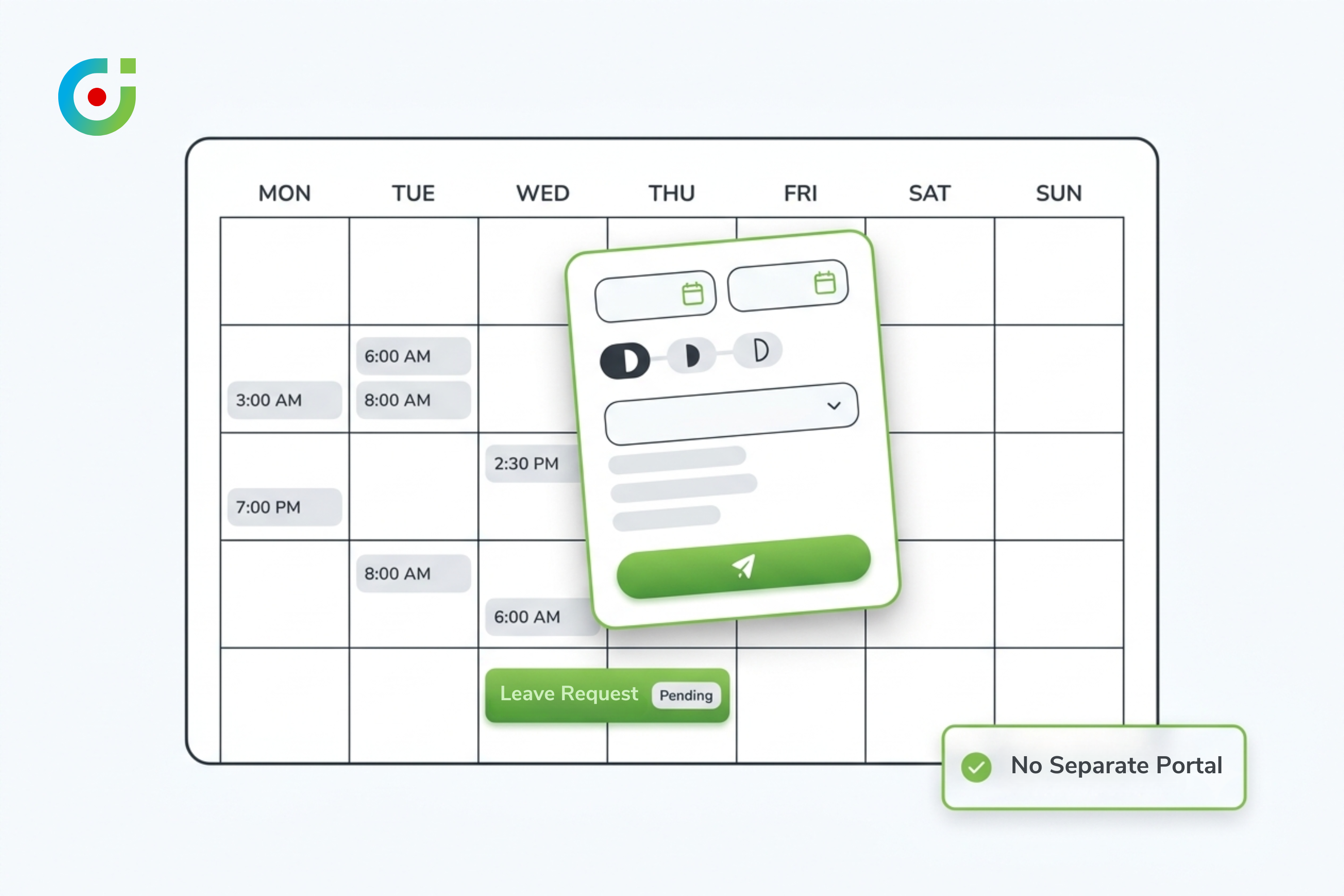
Leave types and approvers are set. Now a team member can actually submit a request, the same way they’d book any CRM activity: right on the calendar grid. No portal to log into. No form that lives outside Dynamics 365.
Pick a date range, choose a leave type, toggle half-day if it applies. Hit submit and a Leave activity shows up in Pending state immediately, in a distinct color so nobody mistakes it for a booked appointment.
Want to see the submission flow before you roll it out? See how it works -> walks through the exact screens a team member sees, start to finish.
Most “why isn’t anyone using this” complaints trace back to exactly this step. Habit is strong. Reps default to email unless the calendar path is genuinely faster than typing a message, so test it yourself, end to end, before you roll it out to the whole team.
Step 4: Configure the Approval Workflow (Approved, Rejected, Pending)
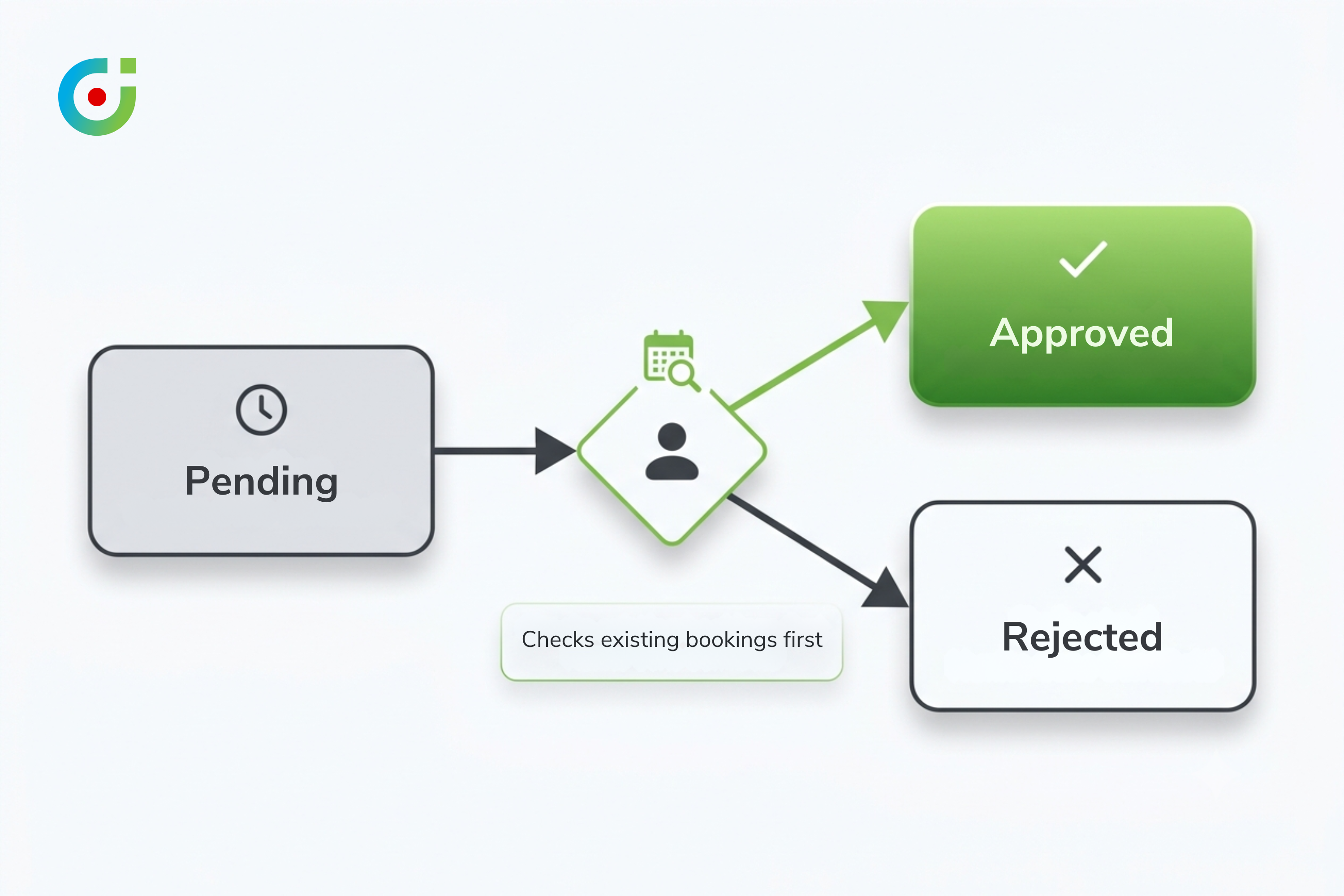
Three states, that’s it: Pending on submission, then Approved or Rejected once someone acts on it. Open the approver’s calendar view and make sure pending requests are easy to spot, a filtered list, a distinct color, whatever works, so nothing sits ignored for days.
A sales operations manager might ask: what happens to a booked appointment if a rep’s leave request gets approved after the meeting is already on the calendar? Calendar 365 checks existing bookings against the leave date range before the approval finalizes and flags the conflict instead of quietly approving over it. The approver sees the clash and can reschedule the appointment or shift the leave dates before confirming, not find out the morning of.
Rejection works the same way in reverse. Approver adds a short reason, requester sees the status flip on their own calendar right away, activity clears out of the pending queue. Nobody leaves the calendar to send a notification. Calendar 365 fires it off automatically the moment the state changes.
Step 5: Give Managers Full Team Visibility Across the Calendar
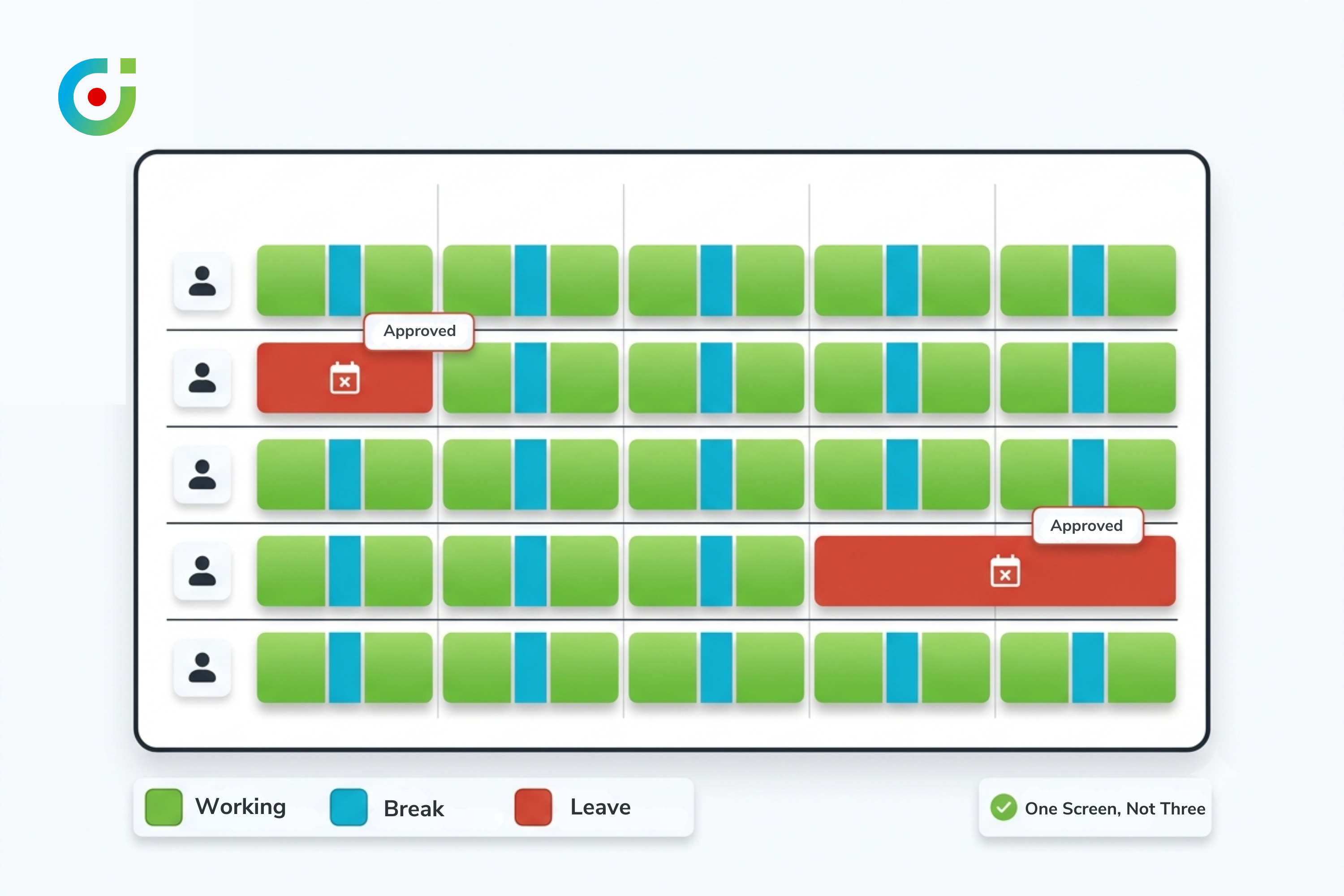
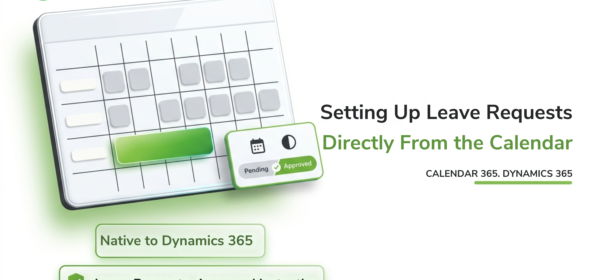
This is where it pays off. A manager opens the shared calendar and every resource’s row is color-coded: green for working hours, blue for breaks, red for approved leave. One screen. Not three separate systems somebody has to cross-check by hand.
Take a housekeeping supervisor at a hospitality business. She can see who’s on leave, which rooms still need turnover, and how long each assignment should take, all without leaving that one view. A field sales director gets the same benefit checking territory coverage before handing off a last-minute client visit.
Want to see it with your own team’s calendar instead of a demo? Start Free Trial and load your actual resource calendar. Real bookings, real color-coding, not a sample dataset.
Cross-team visibility matters more than it sounds like it should. A manager approving a request has no easy way to know the same week is already thin on coverage because of a different approver’s decisions, not without it. That’s the exact blind spot a shared, color-coded CRM calendar is built to catch.
Common Mistakes to Avoid
Most of these show up in the first two weeks after rollout, and every one is easy to fix once you know to look for it.
- Leaving an approver role unassigned. Requests just sit in Pending. Forever, basically, since nobody’s watching a queue that doesn’t exist.
- Skipping half-day granularity for teams that need it. Field and hybrid teams end up submitting inaccurate requests just to make the form work, which quietly corrupts the coverage view for everyone else.
- Keeping the default leave type names. Match them to your actual company policy instead, or a manager approving a request won’t be able to tell which internal policy it falls under.
- Overriding a flagged scheduling conflict without checking why it was flagged. The collision-free check exists specifically to catch appointments booked against approved leave.
- Rolling this out org-wide before testing with one team first. A single pilot surfaces approver gaps and leave-type mismatches while the blast radius is still small enough to fix in a day.
Conclusion
Leave requests were never missing from Dynamics 365. What was missing, for most CRM instances, was a path to them that didn’t run through Human Resources setup pages built for a module most teams don’t have. Five steps get you there: turn on leave management, define types and approvers, let the team submit from the calendar itself, set up the approval states, give managers the color-coded view. No separate license. No separate login. Calendar 365 runs leave requests and approvals natively inside the Dynamics 365 calendar your team already has open. Right alongside it sits the collision-free scheduling that keeps an approved leave day from colliding with a meeting nobody remembered to check.
Put leave requests on the calendar your team already checks.
Calendar 365 handles leave requests, approvals, and collision-free scheduling natively inside Dynamics 365, with no separate HR module and no separate login.
Sources:
- Microsoft WorkLab, “Breaking Down the Infinite Workday” (Work Trend Index, 2025): https://www.microsoft.com/en-us/worklab/work-trend-index/breaking-down-infinite-workday
- Fortune Business Insights, “Appointment Scheduling Software Market Size & Forecast”: https://www.fortunebusinessinsights.com/appointment-scheduling-software-market-108614
- Calendar 365 on Microsoft AppSource: https://marketplace.microsoft.com/en-us/product/dynamics-365/biztechcs.all-in-one-calendar
- Microsoft Learn, “Configure leave and absence parameters” (Dynamics 365 Human Resources): https://learn.microsoft.com/en-us/dynamics365/human-resources/hr-leave-and-absence-parameters