
|
10-20%
Sales productivity gain from territory optimization (Alexander Group)
|
20-30%
Share of territories growth-constrained by stale design (Alexander Group)
|
10-20%
Incremental growth from territory optimization, minimal investment (Alexander Group)
|
5.0/5
MappyField 365 rating on Microsoft AppSource (21 reviews, AppJetty first-party product listing data, not independently fetchable due to AppSource JS rendering)
|
Most Dynamics 365 sales teams are paying a cost they’ve never actually traced back to its source: stale territory boundaries. Redesign territories with real coverage data, and you typically see 10% to 20% gains in sales productivity [1]. Most teams never get anywhere close. Why not? Because the boundaries were drawn once, back during onboarding, and nobody’s touched them since. Not once.
Sound familiar? If even one of the signs below rings true, the cost is already piling up in your CRM (whether or not anyone’s put a name to it yet). A native dynamics 365 map integration is usually the fastest way to see exactly where it’s hiding.
Key Stats
| Stat | What It Means |
|---|---|
| 10-20% | Productivity gain from thoughtful territory design, per Alexander Group research [1] |
| 20-30% | Share of territories with growth constrained by stale design that’s never revisited [2] |
| 10-20% | Incremental growth available from territory optimization “with relatively minimal investment” [3] |
| 5.0/5 | MappyField 365’s rating on Microsoft AppSource across 21 reviews, AppJetty first-party product listing data [4] |
The Warning Signs: When Territory Management Is Failing You
Poor territory management rarely announces itself with a bang. Mostly it just shows up as a string of small, disconnected annoyances, the kind a sales manager quietly works around instead of actually fixing: a rep grumbling about drive time, two account owners squabbling over the same renewal, a new hire who spends their entire first month just figuring out which zip codes are actually theirs.
None of that looks like a territory problem, not on its own. Put them together, though, and it’s the same problem wearing different clothes. Growth stalls in 20% to 30% of territories that go too long without a real redesign [2]. That’s not a small number. Here’s what the decay actually looks like, once you know where to check for it.
Sign 1 — Reps Are Fighting Over the Same Ten Accounts
Draw territories by zip code or account list once a year, and they stop reflecting reality within months, sometimes weeks. New accounts land wherever a rep happens to notice them first. Existing accounts get reassigned informally the moment someone leaves the company (and that change never makes it back into the CRM record, not really). Nobody updates the master list. Why would they? The workaround already gets everyone through the week.
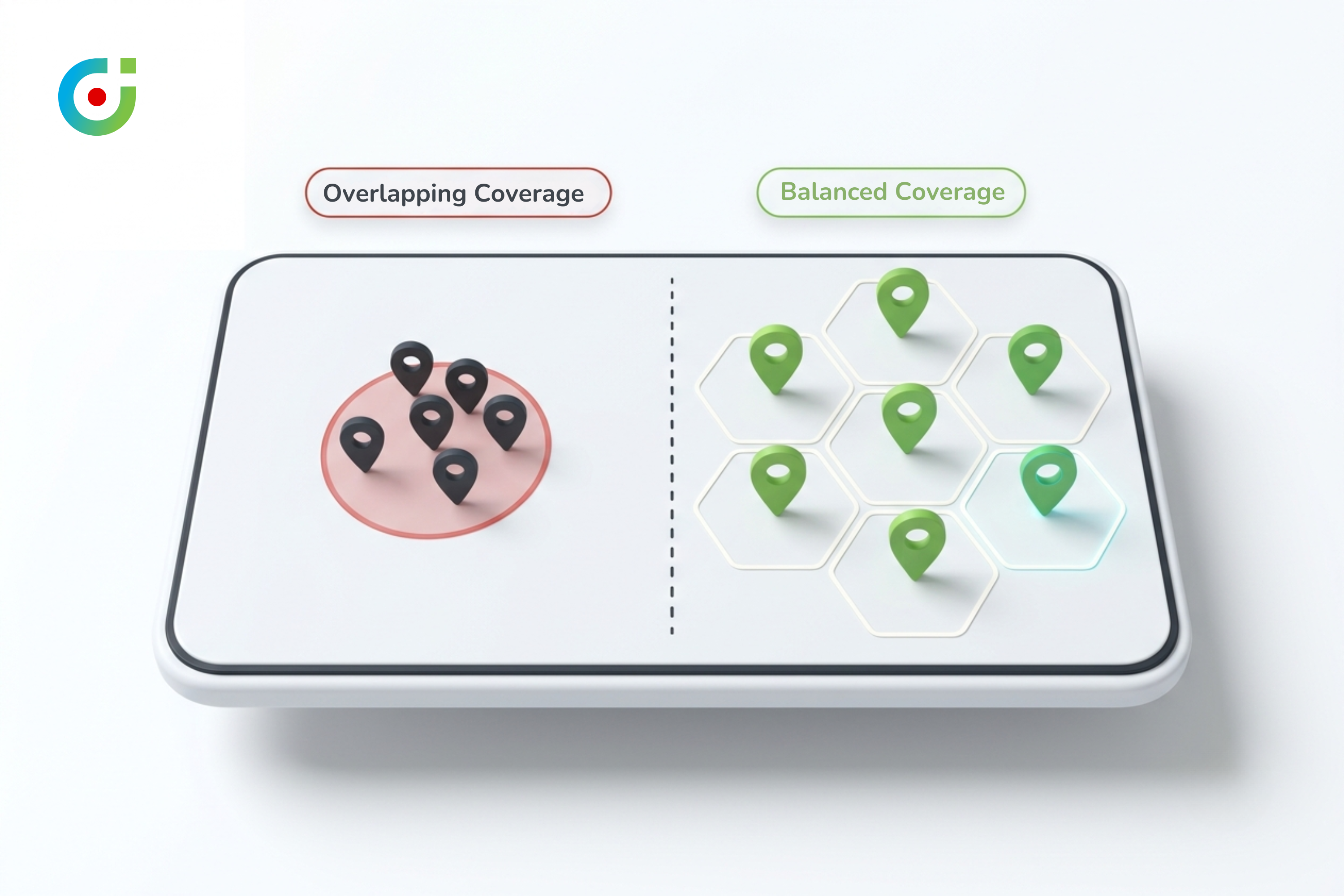
Here’s the actual problem, and it sits underneath the CRM, not inside it: Dynamics 365 tracks which account belongs to which territory just fine as a data field. What it doesn’t show, not natively anyway, is geography, whether two “different” territories actually overlap in physical space. Two reps can each own an assigned account without either one ever seeing that the accounts sit four blocks apart.
> Pro tip: Don’t assume overlap means someone’s slacking, that’s rarely the real story. Nine times out of ten it just means the territory data was never geocoded to begin with, so nobody (not even the most diligent manager) could have spotted the overlap without an actual map.
The cost shows up in two places at once: duplicated effort on your highest-value accounts, and near-total neglect everywhere else. Try this on your own book. Pull the accounts assigned to two neighboring reps and check how many show up on both lists. Anything above 10% to 15% overlap, and the lines have already drifted well past where the business actually lives.
Sign 2 — Nobody Can Answer “Who Owns This” Without a Meeting
Ask a sales operations manager to name the owner of an account sitting in a disputed zip code. Watch how long the answer takes. If it takes three spreadsheets, a shared drive, and a Slack ping to someone who might well be on vacation, the territory structure has already failed at the one job it had: making ownership obvious.
This isn’t a training problem. It’s a visibility one. Standard territory records track hierarchy just fine on paper, parent regions, child regions, assigned managers. None of it tells a rep where those boundaries actually sit relative to one specific customer’s address.
A CRM admin might reasonably ask: if the ownership data already lives in Dynamics 365, why does the confusion keep happening anyway? Because a flat list of account names doesn’t show geography, that’s the short answer. A territory named “Northeast Region 3” means nothing until somebody can actually see it drawn against real streets and counties. The cost, here, is manager hours: hours spent settling disputes a visual boundary would have prevented in the first place.
That’s the pattern. Not a training gap. A visibility gap.
Sign 3 — Field Reps Cover Ground That Was Never Really Planned
Territory boundaries drawn by account count instead of geography create a specific, quiet kind of waste. A territory that looks perfectly balanced on a spreadsheet, ten accounts here, ten accounts there, can be wildly unbalanced the moment you add distance into the picture. One rep’s ten accounts sit inside a tidy fifteen-minute radius. Another rep’s ten accounts are scattered across ninety minutes of driving, and that’s before a single sales conversation even happens.
The root cause? Most territory planning happens on a list, not a map. That gap is exactly what a dynamics 365 map integration is built to close. Nobody can see drive-time imbalance sitting in a spreadsheet the way they can the instant the same accounts get plotted geographically. And the cost compounds daily, quietly. Every extra hour on the road is an hour not spent with a customer, multiplied across every rep on the team, every working day of the year.
> Pro tip: Want a rough gut-check before running any formal audit? Ask your two or three longest-tenured field reps how their day actually goes. They’ll tell you the truth before any dashboard does, usually within about thirty seconds.
Sign 4 — Realignment Happens Once a Year, By Guesswork
Most sales organizations redesign territories on a fixed annual cycle, usually somewhere in planning season, then leave the map untouched for the next twelve months no matter what changes underneath it. New accounts. Departed reps. Shifted quotas. None of it triggers so much as a mid-year look at whether the boundaries still make sense.
That static, once-a-year approach is exactly what the Alexander Group’s research flags as the core driver of long-term territory decay [3]. Effective territory optimization can deliver 10% to 20% incremental growth “with relatively minimal investment,” but only for organizations that treat territory design as an ongoing practice, not a calendar event. A once-a-year pass isn’t enough. The cost of skipping the in-between adjustments? Growth that quietly never happens, and nobody notices it’s missing.
Common questions we hear on calls:
“We just redid our territories six months ago. Do we really need to look again already?”
If nothing’s changed since then, no. But if you’ve added accounts, lost a rep, or shifted a quota anywhere in that window, the boundaries you drew six months ago are already out of date, more than you’d think. The Alexander Group’s research puts the growth hit from stale territories at 20% to 30% of the book. That number doesn’t wait around for your annual planning calendar.
“Isn’t this a big project? We don’t have a quarter to spend on it.”
It shouldn’t be, and honestly, it isn’t. The audit itself takes an afternoon, once you can actually see accounts plotted on a map. Ongoing maintenance, with auto-assignment rules doing the heavy lifting, becomes a five-minute check. Not a quarterly initiative.
How Severe Is Your Territory Problem?
Score your own setup against the five signs above. For each one, give it a 0 if it’s not present, a 1 if it happens occasionally, a 2 if it happens routinely.
- Two or more reps regularly claim the very same accounts as their own.
- Confirming who owns an account takes a manager more than one system or spreadsheet.
- Reps report drive time that feels wildly out of proportion to the number of accounts they actually cover.
- Territories haven’t been redrawn in the last six months, no matter what’s changed in accounts or headcount.
- New accounts sit unassigned, or get assigned by hand, rather than routing automatically to the right territory.
0 to 3: Monitor. Decay this early is still just background noise. Revisit the checklist again in a quarter and see if anything’s moved.
4 to 7: Act soon. The overlap and drive-time cost have already become measurable, and that means real money. Plan a fix for the next planning cycle, don’t wait for the annual one.
8 or above: Urgent. Whether anyone’s flagged it yet or not, the productivity gap in the stats above is very likely already showing up in your pipeline.
What to Do Next
The action you take depends on where you scored, but the underlying fix stays the same at every level: make territory boundaries visible, current, and tied to the same records your team already works from every day.
If you scored 0 to 3, start with the audit itself: pull the current territory list, overlay it against a map (even a rough, hand-drawn one works), and re-run the overlap test from Sign 1 every quarter. Don’t wait for the next annual cycle to roll around.
Scored 4 to 7? The manual process has already started costing you real hours, and this is exactly where a dynamics 365 map integration earns its keep. Plot every account visually, and invisible overlap turns into something a manager can spot in one glance at the map. Not a week of spreadsheet reconciliation.
At 8 or above, this needs to be treated as a structural fix, not a cleanup task. MappyField 365 handles territory creation and auto-assignment directly inside Dynamics 365, no separate tool required. Bulk copy and move tools shift a whole cluster of accounts from one territory to another in a few clicks, not one record at a time, and the change reflects in the CRM immediately.
| Manual / Spreadsheet Process | MappyField 365 | |
|---|---|---|
| Territory creation | Manual list-building, no geographic view | Draw boundaries on the map or auto-generate by zip code/county |
| Reassigning accounts | Edit records one at a time, update a separate tracker | Bulk copy/move directly on the map, syncs to Dynamics 365 instantly |
| Rep visibility | Manager relies on check-ins and self-reporting | Live real-time location tracking built on Firebase |
| Route planning | Reps plan their own driving order | Shortest-path-first route optimization with turn-by-turn navigation |
| Cost for a 5-person team | Spreadsheet time plus a separate mapping tool subscription | $49/month, no minimum user count |
Live tracking closes the loop for field-heavy teams. A manager can see where reps actually are during the day (not just where they were assigned to be that morning), and that alone catches drive-time imbalance faster than any quarterly review ever could. See how it works before your next territory planning cycle, or start a free trial and run the Sign 1 overlap audit directly on your own Dynamics 365 accounts. No separate export required.
Poor territory management rarely fails loudly. It fails through small, compounding inefficiencies, overlapping accounts, unclear ownership, uneven drive time, boundaries nobody’s revisited since last year’s planning cycle. None of it shows up as a single line item on a P&L. That’s exactly why it survives so long, completely unaddressed.
The fix isn’t a new process, and it isn’t another spreadsheet template. A dynamics 365 map integration doesn’t replace the CRM your team already works in. It just makes the territory structure that already exists inside it visible, current, and easy to act on. MappyField 365 is built for exactly that job, territory creation, auto-assignment, and live visibility that turn territory upkeep from a once-a-year scramble into something that just runs quietly in the background, without anyone having to think about it.
Sources
- Alexander Group, “Territory Design: The Gateway to Increased Sales Productivity” — https://www.alexandergroup.com/insights/territory-design-the-gateway-to-increased-sales-productivity/
- Alexander Group, “Territory Design: The Gateway to Increased Sales Productivity” — https://www.alexandergroup.com/insights/territory-design-the-gateway-to-increased-sales-productivity/
- Alexander Group, “Do Sales Representatives or Territories Drive Performance?” — https://www.alexandergroup.com/insights/do-sales-reps-or-territories-drive-performance/
- MappyField 365 on Microsoft AppSource — https://appsource.microsoft.com/en-us/product/dynamics-365/biztechcs.quick-maps