Managing CRM user territories in Microsoft Dynamics 365 can often be complex and challenging for the department head or the admin user. As an admin, you need to balance and manage territories continuously. It would be immensely helpful to have access to statistics when creating and assigning territories. However, this often requires navigating various options in the Dynamics CRM backend.
What if you could get CRM record statistics while creating the territory and assigning it to a manager or team? The MappyField 365 map integration provides exactly that: real-time statistics when creating a territory.
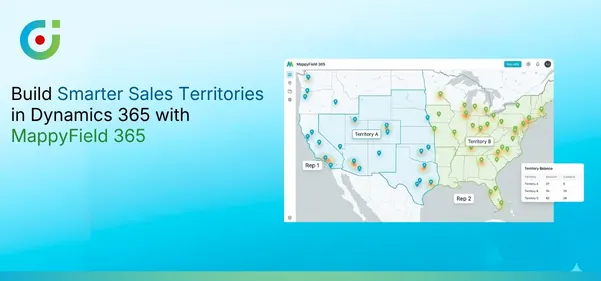
AppJetty MappyField 365 is a map integration plugin for MS Dynamics 365 CRM that enables you to plot CRM data on a map. With MappyField 365, you can visualize different records, analyze data, create territories, and more—all directly from the map. You can define territories by region, draw manual areas using the Drawing Tool, use existing territories, or import shapefiles/CSV files.
The best part? You get real-time counts of CRM entity records—such as Accounts, Contacts, and Leads—within the plotted areas or regions on the map. This provides clear visibility into how many CRM records are contained within a particular territory. With these statistics, you can make more informed decisions when assigning territories to the appropriate manager or team.
In this blog, we’ll walk you through how you can access these statistics while creating territories and assigning them to your sales manager or team.
Step 1: Navigate to MappyField 365
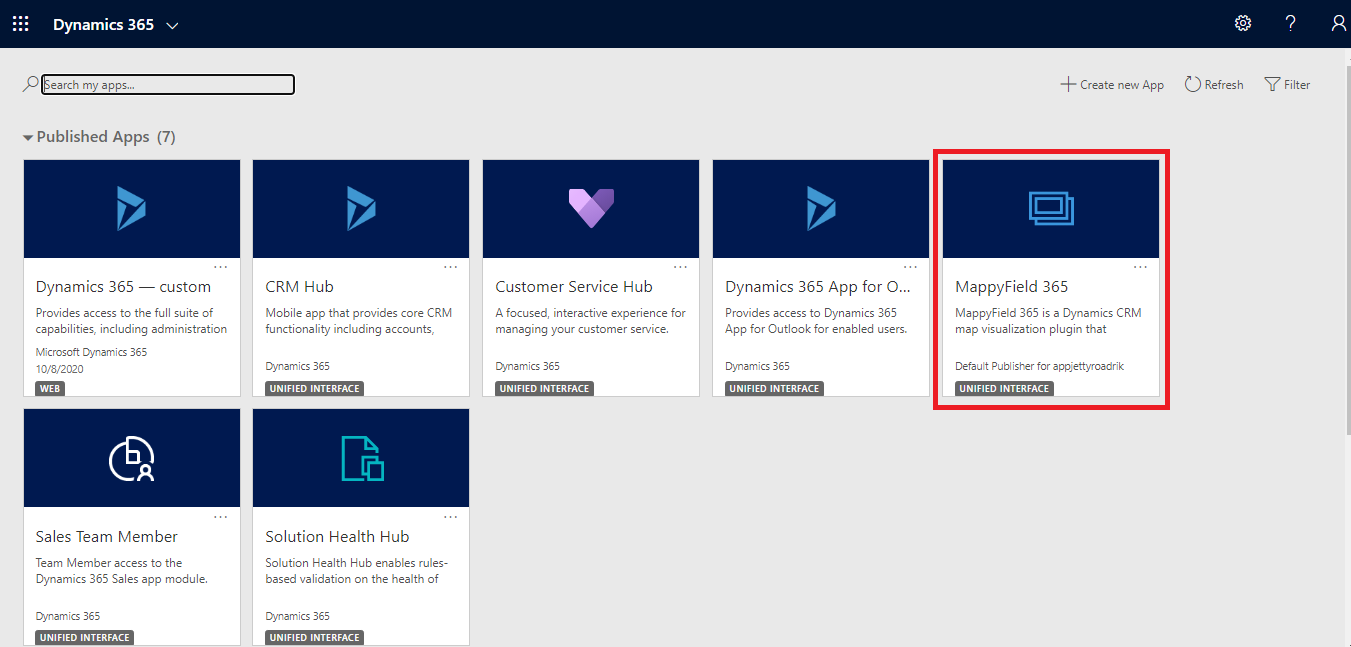
Select ‘MappyField 365’ from the Dynamics 365 dashboard or app list.
By default, you will be directed to the ‘Map View’ of MappyField 365.
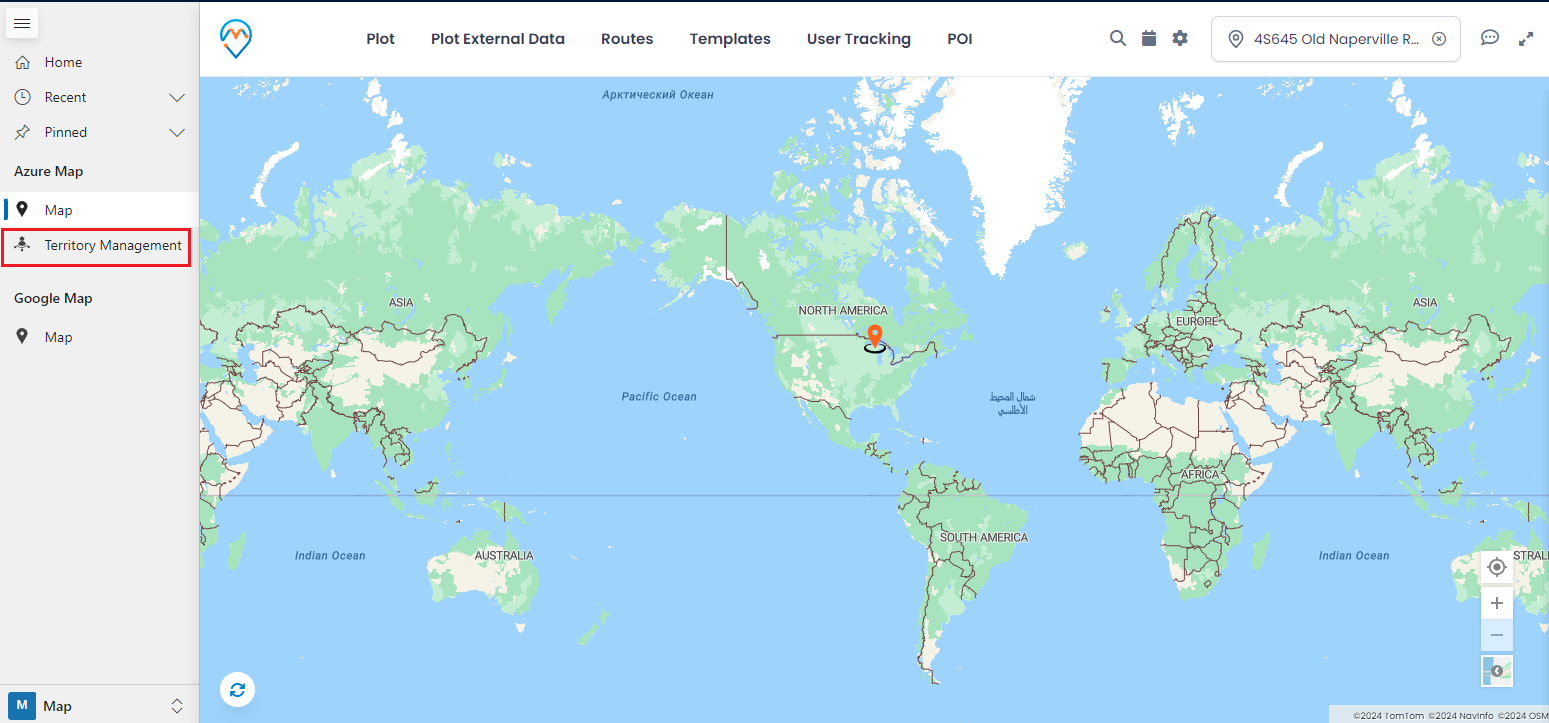
You can find Territory Management in the MappyField 365 navigation panel (on the left side) to create and manage the territories.
Step 2: Plot Area/Region to create a new territory
By clicking on ‘Territory Management,’ you will find the search options. You can create and manage territories using ‘By Region,’ ‘By Drawing,’ ‘By Territory’ (existing), and ‘By File.’
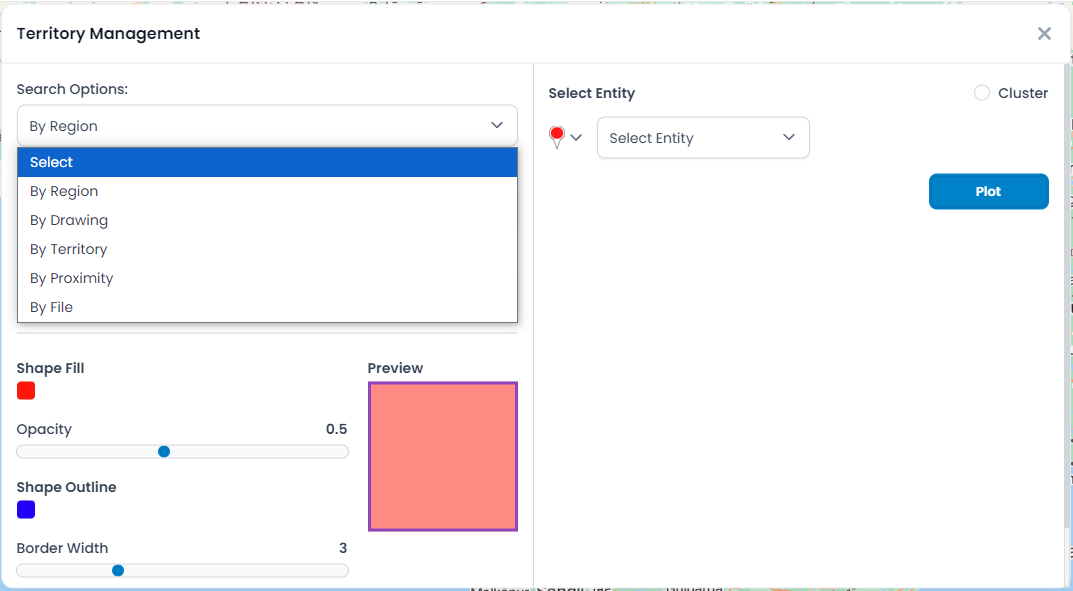
Suppose you want to create a new territory using the Region. Select ‘Region’ from the Search Options drop-down. You will find four options to create a territory using the Region:
> City > State > Country > Postal code
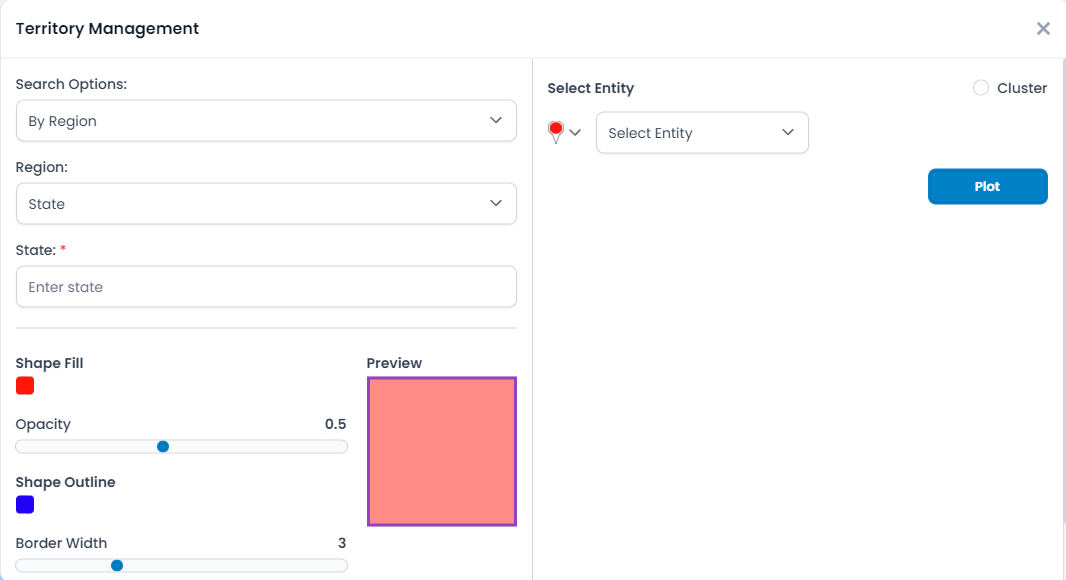
If you want to create a territory based on the state, select ‘State’ in the Region drop-down option and enter the name of the state in the State text box.
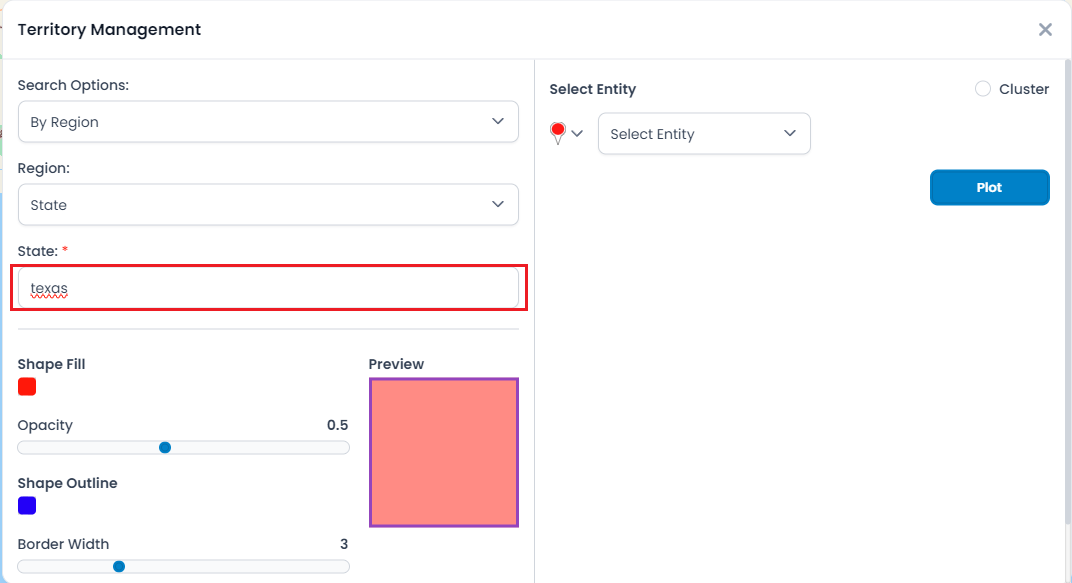
After selecting the ‘State’ and entering the state’s name, click the ‘Plot’ button. The state will then be plotted as a highlighted area on the map. Use the selection tool to select that area.
First, click on the ‘hand’ tool and click on the highlighted area on the map to create a new territory.
Step 3: Create New Territory
After selecting the plotted area/region, right-click on the selected area. If you have plotted multiple areas/regions, select all the regions using the selection tool.
Now, by right-clicking on the selected areas, you will see the ‘Create New Territory’ option.
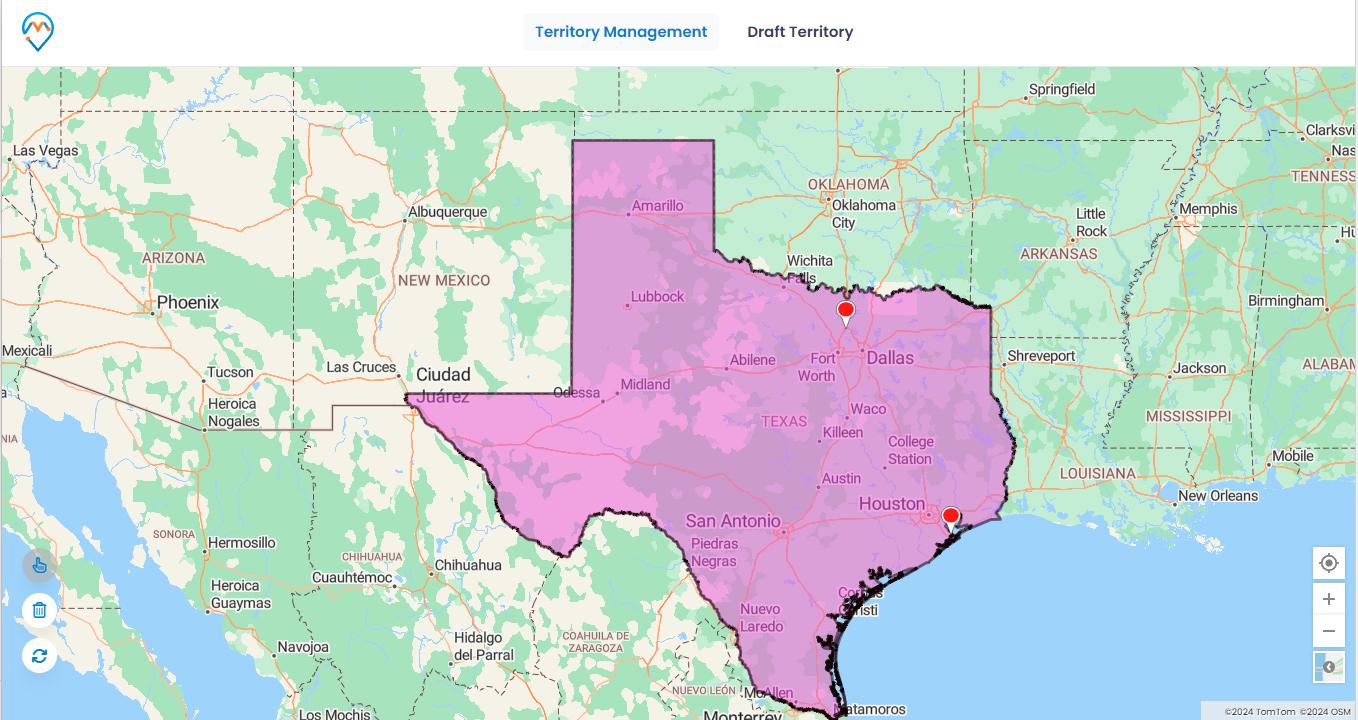
By clicking on the ‘Create New Territory,’ you will see a popup to manage the existing territory and create a new one.
Now, by selecting the CRM record from the ‘Select Manager’ drop-down option, the ‘No. of Records’ section will appear. It will display the statistics of the selected CRM records based on the plotted regions/areas for creating a territory.
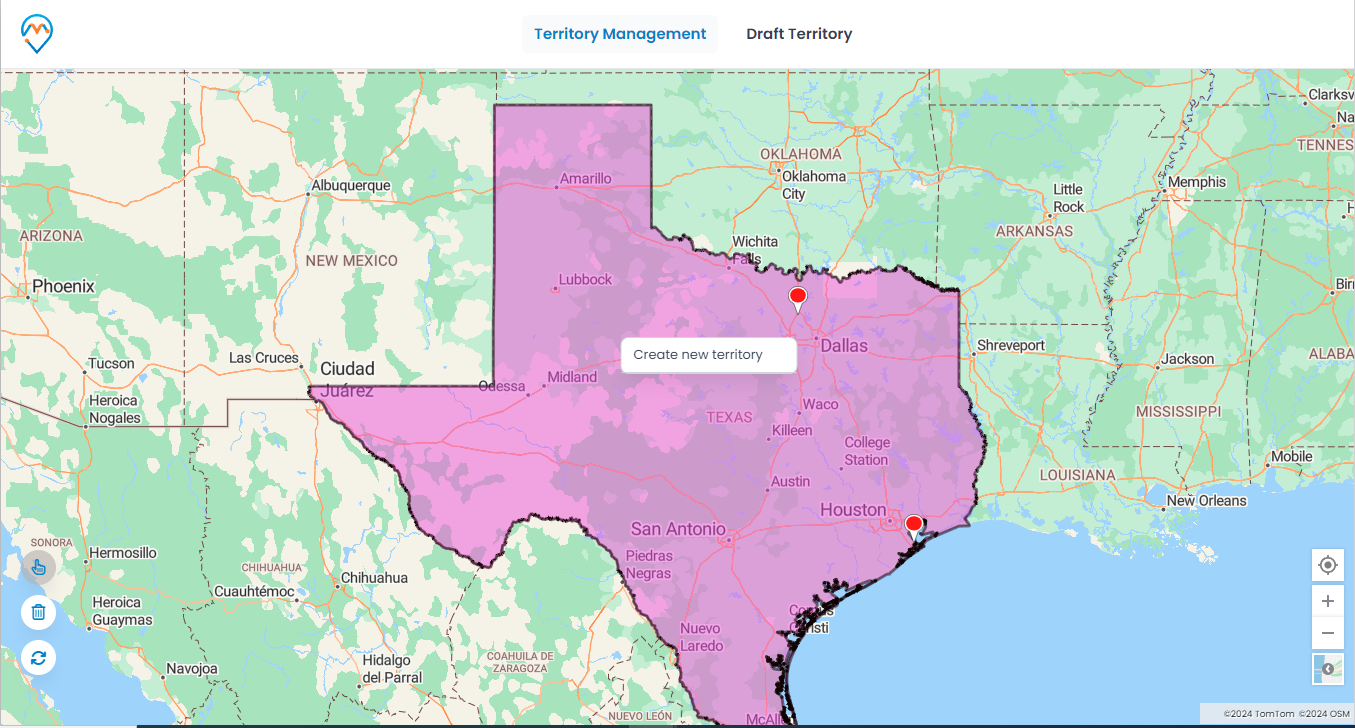
Based on the number of records (counts), you can decide which manager/team is required to be assigned the new territory. You will receive the count for three entities inside the plotted area on the territory map (Texas):
- Accounts: 15 records
- Contacts: 3 records
- Leads: 1 record
If you have added multiple areas, you will get all the CRM records for Accounts, Contacts, and Leads (i.e., by drawing on the map).
The AppJetty MappyField 365 plugin for MS Dynamics 365 CRM provides geo-analytical solutions that assist managers in sales, marketing, or team management.
MappyField 365 includes a wide range of functionalities that enable CRM users to manage, track, and monitor activities directly from the map.
All product and company names are trademarks™, registered® or copyright© trademarks of their respective holders. Use of them does not imply any affiliation with or endorsement by them.