How To Quickly Create Activity in MappyField Dynamics 365 With Azure Maps?

How To Quickly Create Activity in MappyField Dynamics 365 With Azure Maps?

Amit Shah

January 7th, 2025

To make the process of creating tasks and appointments easier, you can directly create activities from the Dynamics 365 map. Using the Quick Create Activity feature, all you need to do is fill in the form details. You can create an activity that is configured in the Entity to map from the Settings. Here’s how you can create an activity in Dynamics 365 MappyField.

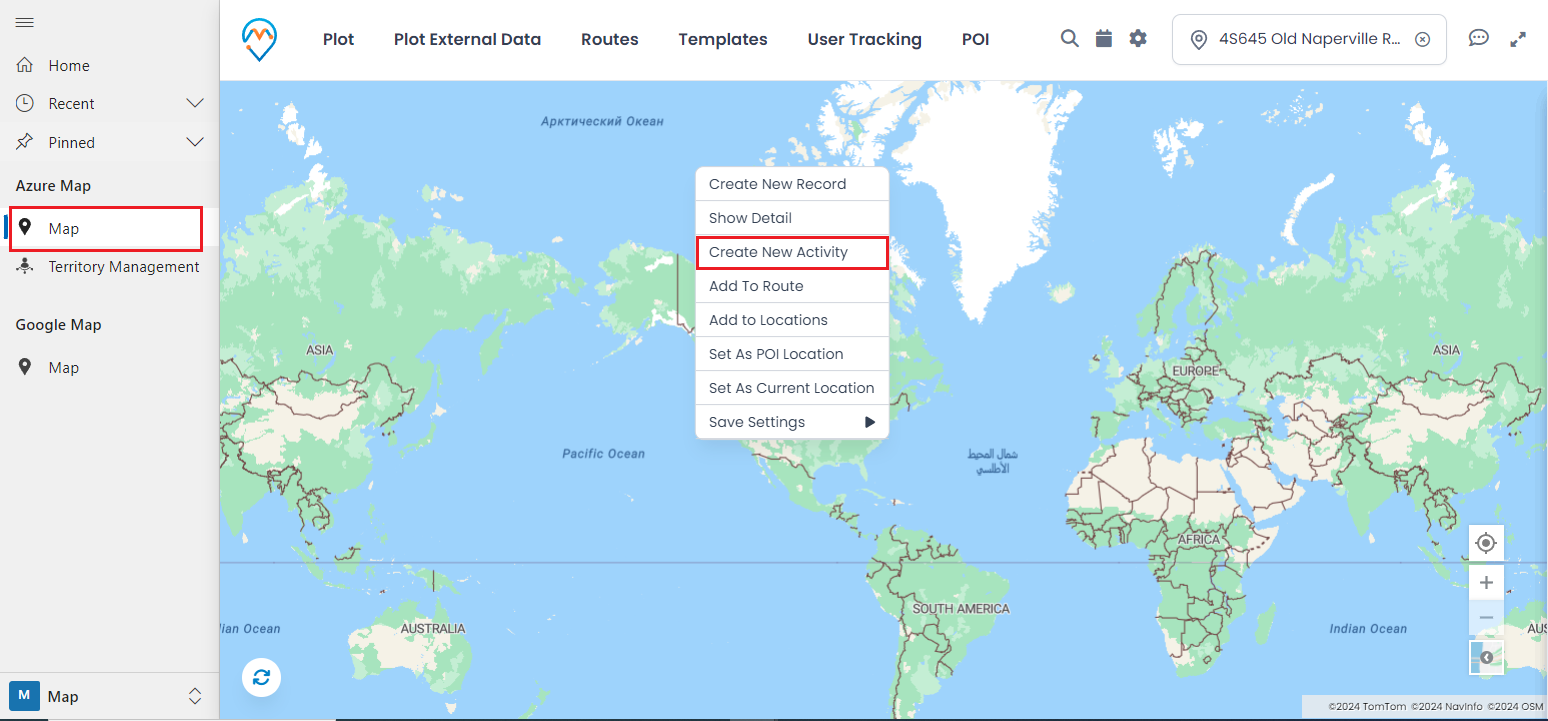
Step 1: Open the Map section, right-click on the map, and click on the ‘Create New Activity’ button.
right-click111
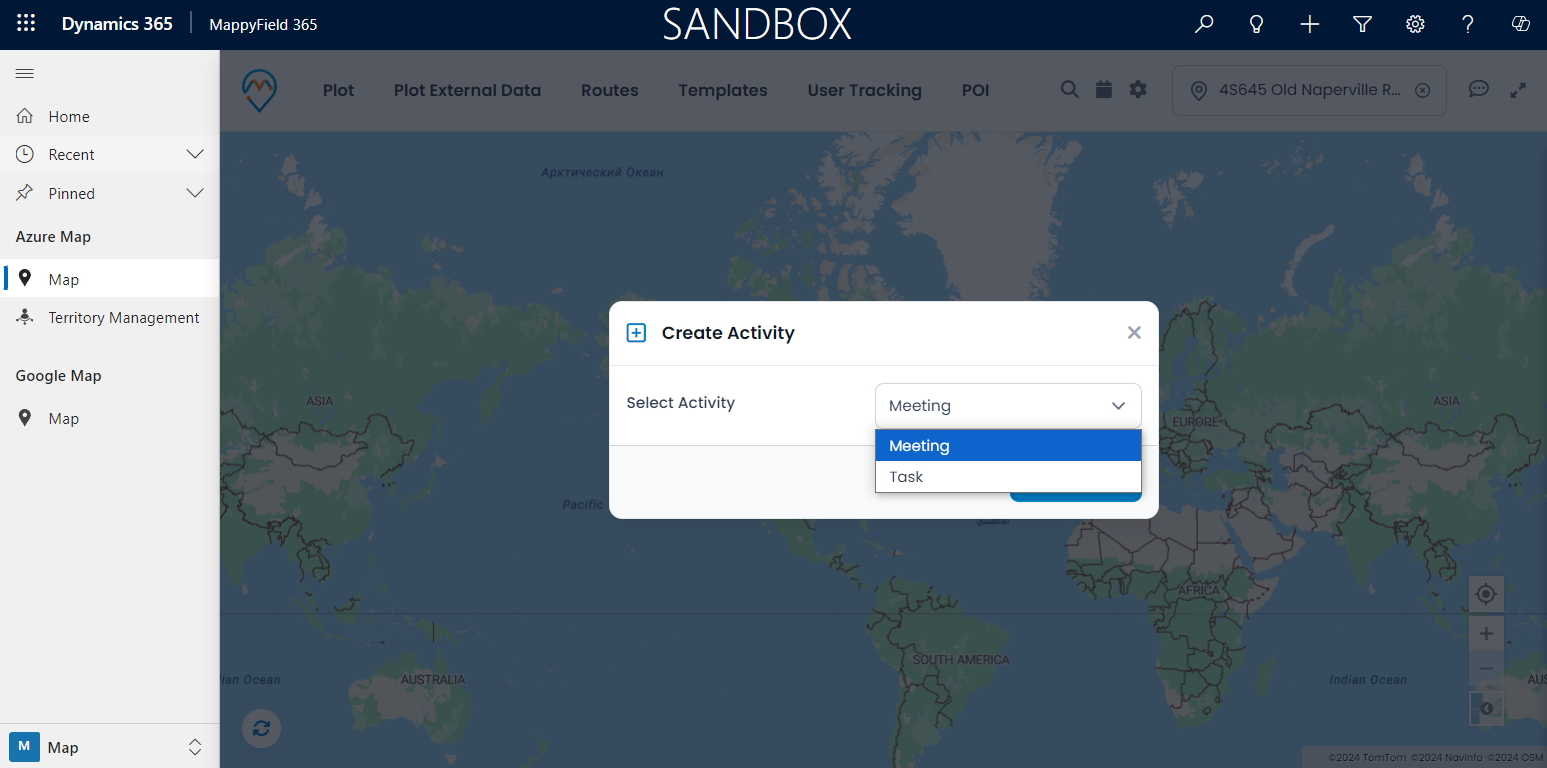
After clicking on ‘Create New Activity,’ a pop-up like this will appear.

Step 2: Here, you can see the list of activities, which are configured in the entity to map. Select an activity and click the “Create” button. Users do not need to open the CRM; they can directly create an activity from here.
right-click222
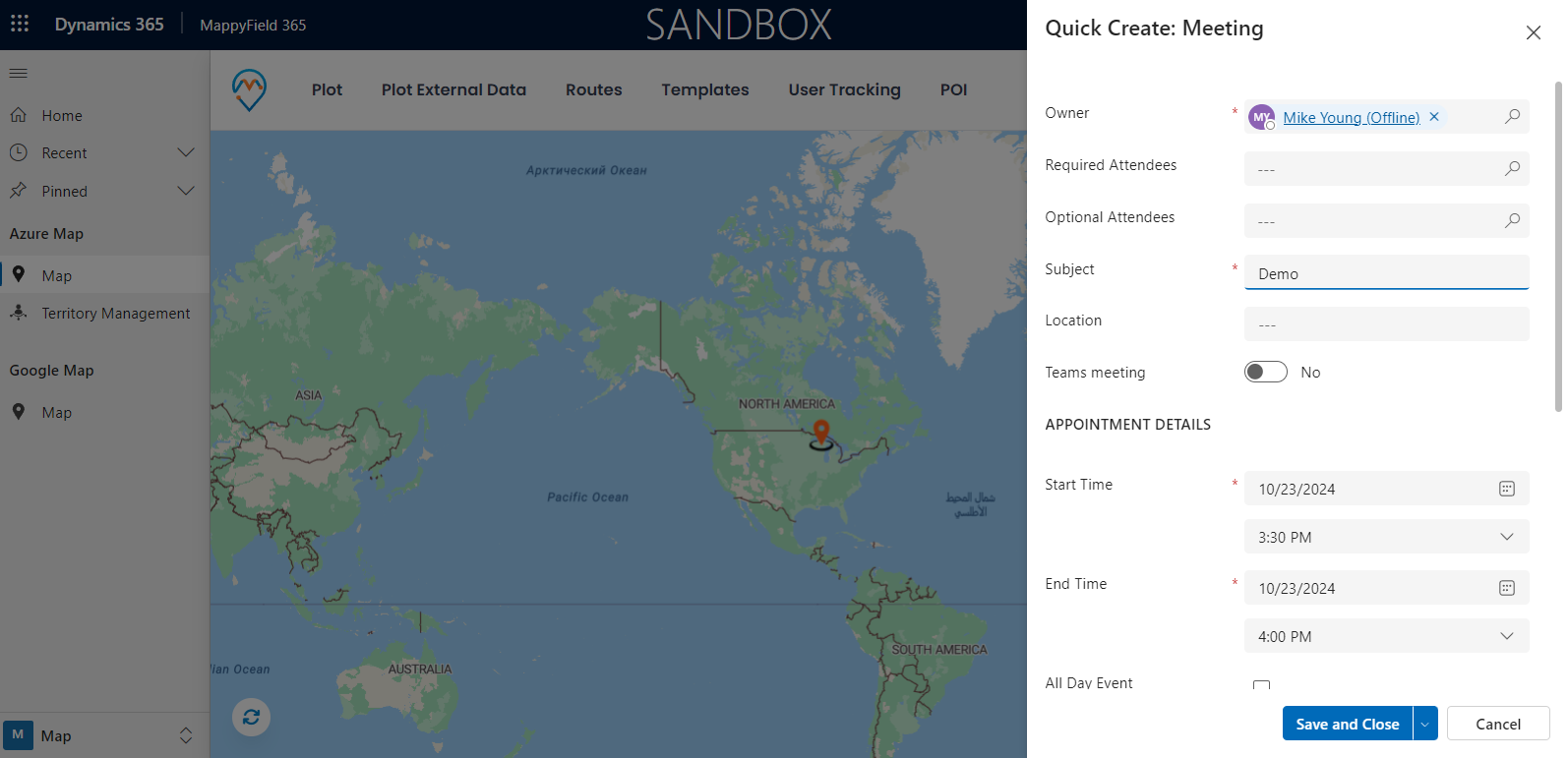
Step 3: Enter the required details to create an activity, and then click the Save and Close button.

right-click333
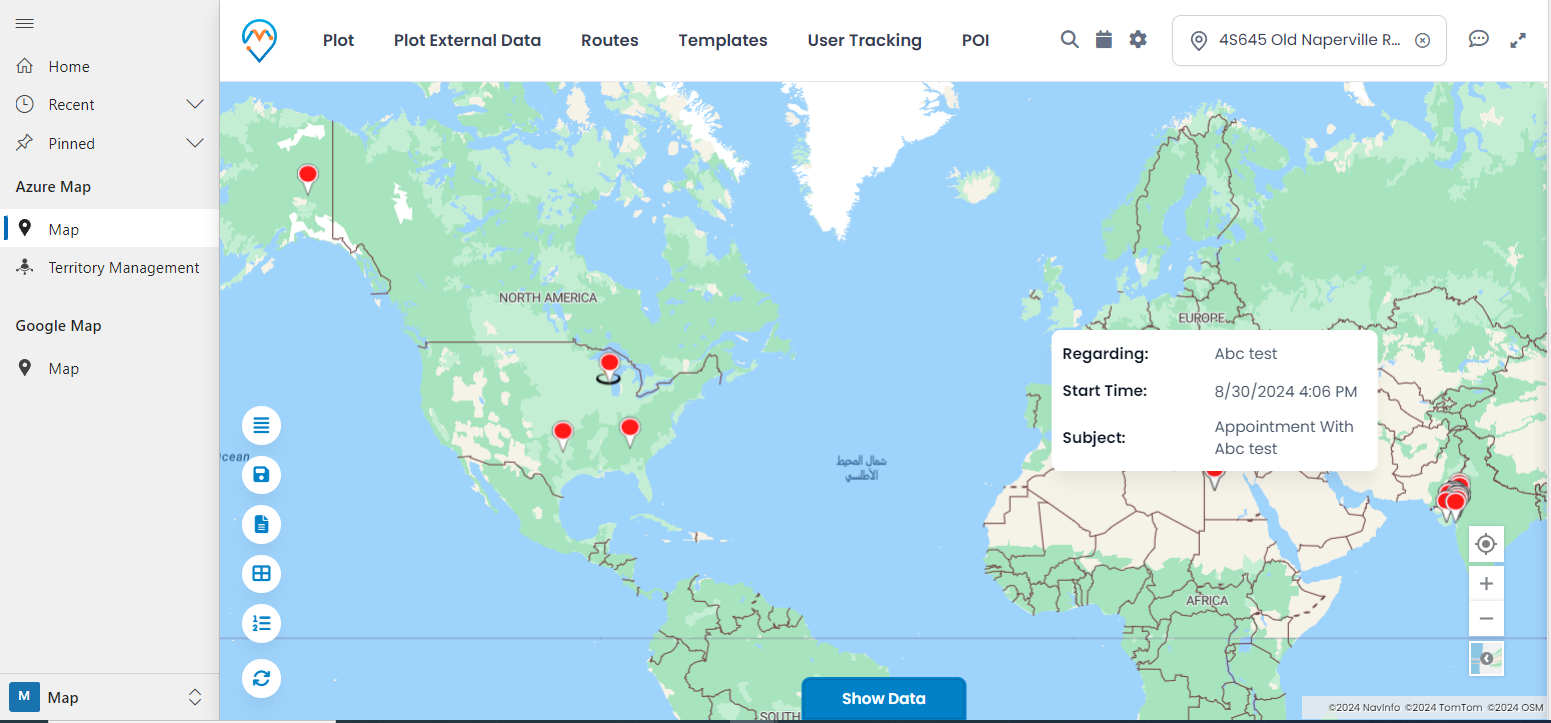
After saving the activity, you can see it plotted on the map.

right-click444
All product and company names are trademarks™, registered® or copyright© trademarks of their respective holders. Use of them does not imply any affiliation with or endorsement by them.

Read Related Blogs About MappyField 365

4 Field Service Challenges You Can Solve with a Dynamics 365 Map

4 Field Service Challenges You Can Solve with a Dynamics 365 Map

6 Min
How to Build Better Sales Territories — A Step-by-Step Guide for Dynamics 365 Users

How to Build Better Sales Territories — A Step-by-Step Guide for Dynamics 365 Users

6 Min
How Businesses Can Refine Their Operations with Smarter Maps Using MappyField 365

How Businesses Can Refine Their Operations with Smarter Maps Using MappyField 365

7 Min