Your team can get more organized and more reliable by adding a calendar to Microsoft Teams. By connecting AppJetty Calendar 365, a Dynamics 365 app, with Microsoft Teams, your scheduling tasks will be easier.
By connecting with Microsoft Teams, the calendar records will sync on both sides and keep updating all your meetings and events of Calendar365.
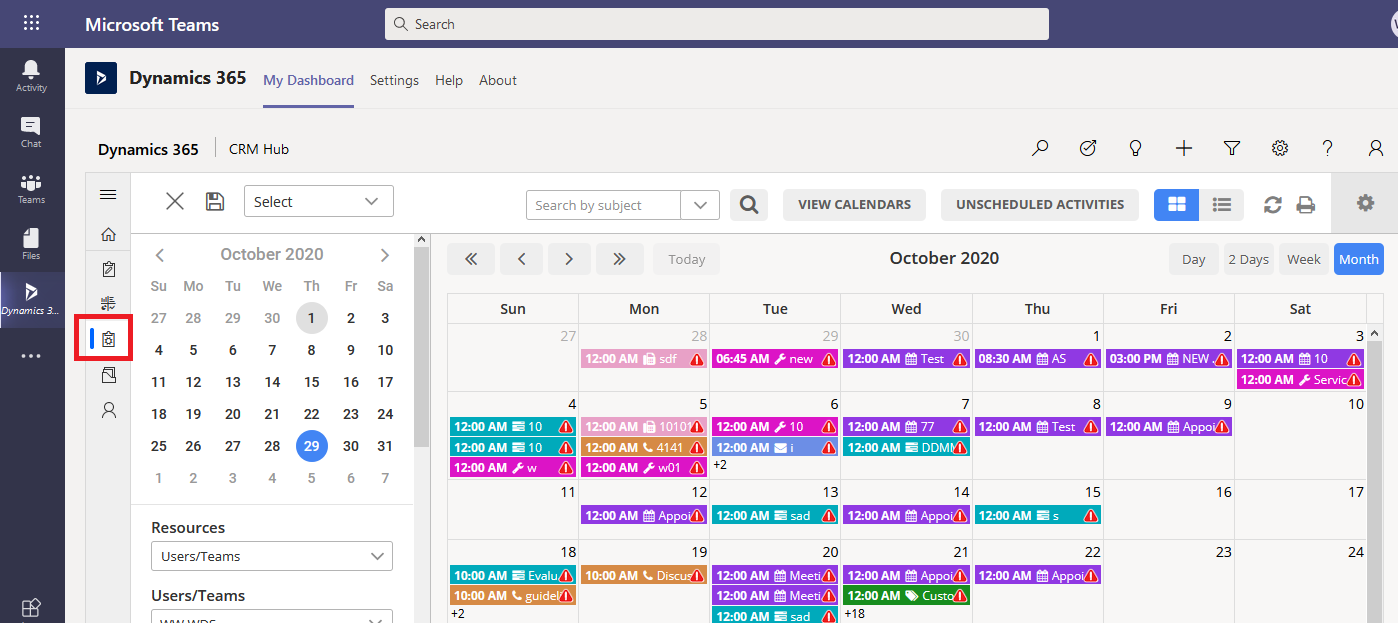
The calendar on Microsoft Teams will help the team members who are using Microsoft Teams. They can easily manage the activities and upcoming tasks, events, appointments, etc. of the Calendar 365 app from Microsoft Teams.
Now, you can follow the below steps to add a calendar to Microsoft Teams:
> Enable Microsoft Teams integration feature (Dynamics 365 side)
> Install Dynamics 365 in Microsoft Teams
> Add Calendar 365 using the Sitemap editor form the Dynamics 365
> Directly select the Calendar 365 app (as a model-driven app) from the Microsoft Teams

Step 1: Enable Microsoft Teams integration feature
First, you must enable the integration feature from the Dynamics 365 settings. For that, follow the steps:
– Sign in as a system administrator to your customer engagement app in Dynamics 365.
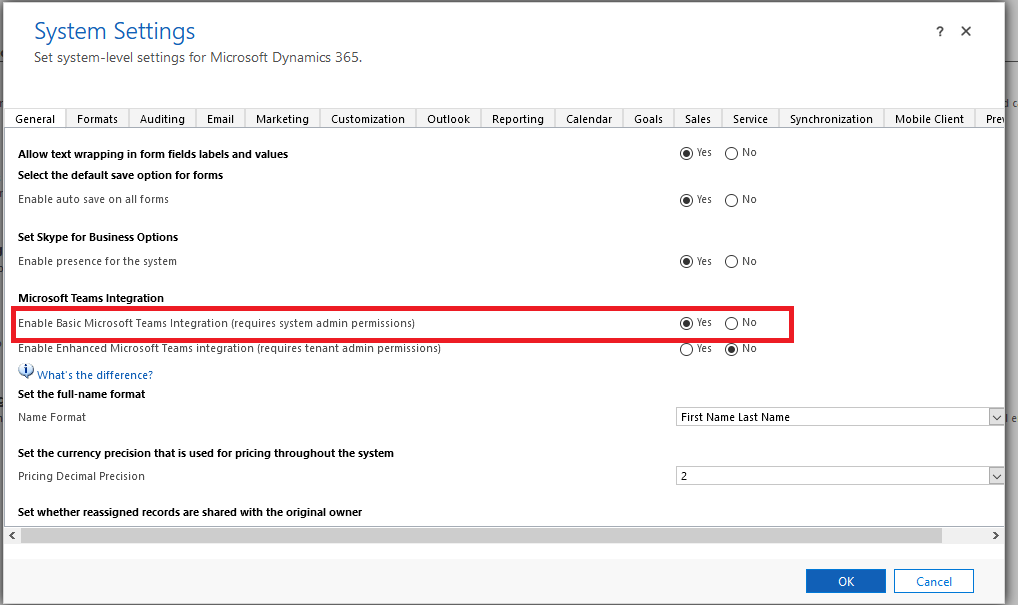
– Go to Settings > Administration > System Settings > General tab.
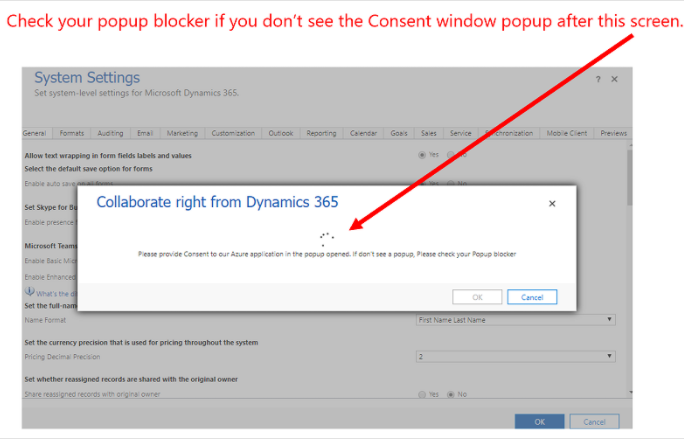
– To enable a basic collaboration experience, select Yes for “Enable Basic Microsoft Teams Integration”.
Step 2: Install the Dynamics 365 app to Microsoft Teams
Now, Install the Dynamics 365 app and set up the Microsoft Teams collaboration channel tab, and follow the below steps:
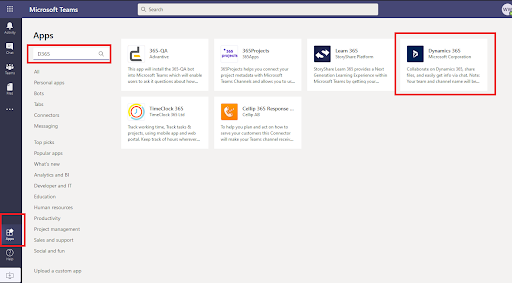
– Click on Apps and add Dynamics 365 (or just D365) in search.
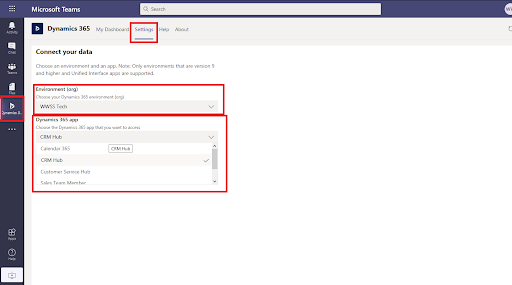
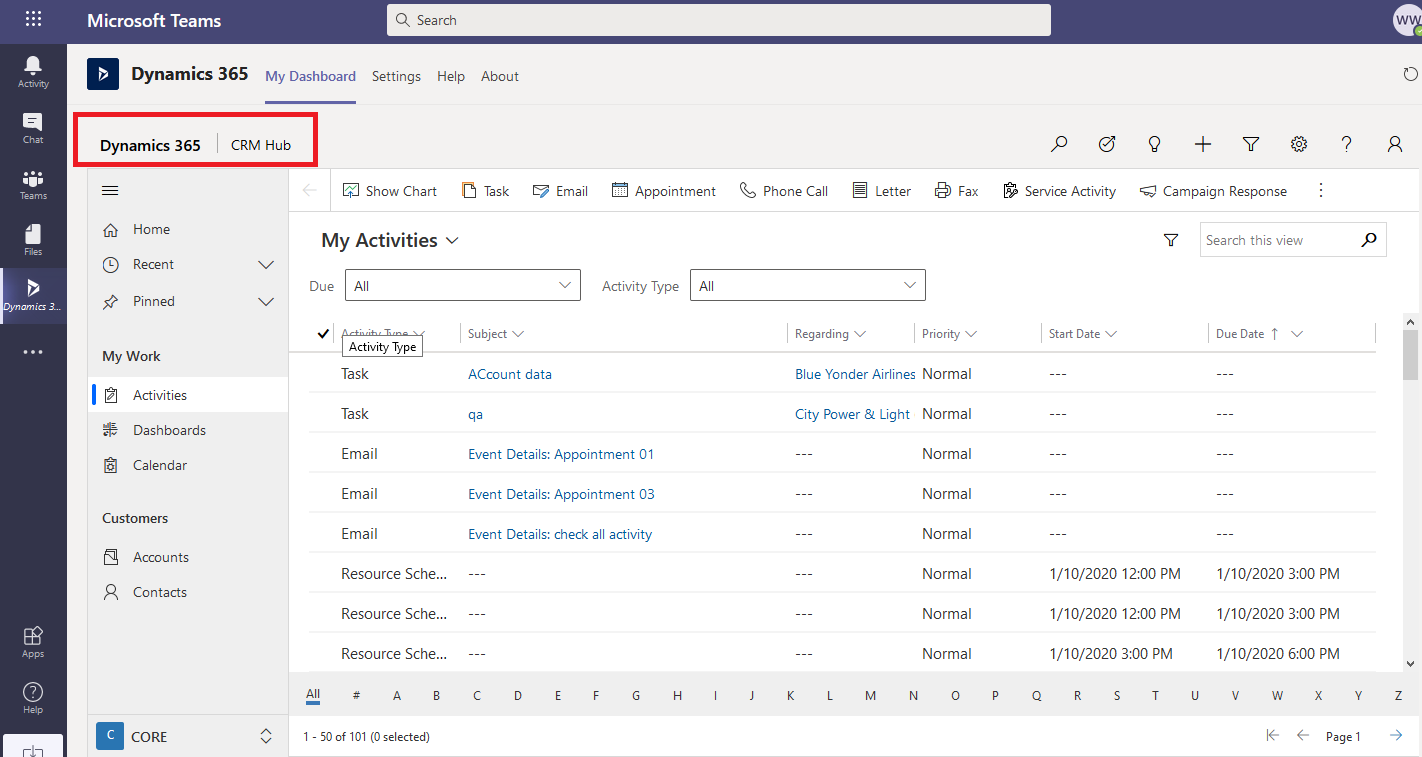
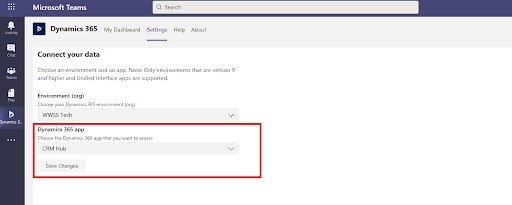
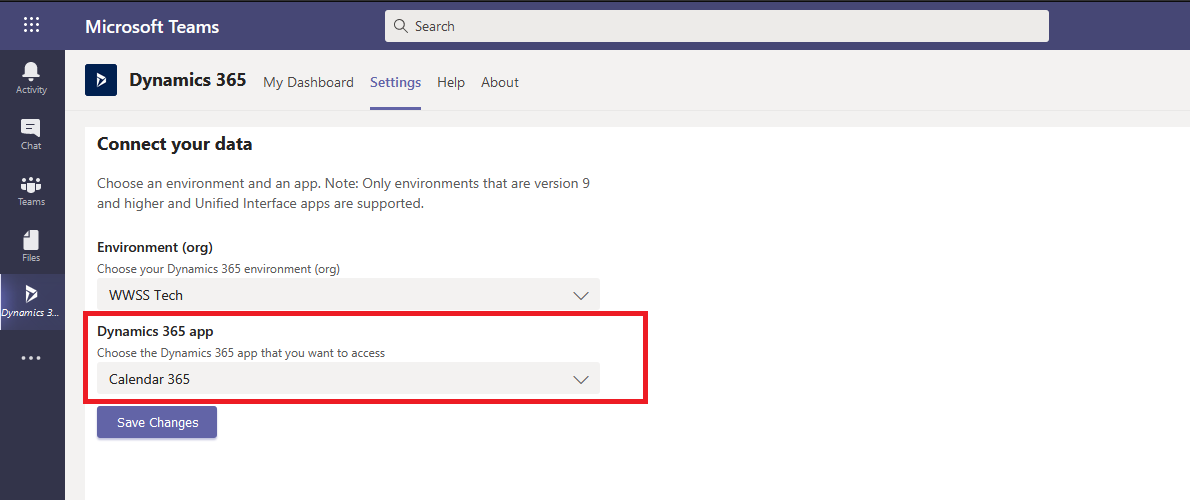
– Open the D365 App and click on settings to select the “Environment”(Org) and model-driven app (D365 app) that you want to view in Microsoft teams.
Step 3: Add a calendar to Microsoft Teams
There are 2 ways to add Calendar 365 in Microsoft Teams:
– Using Sitemap editor
– Directly adding Calendar 365 as a model-driven app
Step 3.1: Add Calendar 365 pages in Dynamics 365 app to Microsoft Teams
You can add the pages of Calendar 365 which you have selected in Microsoft Teams.
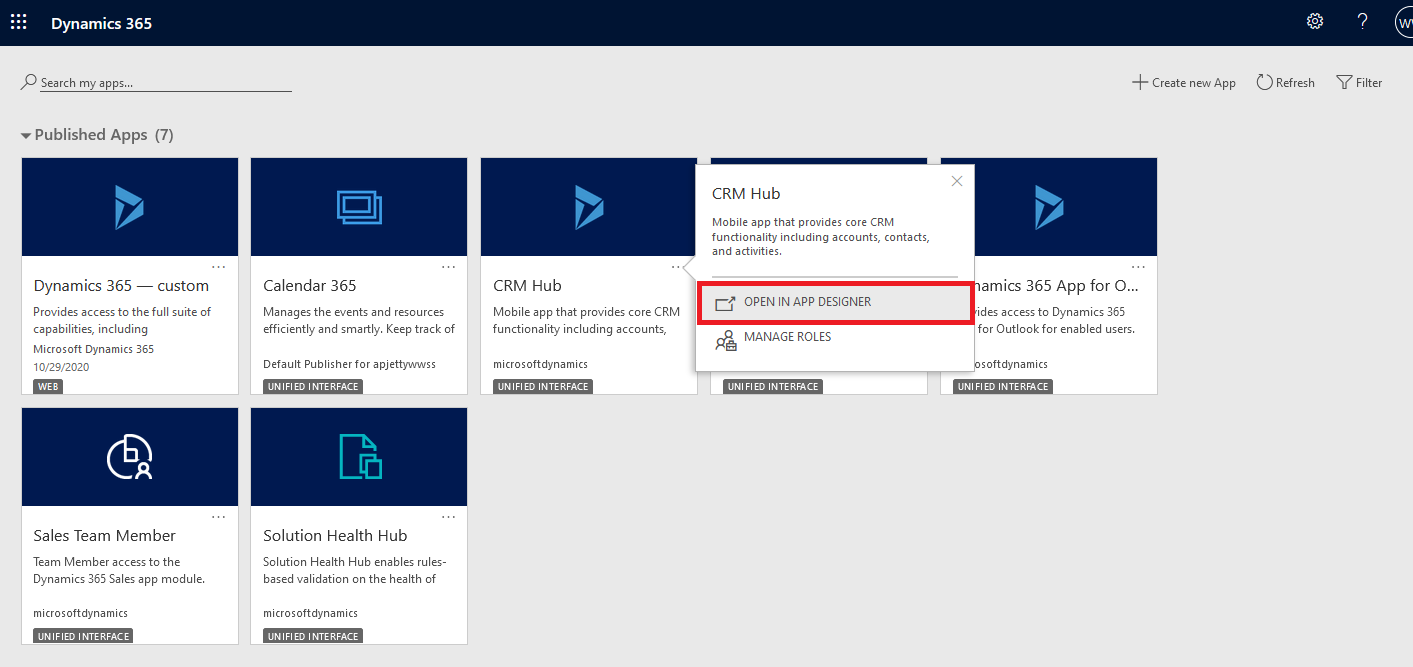
– Go to Apps Sitemap editor (Ex.: “CRM Hub”).
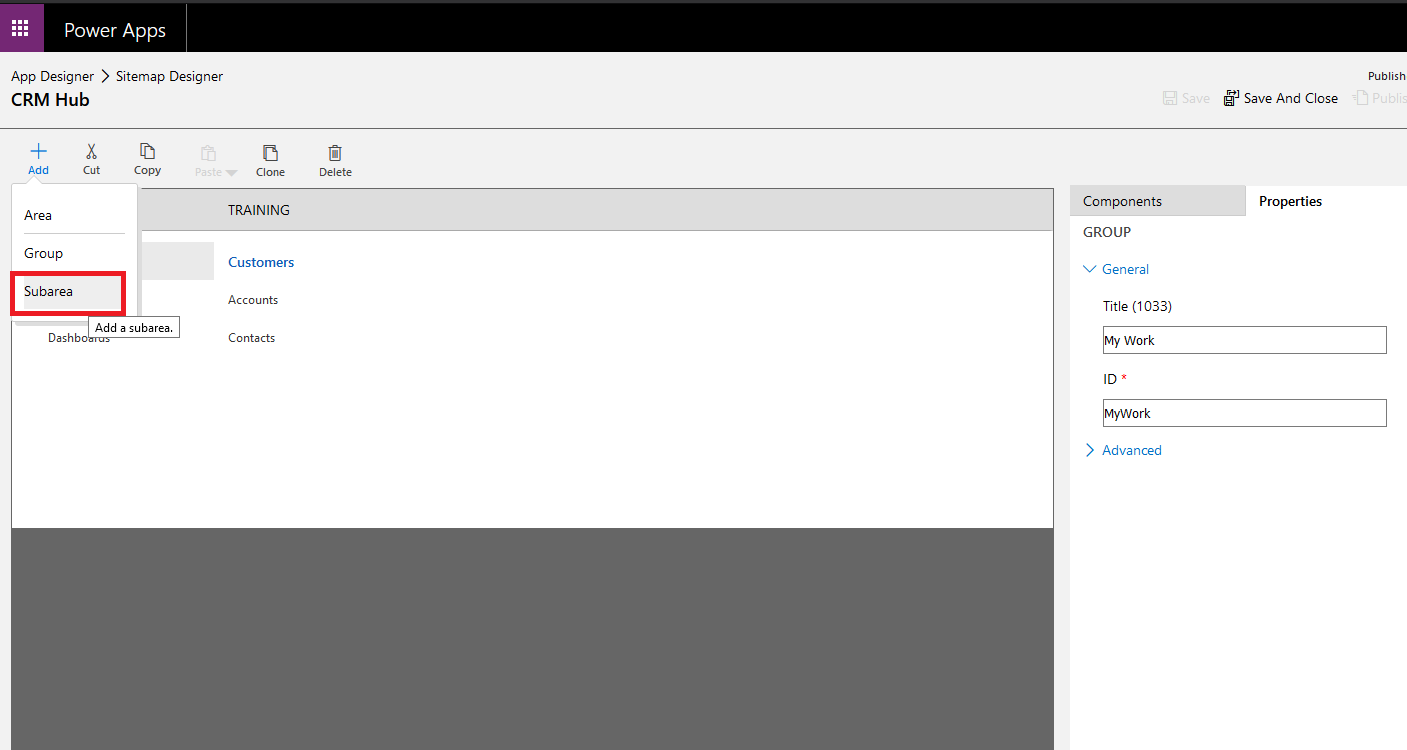
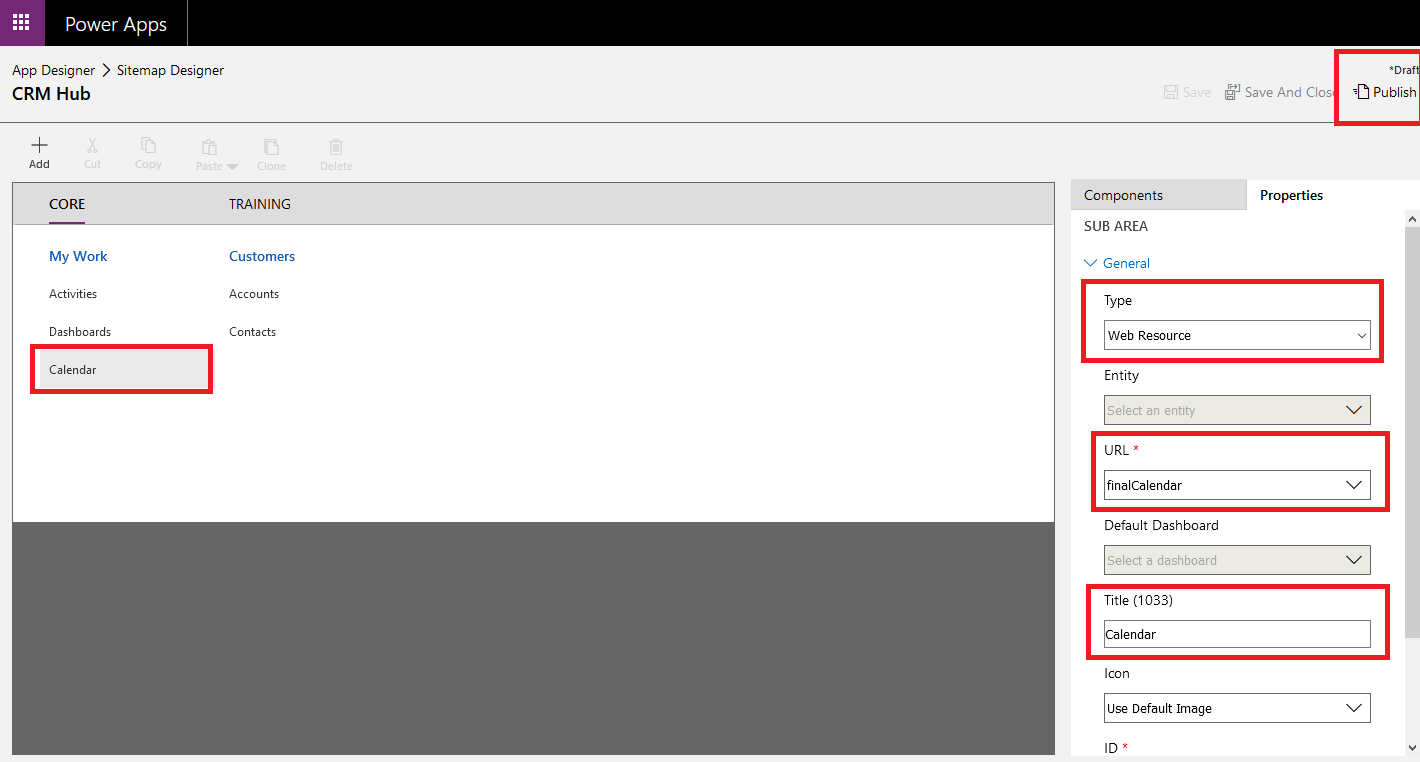
> Type = Web Resource
> URL = finalCalendar
> Title = Calendar (you can add your custom title here)
– Save the modification and click on the Publish button.
Step 3.2: Directly add Dynamics 365 app in Microsoft Teams
You can directly select “Calendar 365” under the Dynamics 365 app that you want to access as a model-driven app.
– Calendar 365 is available as a Model-Driven app so you can also directly select Calendar 365 in Microsoft Teams application selection.
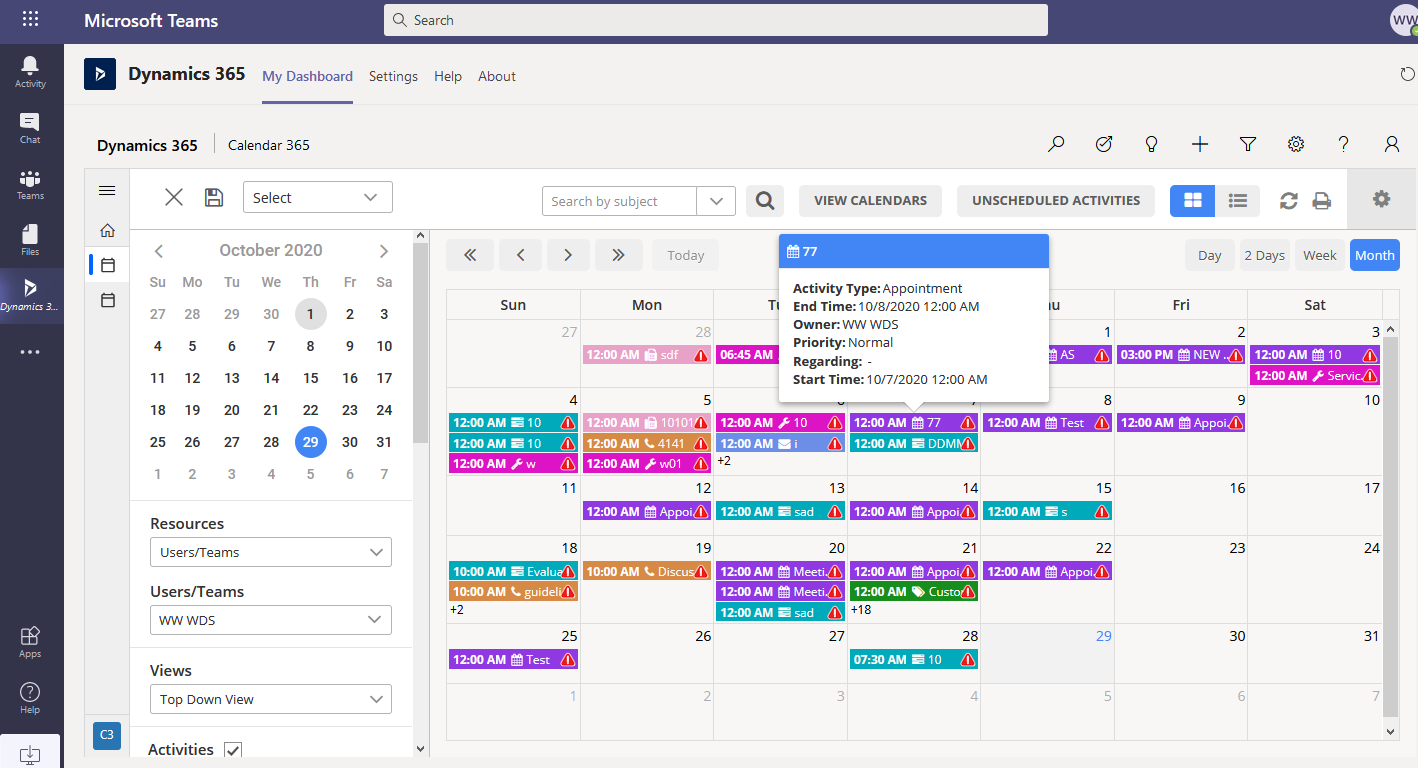
In this way, you can connect Calendar 365 with Microsoft Teams and your team can also access the Calendar 365 records and activities from Microsoft Teams.
All product and company names are trademarks™, registered® or copyright© trademarks of their respective holders. Use of them does not imply any affiliation with or endorsement by them.