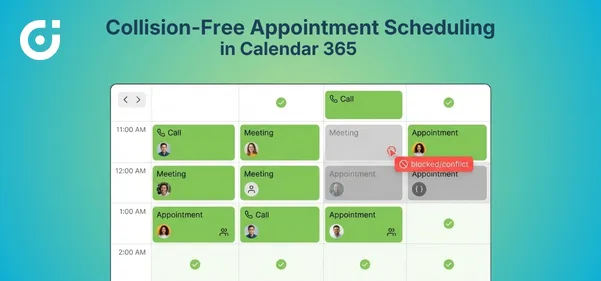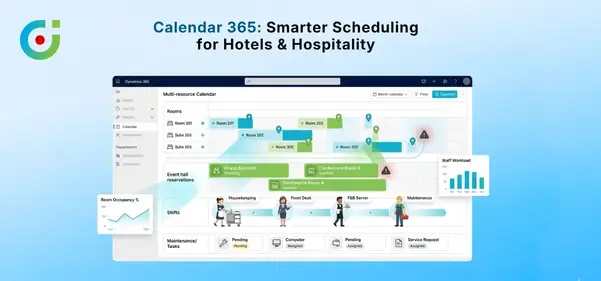
Activity management is a big part of managing a team. The better managed this is, the more efficient your team will be. It helps everyone stay on top of their tasks based. There are several factors that come into play while managing a team’s activities.
To manage and schedule the activities of Dynamics CRM, AppJetty Calendar 365 provides many functionalities & features to manage all the CRM activities including custom activities from the activity calendar of Calendar 365. Calendar 365 provides two types of calendars.
In Calendar 365, the sales managers with Dynamics CRM administrator rights can configure and decide what the fields and the title will show for the activity on the Calendar. You can select the attributes (fields) for the Tooltip, Detail & Title for all the activities individually.
– Title of the activity
– Details on the tooltip by hovering the mouse cursor on the activity, and
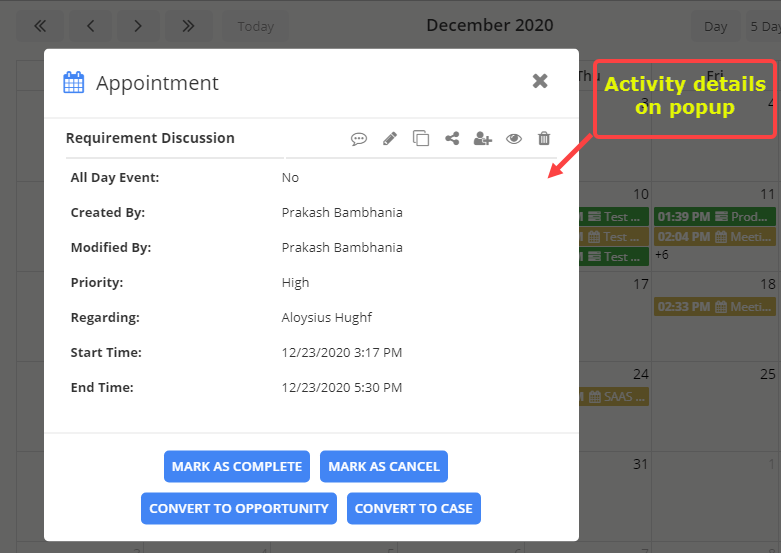
– “Detail view” (popup) by clicking on the activity.
Once the attributes are configured, it will display in both of the activity calendars of Calendar 365.
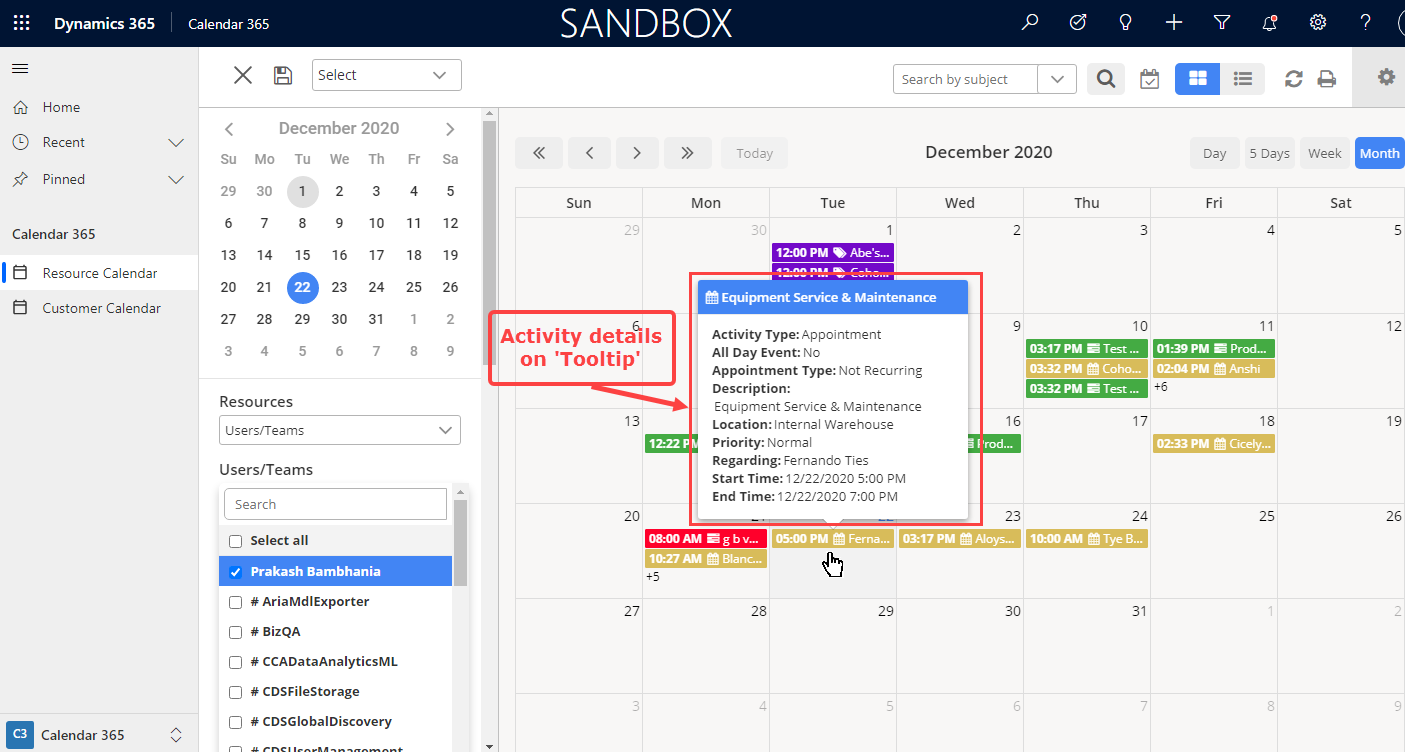
Tooltip attributes help to display details in a small box by moving the mouse cursor on the activity. From the tooltip, any user can easily visualize the activities and take an overview of all the activities.
From this blog, you will get an overview of how to configure the ‘activity appearance’ to show on the calendar.
You need to follow the below steps:
– Navigate to the Calendar 365 configuration
– Select the attributes (fields) for the activity
– View the activity appearance – Title, Tooltip & Detail view in the activity calendars
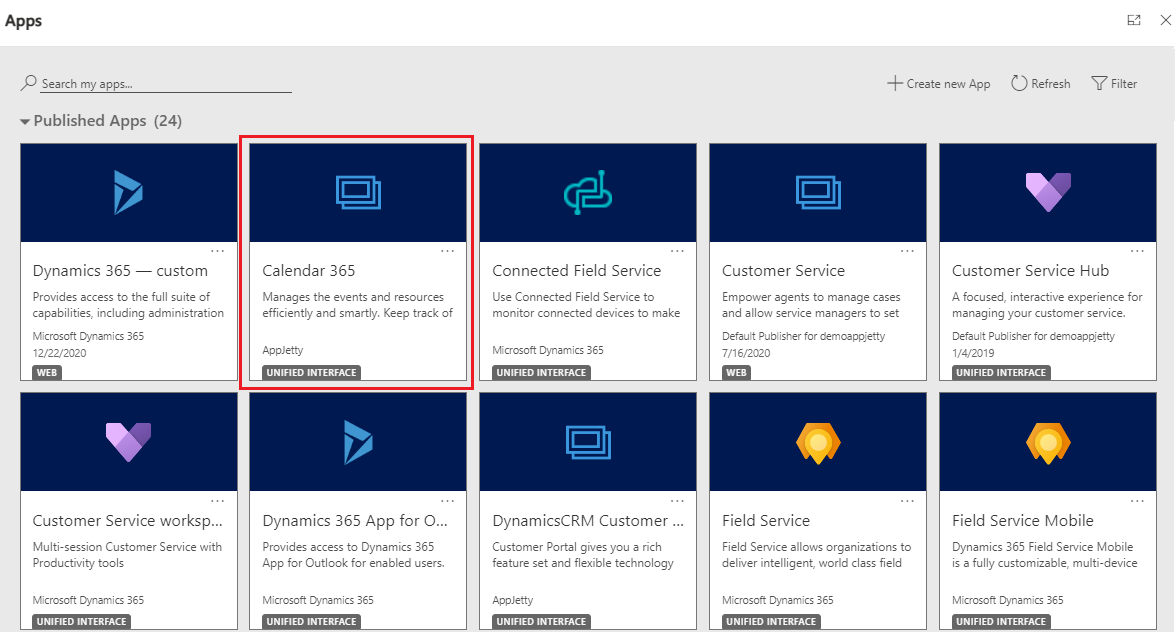
Step-1: Navigate to the ‘Calendar 365’
From the Dynamics CRM Dashboard, find the “Calendar 365” app and click on it.
OR
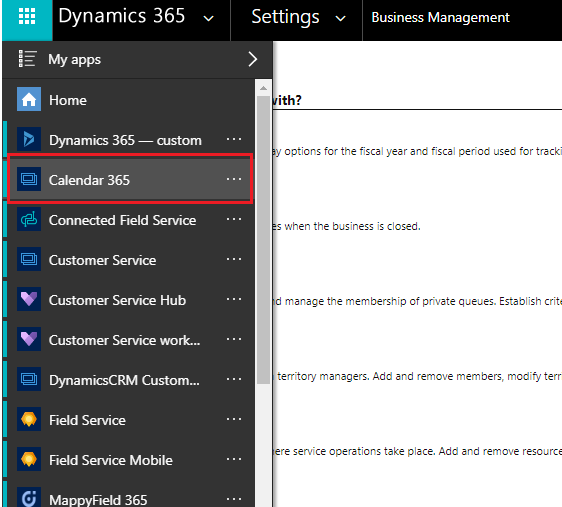
Step-2: Open the ‘Calendar 365 Configuration
From the page of the Calendar 365 Configuration, scroll down to the ‘Activities’ section where you can configure all the activities individually to show in the calendar.
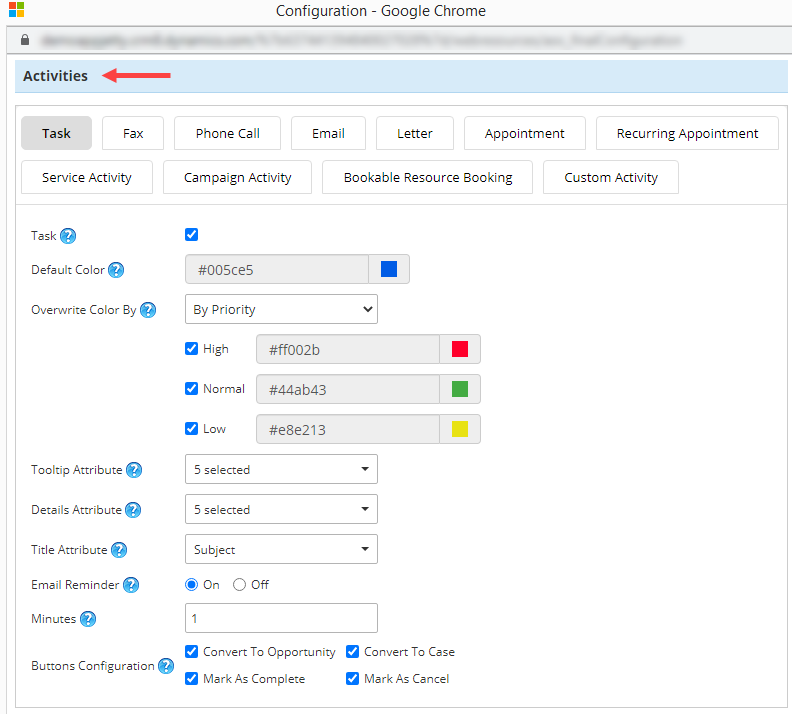
Step-3: Set the attributes for the ‘Appointments’ activity
Let’s see how to set the attributes for the ‘Tooltip’, ‘Details’ & ‘Title’ of the appointment activity.
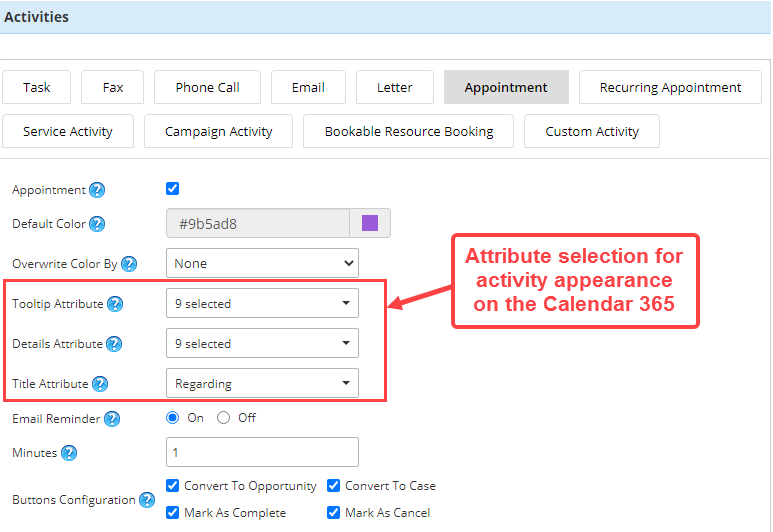
– Details Attribute: Select the details attributes to be included in the ‘activity detail popup’ that appears on clicking the activity in the calendar.
By default, the 5 attributes (Subject, Start Time, End Time, Owner, Regarding) for ‘Tooltip Attributes’ & ‘Detail Attributes’ will already be selected. You can select a minimum of 1 and a maximum of 10 attributes for both attributes.
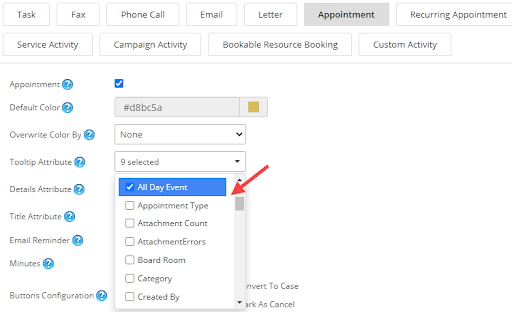
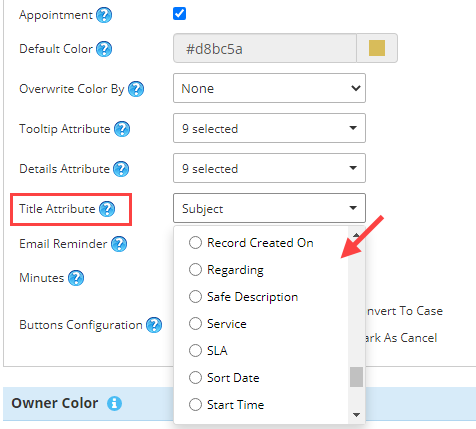
After selecting the attributes for activity appearance in the calendar, click on the ‘Save’ button, and refresh the Calendar once.
Step-4: Visualize activity in Calendar
Let’s see how the activity appears in the activity calendars of ‘Calendar 365’.
Activity Title:
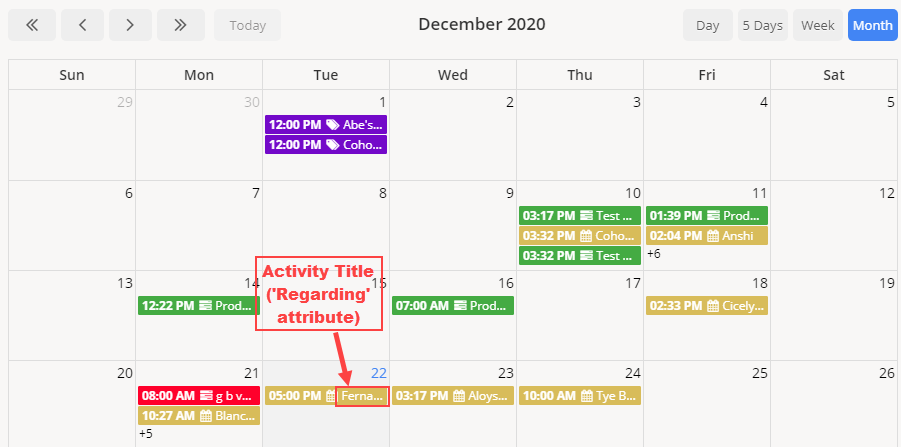
– Once you or the users navigate to the activity calendar page, you will get multiple activities displaying the ‘title’.
Generally, the subject will appear as the ‘title’ of the activity, but you can change & select the ‘Title attribute’ under that specific activity from the Calendar 365 configuration.
– By hovering the mouse cursor on any activity, the details of the activity will be displayed on the ‘tooltip’.
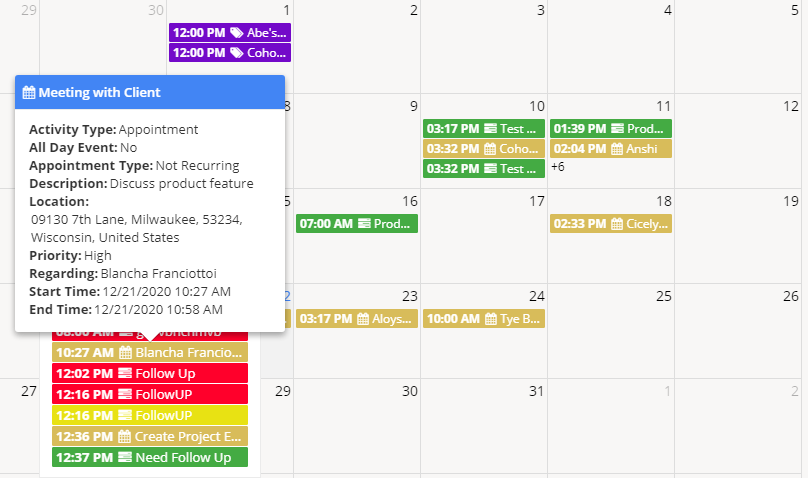
– By clicking on any activity, the details of the activity will be displayed in the popup with various actions for the activity.
Happy organizing with the Dynamics 365 marketing calendar.
All product and company names are trademarks™, registered® or copyright© trademarks of their respective holders. Use of them does not imply any affiliation with or endorsement by them.