How to Create a Follow-Up Appointment in Resource Calendar in Dynamics 365

How to Create a Follow-Up Appointment in Resource Calendar in Dynamics 365

Amit Shah

January 16th, 2023

In this blog, you will learn how to create a follow-up appointment in the Dynamics 365 Calendar.

Suppose you want to create a follow-up appointment (especially when you want to see which follow-up appointment was created towards which account at some point later). In that case, you need to set up a relationship between individual appointments.

Follow the below-mentioned steps to create a follow-up appointment in Calendar 365.

Step 1: Navigate to the AppJetty Calendar 365.

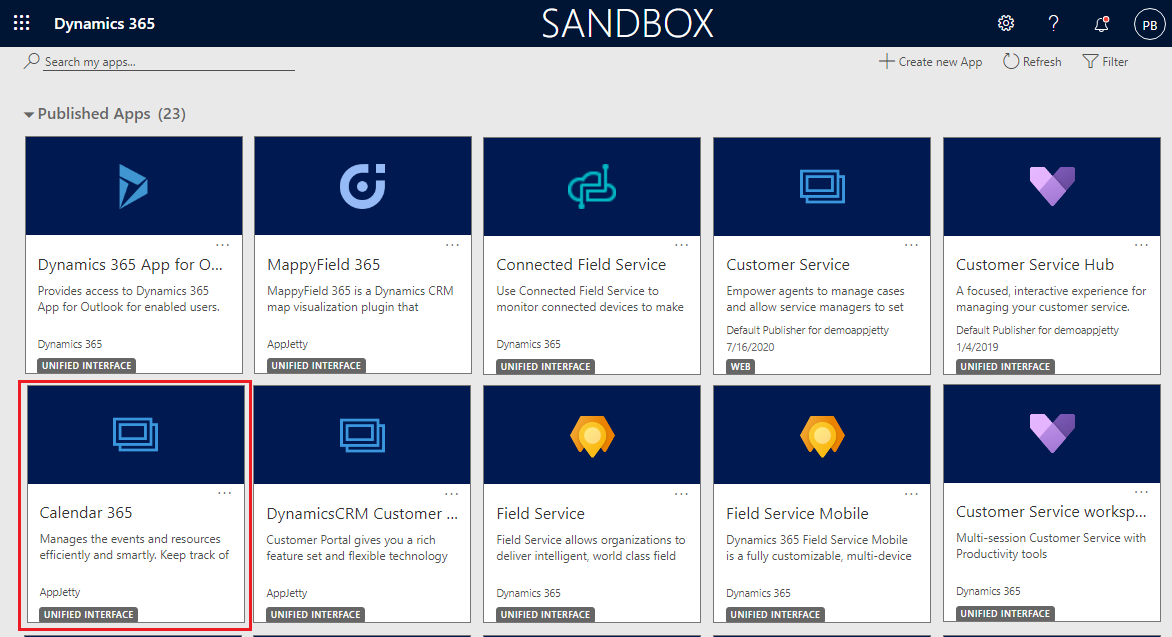
Click on “Calendar 365” from the apps list and navigate to the custom calendar of Calendar 365.
Resource Calendar-1
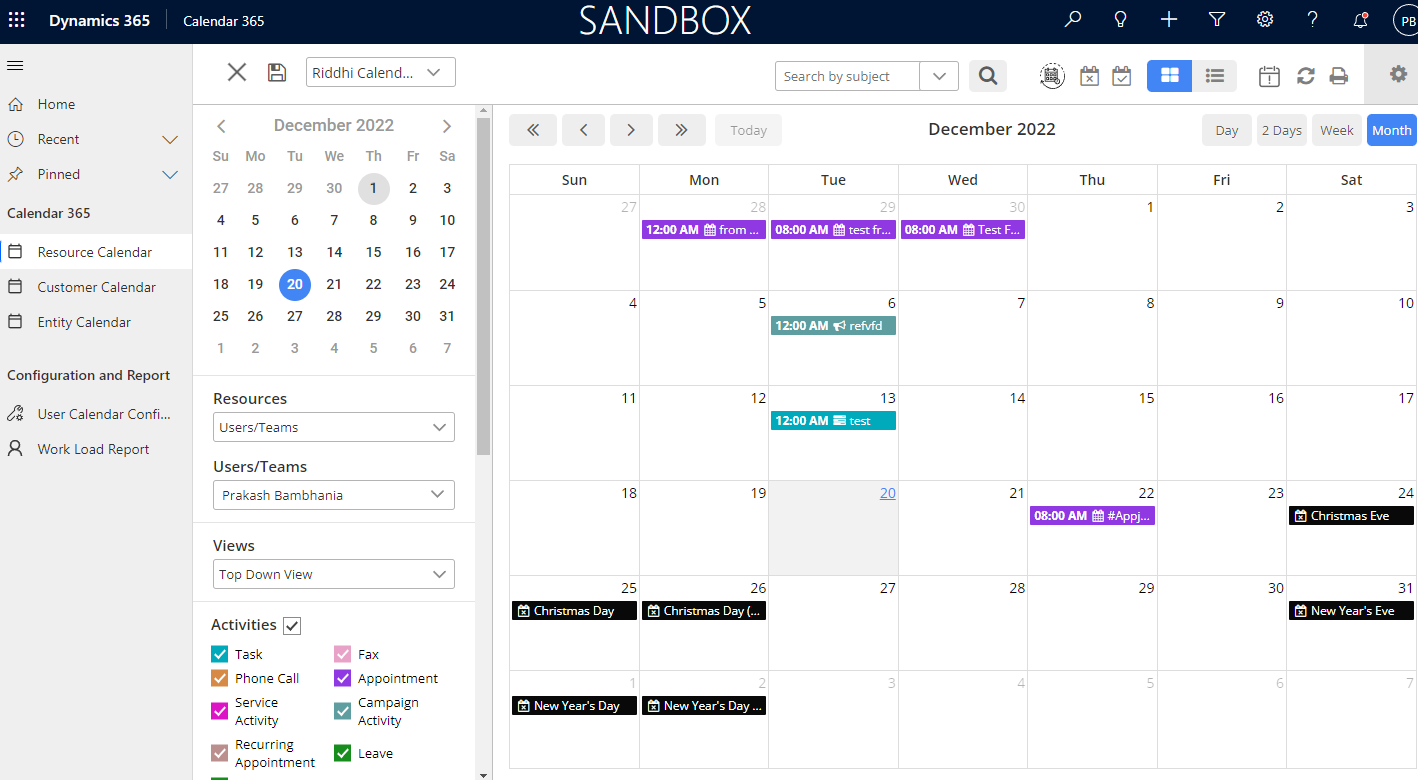
You will navigate to the custom calendar of Calendar 365. Here, you will see the three types of calendars:

> Resource Calendar

> Customer Calendar

> Entity Calendar
Resource Calendar-2
Step 2: Navigate to The Resource Calendar

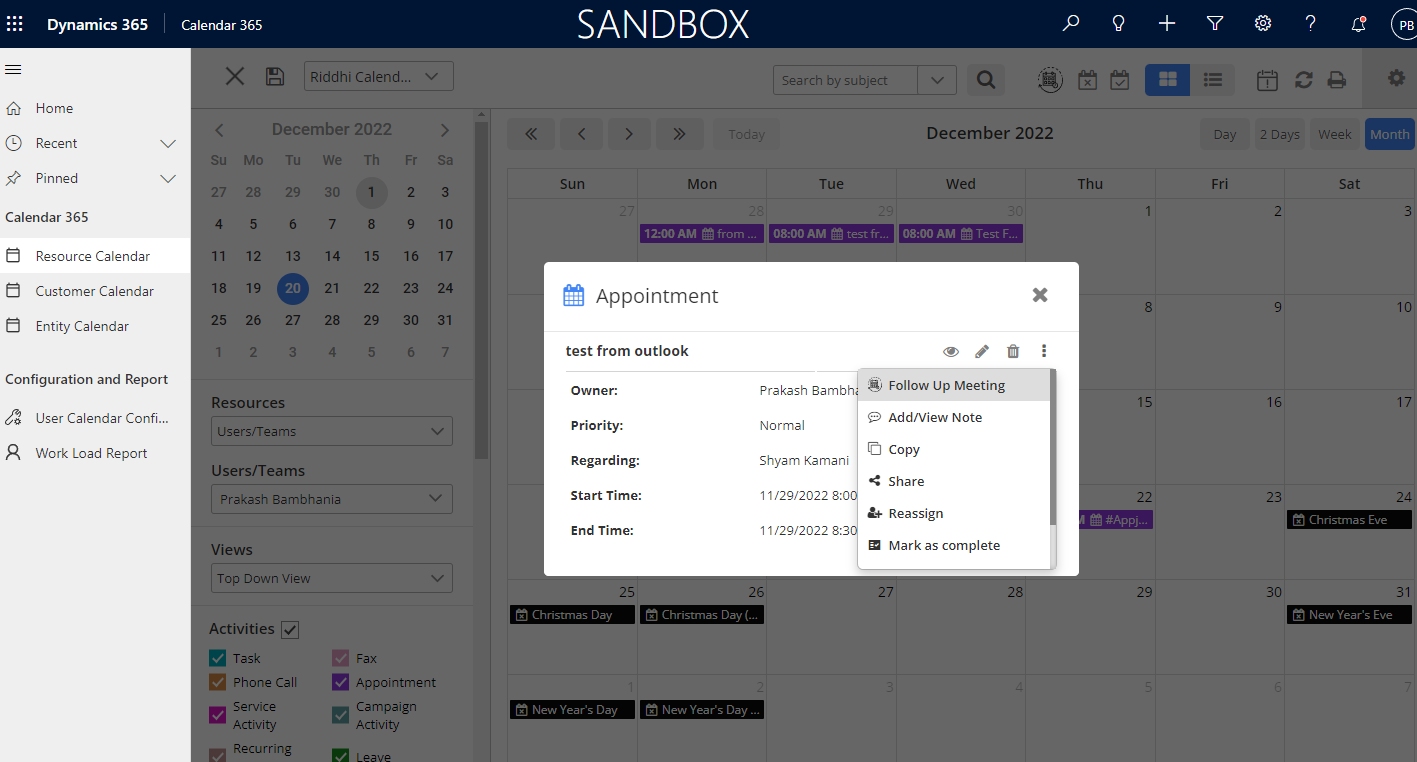
Click on Resource Calendar, and it will show all the Appointments. Click on any Appointment.
Resource Calendar-3
Step 3: Click The Follow Up Meeting

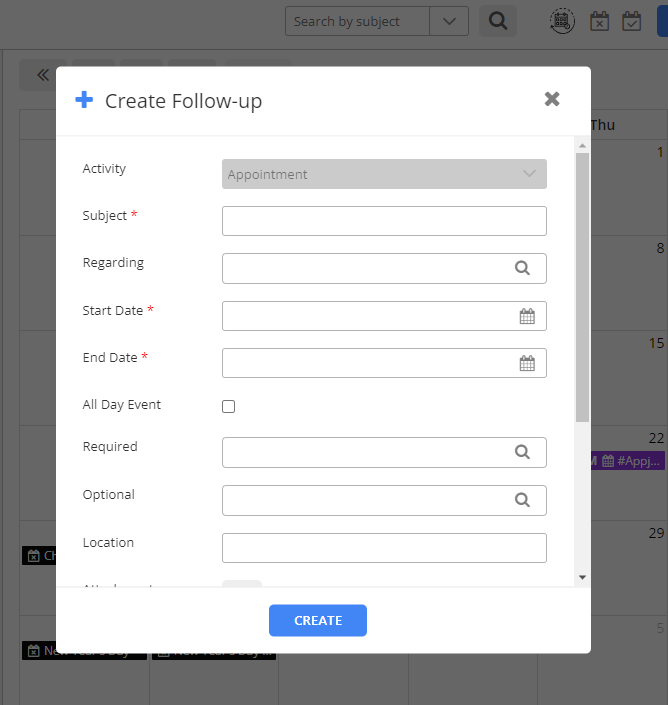
On clicking the Follow Up Meeting, the Create Follow Up popup will show up.
Resource Calendar-4
Enter The Subject Name, Regarding, Start Date, End Date, Required, Location, Attachment, Priority, and Description. Click on the Create button.

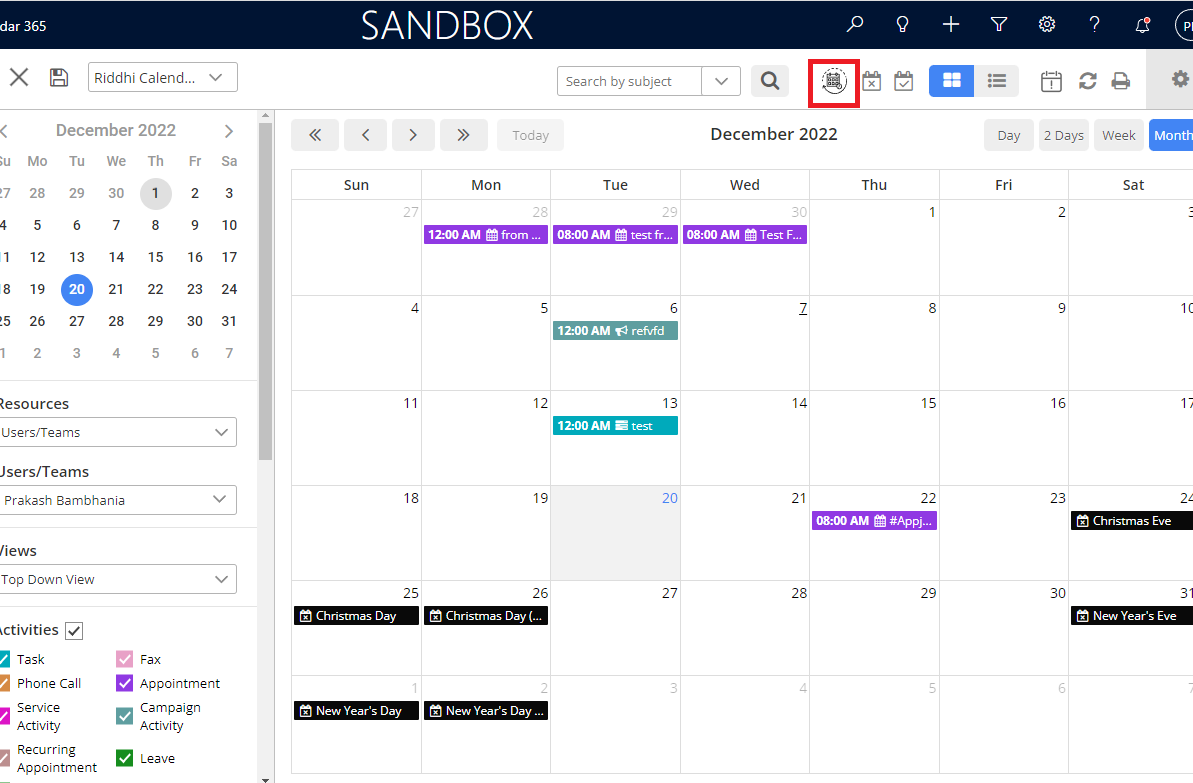
Step 4: Create a Follow-up Meeting that will open after clicking on the icon.
Resource Calendar-5
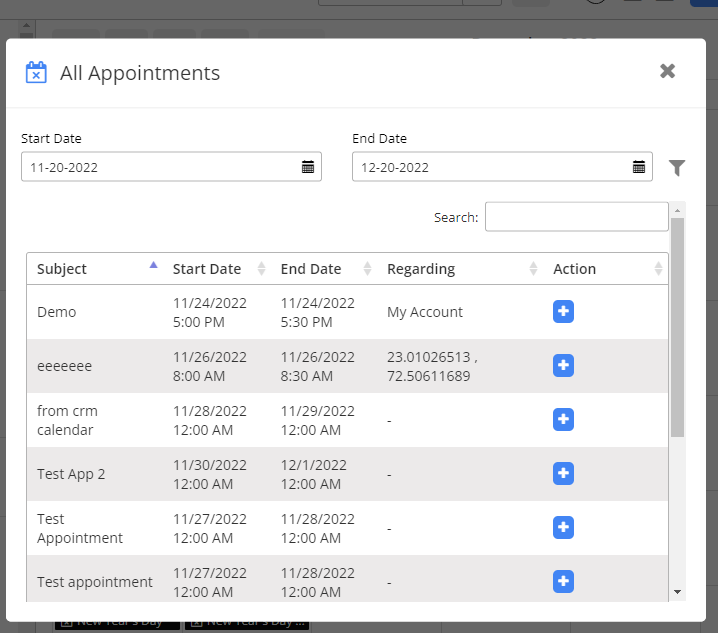
Click on the icon shown in the above image, and a popup of All Appointments will open. You can see all the appointments and follow-up meetings in the list view.

Resource Calendar-6
Select the Start Date And End Data, and Search for follow-up appointments.

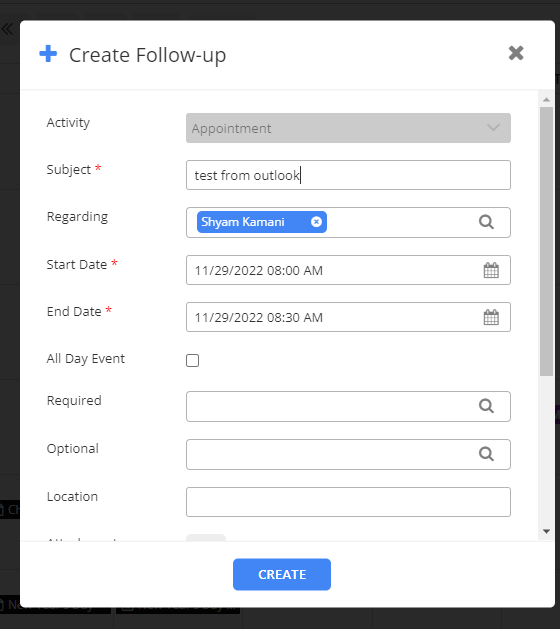
Step 5: Directly Create a Follow-Up Appointment 

Click the Plus icon in the list of appointments to directly create a new follow-up appointment. Enter all the information, then click the create button.
Resource Calendar-7
In this way, you can create a follow-up appointments in the resource calendar.

All product and company names are trademarks™, registered® or copyright© trademarks of their respective holders. Use of them does not imply any affiliation with or endorsement by them.
Read Related Blogs About Calendar 365

How Collision-Free Appointment Scheduling in Calendar 365 Puts an End to Double Bookings

How Collision-Free Appointment Scheduling in Calendar 365 Puts an End to Double Bookings

6 Min
Dynamics 365 Calendar for Hotels & Hospitality – Managing Bookings and Staff Schedules

Dynamics 365 Calendar for Hotels & Hospitality – Managing Bookings and Staff Schedules

6 Min
Calendar 365 vs Microsoft Bookings: Choosing the Right Scheduling Tool for Dynamics 365

Calendar 365 vs Microsoft Bookings: Choosing the Right Scheduling Tool for Dynamics 365

6 Min