How to View Appointments for Required/Optional Attendies in Calendar 365

How to View Appointments for Required/Optional Attendies in Calendar 365

Amit Shah

July 27th, 2022

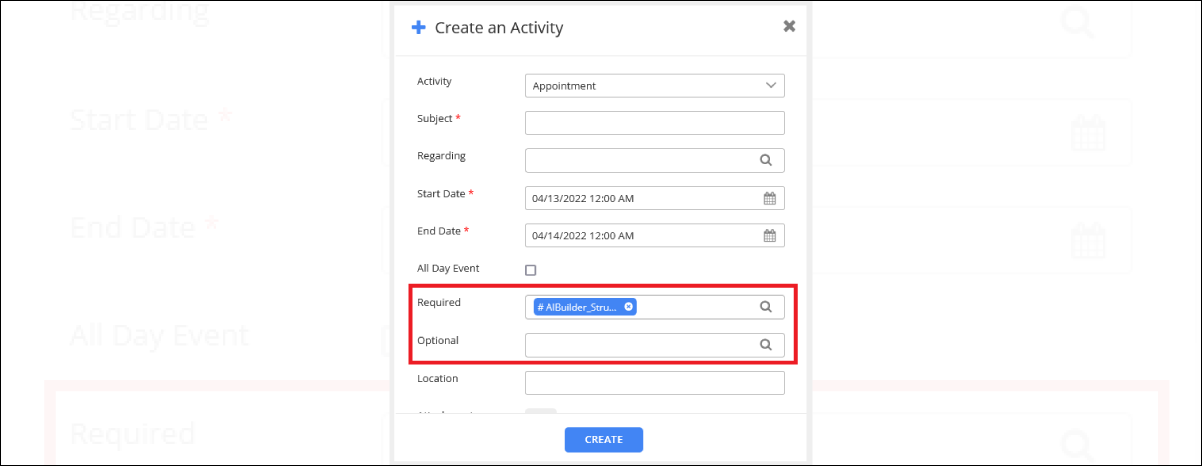
Admins can now add required attendees to the appointment as per requirement. Any person required in the appointment, can be added through Required field in the Dynamics 365 Calendar. Here is how you can add the required attendees in the appointment.

Step 1: Navigate to Setup tab ➤ Calendar Setting and enable “Set Activity Visibility” field.
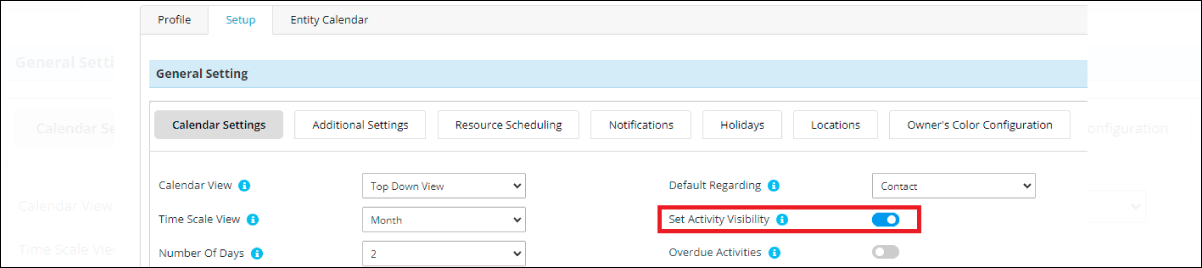
Set Activity Visibility
Step 2: Set the user in required/optional fields then save it.

Create an Activity

  • Go to the calendar and select your user.
  • You can see the appointment in which you set that user as a required/optional.
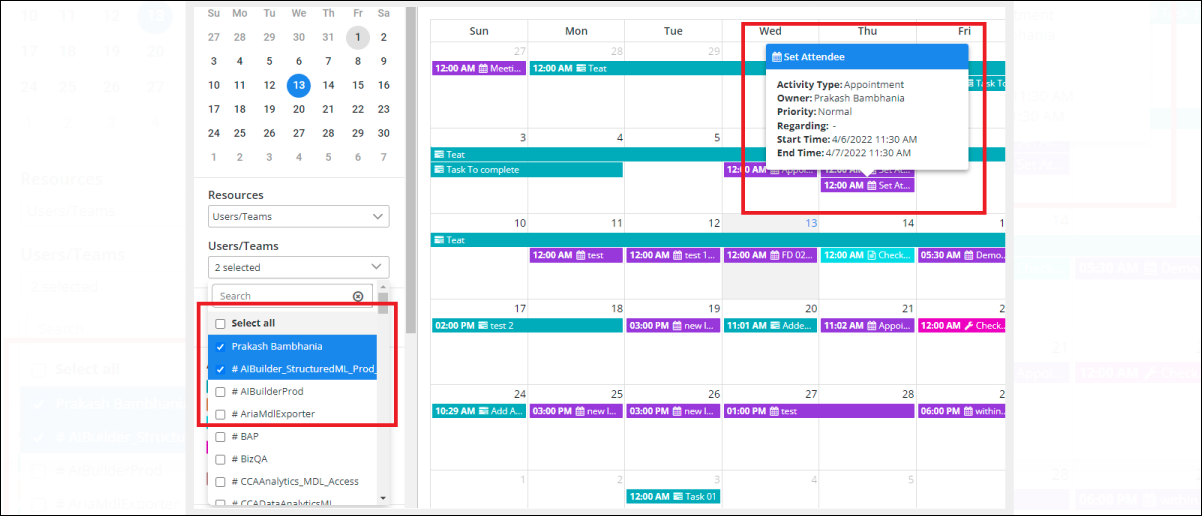
You can see the appointment

All product and company names are trademarks™, registered® or copyright© trademarks of their respective holders. Use of them does not imply any affiliation with or endorsement by them.
Read Related Blogs About Calendar 365

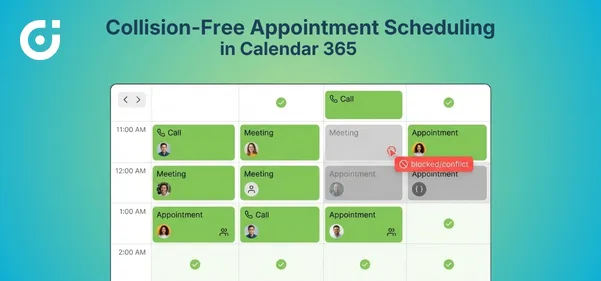
How Collision-Free Appointment Scheduling in Calendar 365 Puts an End to Double Bookings

How Collision-Free Appointment Scheduling in Calendar 365 Puts an End to Double Bookings

6 Min
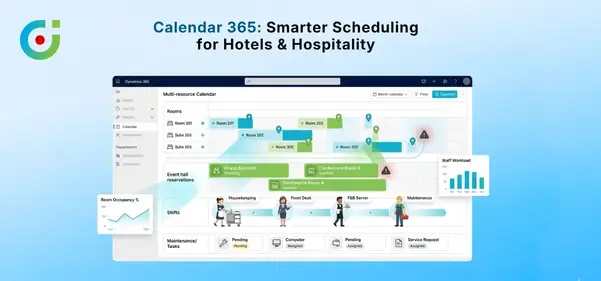
Dynamics 365 Calendar for Hotels & Hospitality – Managing Bookings and Staff Schedules

Dynamics 365 Calendar for Hotels & Hospitality – Managing Bookings and Staff Schedules

6 Min
Calendar 365 vs Microsoft Bookings: Choosing the Right Scheduling Tool for Dynamics 365

Calendar 365 vs Microsoft Bookings: Choosing the Right Scheduling Tool for Dynamics 365

6 Min