Reworking on any project or proposal wastes valuable time and money. Default templates can be customized for various purposes and audiences, saving you time. Templates have a unified appearance, making it easier for your team to quickly locate important information. With these templates, you can create the framework of elements needed to complete the report.
To avoid reworking in the Dynamics 365 field mapping, you can save the default templates in the CRM. Once you set a template as default, it will automatically load in your CRM.
Now, let’s see how you can configure the default template in Mappyfield.
Step 1: Navigate to MappyField 365
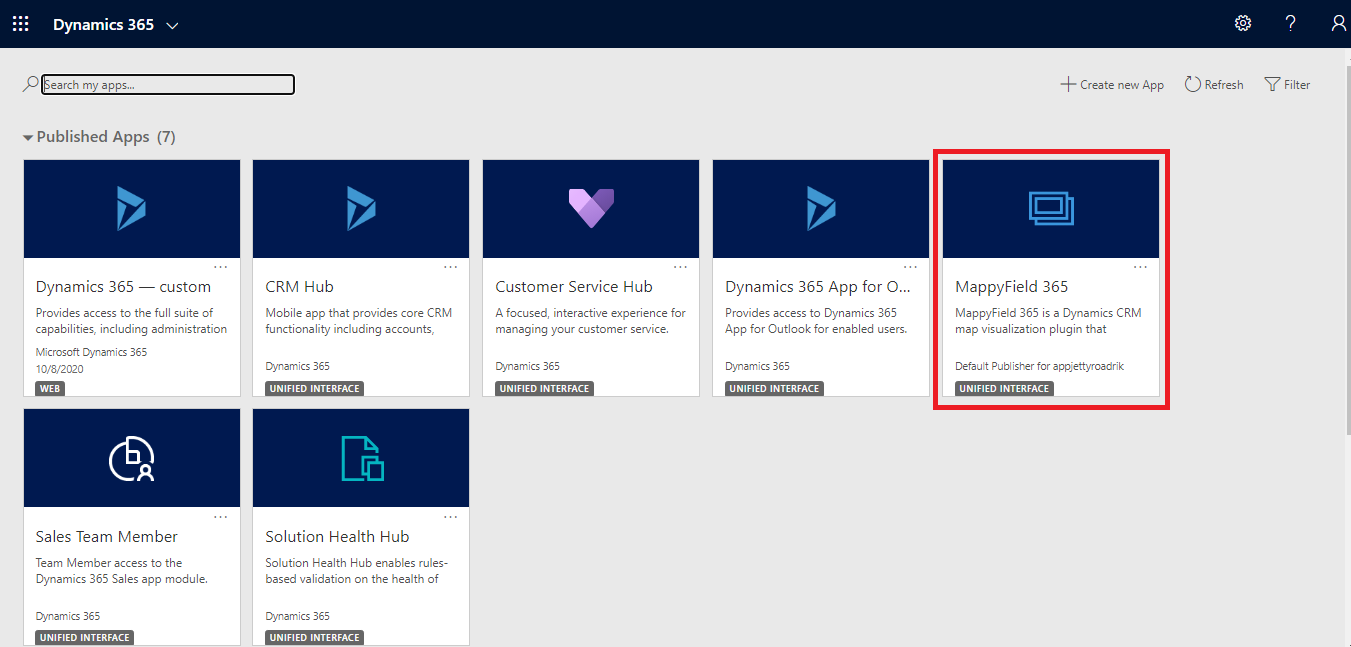
Select ‘MappyField 365’ from the Dynamics 365 dashboard or app list.
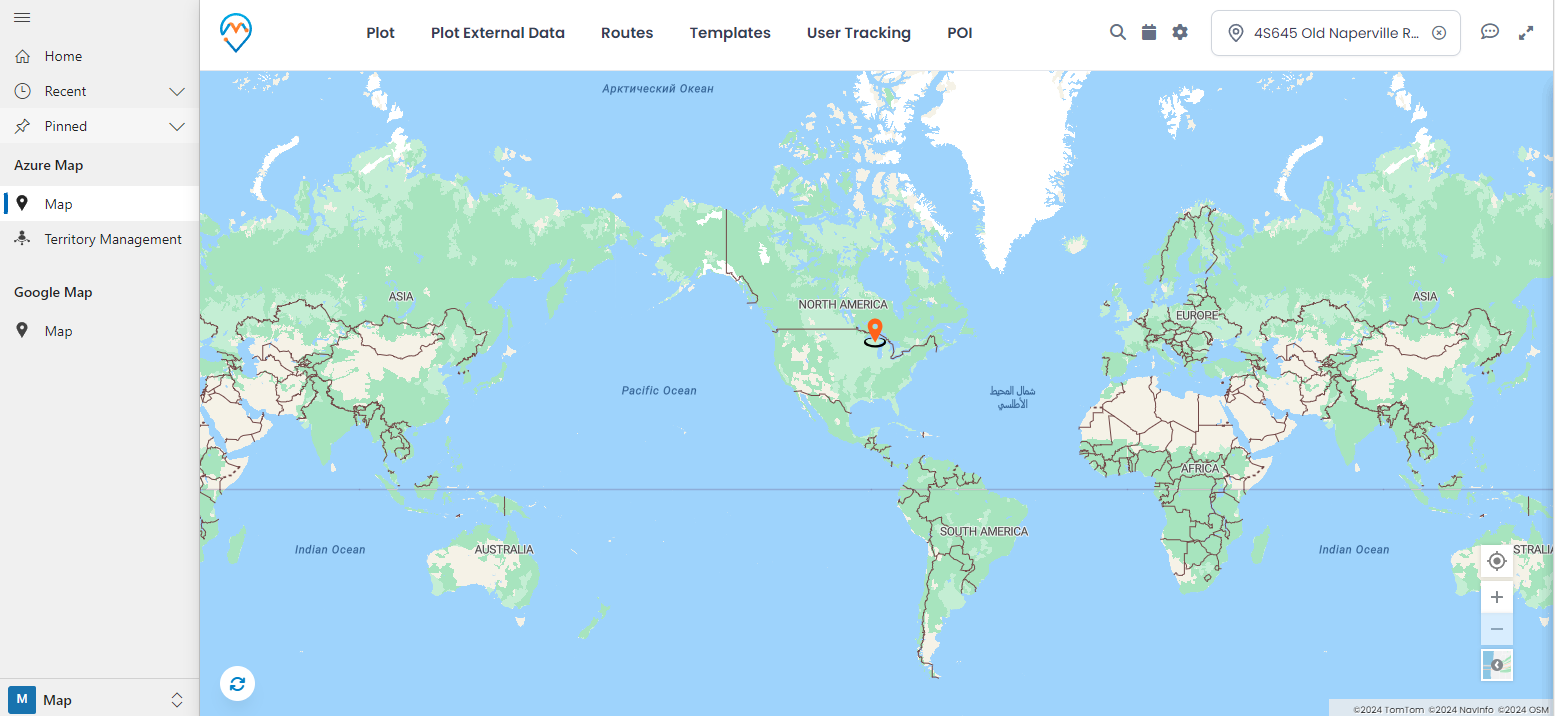
By default, you will be directed to the ‘Map View’ of MappyField 365.
Step 2: Plot entity records on the map
You can plot the entity records on the map. Suppose you want to plot the records of the ‘Accounts’ entity for the ‘Texas’ area. In that case, you need to select the entity and its view, and you need to enter Texas.
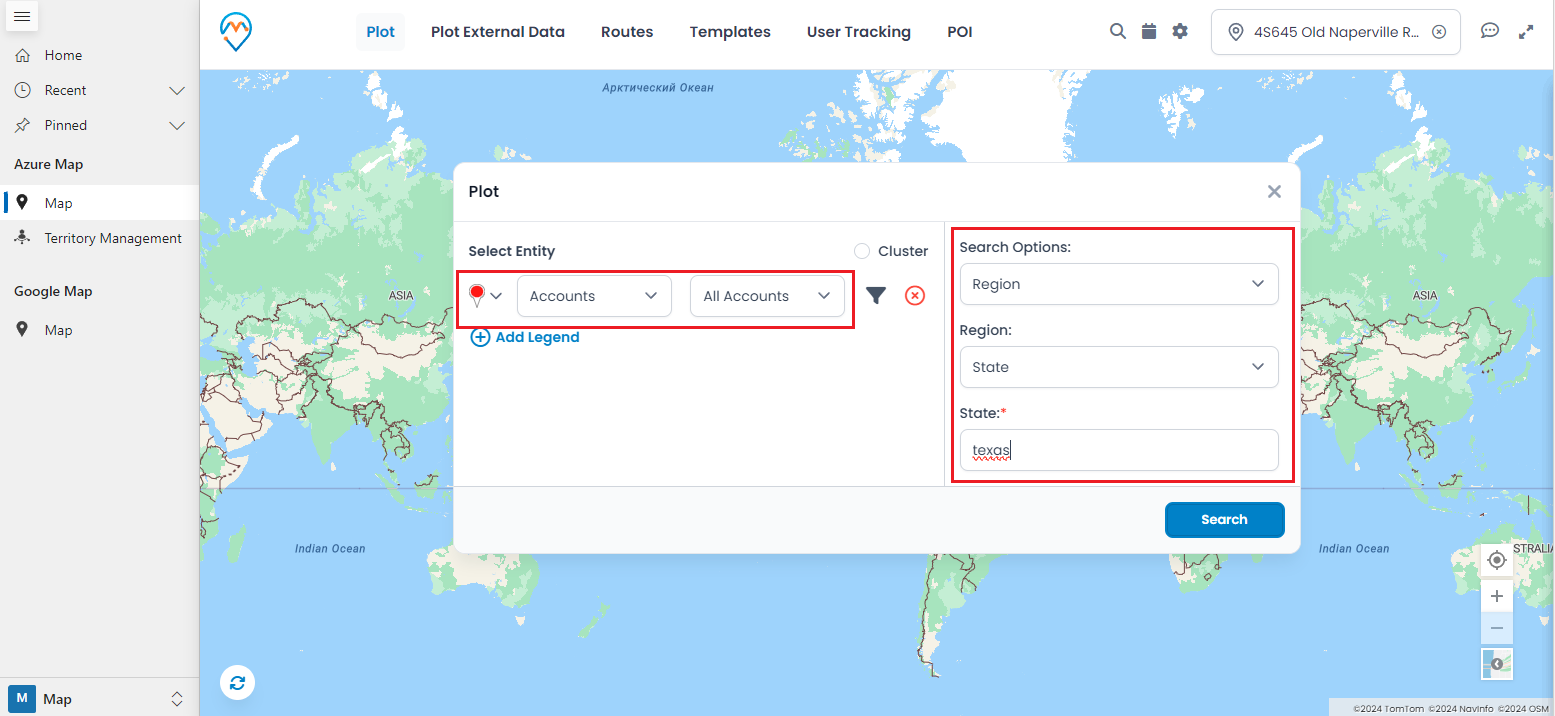
After inserting the entity and selecting the search option, click the Search button to plot the records on the map. The entity records will be plotted on the map.
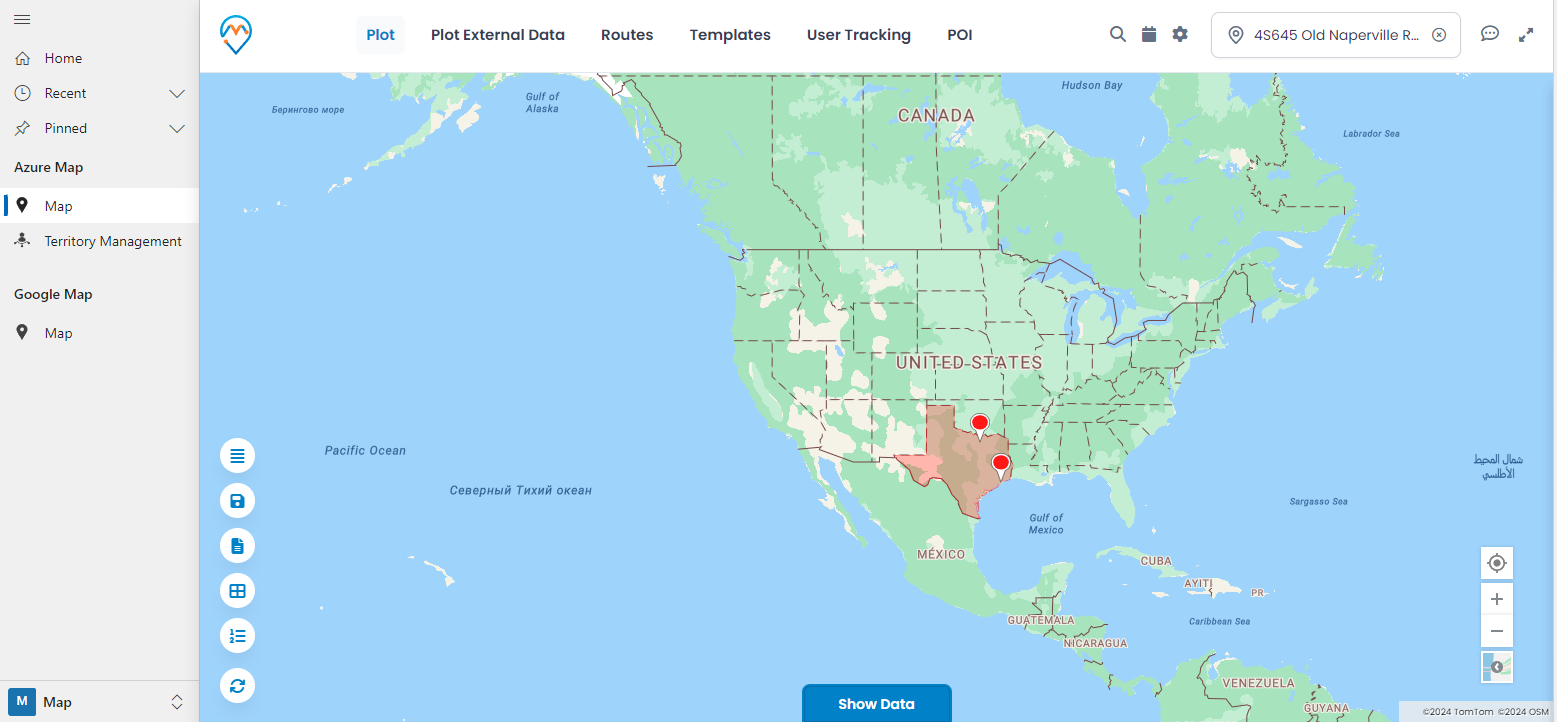
Step 3: Save as Template
After plotting data on a map in Dynamics 365 Field Mapping, you can save the plotted records as a template form. To do this, find the ‘Save Template’ card in the Advanced Options panel of MappyField 365.
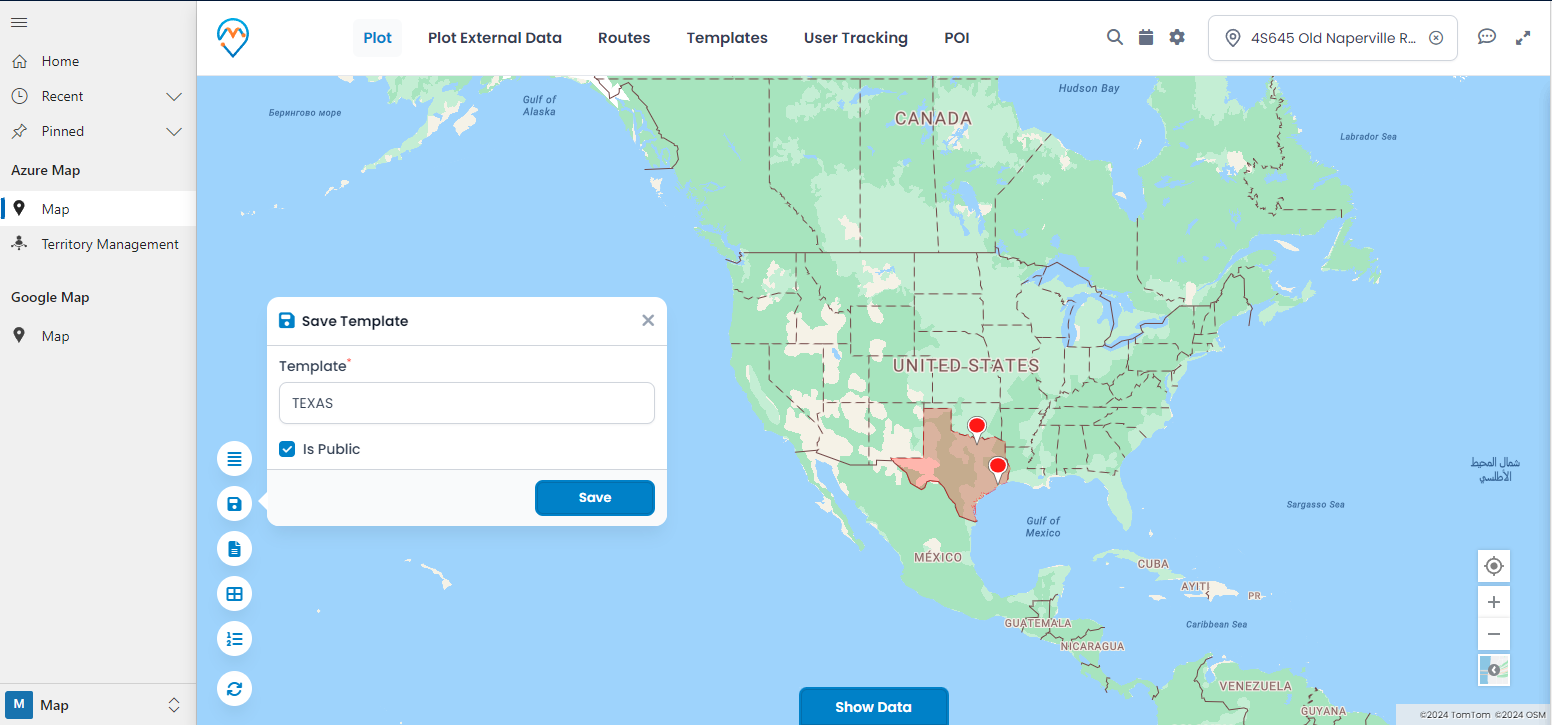
By clicking on the Save Template icon, you will see a popup where you can insert the template name and set its visibility.
- Template: Enter the relevant name for the template.
- Is Public: If you want to share the template with all concerned CRM users, check the “Is Public” option. Otherwise, leave it unchecked to make the template private.
Finally, click the Save button to save the template. You will be able to see the saved template in the “Templates” menu in the header.
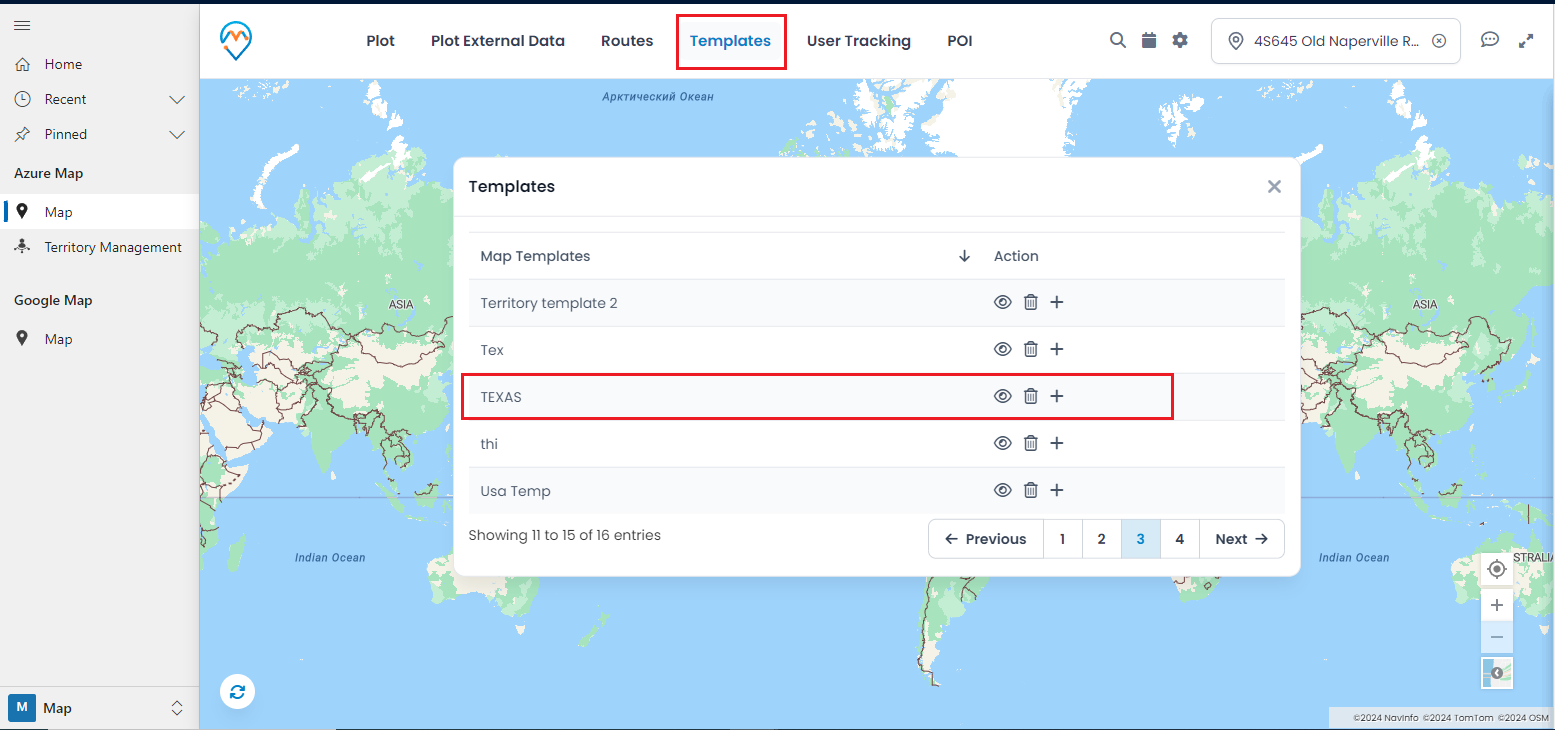
You can view the saved templates from the “Templates” menu. There are three actions you can perform on a template:
i) View: Clicking the ‘view’ (eye) icon will load the map with the plotted records according to the template.
ii) Delete: Clicking the ‘delete’ (trash) icon will delete the template.
iii) Set as Default: Clicking the ‘plus’ icon will set the template as the default.
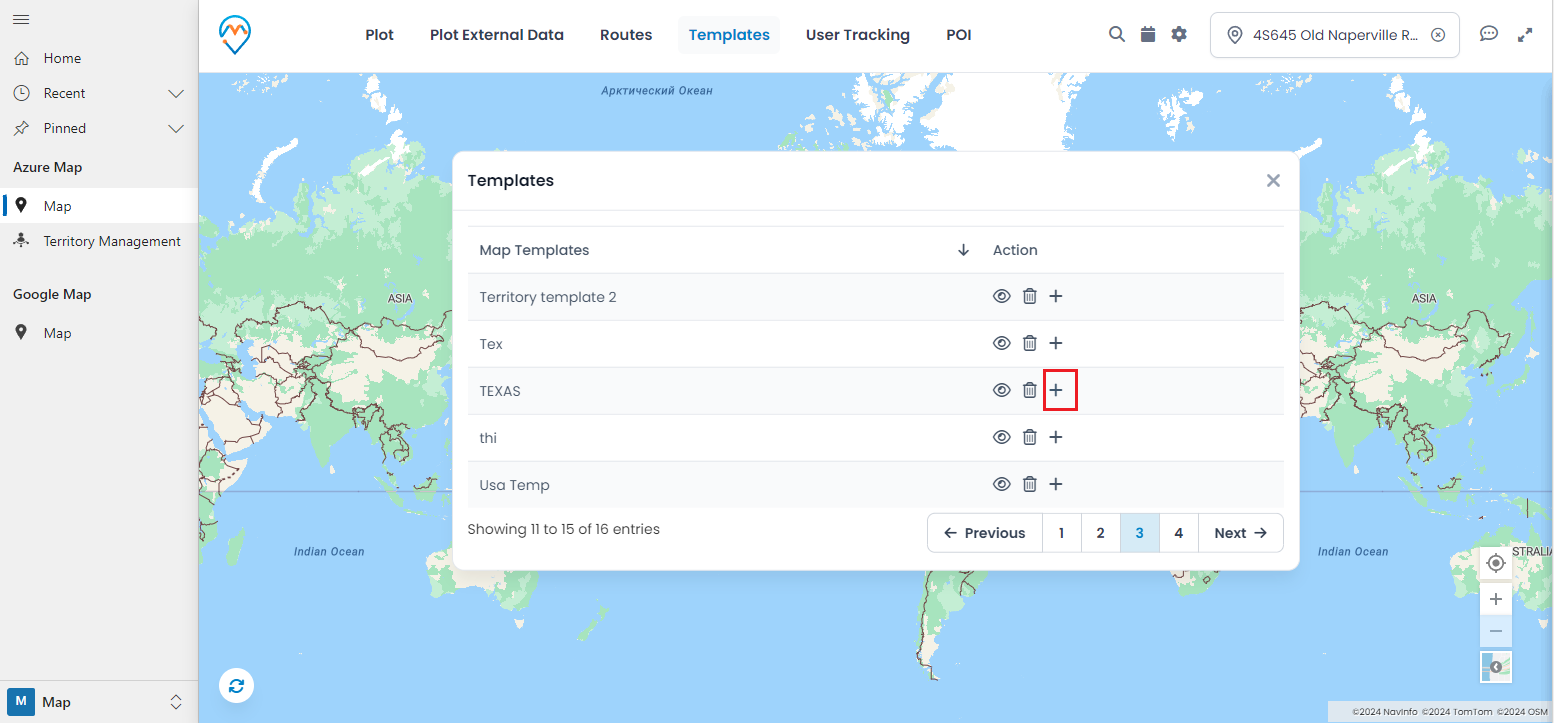
You can set only one template as the default template. Therefore, when the map is loaded, you will see the plotted records according to the default template.
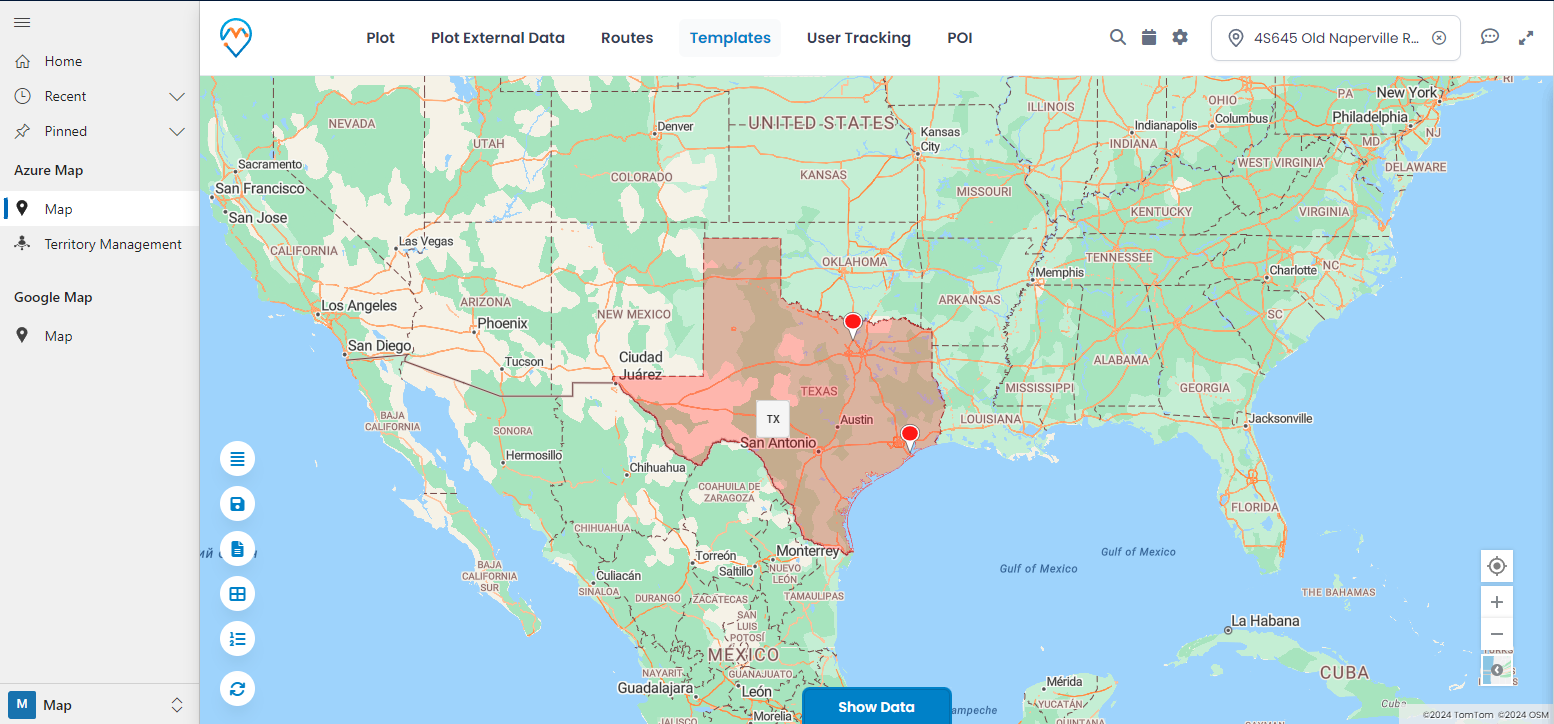
The templates feature of Dynamics 365 field mapping helps you save map configurations so that you can return to them later and tweak them according to the requirements.
AppJetty MappyField 365 is a Dynamics CRM map integration plugin that helps plot your CRM data on the map. Using MappyField 365, CRM users can gain detailed information about their market geography and prospective locations.
All product and company names are trademarks™, registered® or copyright© trademarks of their respective holders. Use of them does not imply any affiliation with or endorsement by them.