As a Sales Manager or Head of the team, it is essential to understand and survey current sales activities, plan for upcoming leads and opportunities, and address any pending inquiries. To achieve this, specific records are required to enhance sales activities and keep all tasks aligned.
Dynamics 365 map integration allows you to search category-wise records for selected entities directly from the map. Using the individual ‘Category’ option, you can easily filter entity records by category.
Follow the steps below to search for category-wise entity records:
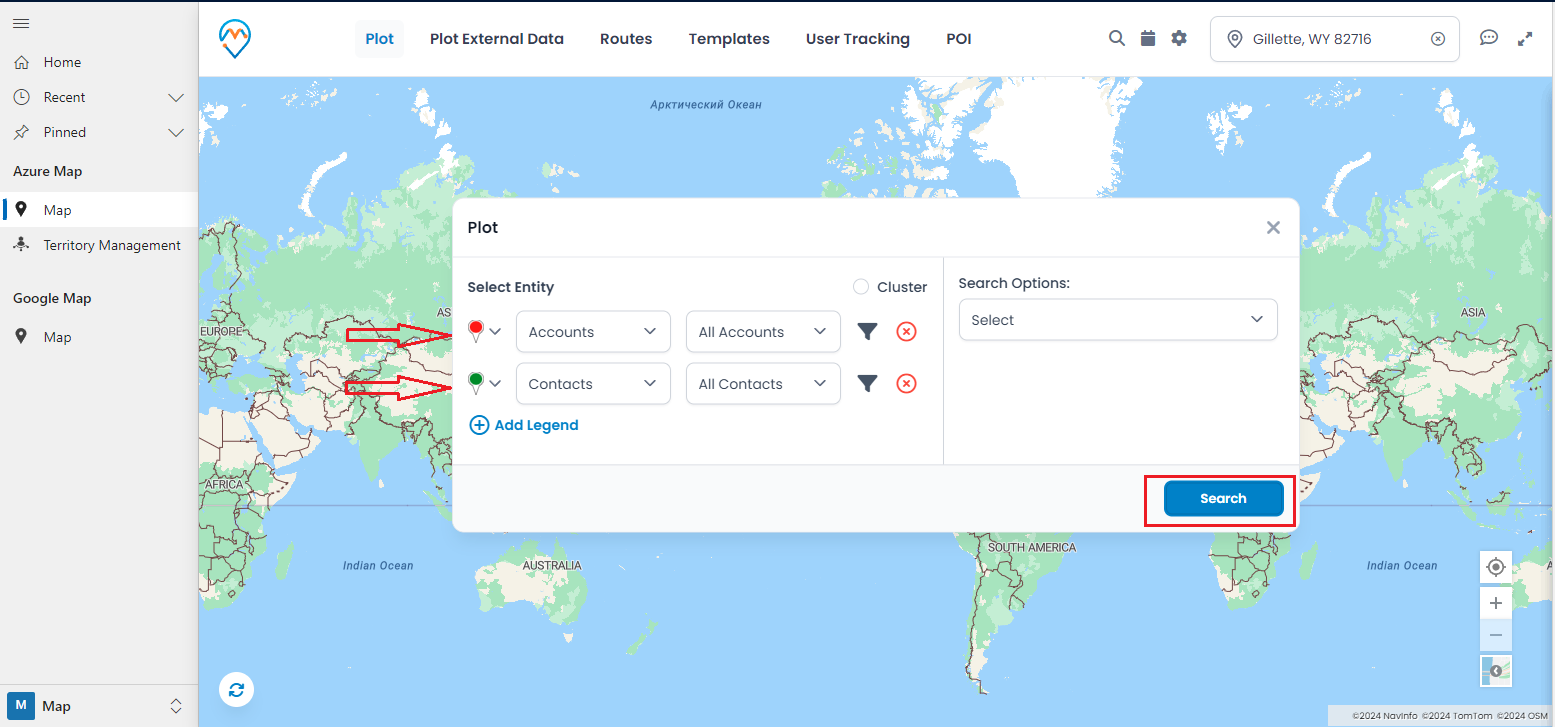
1. Select the entity and plot the records.
2. Choose the category for the entity (Records will be plotted based on the category selected).
3. Navigate to the selected entities from the right-side panel (Category Slider).
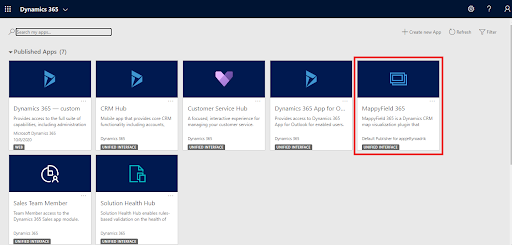
Step 1: Navigate to MappyField 365 Select “MappyField 365” from the Dynamics 365 dashboard or the app list in the header.
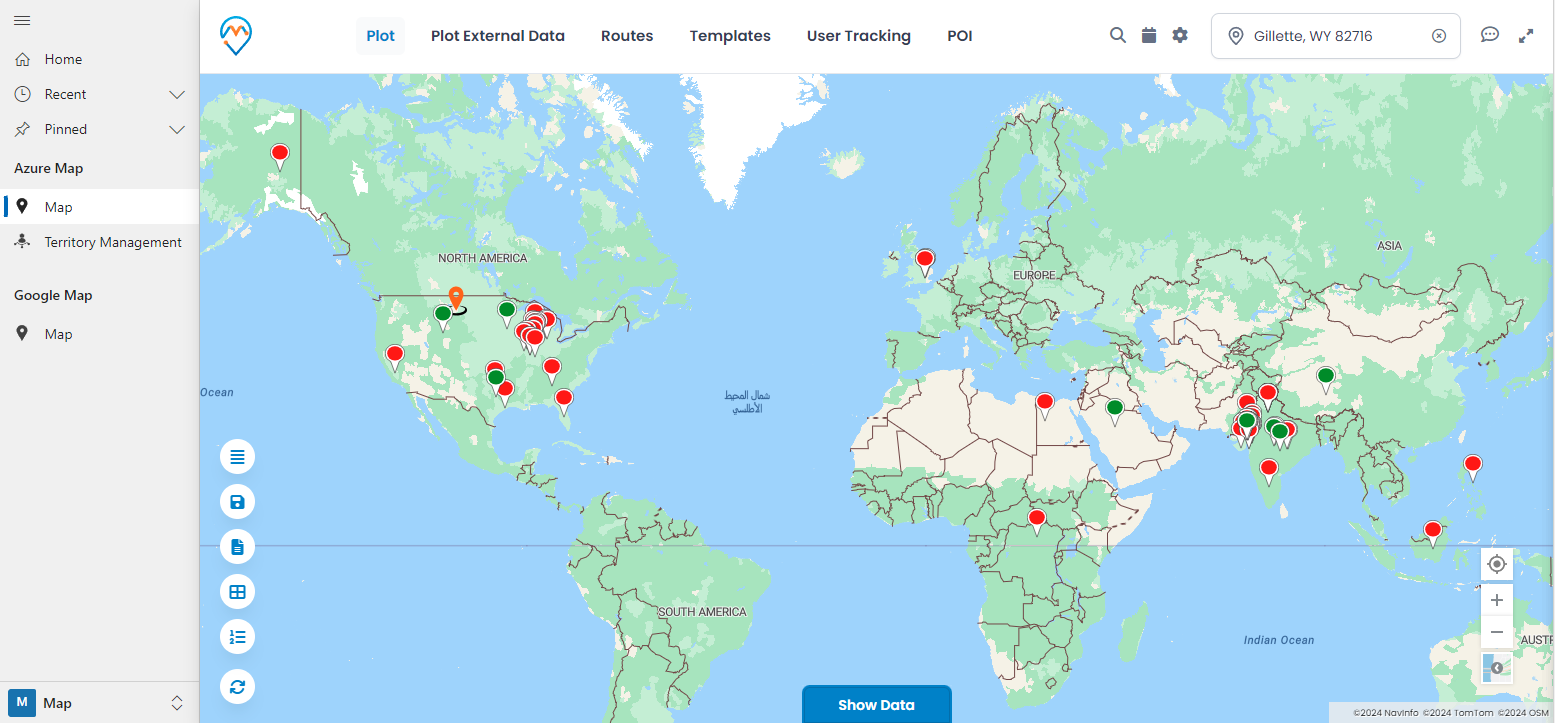
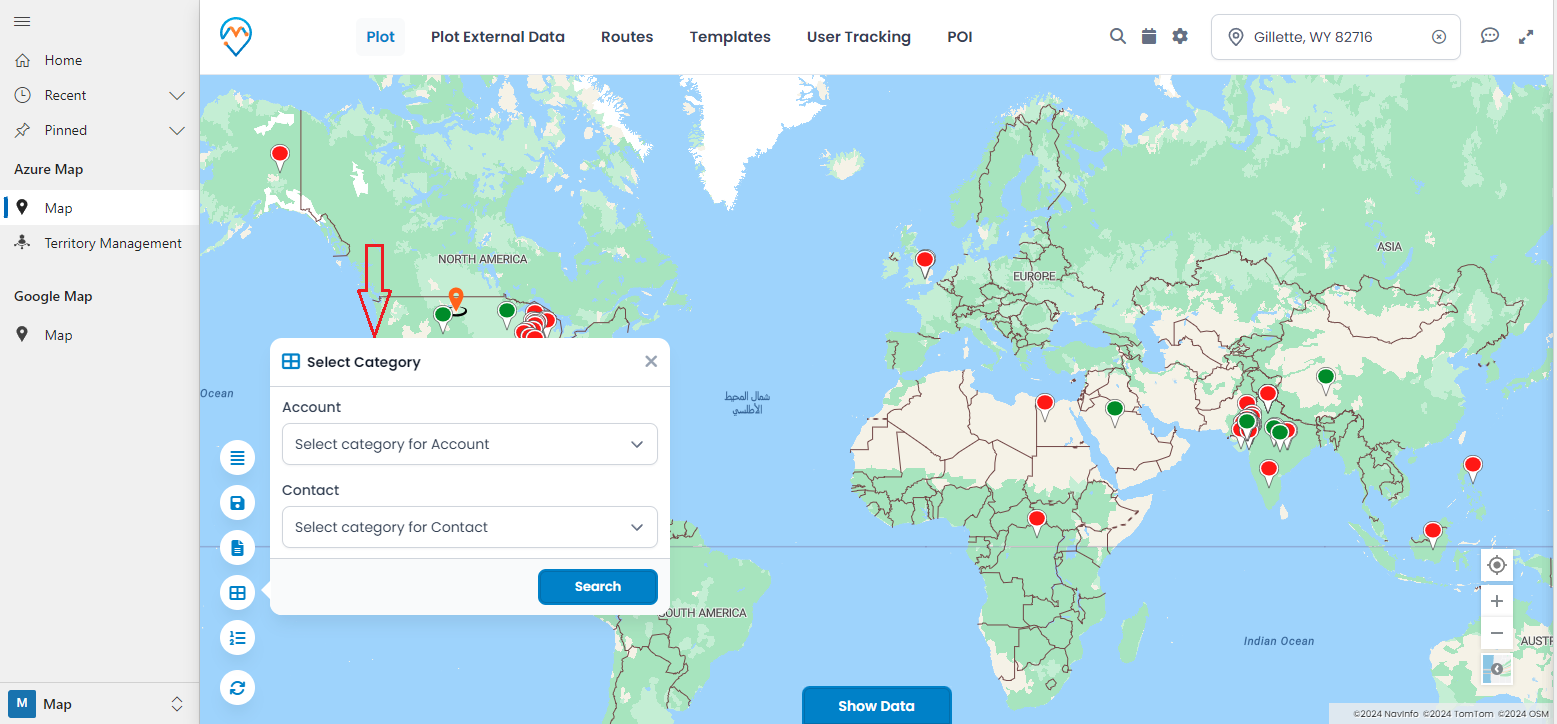
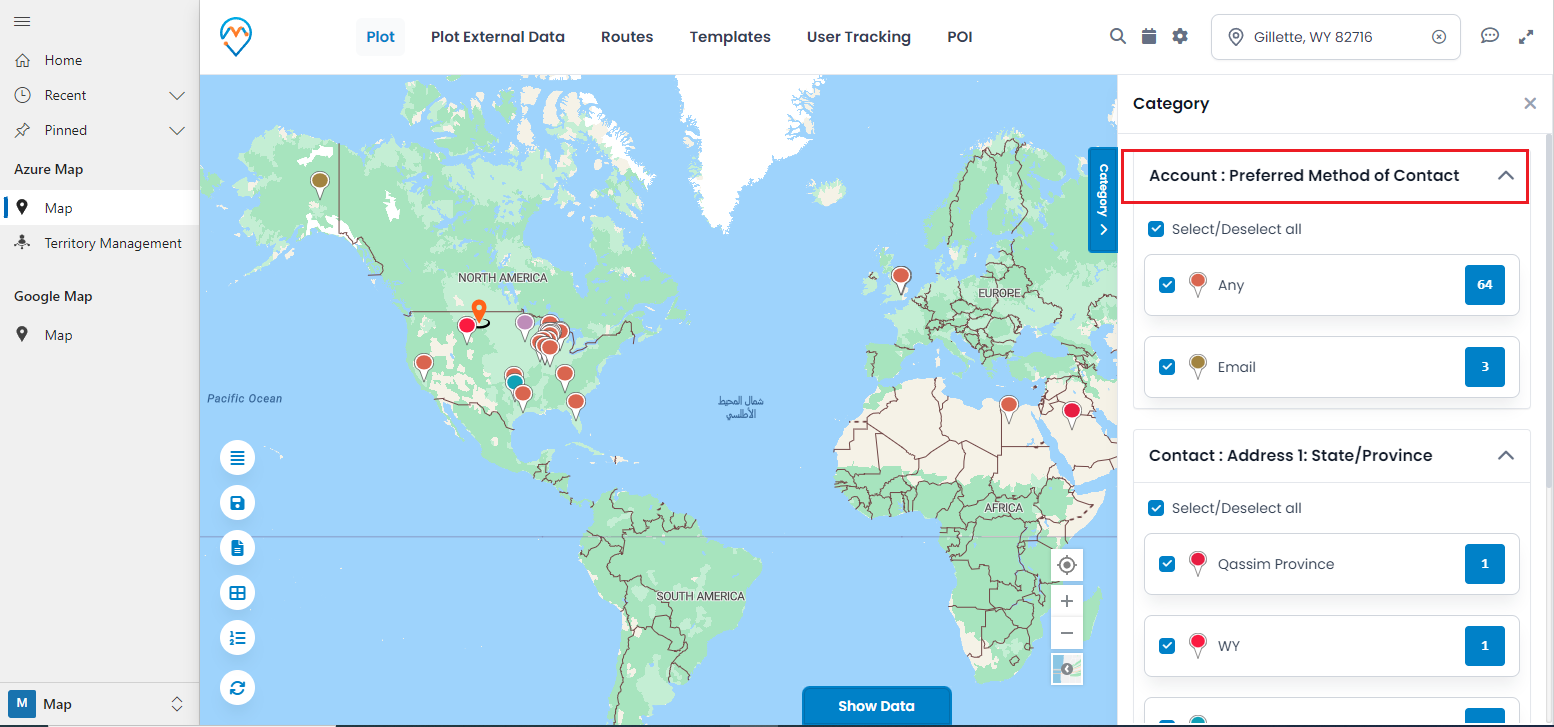
You can also select the preferred method of contact option and search the records according to the chosen preferred method of contact.
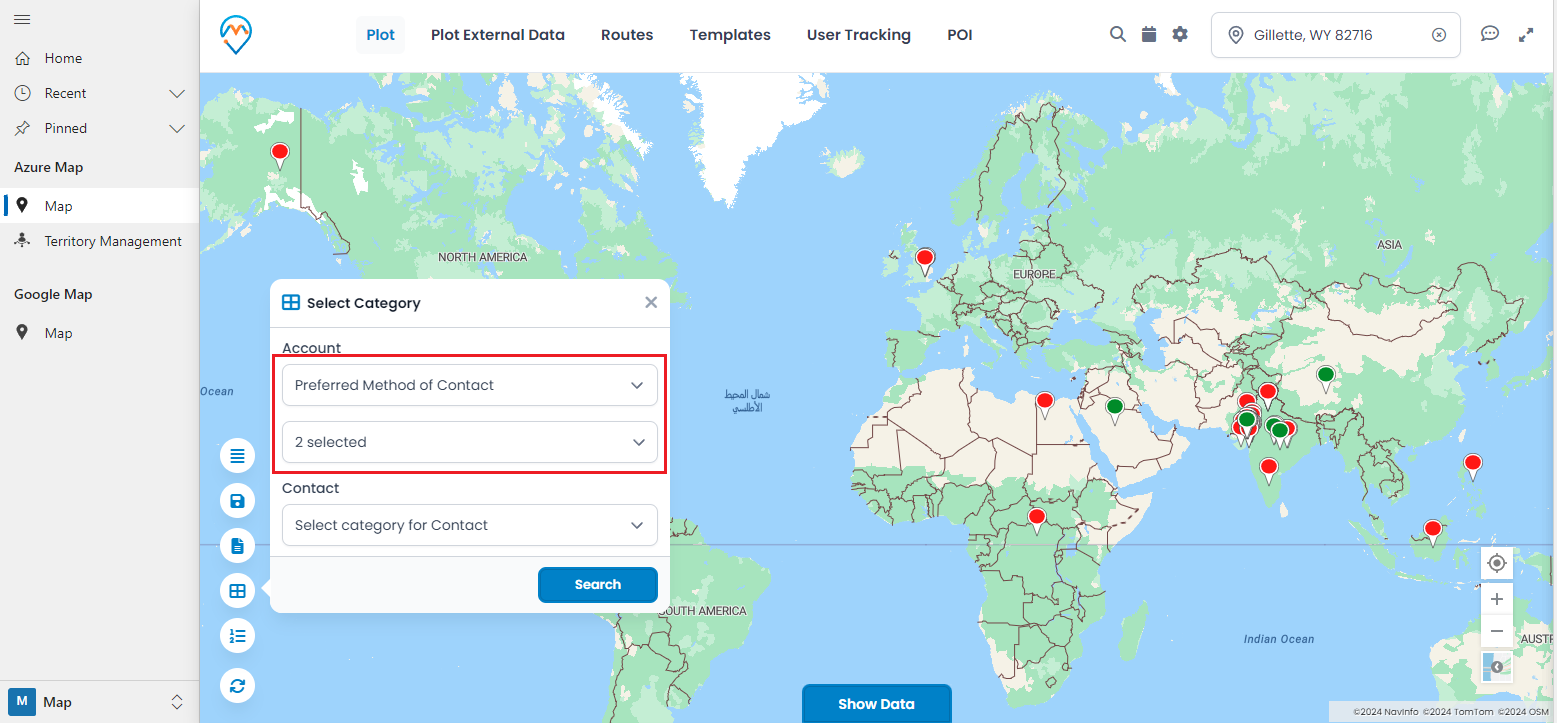
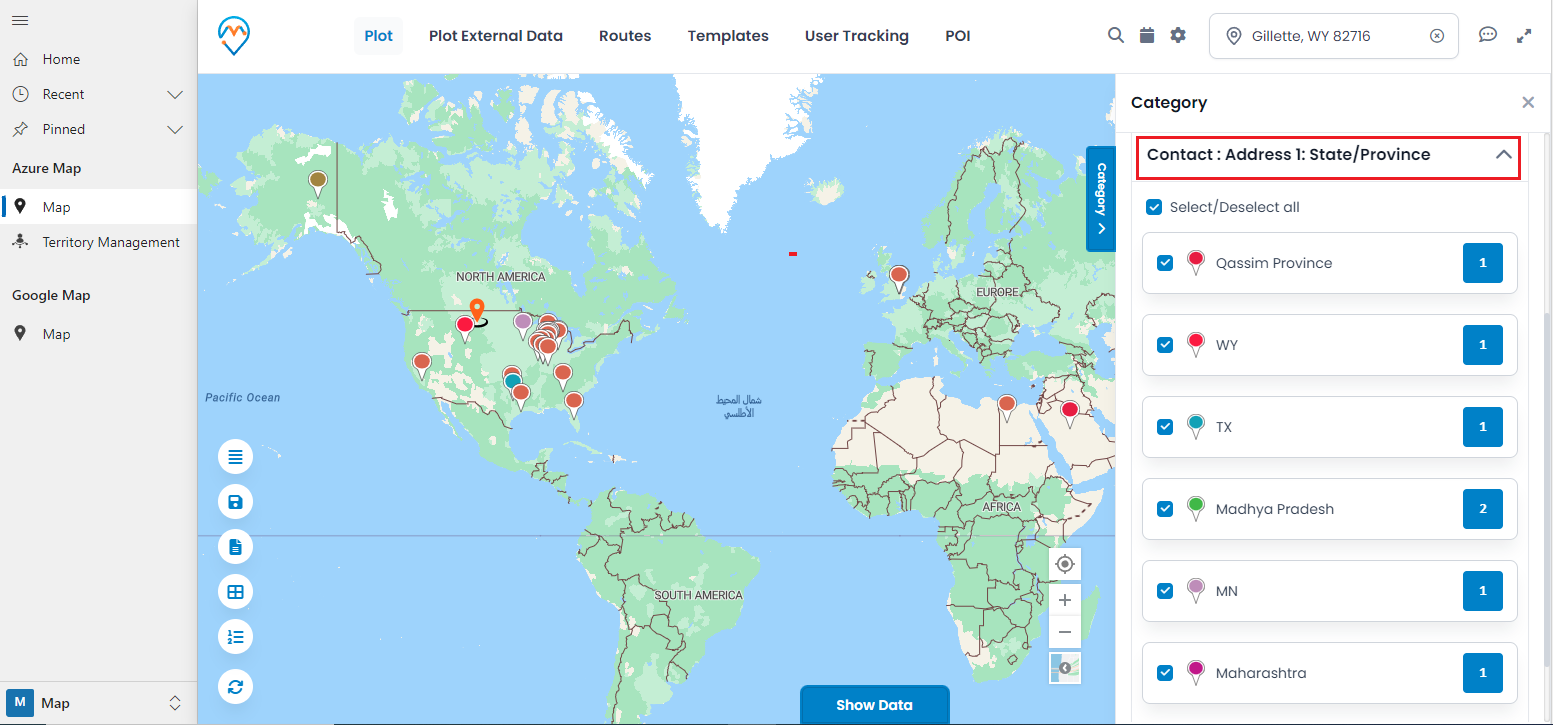
If the state/province is selected as a field, the locations of the customers can be viewed.
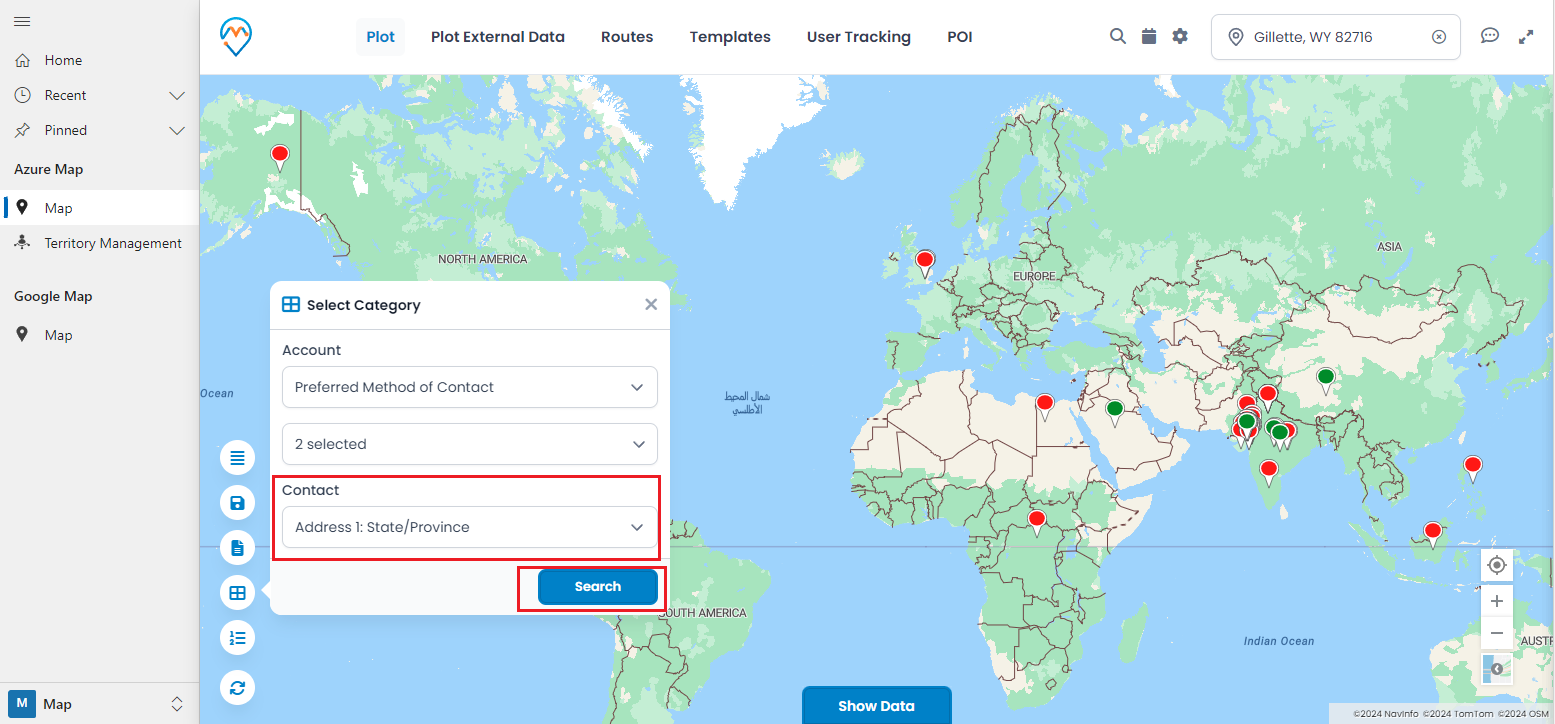
For Accounts, the records will be plotted according to the selected category, Preferred Method of Contact.
For the “Contact,” it will display the records based on the selected category: “Address 1: State/Province.”
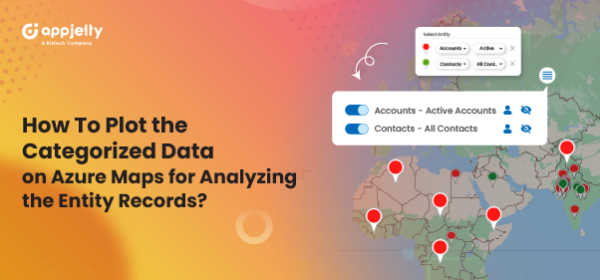
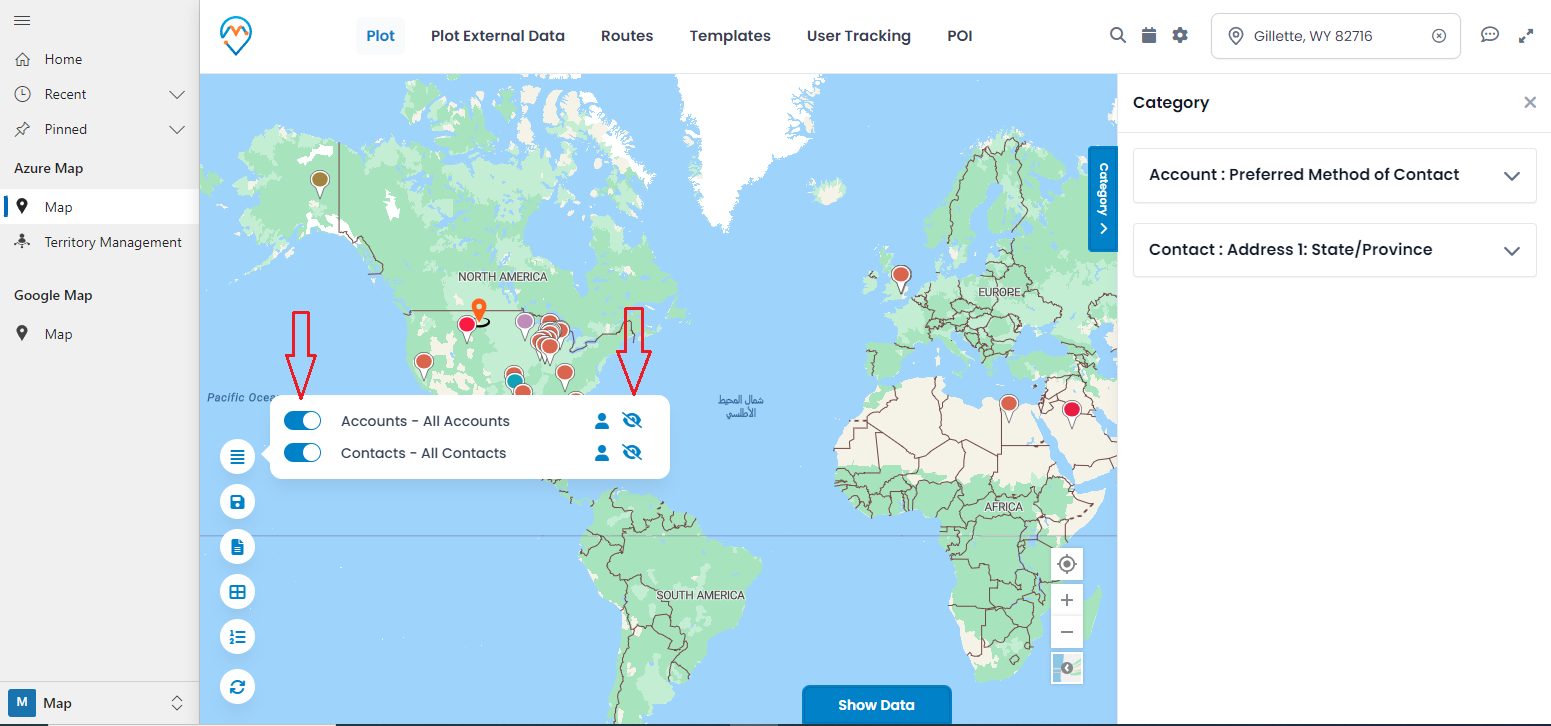
Once the categorized records are plotted, you can enable or disable the entities and show or hide the entity records’ labels on the map using the “Layer Card.”
By disabling any entity (left button), the entity will not appear on the map until you enable it. By clicking on the show/hide icon (eye icon), the labels of the entity records will be displayed.
All product and company names are trademarks™, registered® or copyright© trademarks of their respective holders. Use of them does not imply any affiliation with or endorsement by them.