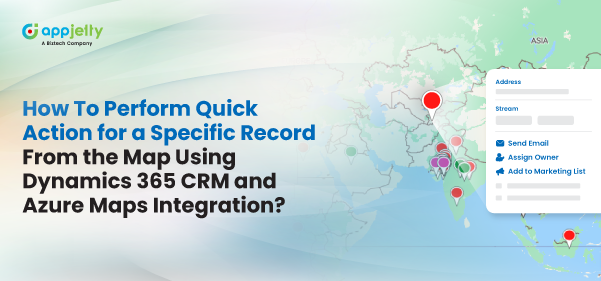
As the head of the team, you need to manage leads, upcoming appointments, or marketing campaigns for your team members. If you have plotted the lead entity records on the map and want to manage an individual lead record, you can perform many actions using its “Tooltip Card” (quick action card).
To enable the ‘Tooltip Card’ in MappyField 365, you must configure the Tooltip attribute from the Entity Mappings of MappyField 365. After configuration, the quick action button or ‘Tooltip Card’ is just a click away! This tooltip will help you perform numerous actions, saving both your time and the sales rep’s time when managing records.
Follow the steps below to perform quick actions from the Tooltip Card:
1. Plot the records on the map.
2. Enable the entity records’ label to find the required record.
3. Open the tooltip by clicking on a specific record.
4. Perform various actions as needed.
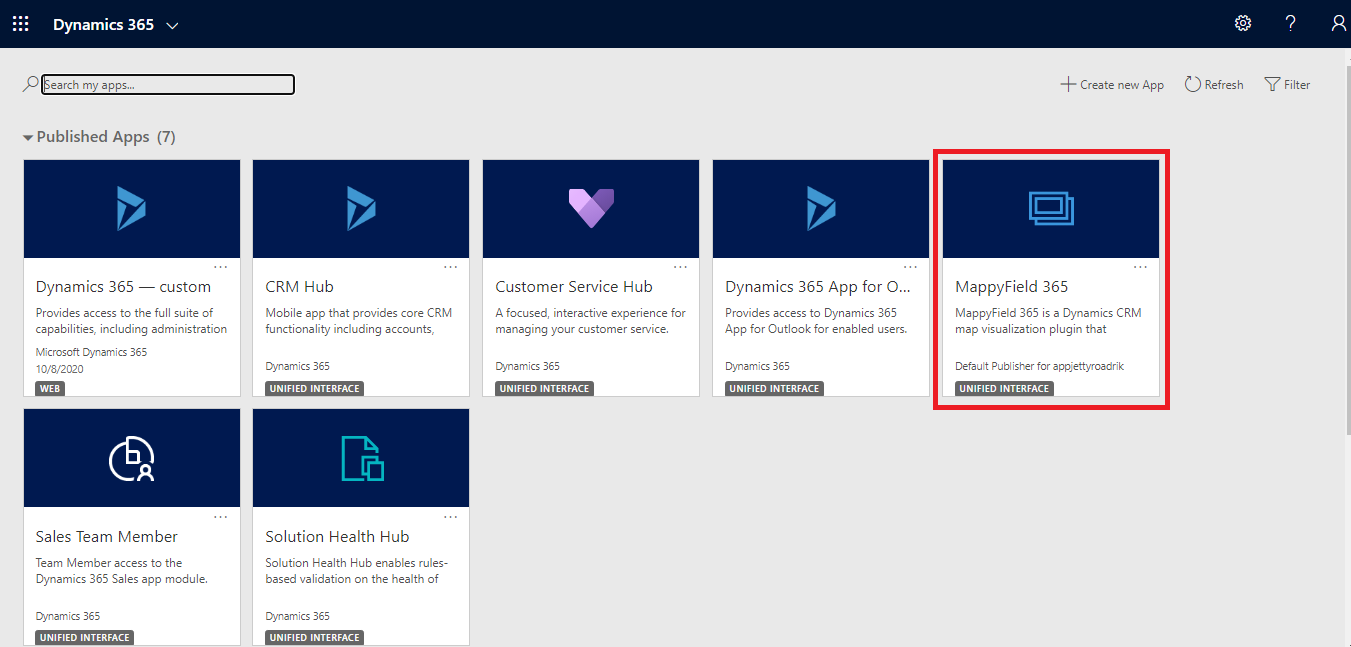
Step 1: Navigate to MappyField 365 Select “MappyField 365” from the Dynamics 365 dashboard or app list in the header.
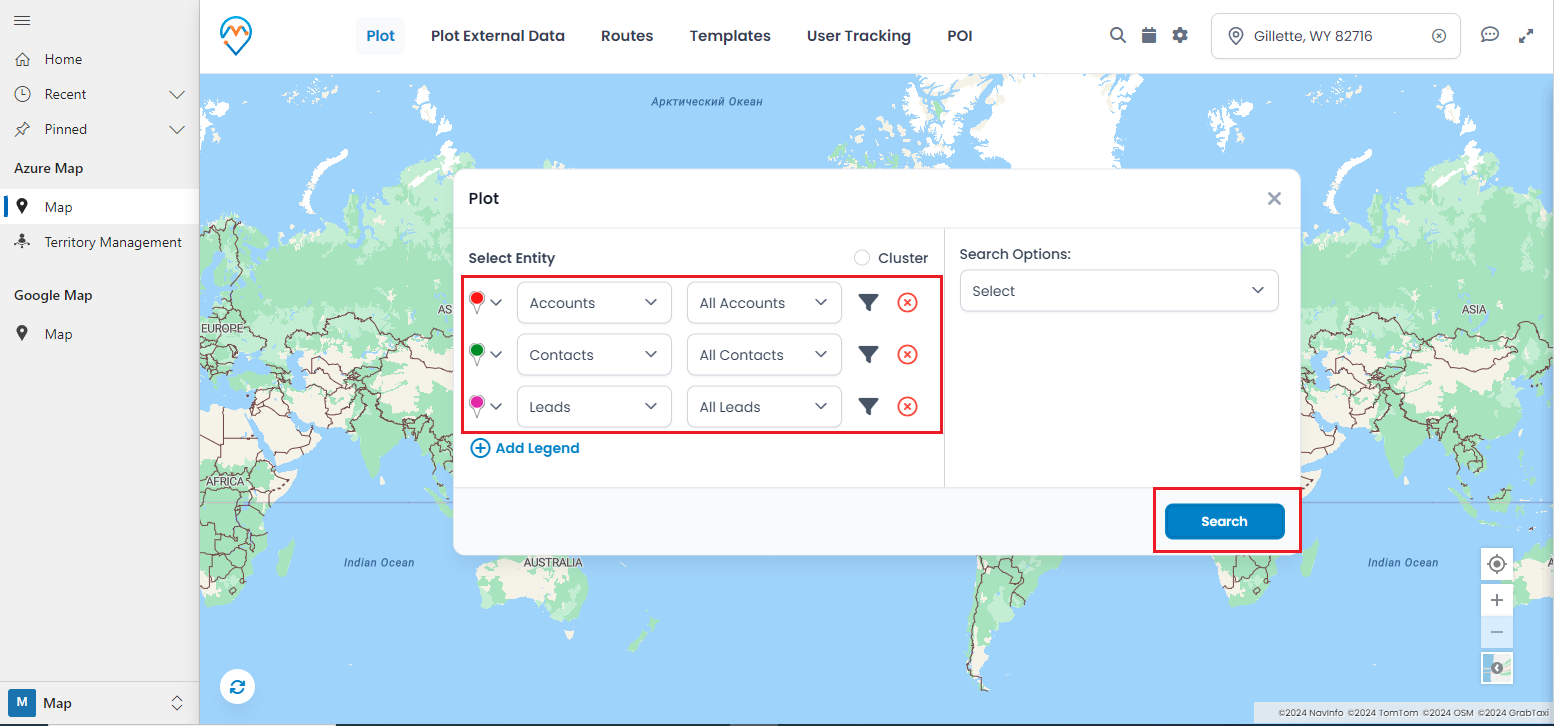
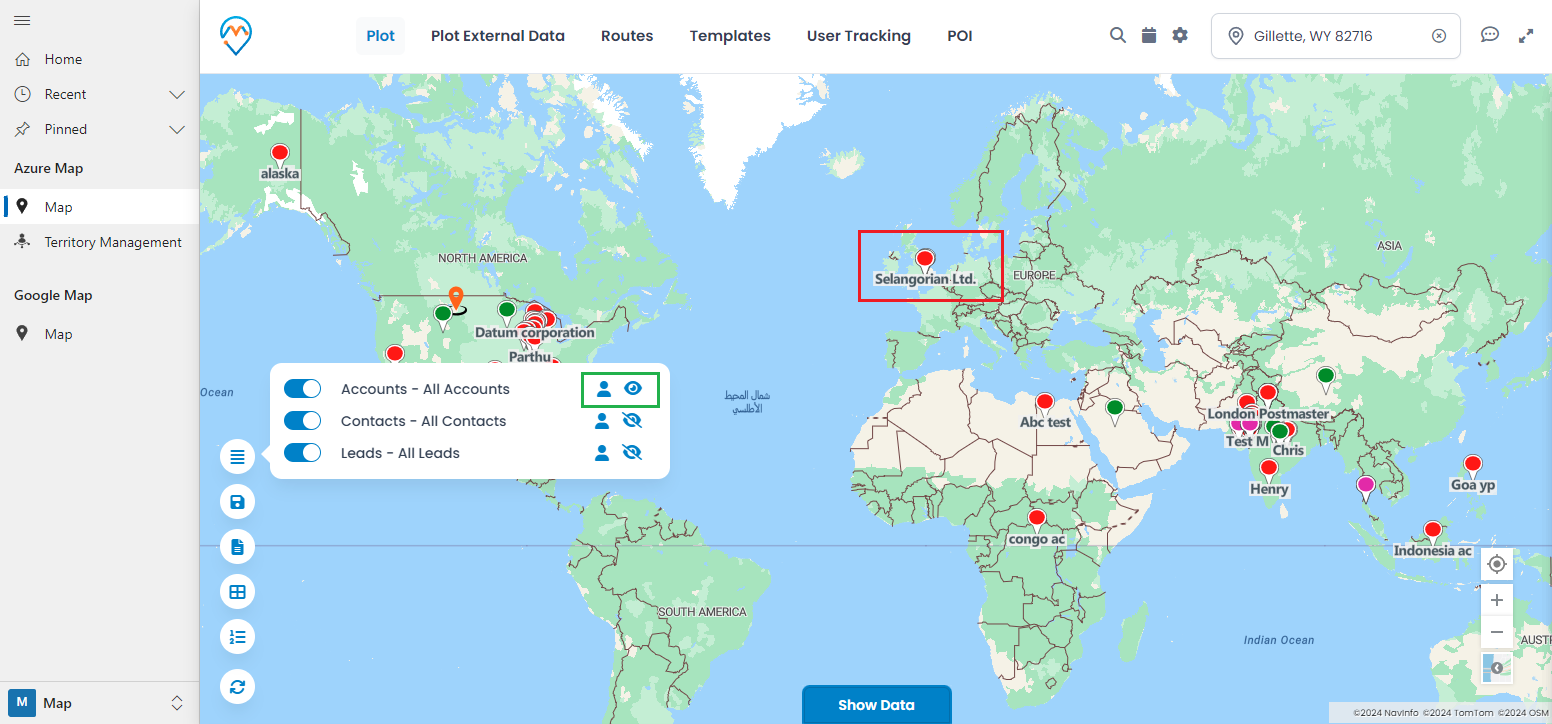
Select the ‘Entity’ and its ‘View’ to plot the records on the map. In this case, three entities have been selected: Accounts, Contacts, and Leads, to plot the records.
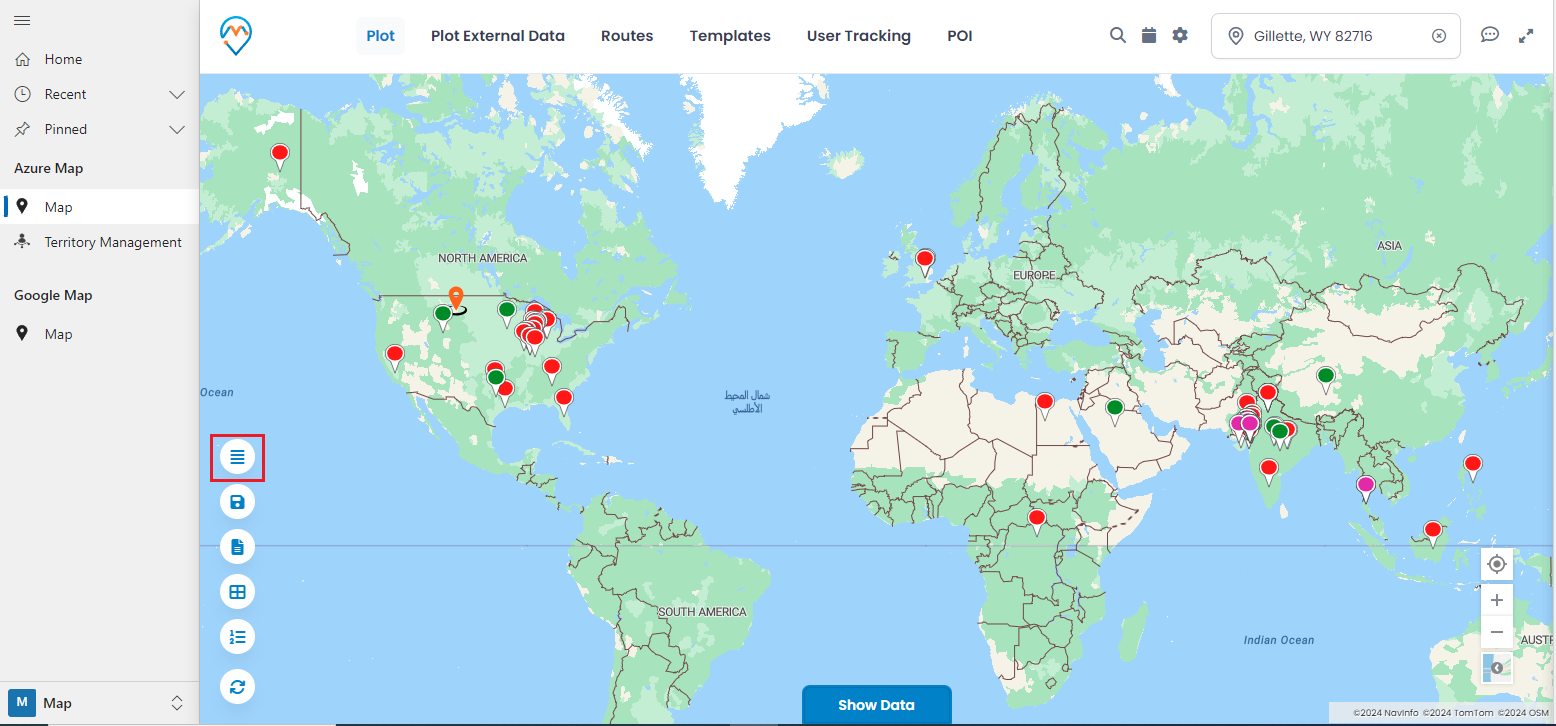
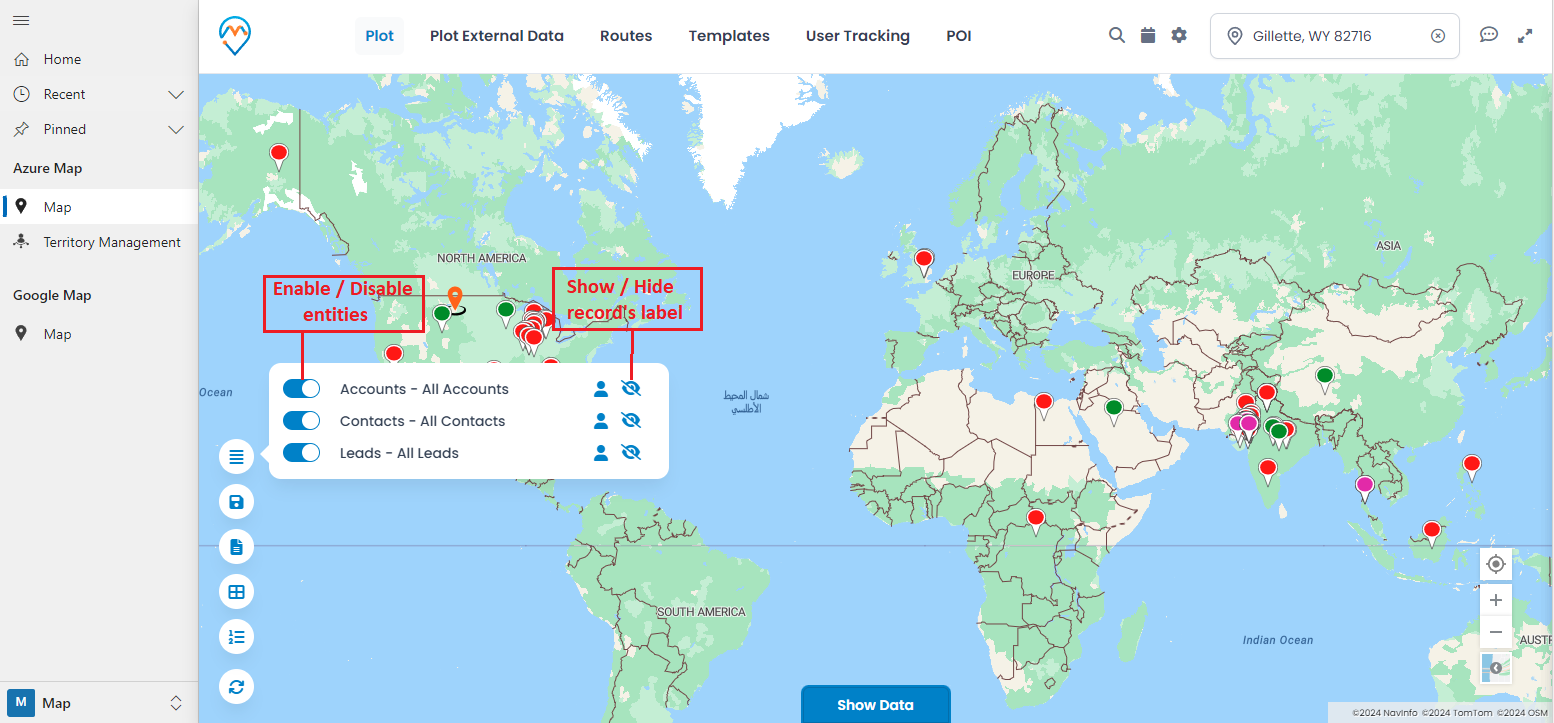
Step 3: Search the record by enabling the labels By clicking on the first option, “Layer Card,” you will see the details of the entities plotted on the map.
You can enable or disable the records of any entity on the map, and you can show or hide the labels (names) of any entity’s records.
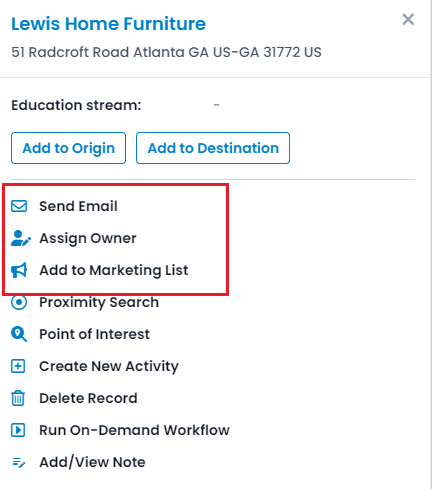
Once you find your record on the map, clicking on any specific record (pin) will display a tooltip slider from the right side. The tooltip contains details related to that record, which were configured from the backend (Entity Mappings → Tooltip attribute).
From the tooltip, you can perform various actions on the selected record.
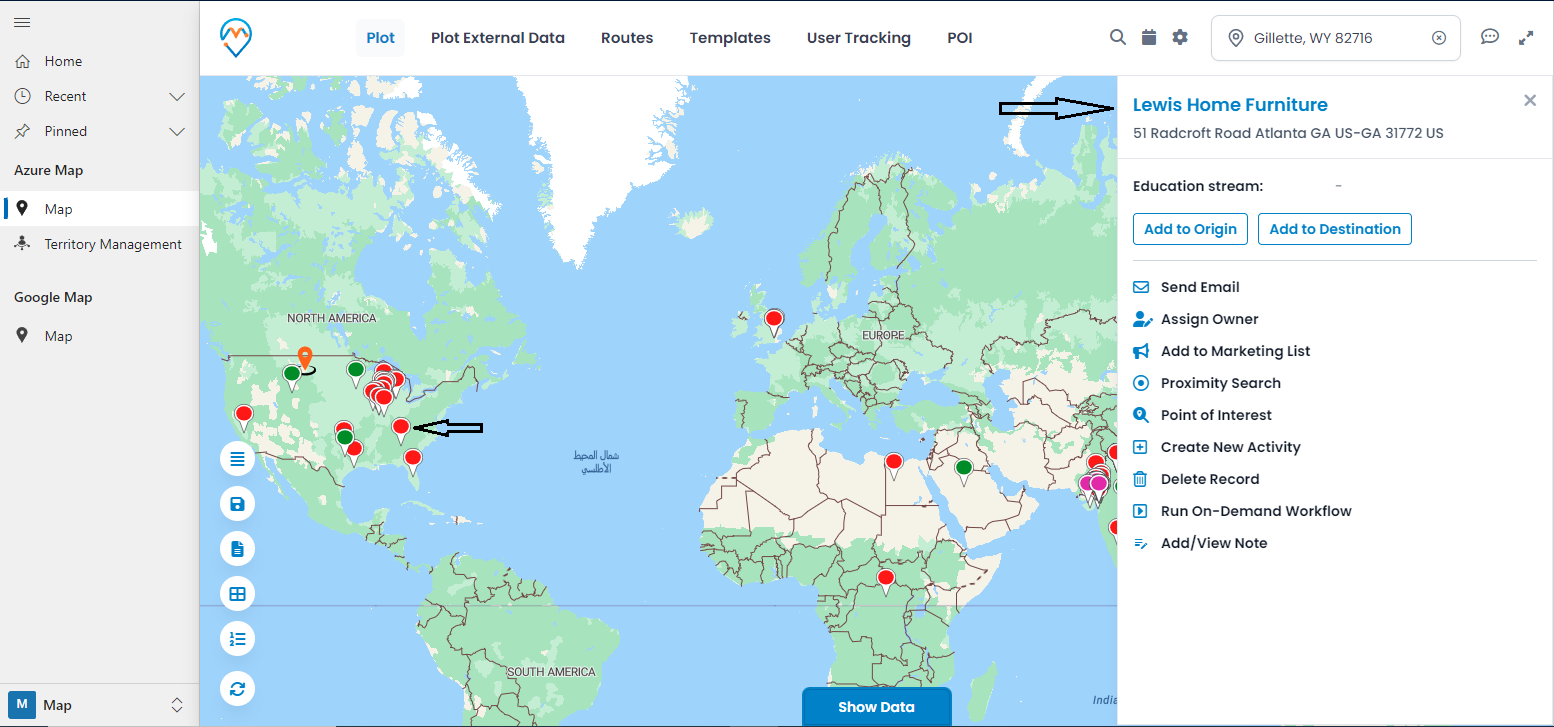
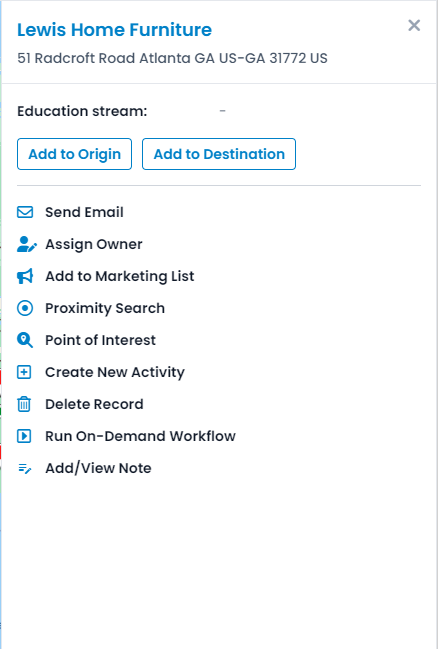
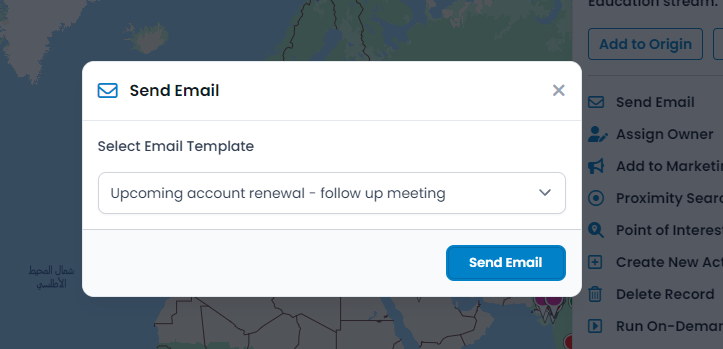
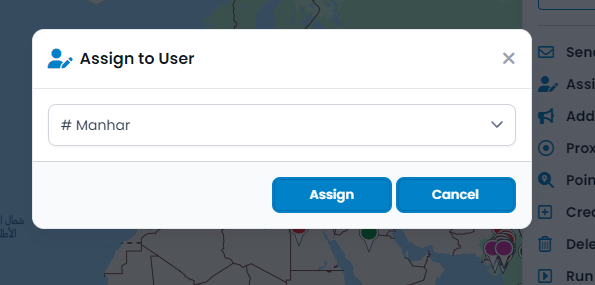
You can manage and perform different actions for the selected record from this tooltip card.
Note: The quick actions available in the tooltip card of the selected records are based on the tooltip attribution in the Entity mappings. Different entities may have different quick actions.
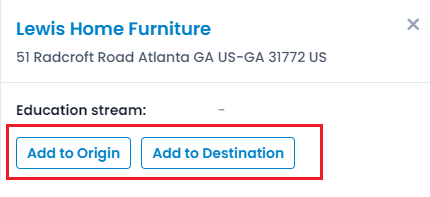
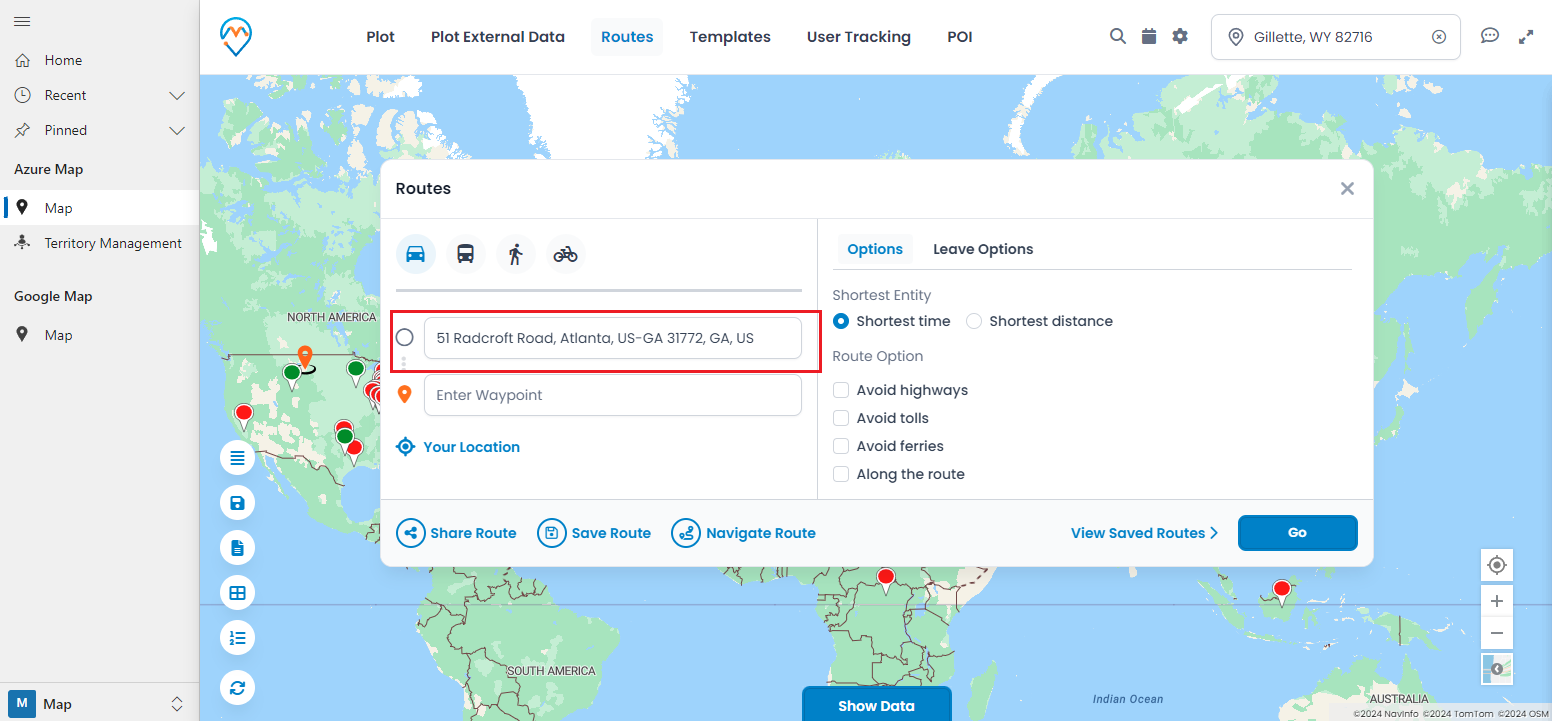
Directions: You can set the record’s address as the ‘origin’ or ‘destination.’
Add to Origin: By clicking this option, the selected record will be added as the ‘Origin.’
Add to Destination: By clicking this option, the selected record will be added as the ‘Destination.’
productivity888
When you click on ‘Add to Origin,’ you will be directed to the ‘Routes’ tab, where you can see the record’s address added to the Origin. If you have selected ‘Destination,’ the address will be added to the Destination.
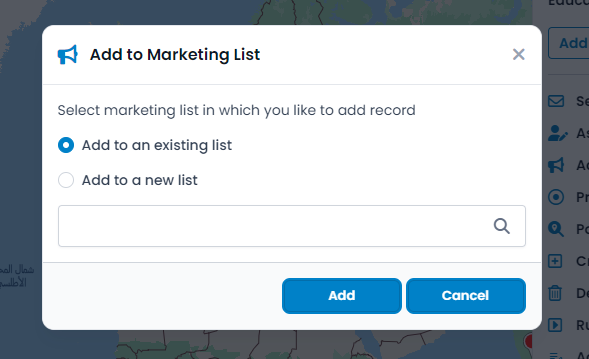
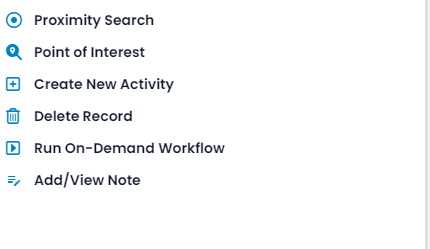
- Proximity Search: You can search for records that are located within the defined proximity of a specific record.
- Point of Interest: You can explore nearby places, such as hospitals, pharmacies, hotels, restaurants, etc.
- Create New Activity: You can create a new activity, such as an appointment or a task.
- Delete Record: You can delete the record by clicking this button.
- Run On-Demand Workflow: Click this button to select a workflow from the popup, then click ‘Execute’ to run the workflow in the background.
- Add/View Note: Click this button to add or view notes associated with this record.
By using quick actions (Tooltip card), you won’t need to manually navigate the menu for a specific action or change in the CRM each time. Simply configure the tooltip attribute and display the action in the tooltip card to manage current activities for a specific record on the map.
All product and company names are trademarks™, registered® or copyright© trademarks of their respective holders. Use of them does not imply any affiliation with or endorsement by them.