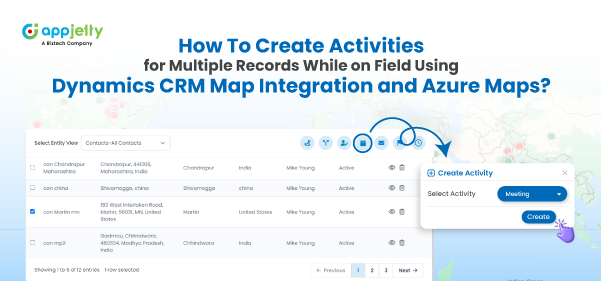
Creating an activity for a particular entity in Dynamics 365 can take a long time, as you have to go through the entire process from the header to accounts/contacts to record and then finally create an appointment or task. This may seem fine if you only need to create a single appointment in a day, but if you’re handling multiple accounts, this activity can become quite time-consuming and will definitely take away valuable productive hours.
That’s why we’ve written this blog to explain how to create both single and multiple activities directly from the map using Dynamics CRM map integration. There are various options available on MS AppSource, and you can choose one that fits your workflow.
For demonstration purposes, we’ve used MappyField 365 in this blog.
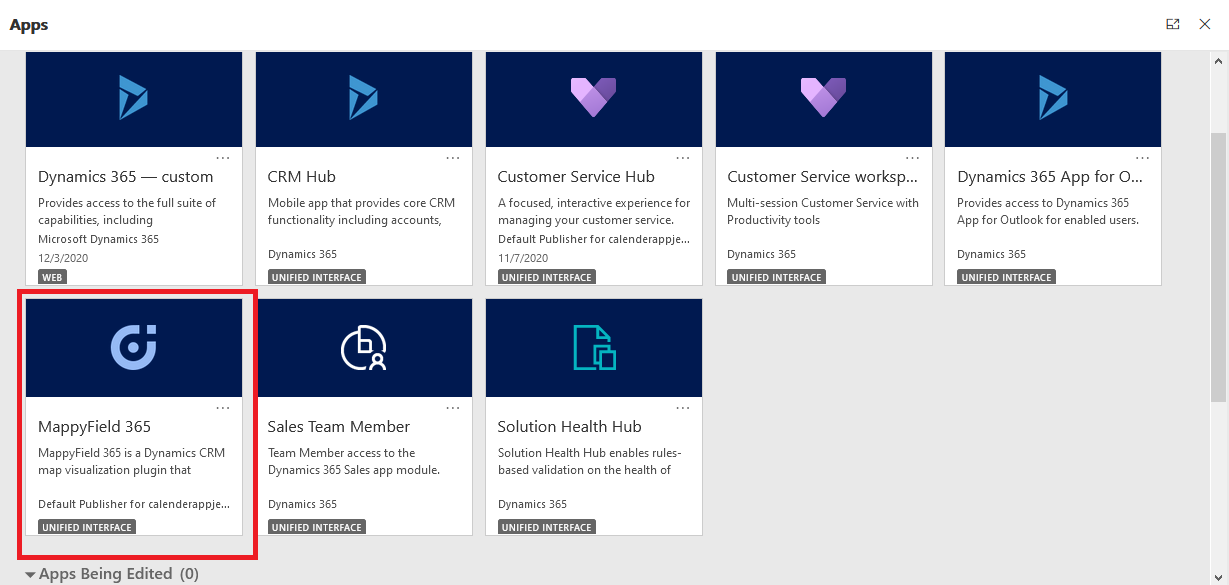
Step 1: Navigate to MappyField 365
After logging into Dynamics 365, click on ‘MappyField 365’ from the Dynamics 365 Apps dashboard.
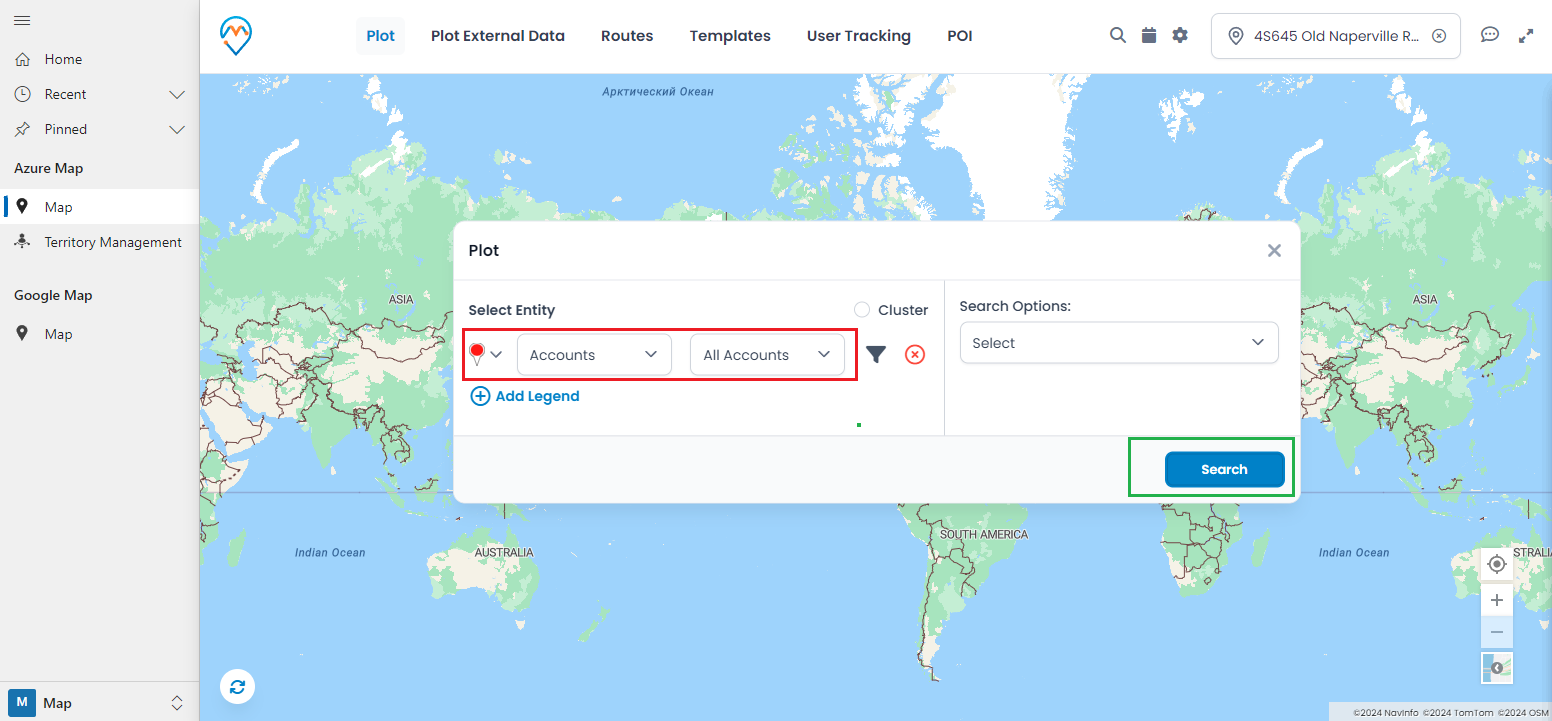
Plot the records on the map by selecting the CRM entities that are configured through Entity Mappings. Under the ‘Plot’ tab, select the Entity and its Records view.
Step 3 (A): Add Appointment/Task for ‘single’ entity record
Once the data is plotted on the map, click on the pushpin of the specific entity for which you want to create an activity (appointment/task).
For example, if you want to create an ‘appointment’ for a specific account record plotted on the map, click on the pushpin of that account record.
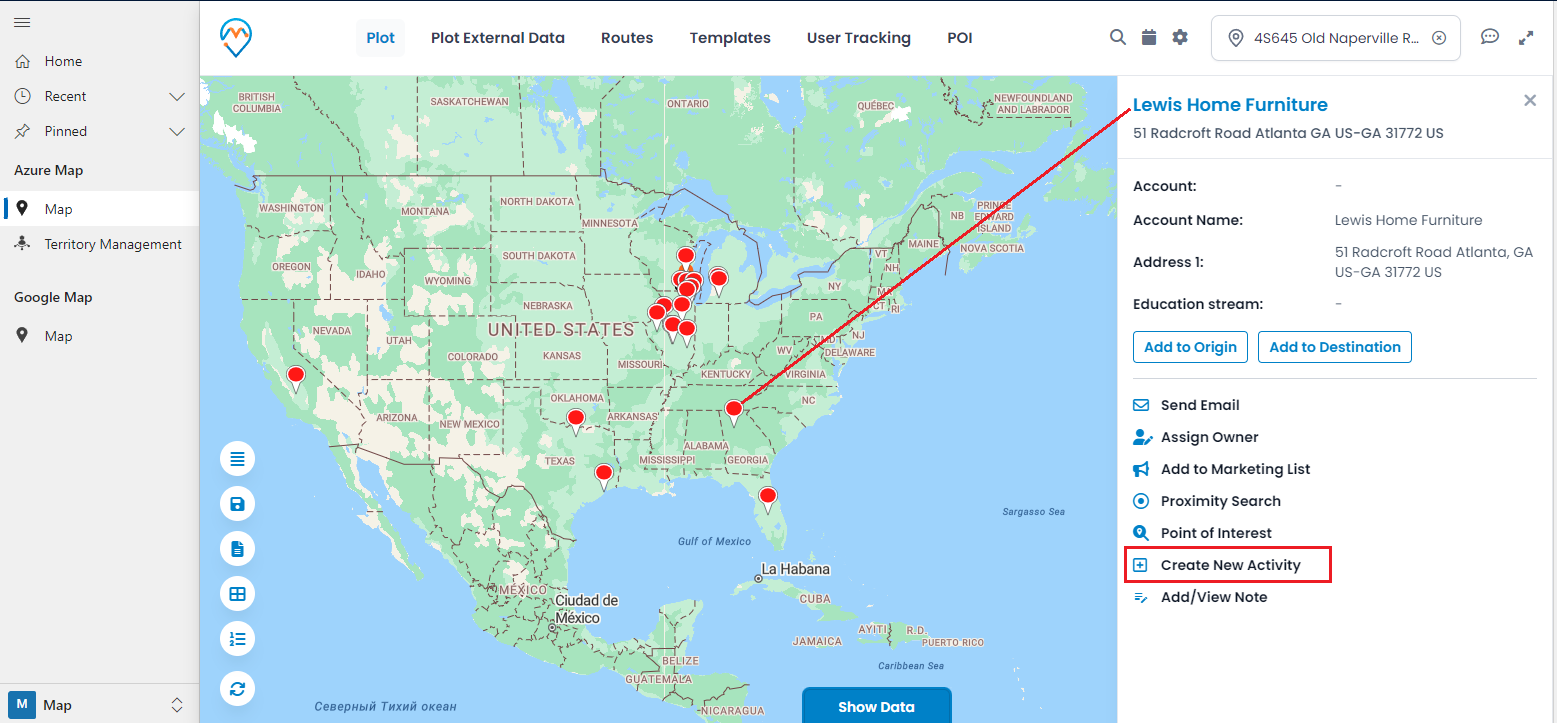
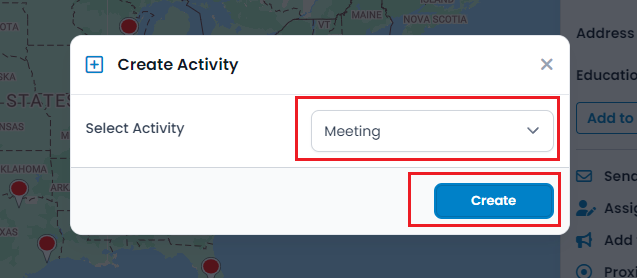
From the detail view, click on the ‘Create New Activity’ option. A popup will appear—select ‘Appointment’ from the dropdown, then click ‘Create’.
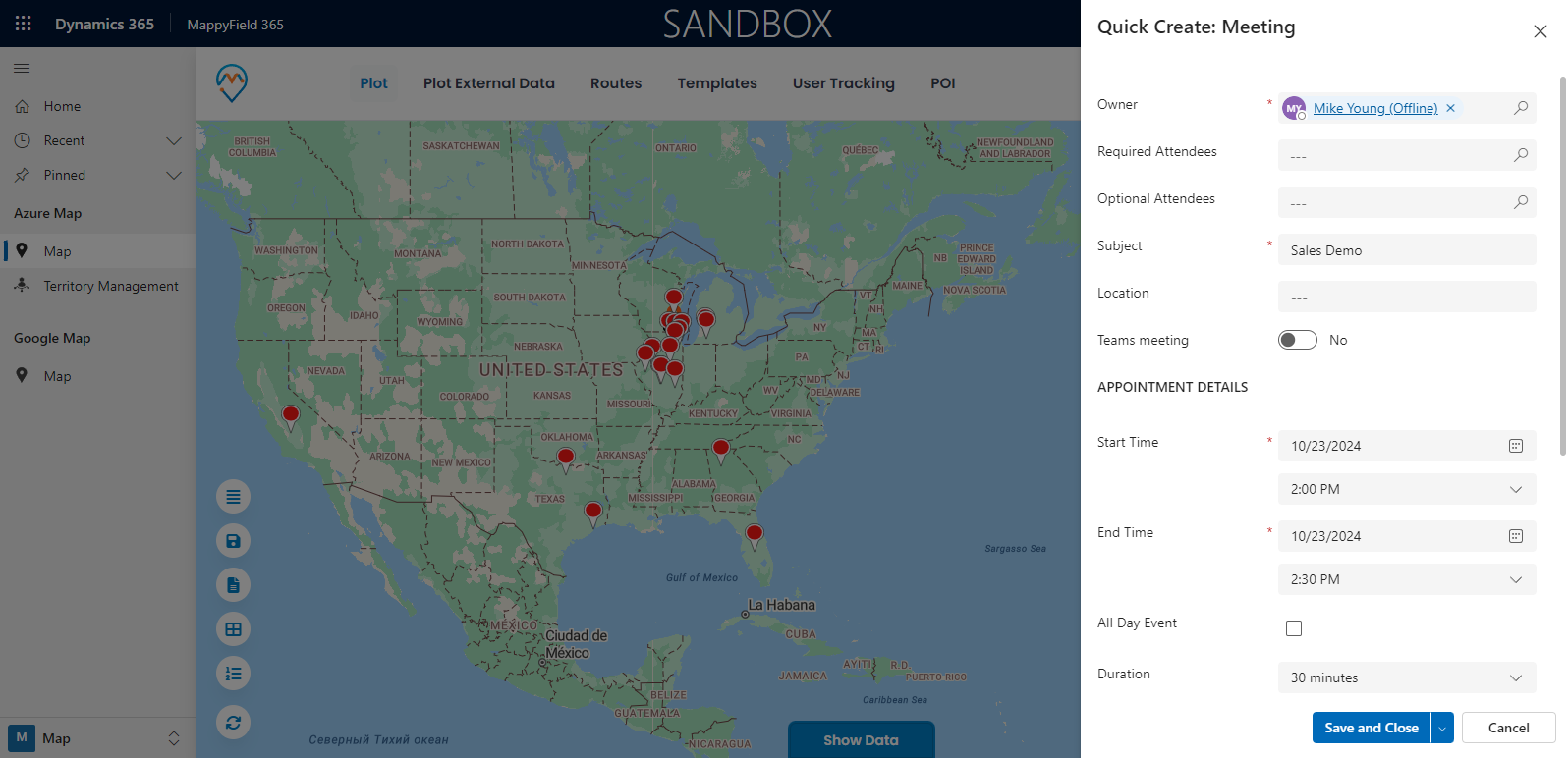
Check the added activities:
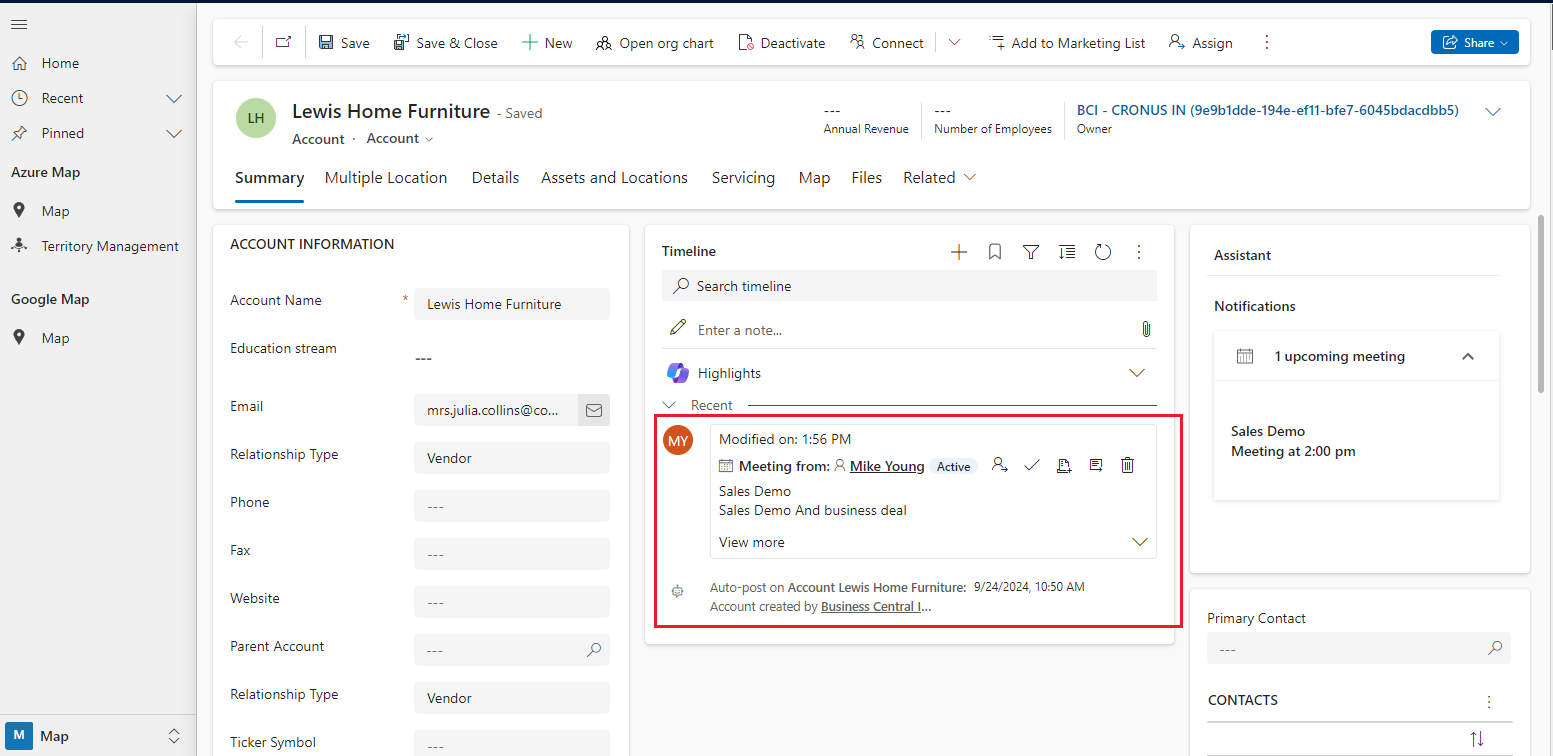
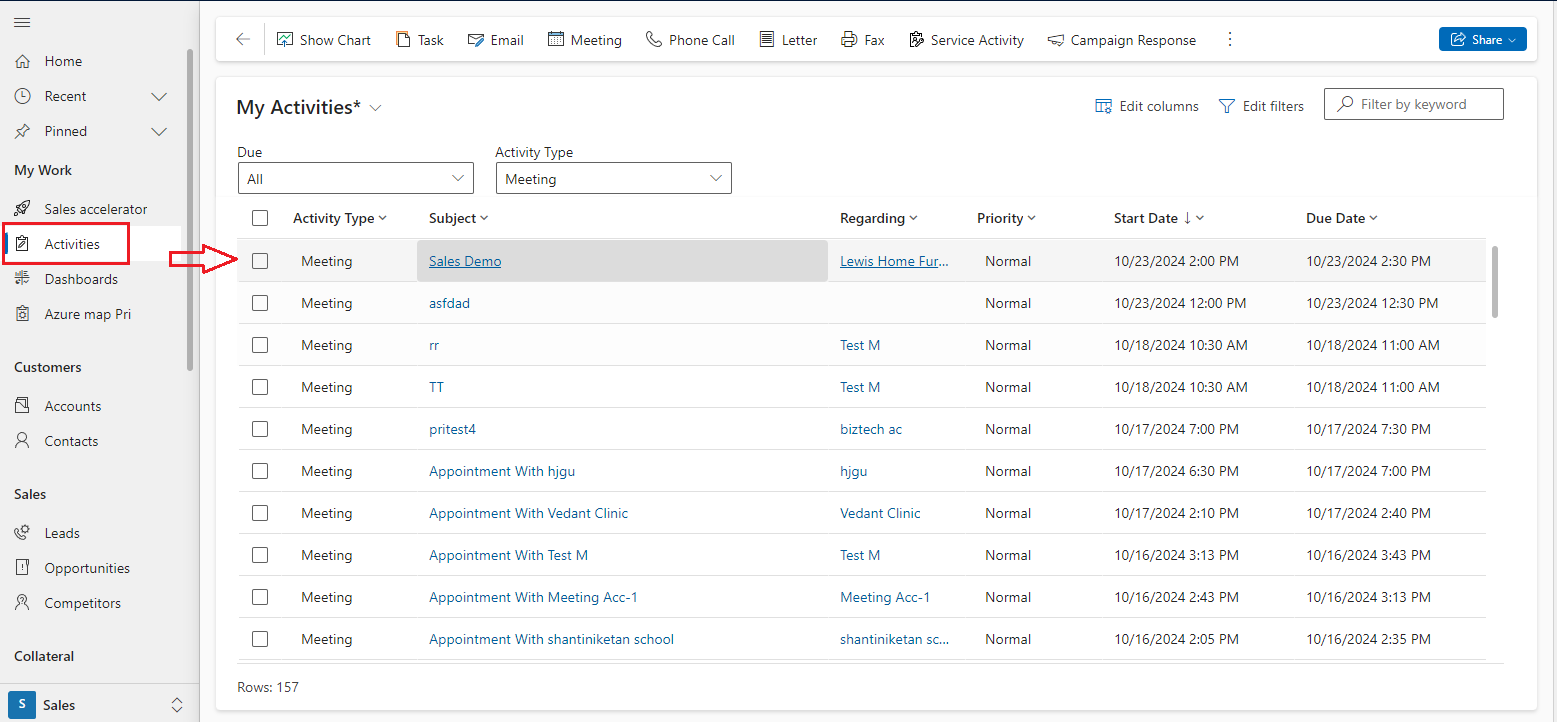
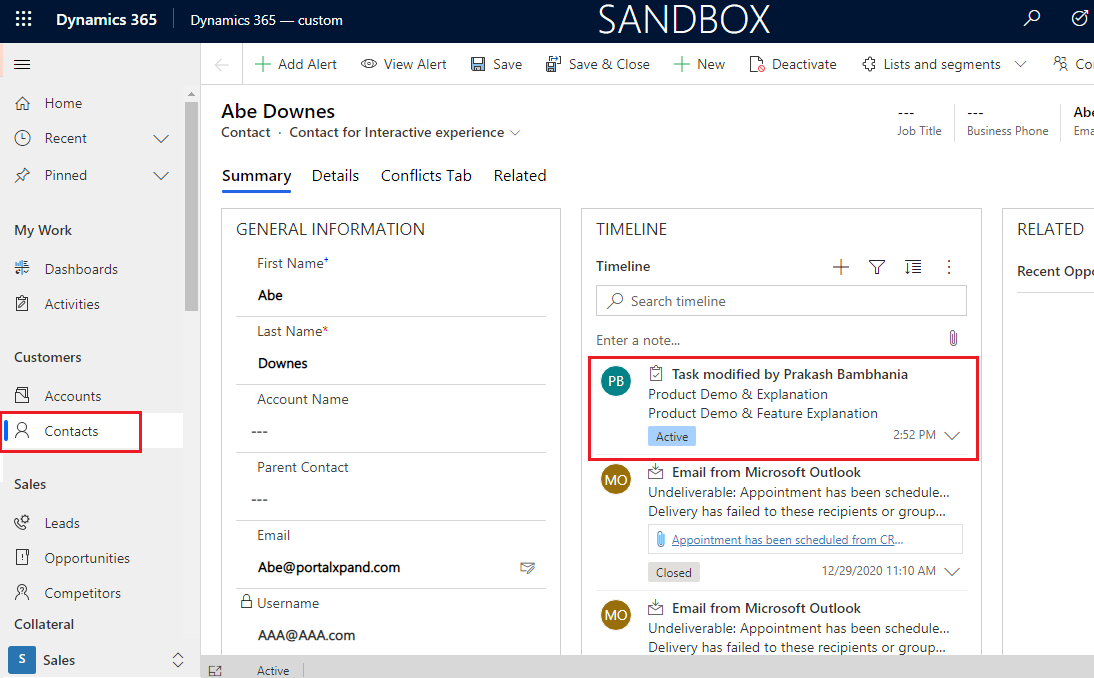
The sales manager (or administrator) can check the added activities in Dynamics CRM by navigating to the individual entity record or by navigating to the specific activity. The sales manager can view the added activity (e.g., Appointment) by navigating to the detail page of that specific entity record.
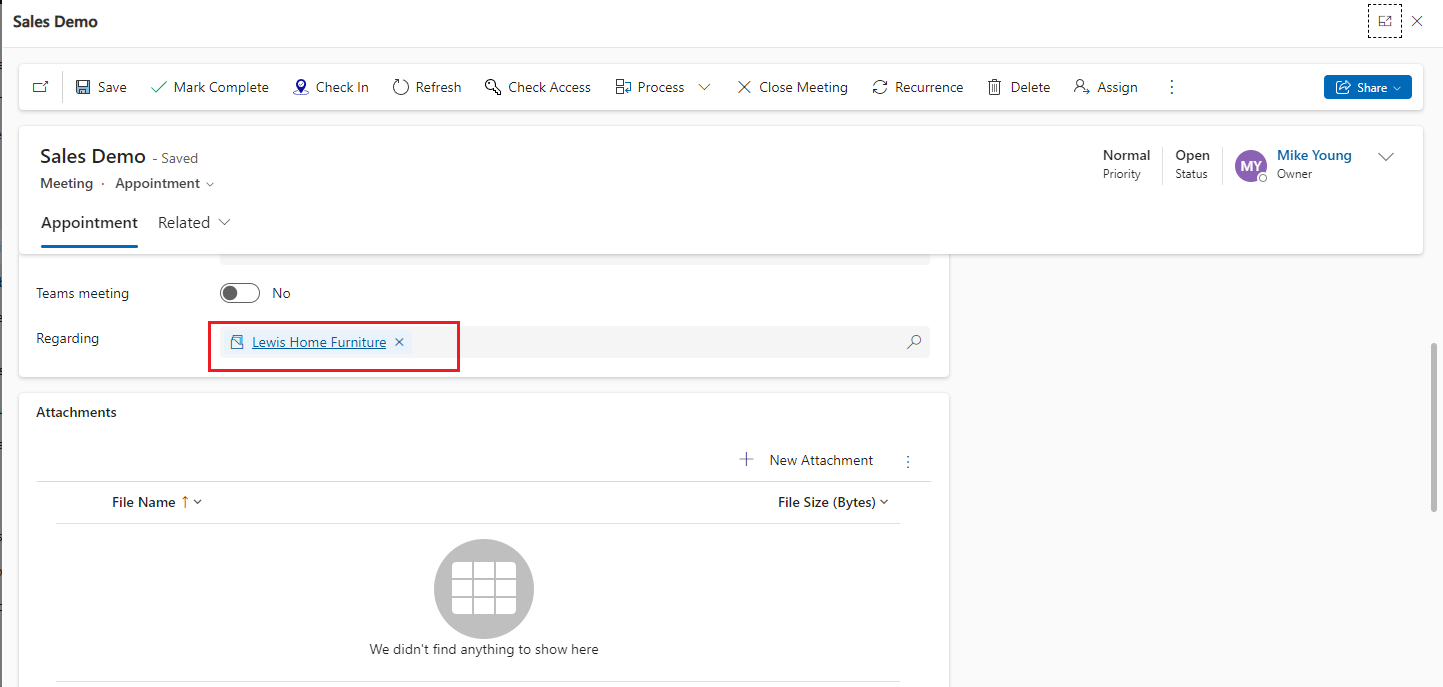
Once you plot the records on the map, you can view the plotted records of the entities in the Data Grid option. From here, you can perform various actions and activities by selecting multiple records.
Follow the steps below:
1. Plot the records on the map (follow Step 1 and Step 2 above).
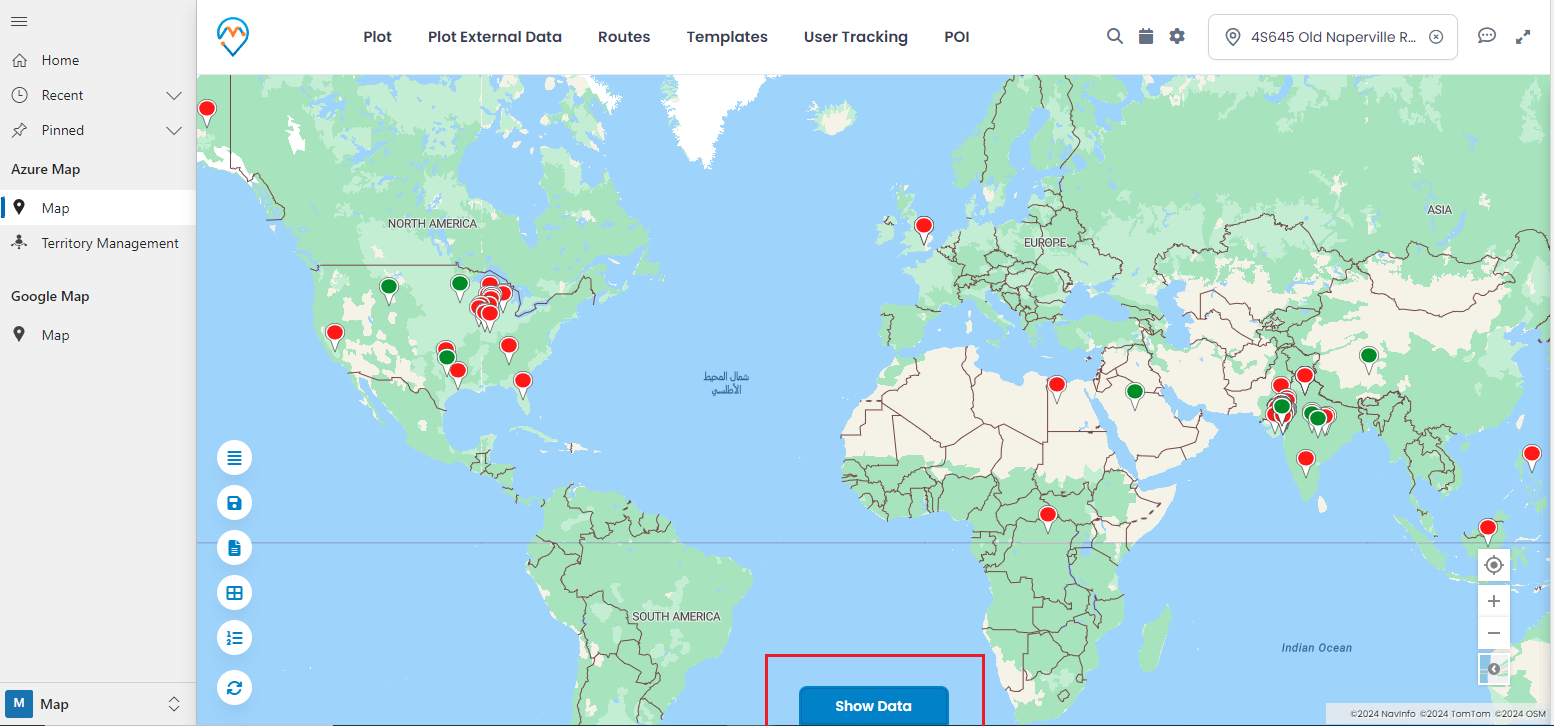
2. Once the records are plotted, you will see the “Show Data” button at the bottom of the map.
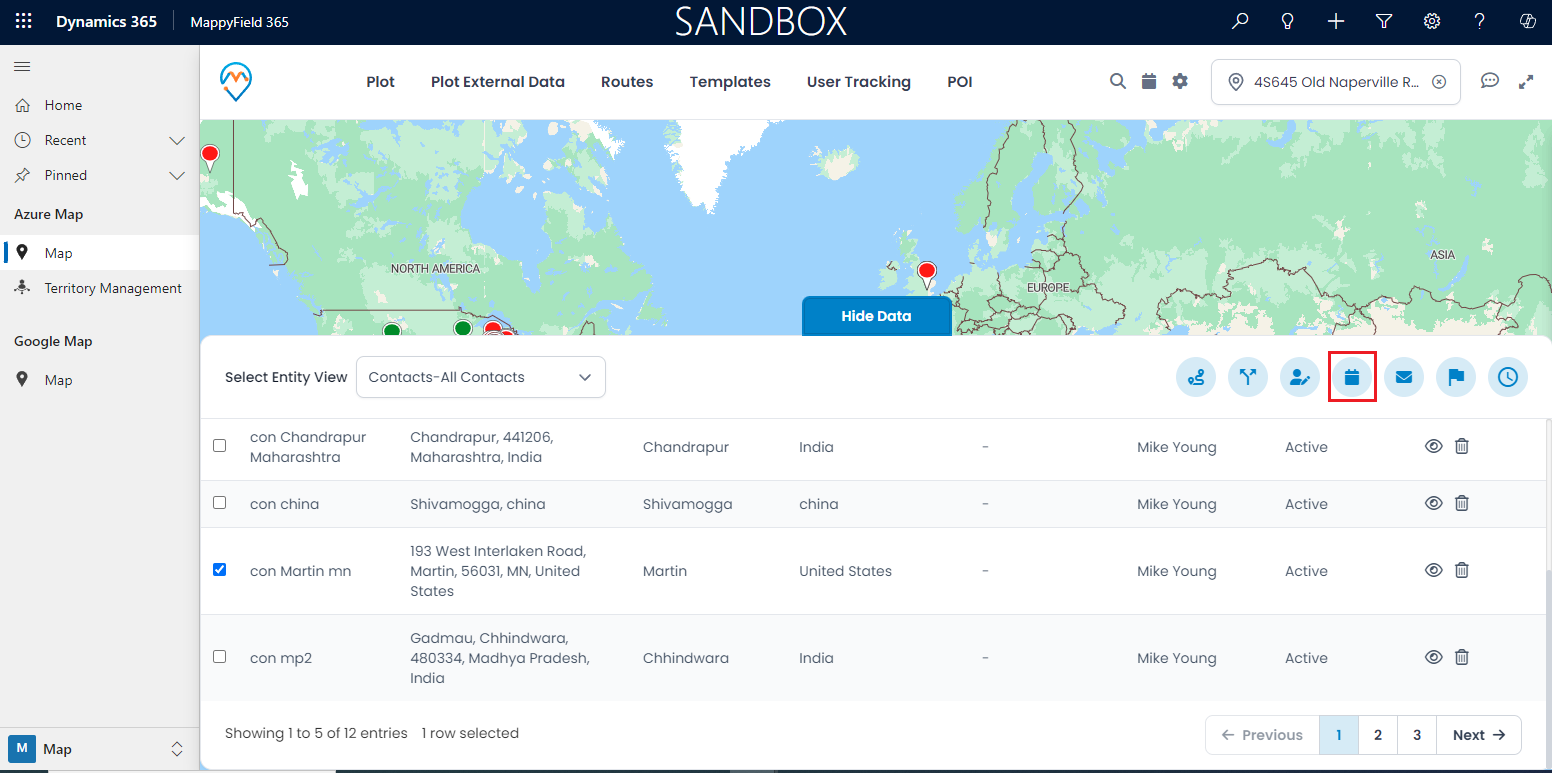
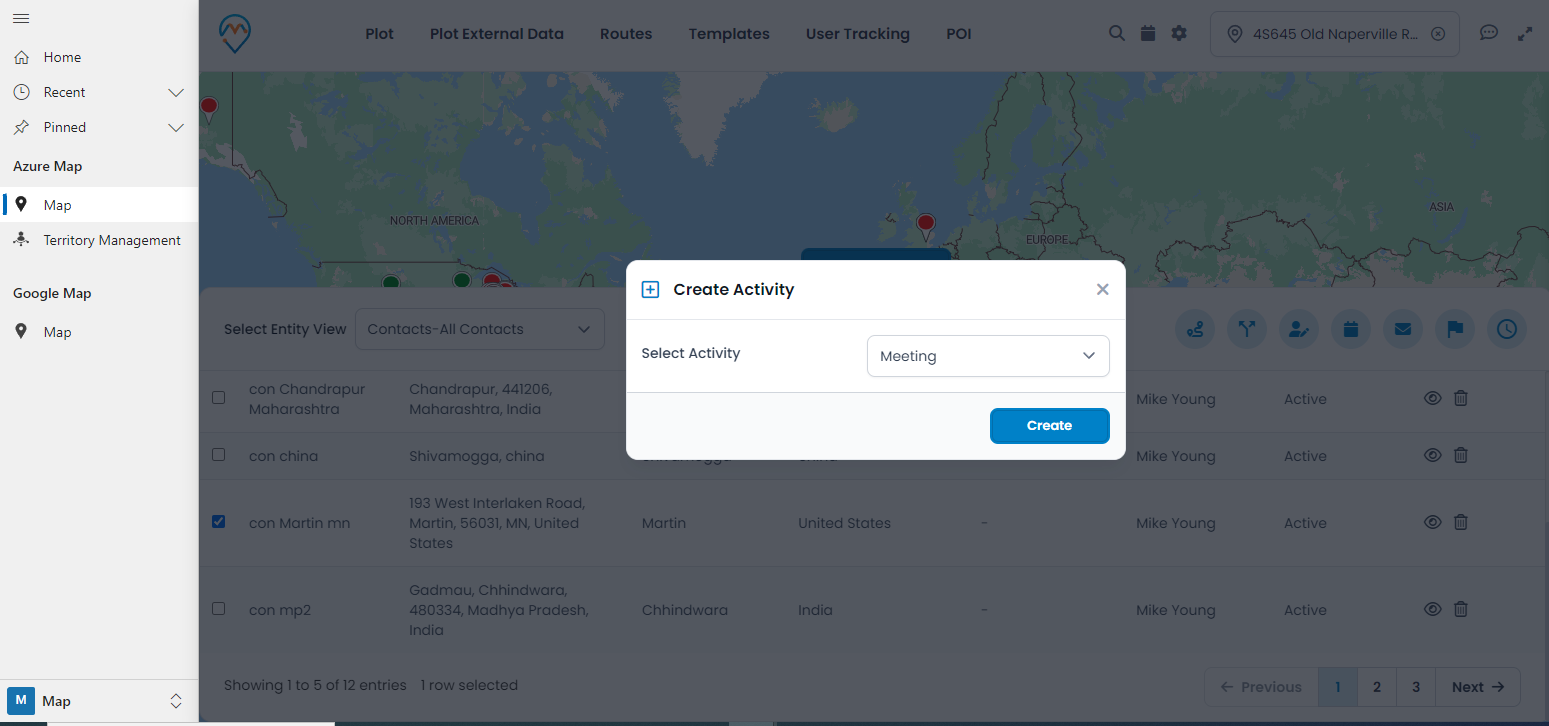
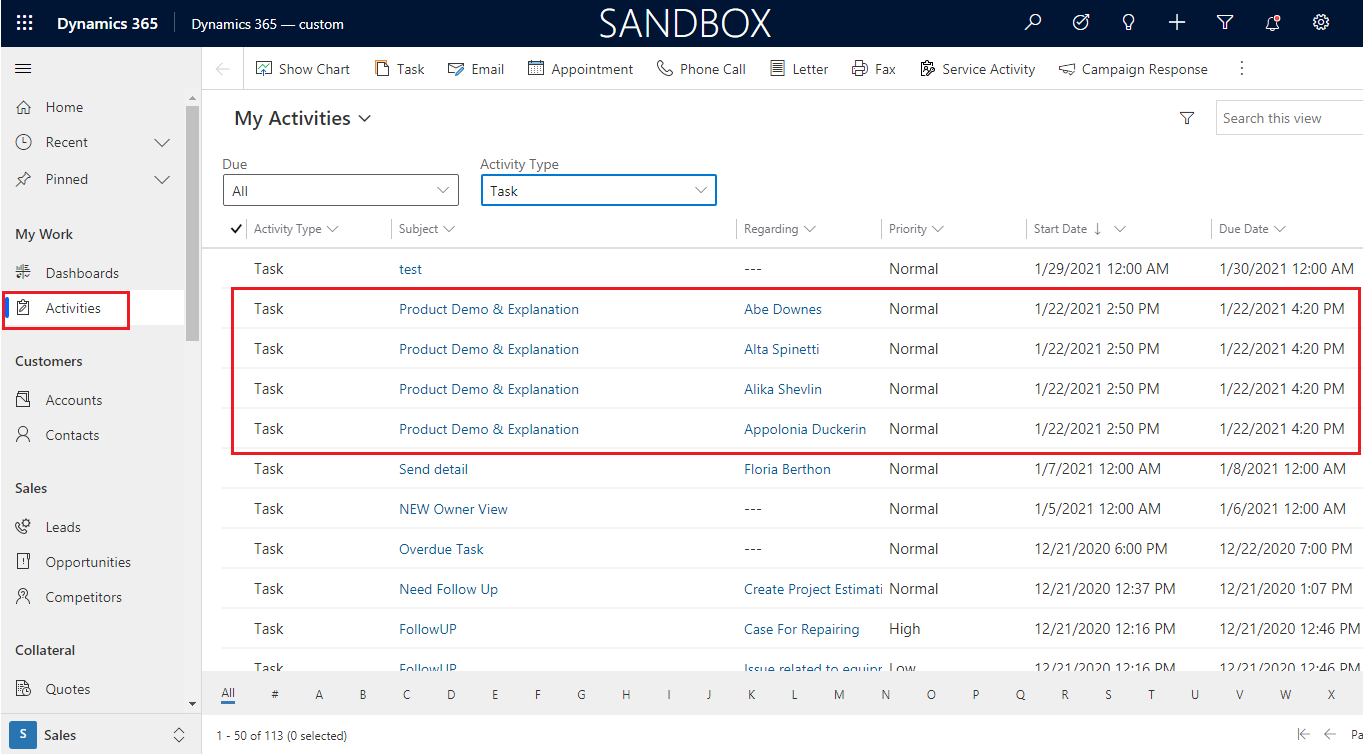
If the task is added for multiple records using the ‘Data Grid’ option, you can see the individual tasks for the entity records by navigating to the Task activities section on the CRM side.
All product and company names are trademarks™, registered® or copyright© trademarks of their respective holders. Use of them does not imply any affiliation with or endorsement by them.