Introduction
MappyField, a powerful plugin for Dynamics 365 CRM, introduces the Custom Scheduled Board as an essential feature for streamlining work order management. This tool is designed to provide users with a tailored, intuitive interface that simplifies scheduling and organizing work orders.
Integrating Azure Maps and a dynamic calendar view, the Custom Scheduled Board offers seamless visibility into scheduled and unscheduled tasks. Users can easily filter resources, manage bookings, and visualize work orders through interactive map pushpins, ensuring efficient planning.
With its user-friendly drag-and-drop functionality, the board helps users quickly assign resources and schedule tasks, all while maintaining real-time updates for better decision-making.
Custom Scheduled Board
The Custom Scheduled Board is a tailored solution designed to help users effectively schedule their bookings based on unscheduled work orders. This tool provides an intuitive interface for organizing and managing work orders efficiently.
Note:
To use this solution, users must have the following prerequisites:
- Field Service License
- Dynamics 365 Map Installation with an active license
- Dynamics 365 Map Configuration with Azure Maps
Supported Devices:
The Custom Scheduled Board is compatible with desktop and laptop screens.
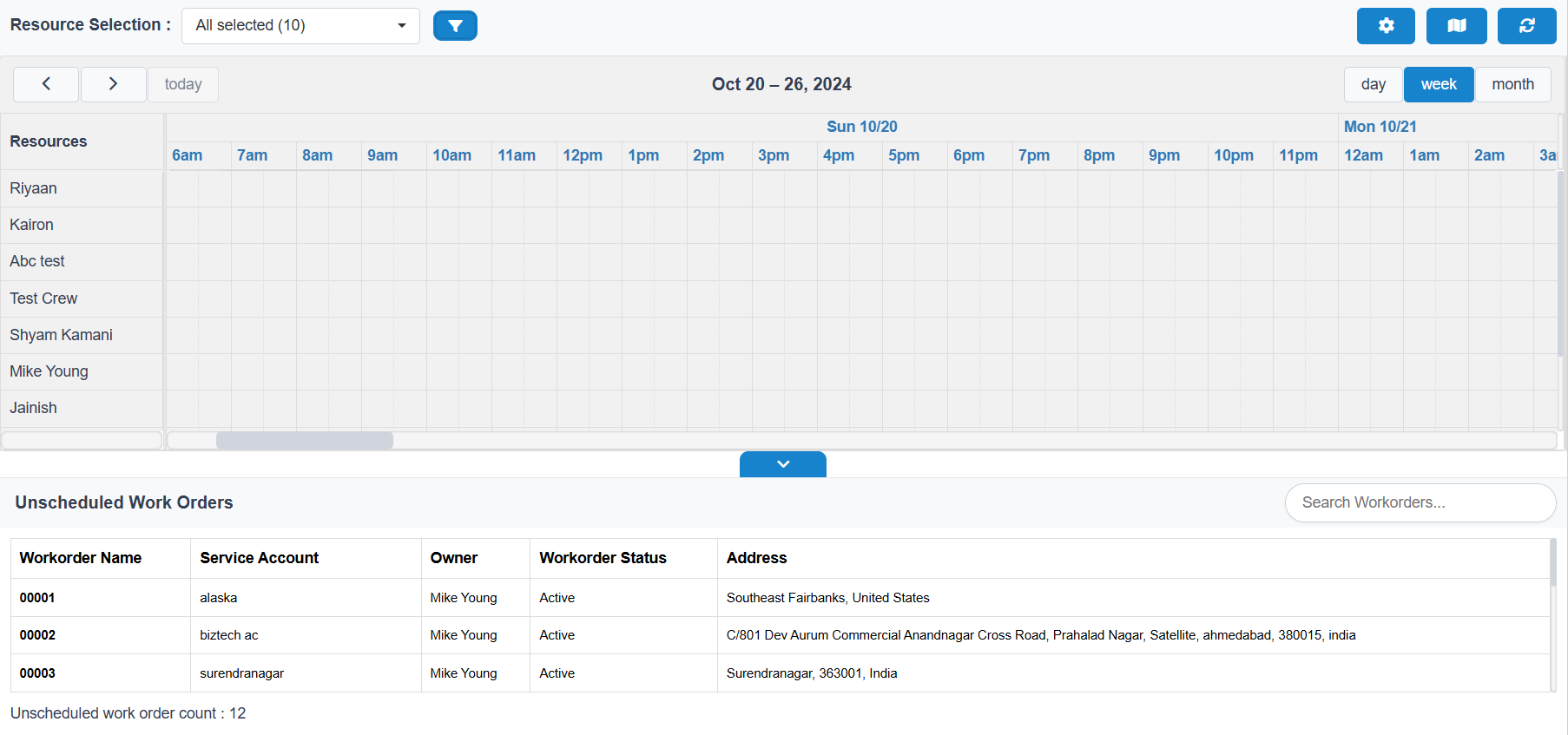
This is the interface of our Custom Scheduled Board, designed to initially load and display the following key elements:
- Unscheduled Work Orders: All pending work orders that are yet to be scheduled.
- Scheduled Work Orders: Work orders that have already been assigned specific dates, times, and resources.
- Bookable Resource Bookings: Information on available resources, including assigned bookings and availability.
- Calendar View: An intuitive calendar interface for easy scheduling and time management.
- Azure Map Integration: Provides geographical context to help visualize booking locations.
Resource management
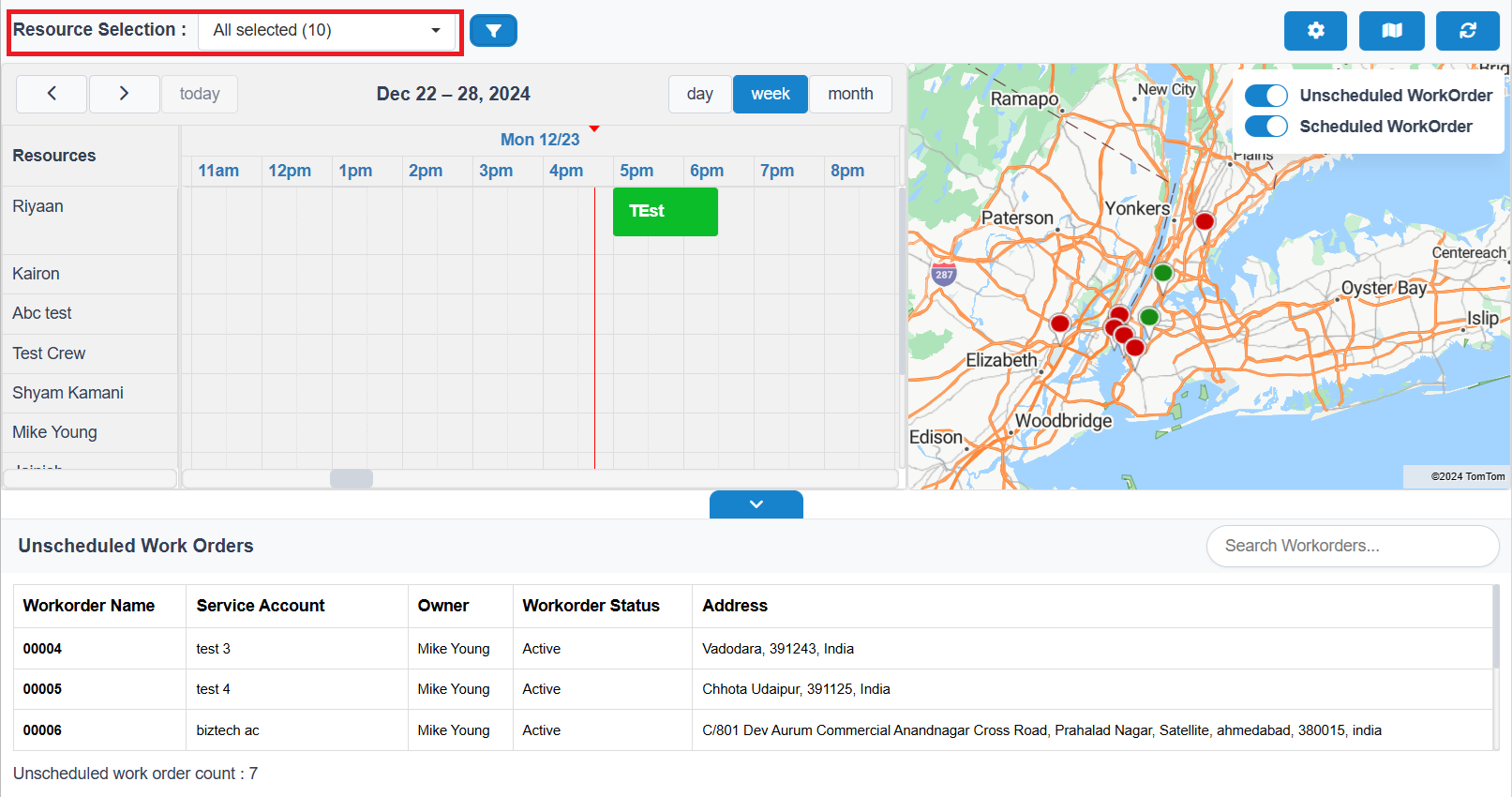
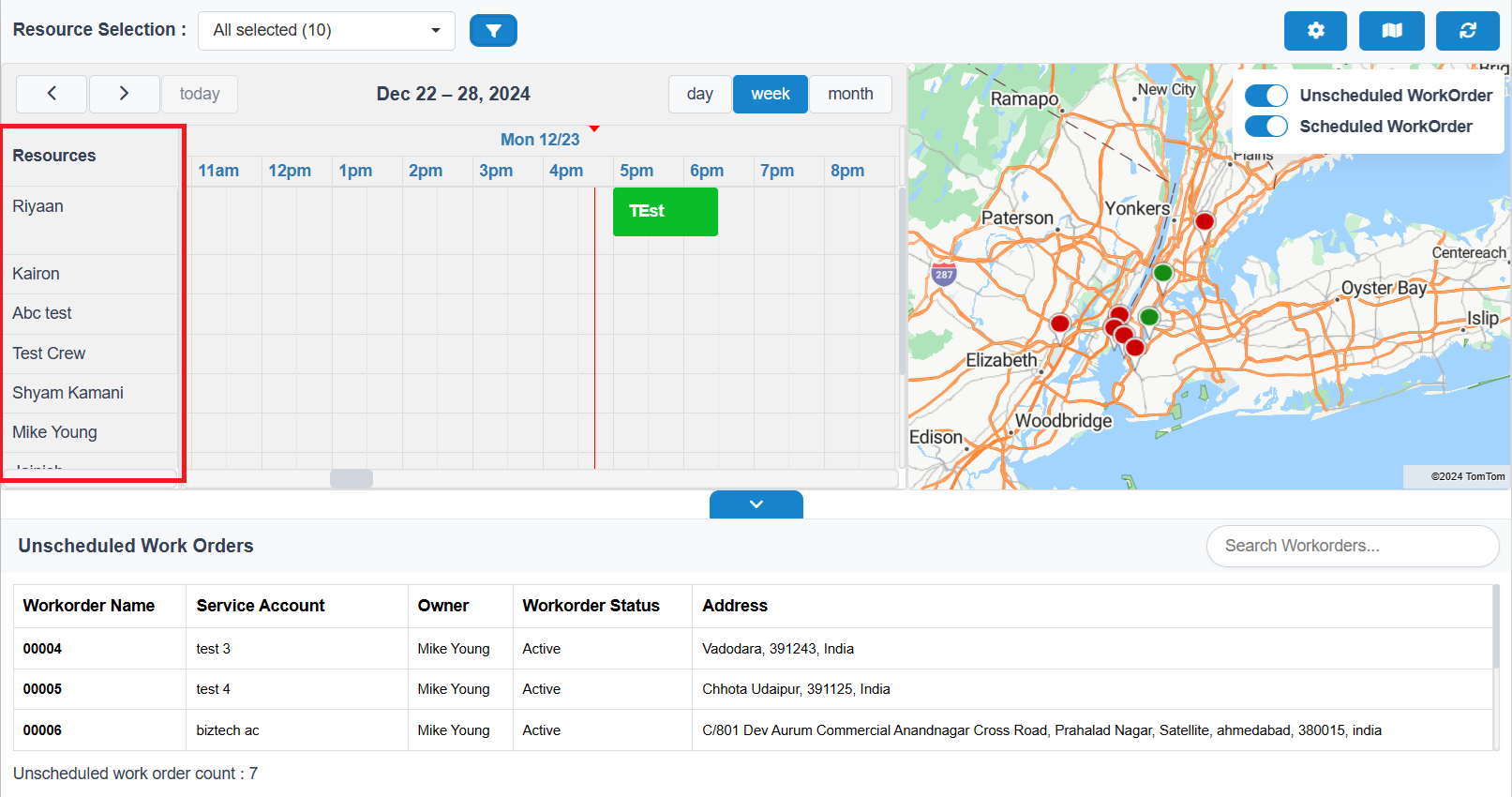
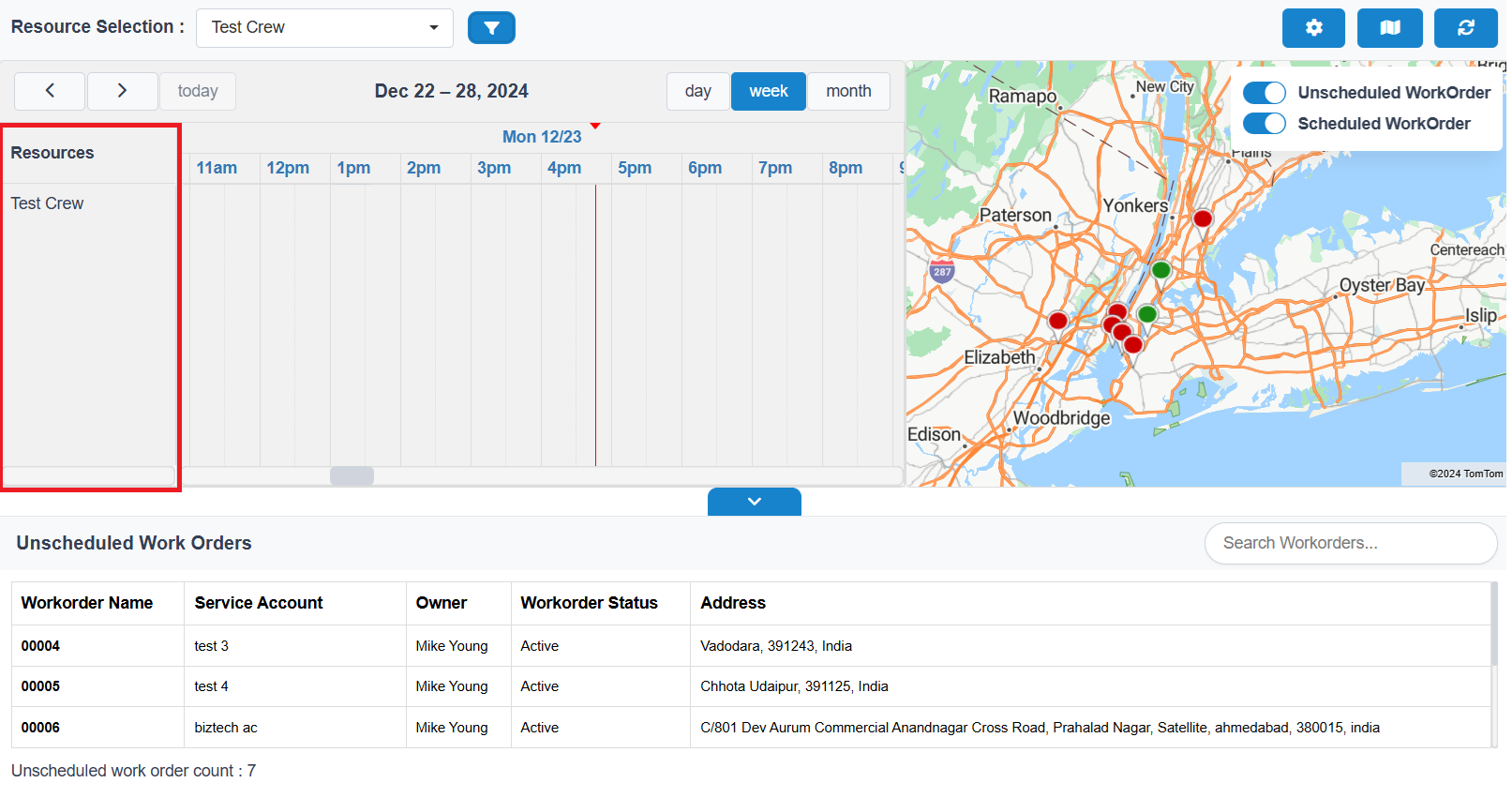
The Resource Selection Field is a multi-select option that lists all available users. Users can choose one or multiple resources from this list. Once selected, these resources are displayed in the Calendar Resource Section for easy scheduling and management.
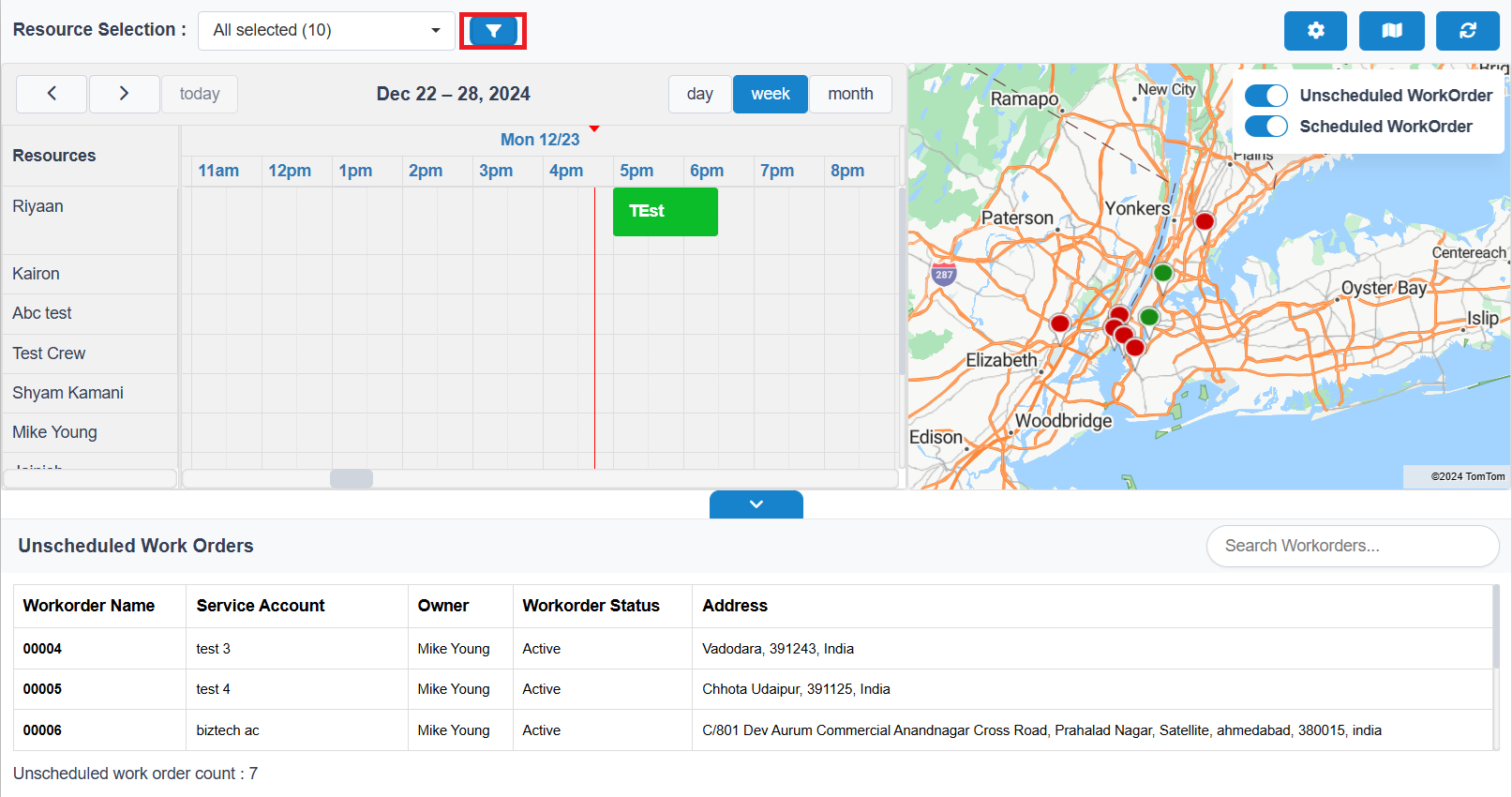
Upon clicking the button, a Filter Form opens, displaying various fields that can dynamically bind based on configuration settings.
Users can fill in values according to each field’s type, enabling targeted filtering. After filling in the desired criteria, clicking the Apply Button filters the resources displayed in the calendar resource section.
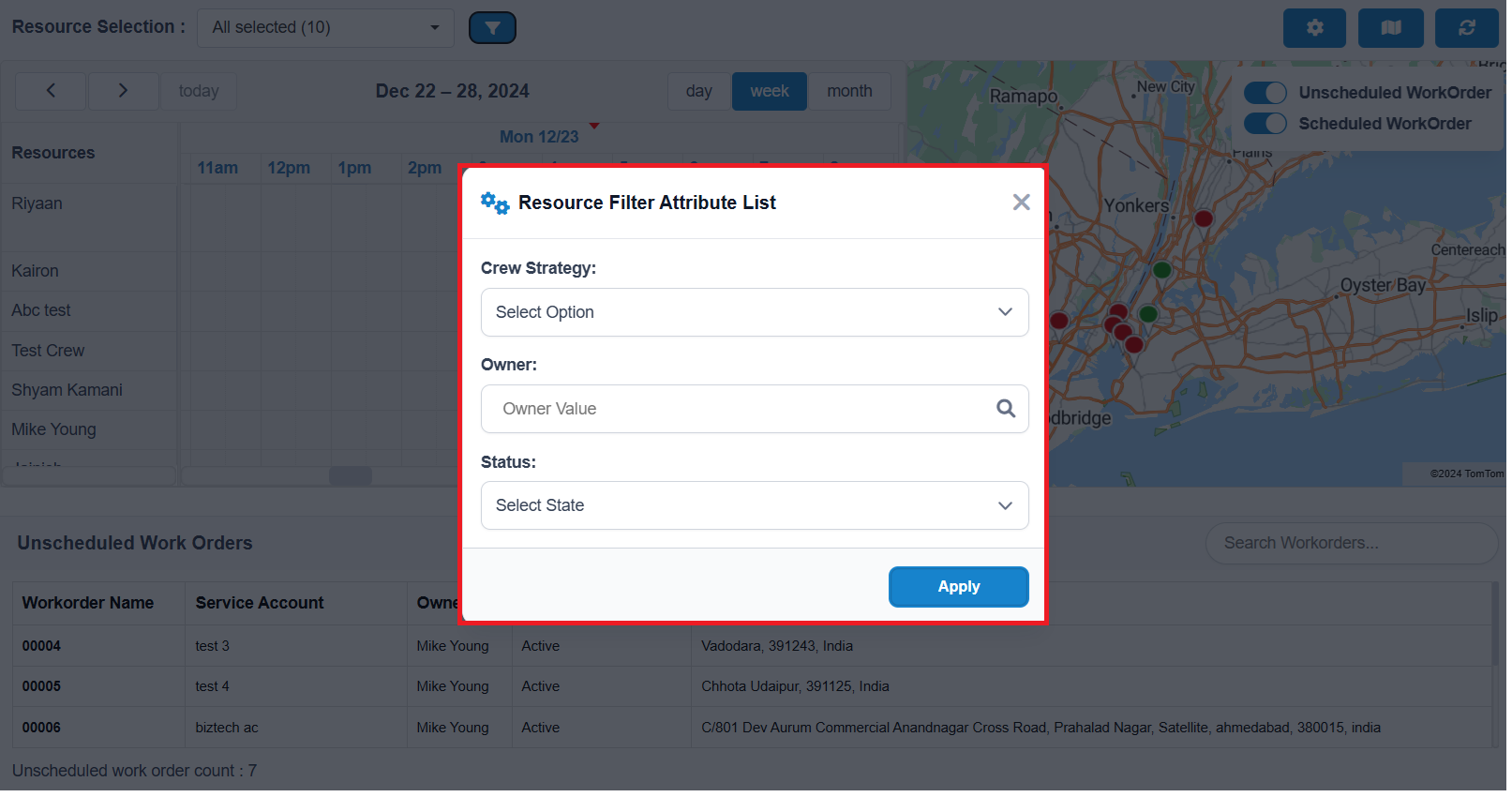
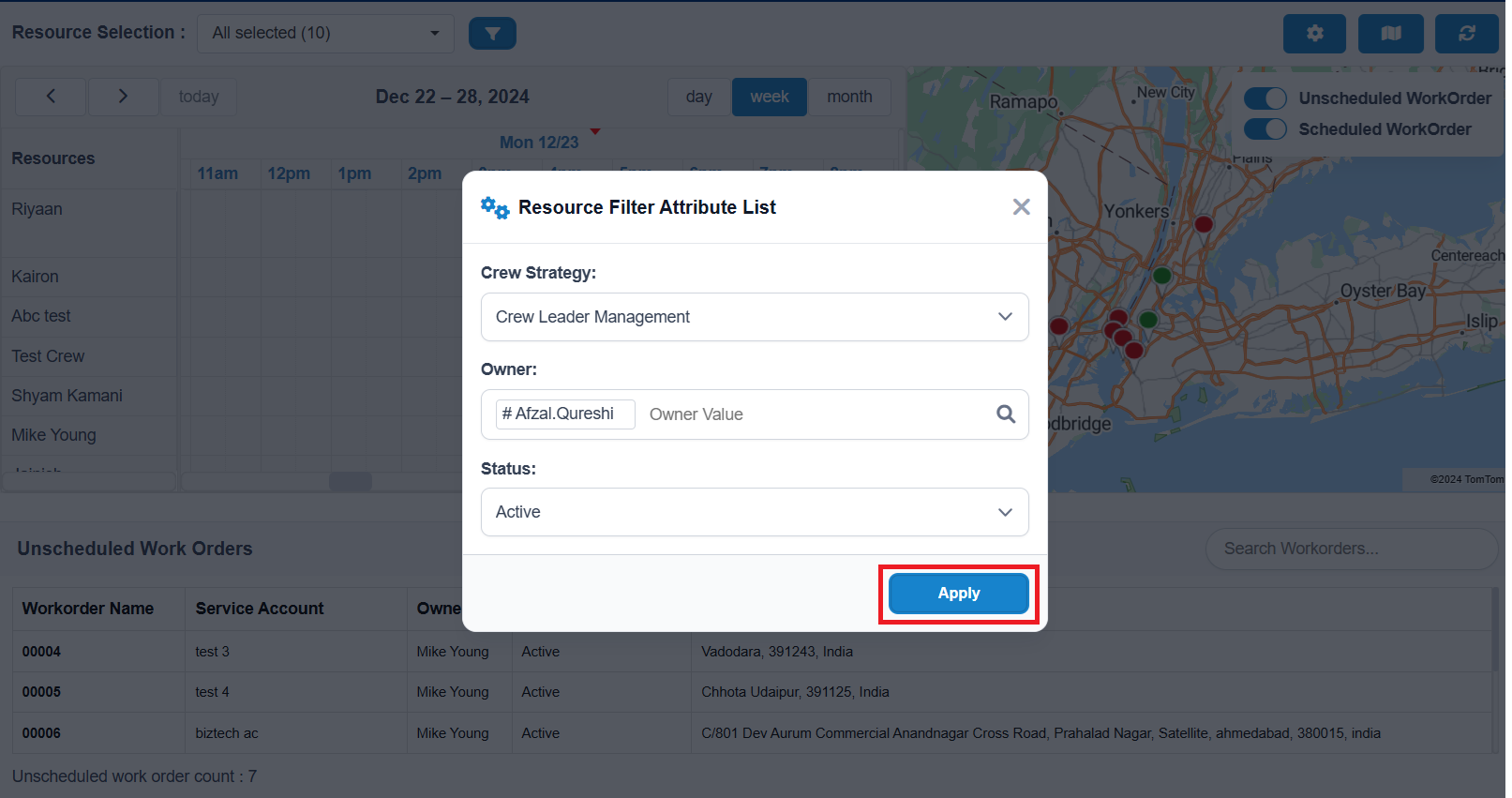
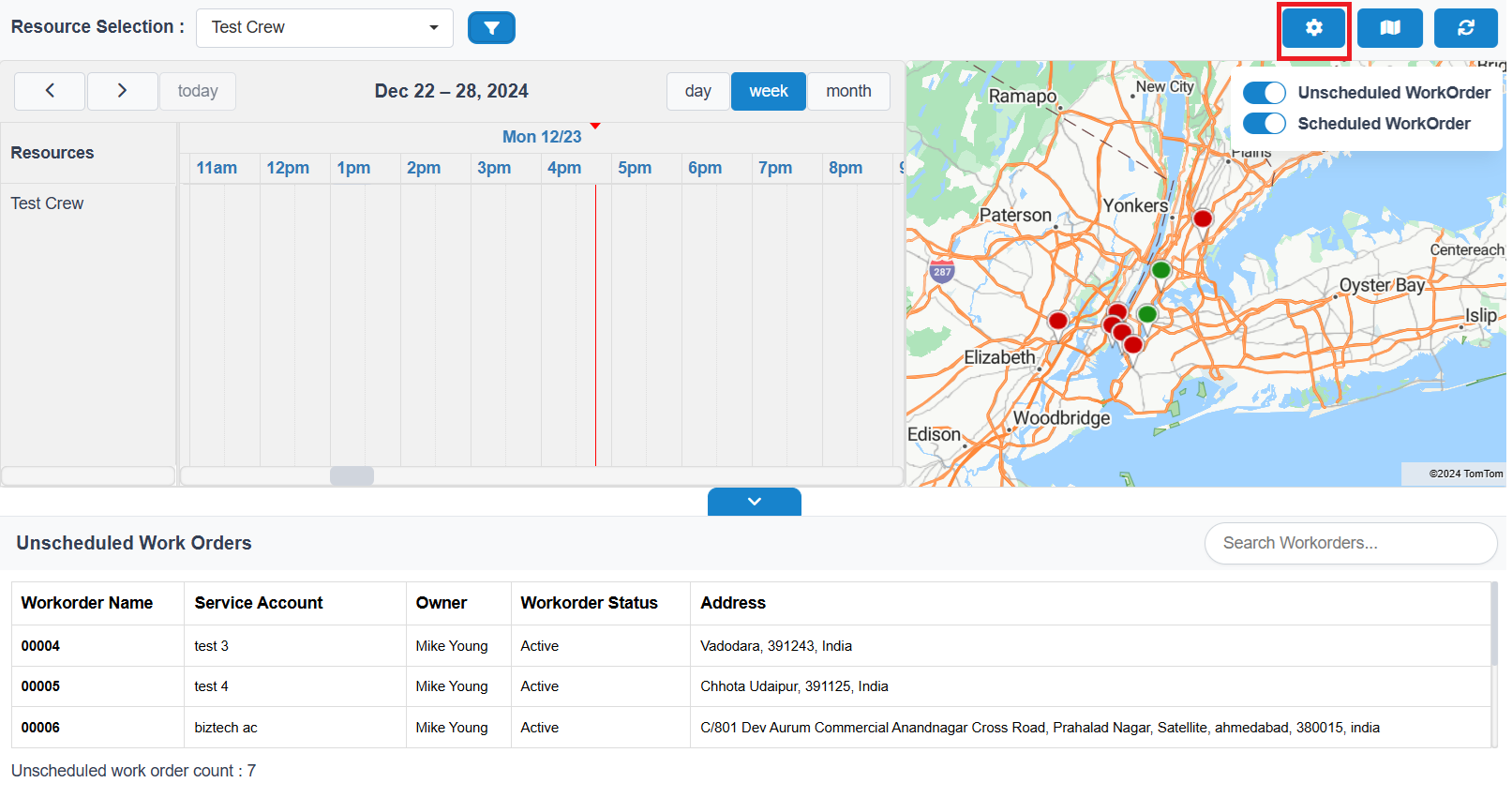
To manage filter fields efficiently, users can access Configuration Settings from the Settings menu.
Within Configuration Settings, users have control over key customization options:
- Resource (Bookable Resource) Filter Field: Configure the specific fields that appear when filtering resources, making it easier to refine search criteria.
- Calendar Event (Bookable Resource Bookings) Hover Field: Select and display relevant details when hovering over events in the calendar, giving users quick insights into bookings.
- Map Pushpin (Scheduled/Unscheduled Work Order) Hover Field: Customize the details shown when hovering over map pushpins, enhancing work order visibility on Azure Maps.
These settings enable precise control over what information is displayed, streamlining scheduling and navigation across the Custom Scheduled Board.
This setup allows for a tailored interface that aligns with unique user and business needs.
To apply all configuration settings, users need to click the Save Button. This action saves the settings as a one-time configuration, which users can update anytime as needed.
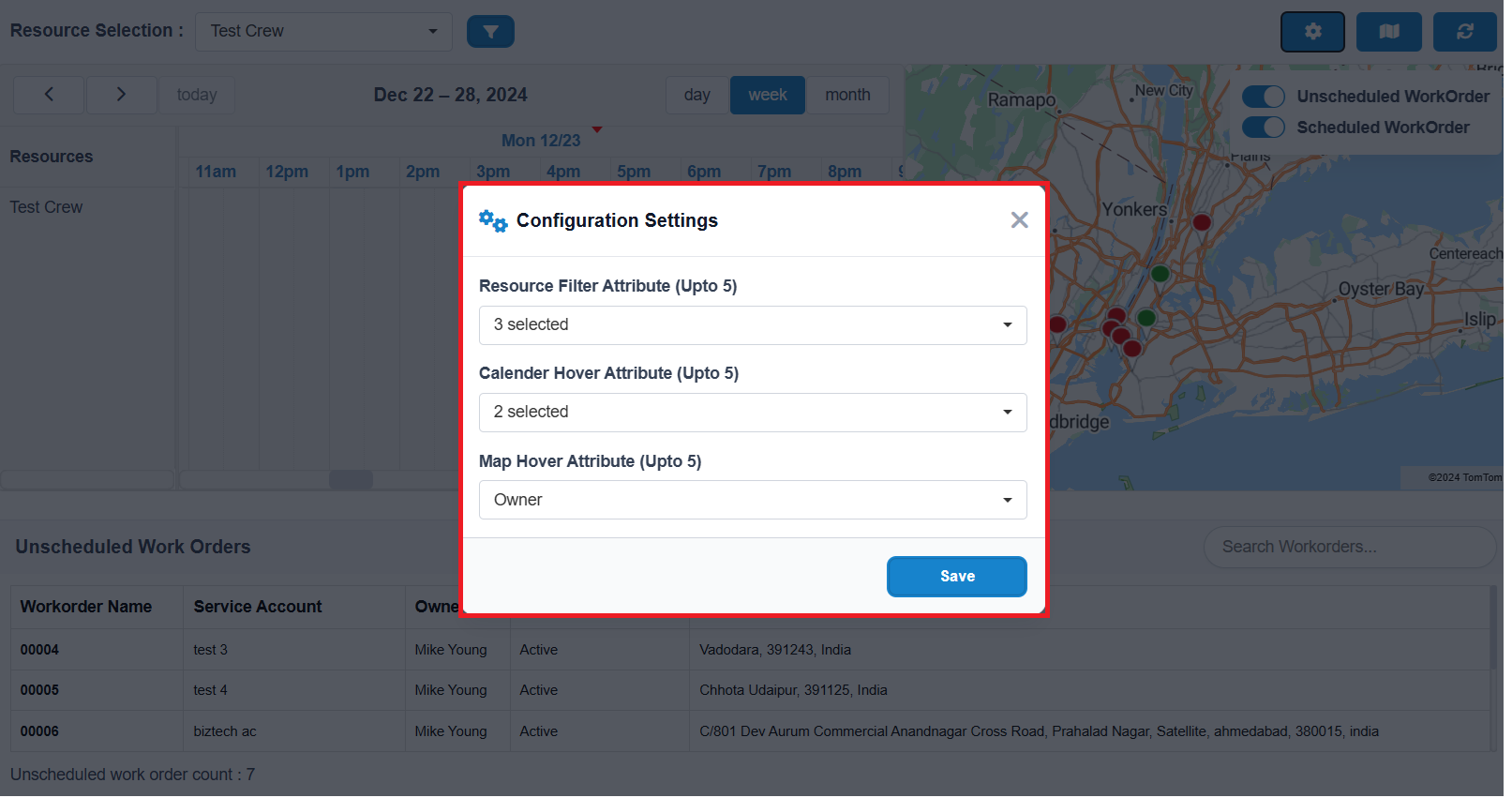
Once saved, the custom settings will be applied across the Custom Scheduled Board, ensuring that all selected filters, calendar hover fields, and map pushpin hover fields are displayed according to user preferences.
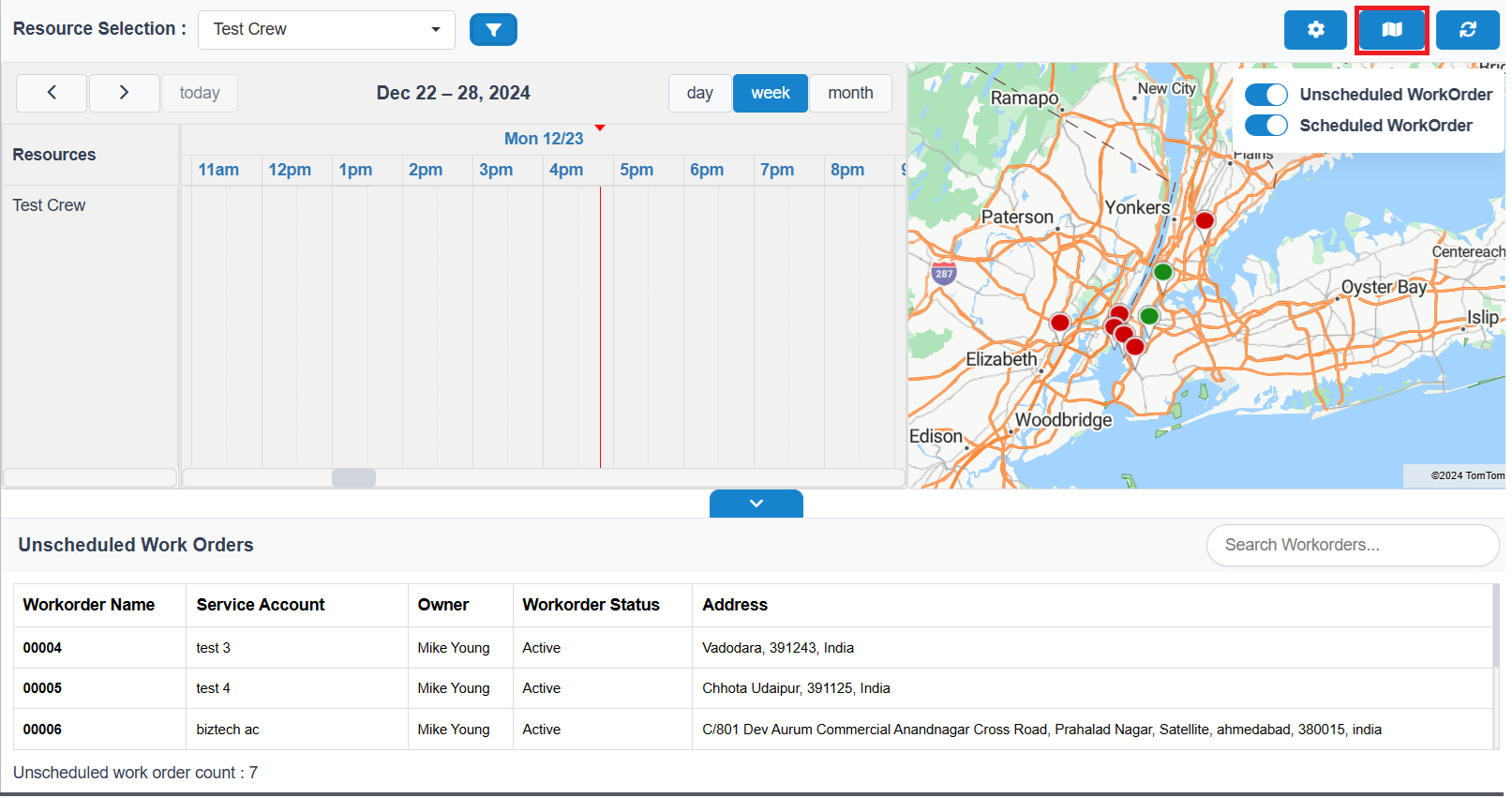
To toggle the visibility of the map according to user preferences, click the Show/Hide Map Button.
Within the map, there are two toggle switches:
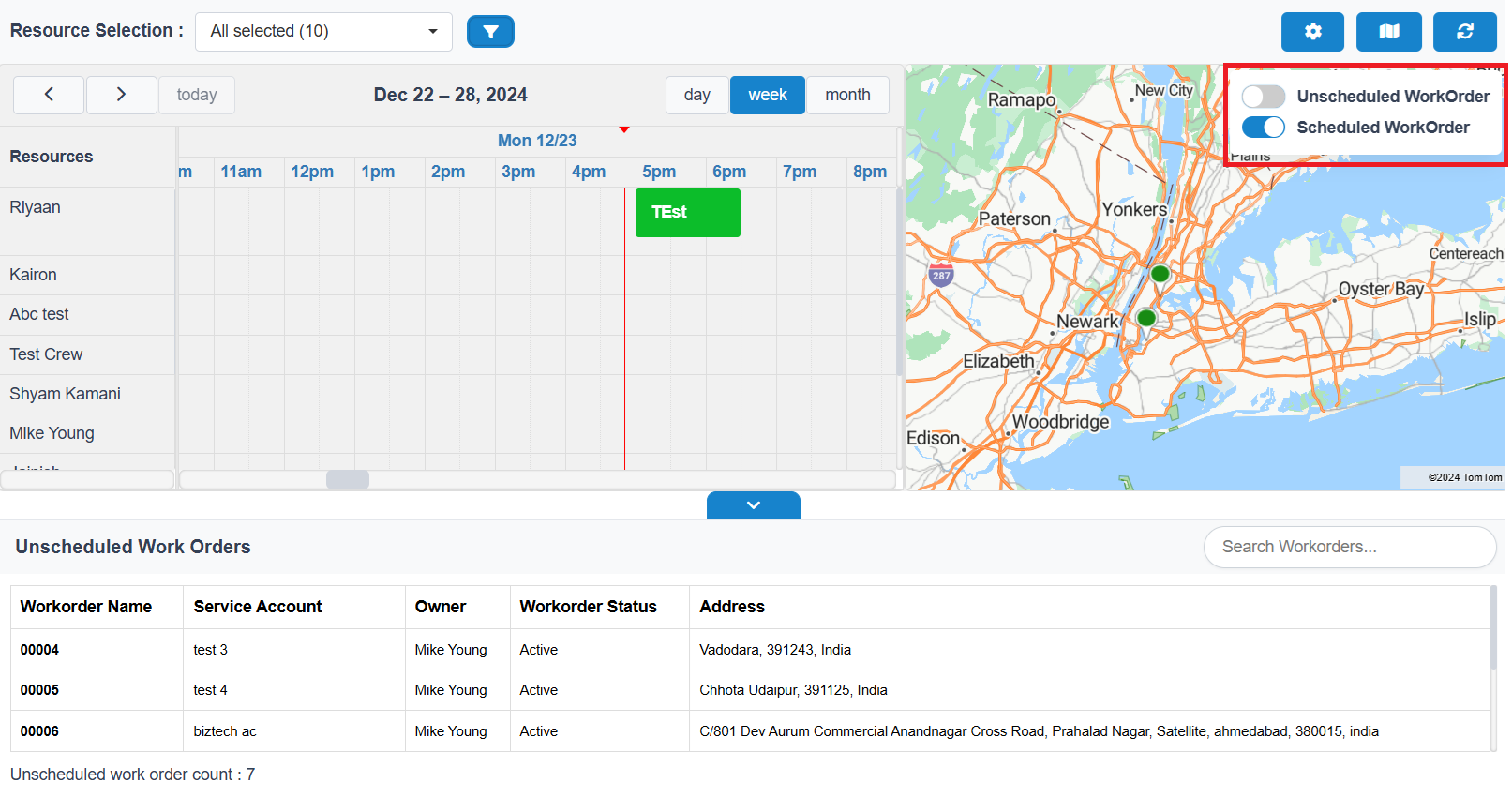
- Scheduled Work Orders: Toggle this switch to display or hide scheduled work orders on the map.
- Unscheduled Work Orders: Toggle this switch to show or hide unscheduled work orders as desired.
These toggle switches allow users to control which work orders are visible on the map, ensuring a customized and efficient view.
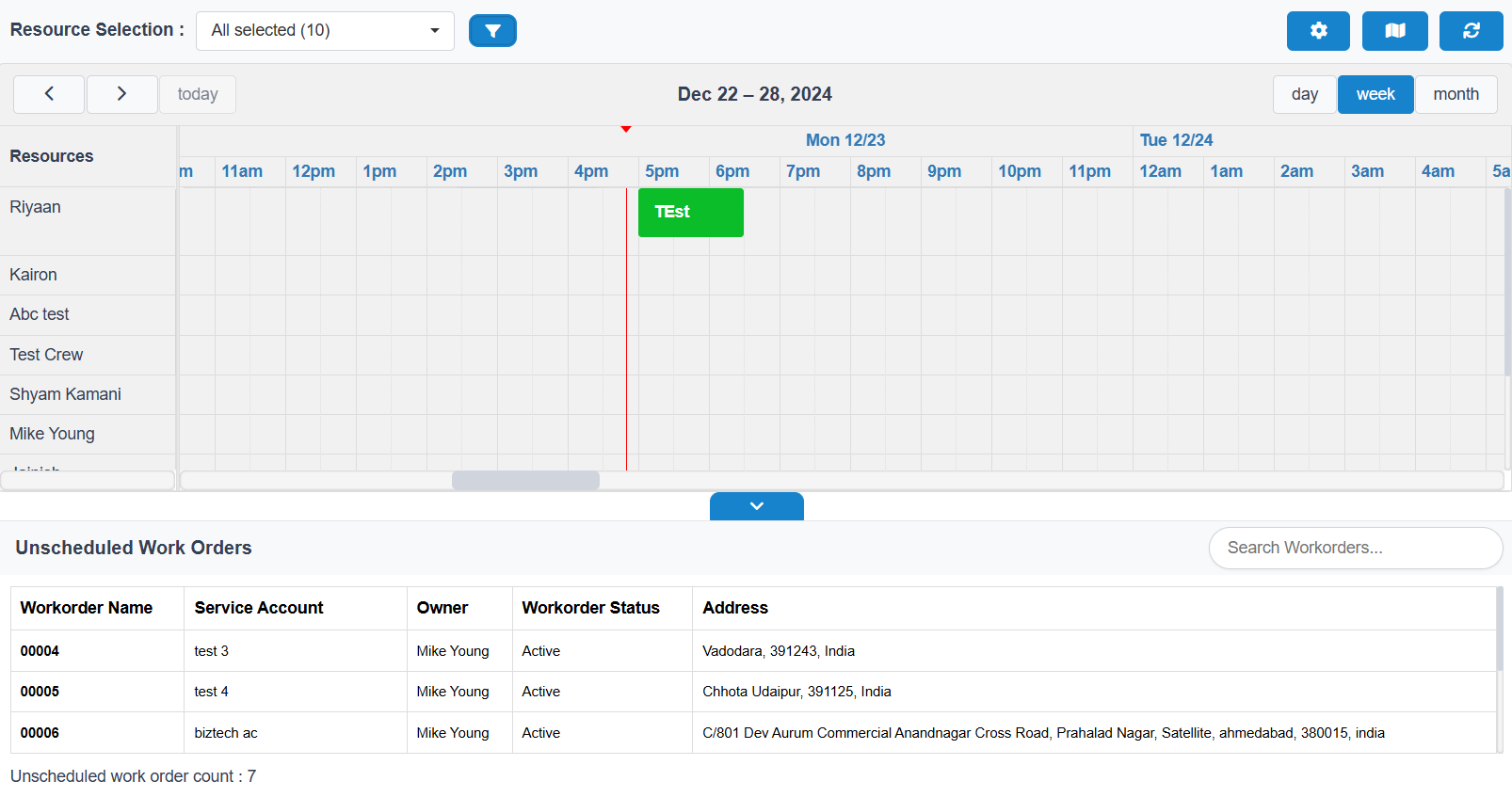
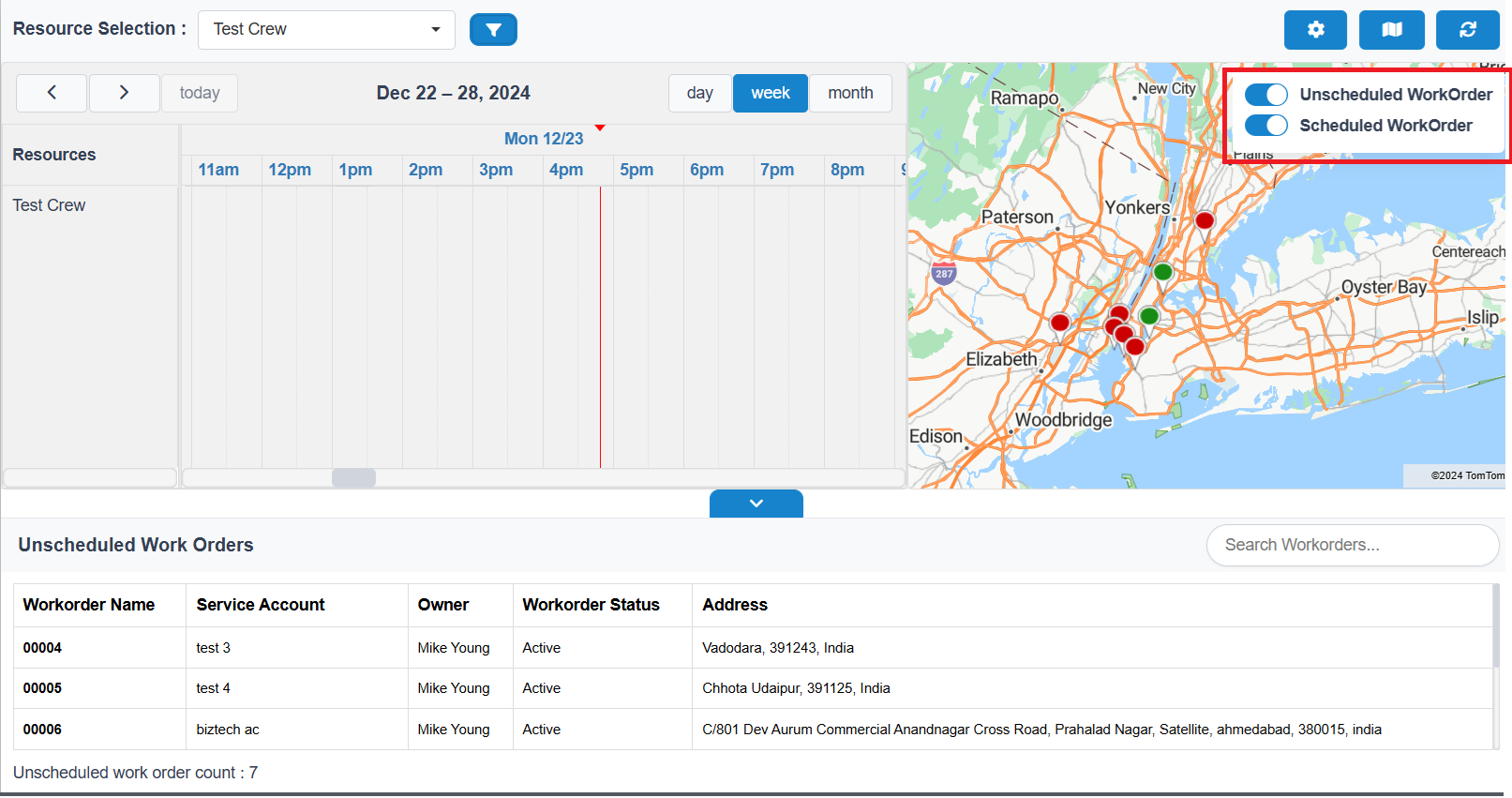
These toggles help users display specific work orders on the map:
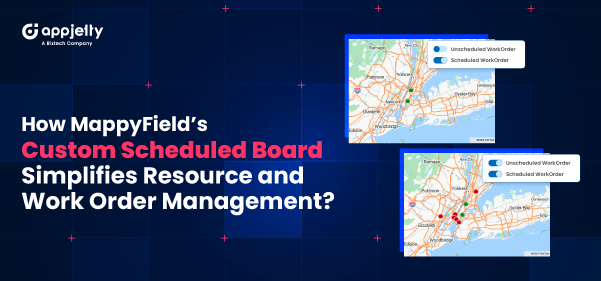
- Scheduled Work Orders: Displayed with green pushpins, as shown in the image below. This allows users to easily identify and focus on scheduled tasks.
- Unscheduled Work Orders: Displayed with red pushpins, as shown in the image below. This helps users spot tasks that still need scheduling.
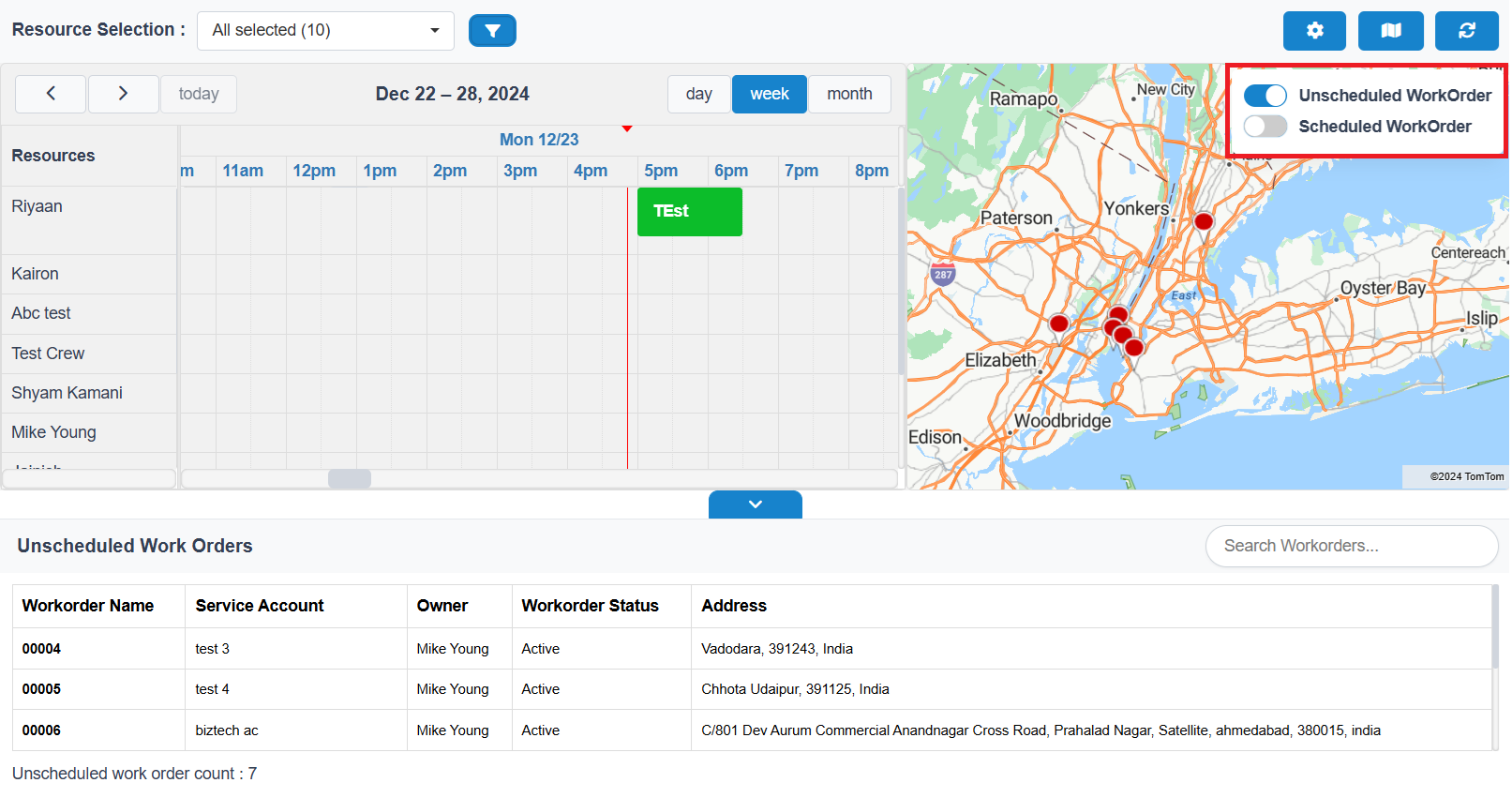
These color-coded pushpins provide a clear visual distinction between scheduled and unscheduled work orders for streamlined planning.
Users can apply a Proximity Filter by clicking on a pin to perform a radius-based search, ranging from 1 to 99 km for both scheduled and unscheduled work order pins. This feature allows users to easily identify nearby work orders based on their selected pin:
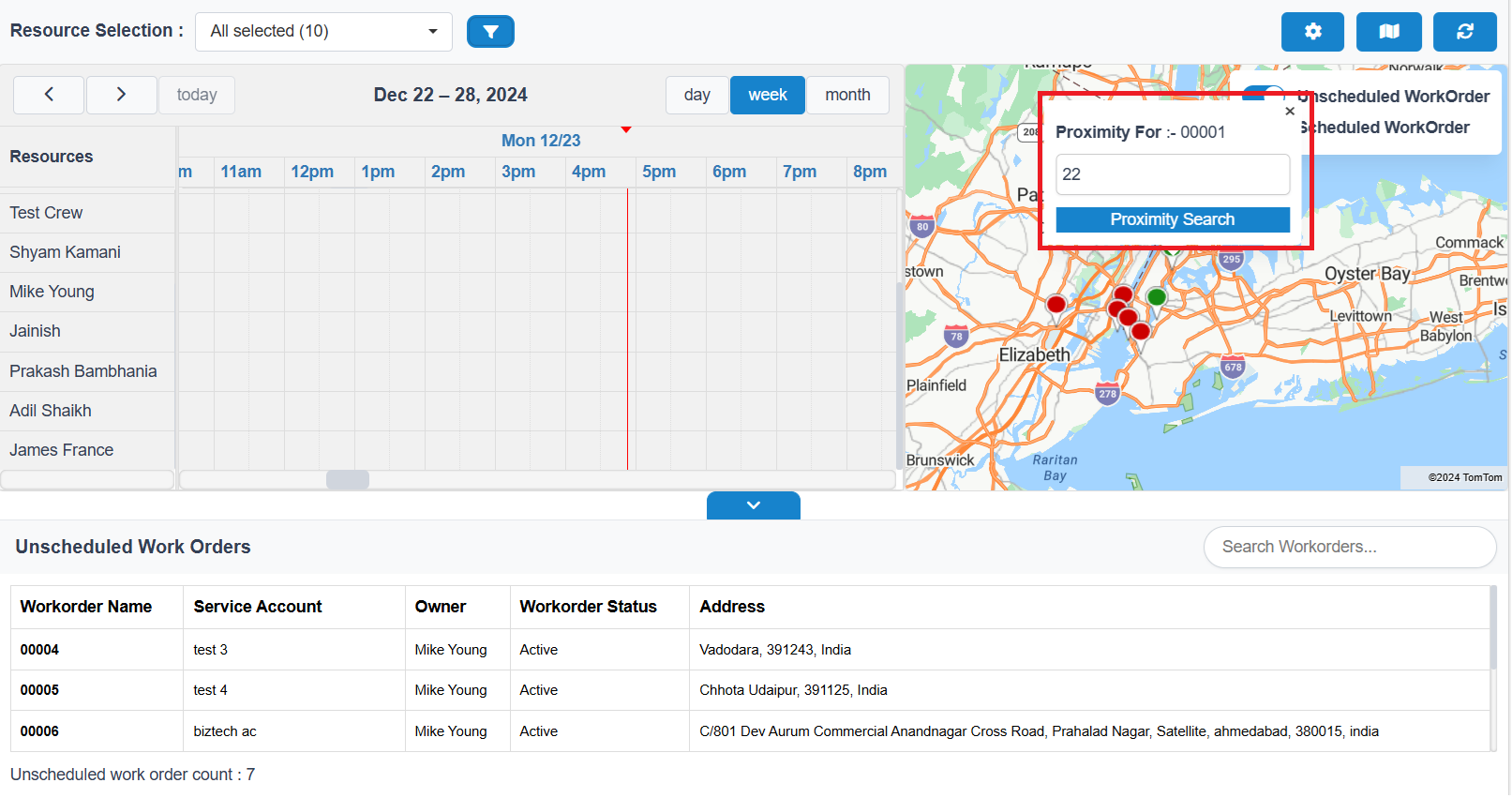
To perform a proximity search, enter a value in the textbox and click on the Proximity Search Button.
Scheduled Work Order Pin: When selected in the proximity filter, the search displays all unscheduled work orders within the specified radius. The Unscheduled Work Order grid is then updated to reflect only these nearby, unscheduled tasks.
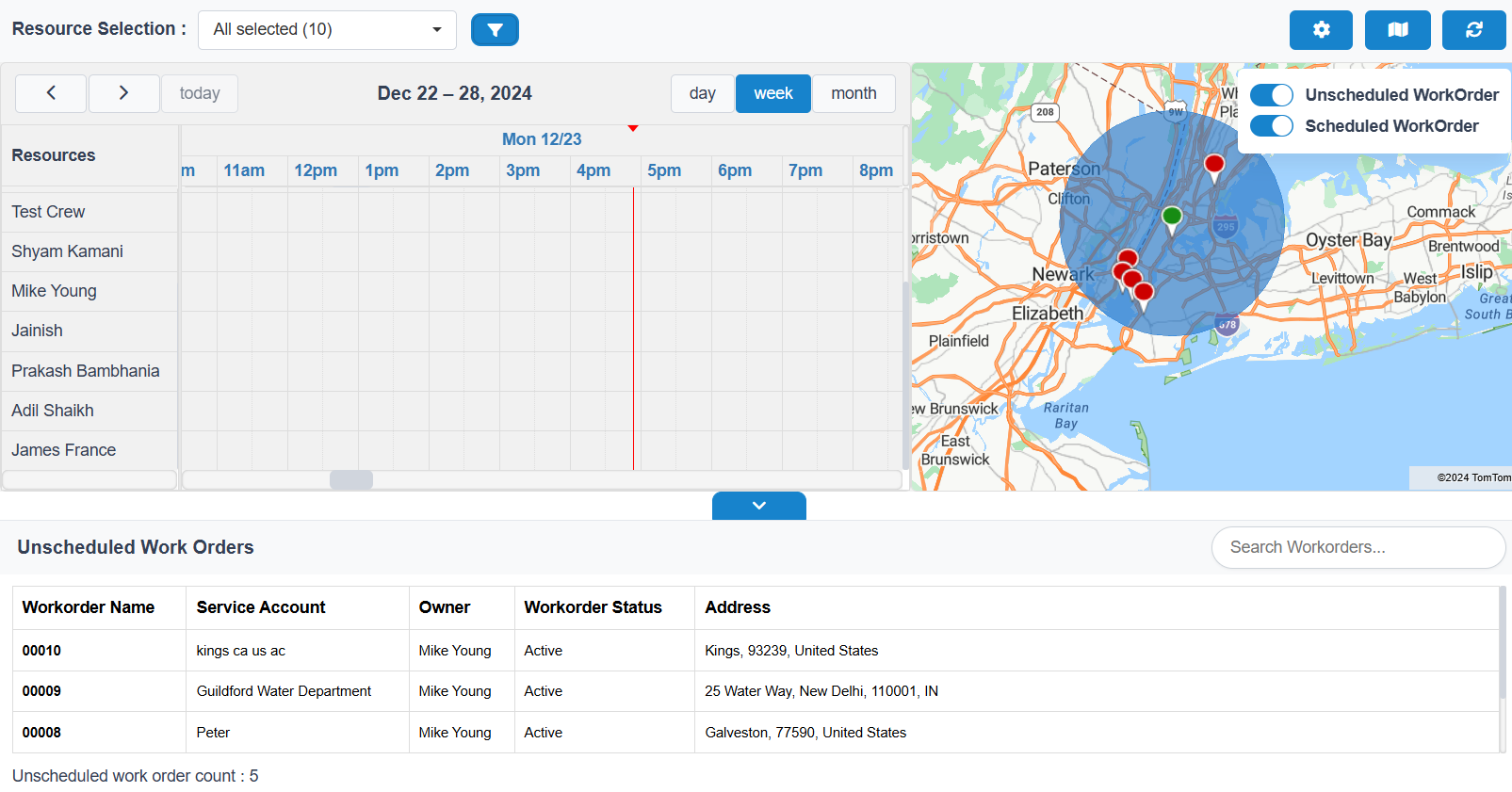
Unscheduled Work Order Pin: Similarly, when an unscheduled pin is selected in the proximity filter, the search displays nearby unscheduled work orders within the specified radius, updating the Unscheduled Work Order grid accordingly.
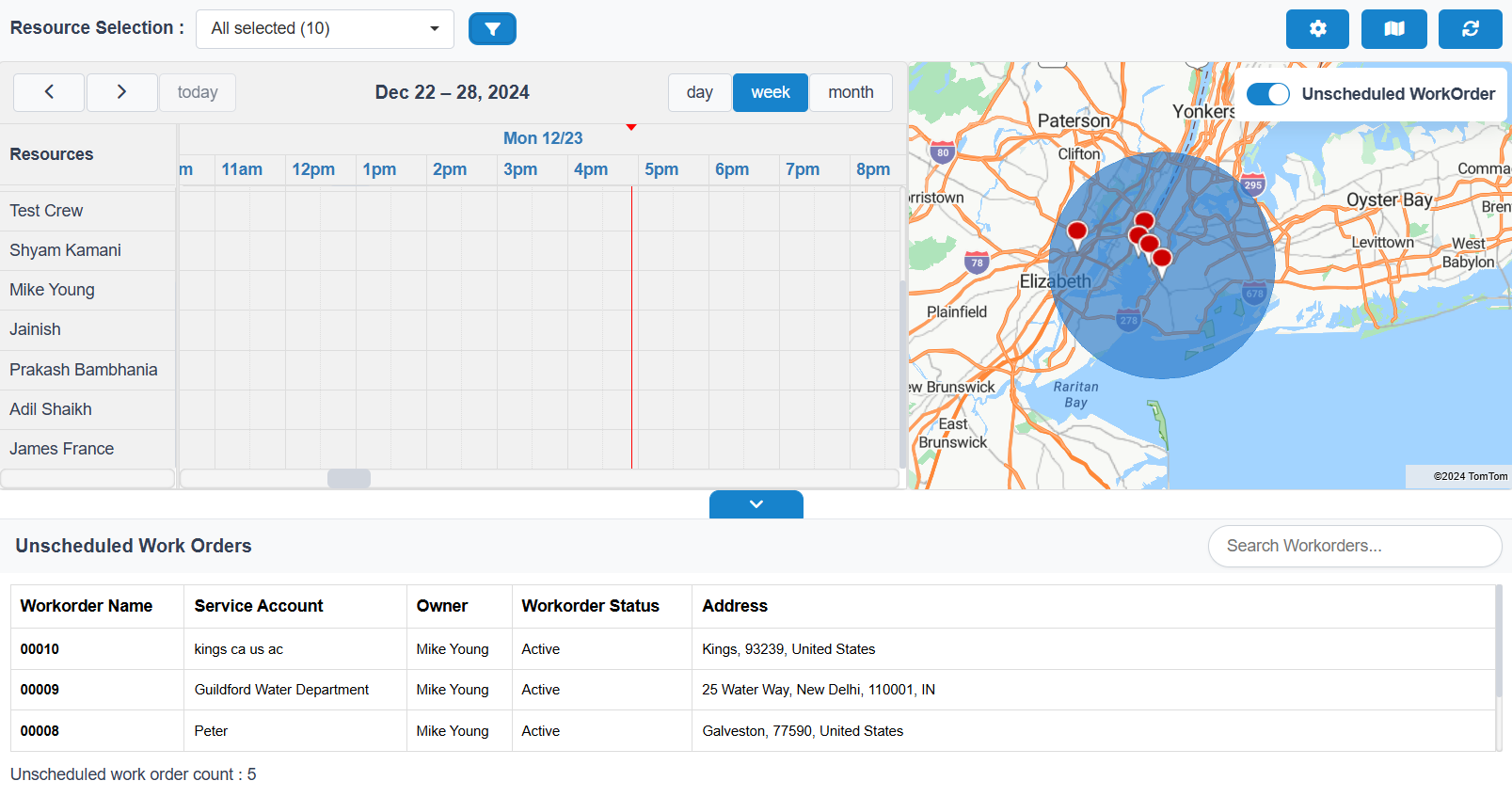
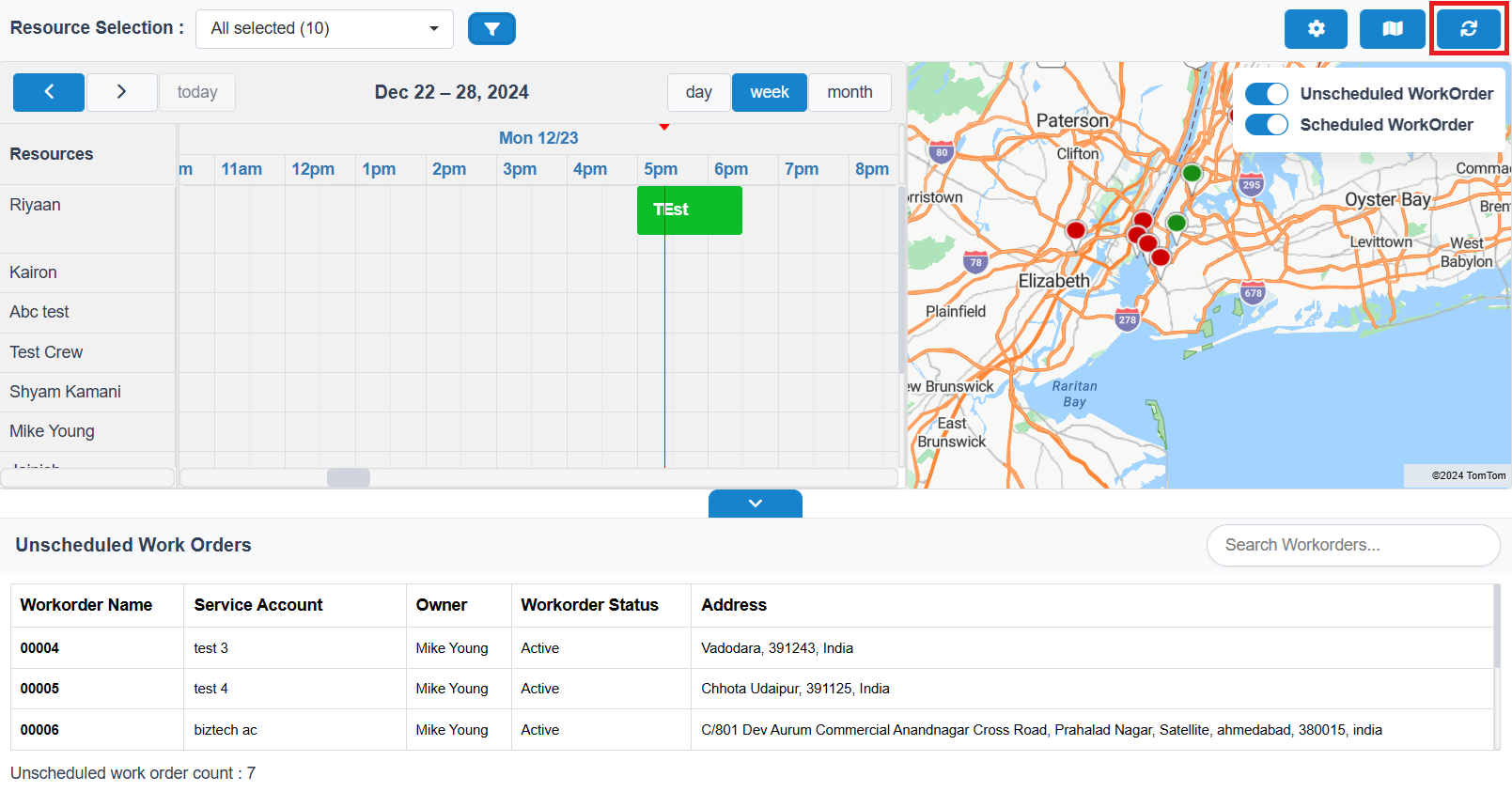
To reset the proximity search and refresh all displayed data, simply click the Refresh Button. This action will:
- Clear any applied proximity filters.
- Refresh all data shown in the grid, calendar, and map.
As a result, users will see the latest information for both scheduled and unscheduled work orders, ensuring that they have the most up-to-date view of their resources and tasks.
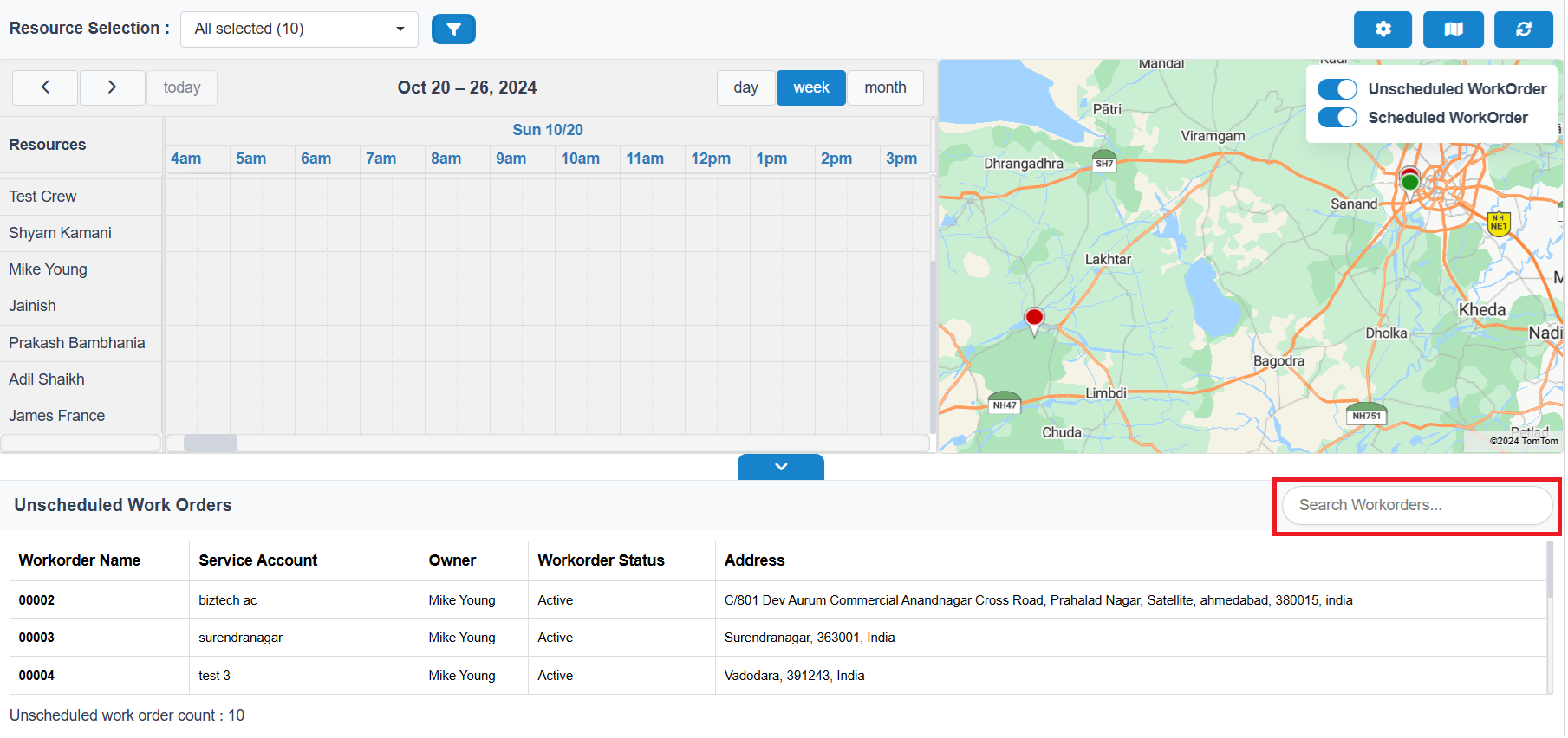
In the grid, users can view their unscheduled work orders. To filter specific records, users can utilize the Search Work Order feature. This functionality allows users to quickly find and filter unscheduled work orders by entering relevant keywords or criteria, making it easier to manage and prioritize tasks effectively.
Users can open the Calendar and Map in full-screen mode for a heightened perspective. This feature provides an immersive view, allowing users to better visualize their schedules and geographical data without any distractions from the surrounding interface.
To enter full-screen mode, simply click the grid hide/show Button located on the calendar or map interface. This enhancement facilitates a more detailed and comprehensive analysis of scheduled work orders and resource allocations.
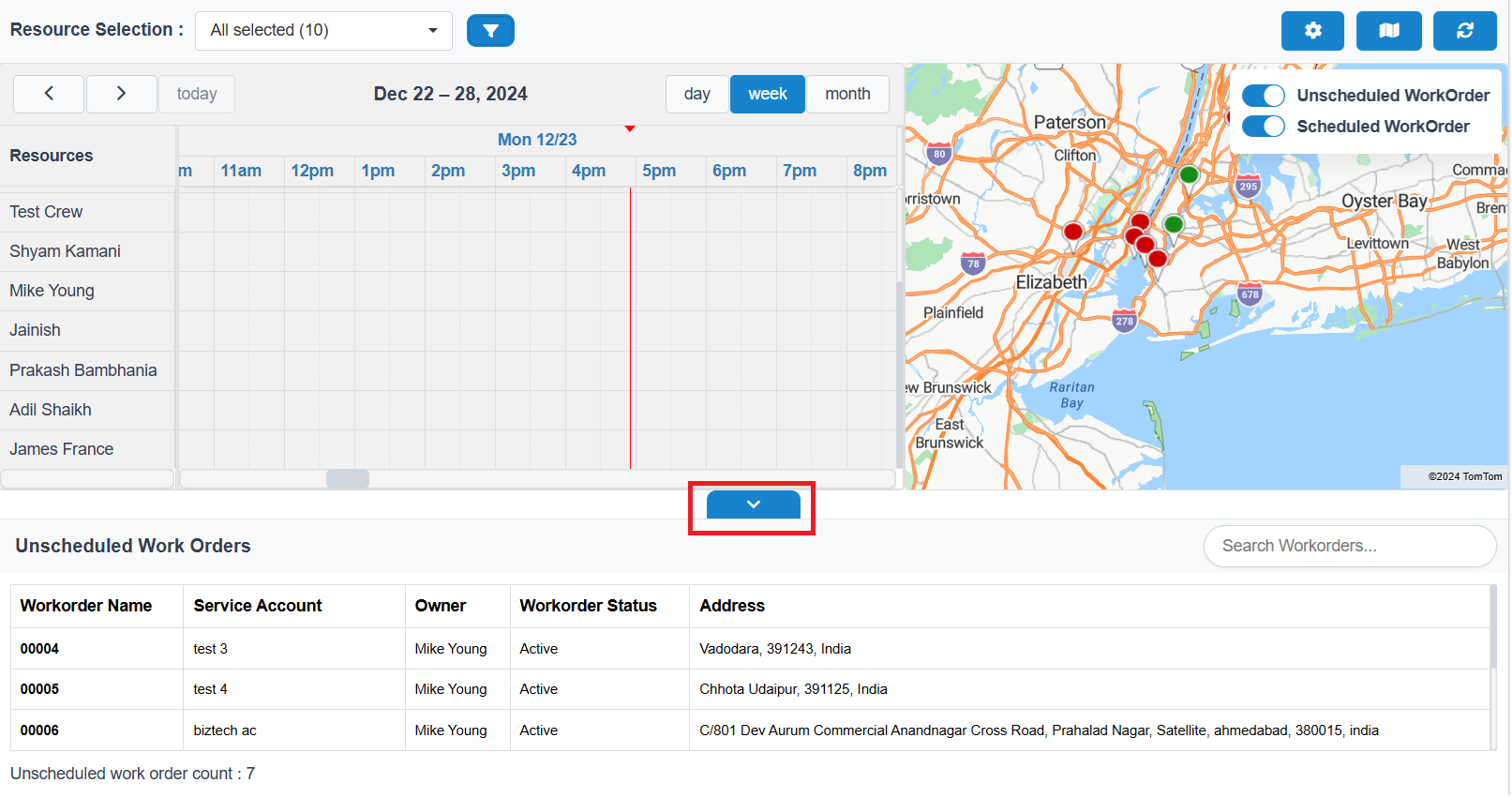
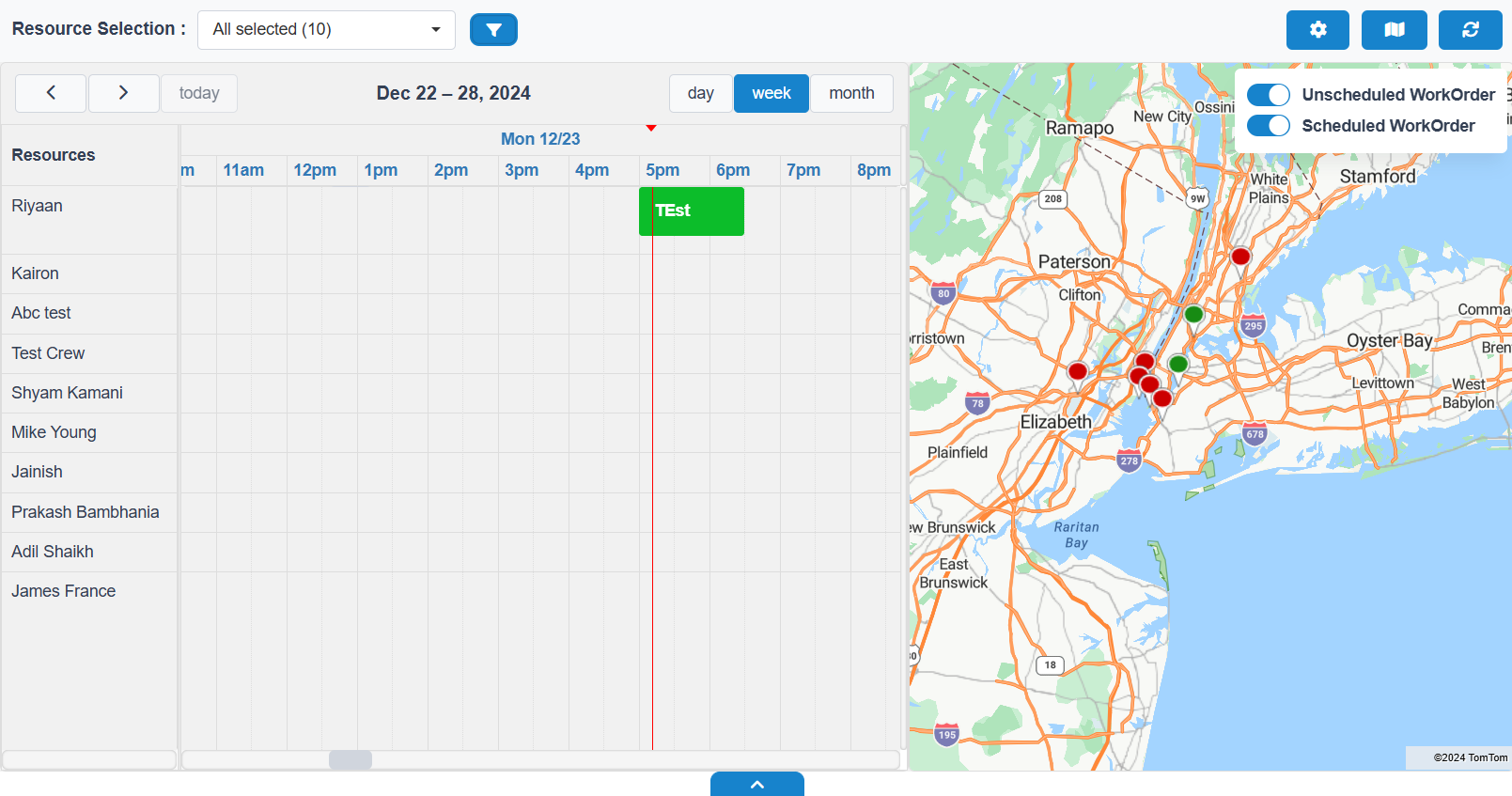
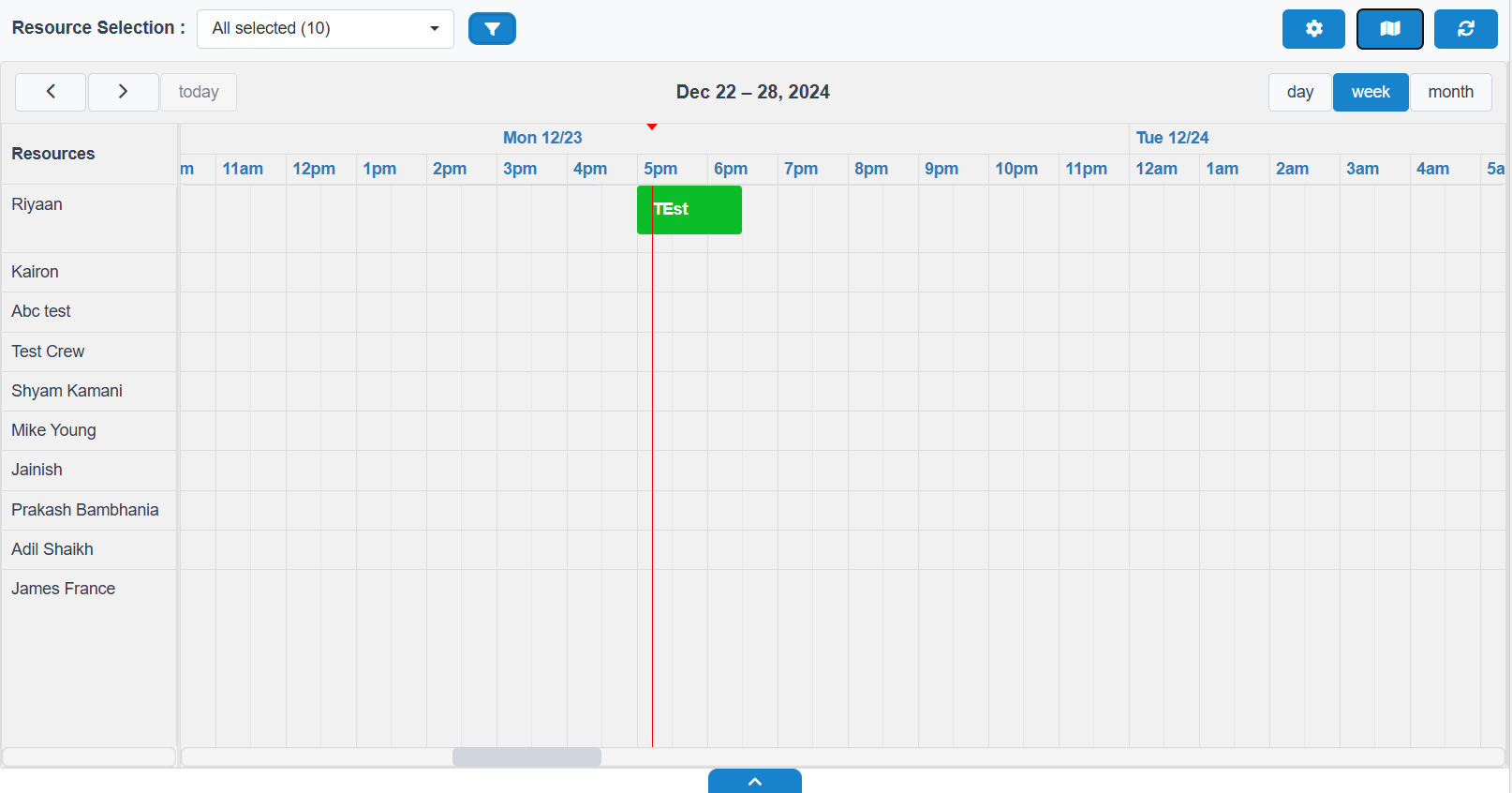
Users can also enable the Calendar in full-screen mode by hiding the grid. This can be done using the Hide Grid Button, allowing for a more focused view of the calendar.
Additionally, users can hide the map by using the Show/Hide Map Button. This combination of options allows users to maximize their workspace, concentrating solely on the calendar while minimizing distractions from other elements of the interface.
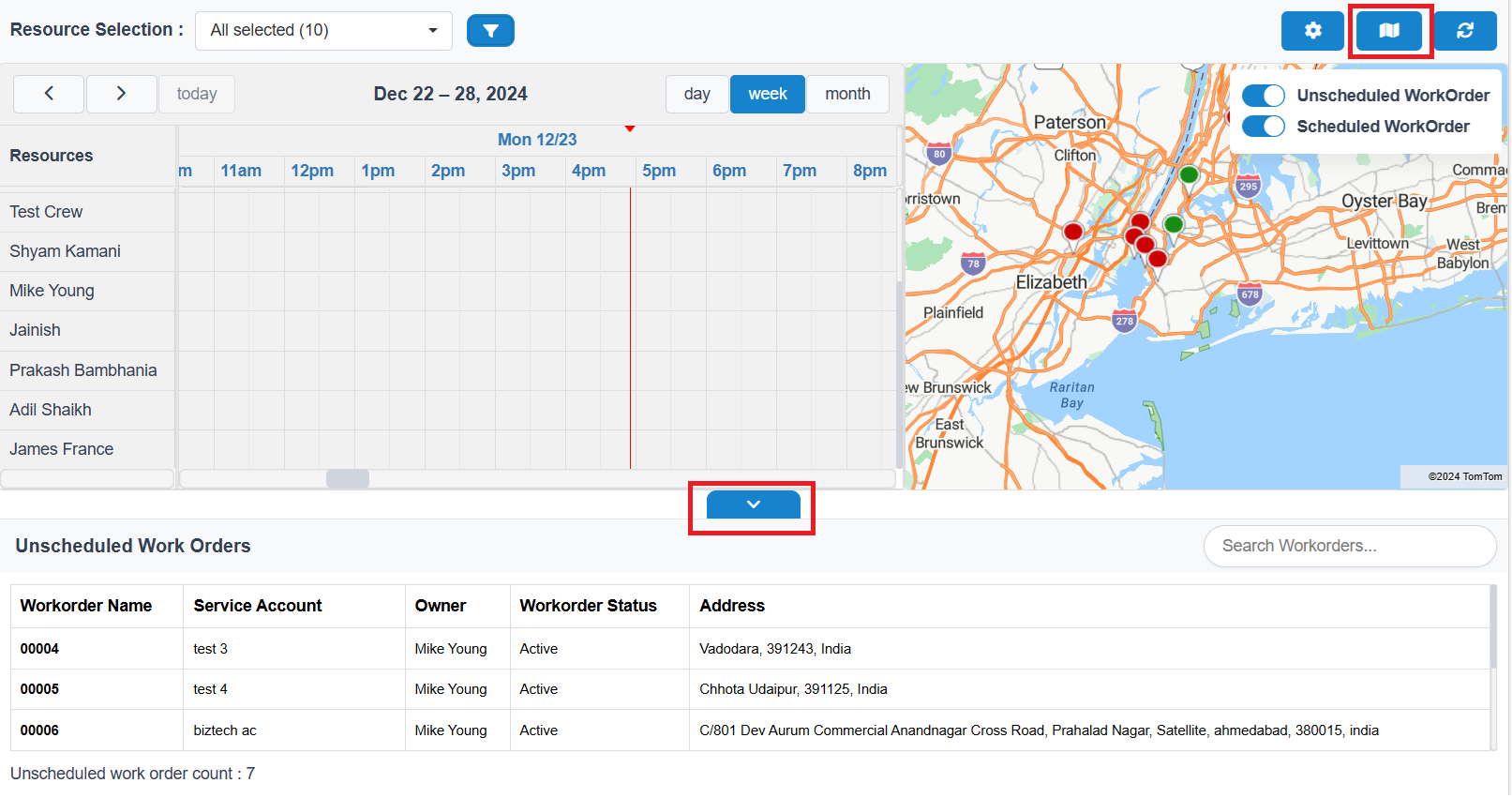
Users can create a booking according to resources using the drag-and-drop feature. This intuitive functionality allows users to drag a work order from the grid and drop it onto the calendar.
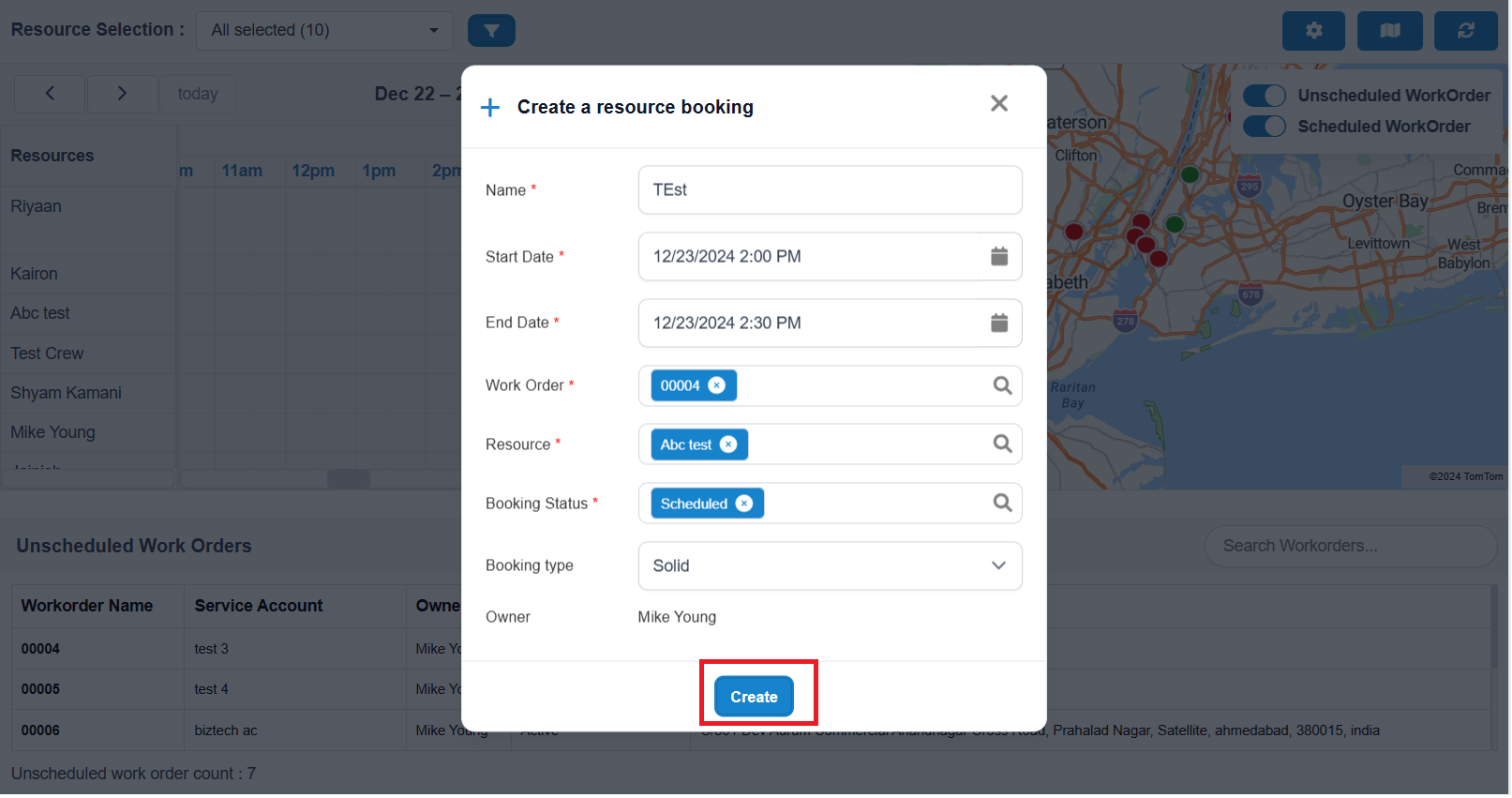
Upon dropping the work order, a popup will appear, pre-filled with relevant fields for the booking. Users can review these pre-filled fields and update them as needed, ensuring that all information is accurate before finalizing the booking. This streamlined process enables users to quickly and efficiently schedule work orders while minimizing the need for manual data entry, making it easier to manage and adjust bookings on the fly.
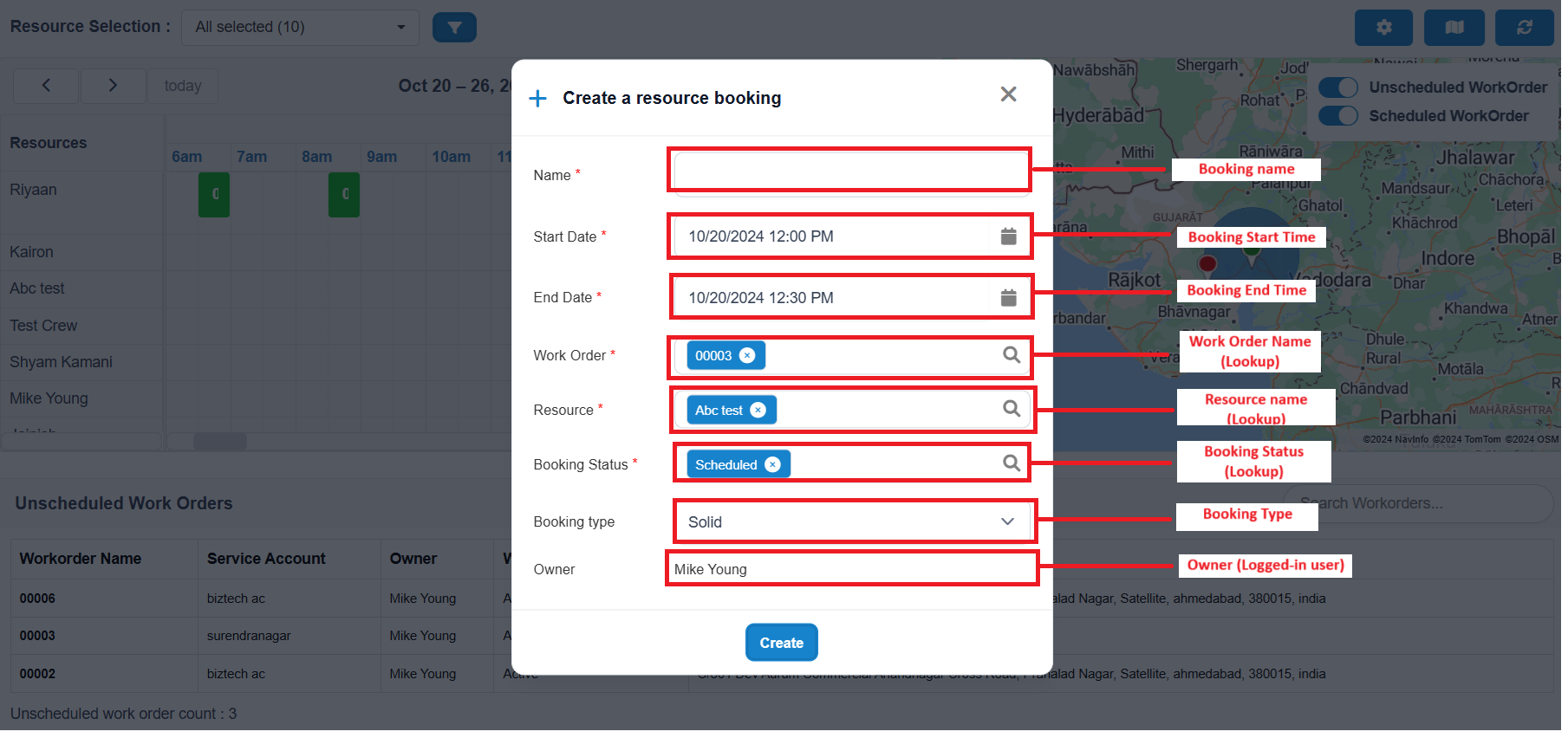
Users can modify all data according to their requirements and schedule, except for the Owner field, which remains fixed after filling out the form.
Once all other fields are reviewed and updated as necessary, users simply need to click the Create Button to finalize the work order booking. This ensures that while users have flexibility in scheduling and details, the ownership remains consistent for effective management.
After creating a booking, it will automatically reflect on the calendar and map as a scheduled work order. Users do not need to refresh the scheduled board; the updates will occur in real time. This seamless integration ensures that users have immediate visibility of their bookings, enhancing efficiency in managing work orders and resources.
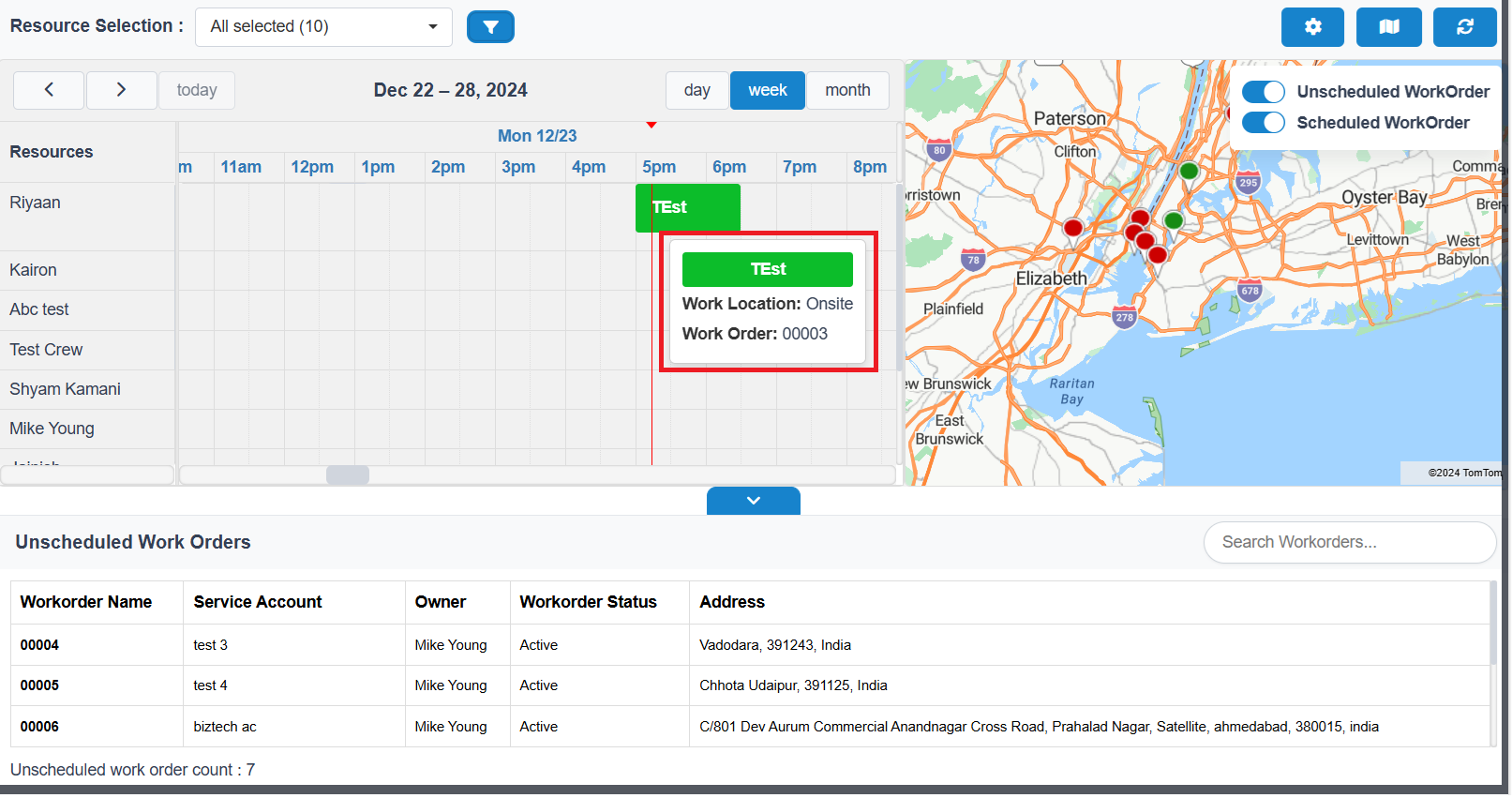
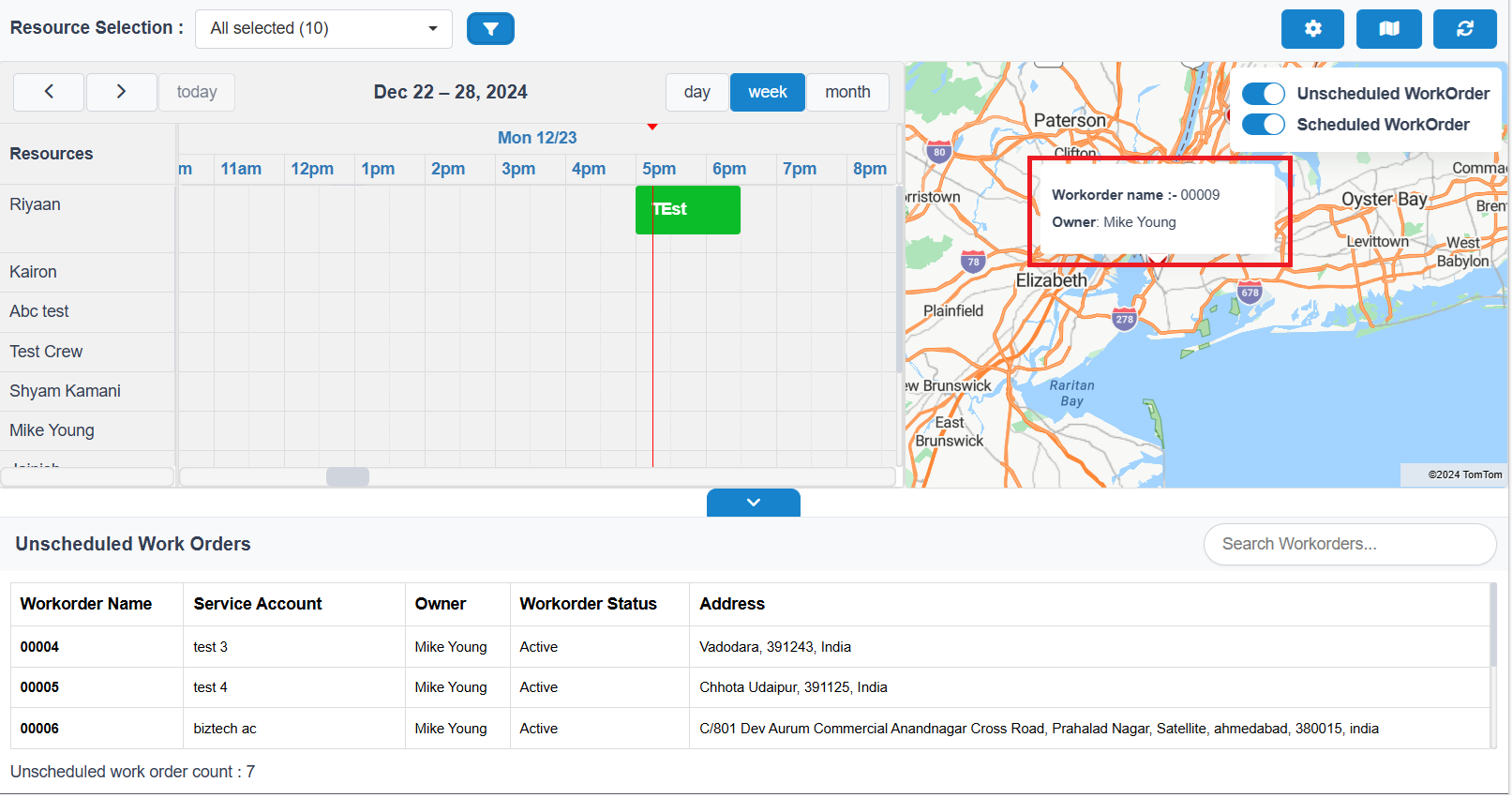
After creating a booking, users can see their booking on the calendar. By hovering over the booking event, they can access detailed information about the scheduled work order. Similarly, on the map, users can hover the mouse over the pushpin to view the work order details.
Both sets of details are derived from the configuration settings, specifically from the fields that have been enabled for map and calendar hover functionality. This ensures that relevant data is visualized on both the calendar and map, providing users with quick access to essential information about their bookings.