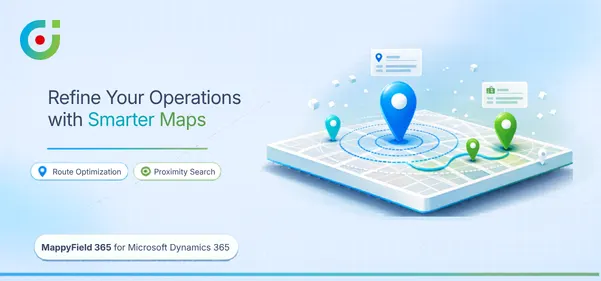
How Businesses Can Refine Their Operations with Smarter Maps Using MappyField 365
Field service runs on two things: good data and knowing where to be. Microsoft Dynamics 365 handles the data side well, tracking accounts, cases, and customer relationships without much friction. What it doesn’t tell you is where any of it sits geographically. That’s not a minor gap. It’s the difference between a well-run day and a wasted one.
Let’s take an example, a field service manager starts her Monday with 14 open cases, three technicians ready to go, and a list of addresses that could be anywhere. Two cities over, a sales rep is doing the exact same thing. One screen for the CRM, one for Maps, and still no clean picture of his day. This isn’t unusual. According to a report, field teams lose up to 15% of their working hours to poor route planning and scheduling inefficiencies.
Everything they need is already inside the Dynamics 365 map. It just has no spatial context. Research shows sales reps spend only 28–30% of their week actually selling, with the rest swallowed by admin, research, and manual geographic planning (Source). A list of accounts doesn’t tell you that two high-priority clients share the same business park. A map does.
That’s exactly what AppJetty’s MappyField 365 does — bringing a full mapping experience directly inside Dynamics 365, giving your team the spatial layer that turns good data into smarter days in the field.
The Challenge: Static Lists vs. Spatial Awareness
Here’s the honest truth about standard CRM views: they’re great at storing data. You can filter, sort, and segment your records all day, but none of that tells you whether your top ten accounts cluster around one city or scatter across five states.
Without a Dynamics 365 map, teams run into the same friction points over and over. Field staff plan routes based on gut feel. Sales managers can’t see where customer density is high or where coverage has quietly gone thin. Scheduling a day of visits means someone is mentally mapping distances that a tool should handle automatically.
This results in longer drives, overlapping territories, missed nearby opportunities, and a lot of time spent on logistics that should be invisible. Traditional CRM screens were never built to communicate geography, and that’s a real operational cost, even if it rarely shows up on a report.
Solution Overview: MappyField 365 Brings Maps to Your CRM
Where Dynamics 365 falls short, MappyField 365 bridges the gap. It embeds fully interactive maps directly inside Microsoft Dynamics 365 — no exports, no tab-switching, no separate tools. It works with both Azure Maps and Google Maps, putting your CRM data and geography on one screen, exactly where your team is already working.
Which means the gap between spotting an opportunity and actually acting on it gets a lot shorter with AppJetty’s MappyField 365. If you want to understand it better, here’s what that looks like in practice.
Visualize CRM Data on the Dynamics 365 Map
MappyField 365 lets you plot any Dynamics 365 record directly on a map — accounts, contacts, leads, cases, opportunities, or custom entities, whichever you need at that moment. Your team stops reading through rows and just looks at the map instead.
When records pile up, clustering pulls them into groups and breaks them apart as you zoom in, so the map never gets too noisy to read. And that’s usually when things get interesting — you zoom into a metro area and realize there isn’t a single active opportunity there, or that half your open cases are coming from the same zip code. Patterns like that don’t show up in a list. They only make sense once you can actually see where everything is sitting.
Route Scheduling and Optimization
Once your records are on the Dynamics 365 map, planning field visits stops being a guessing game. You can select the accounts or cases you want to cover, and AppJetty’s MappyField 365 sequences them into a route that actually makes geographic sense — no more zigzagging across a region because the list was sorted alphabetically.
Using this feature, your rep leaves with a logical route, not a pile of addresses. And that leads to less windshield time, fewer wasted miles, and more visits packed into the same working day. For field-heavy teams, the difference between four client visits and six isn’t small. It’s the whole day.
Proximity Search: Find What’s Nearby
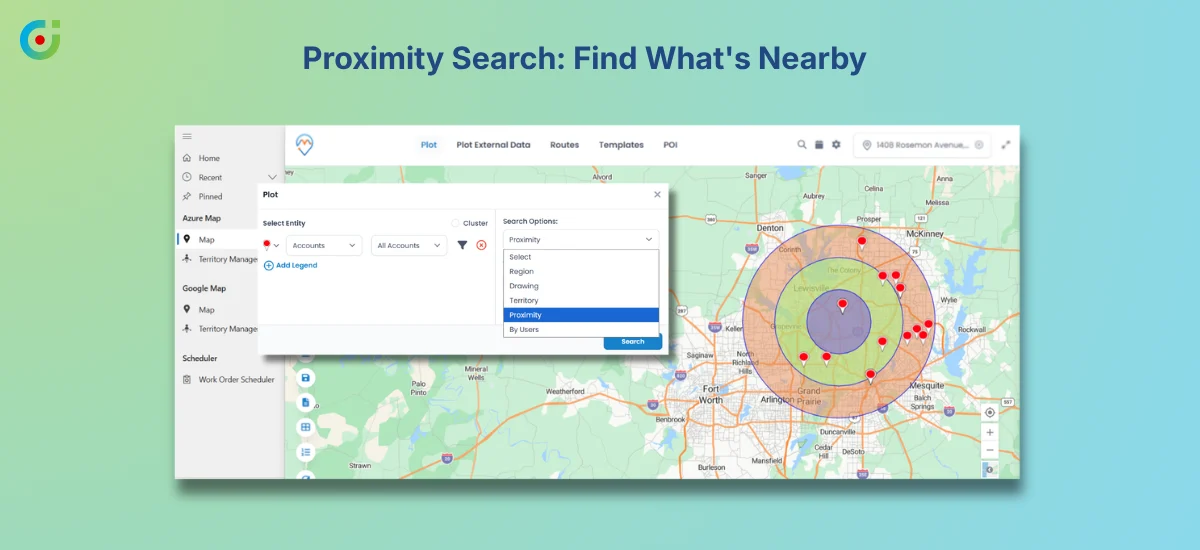
A productive day requires more than just following a schedule; it needs seeing what’s nearby. And that’s exactly where proximity search comes in. It lets you drop a point on the map, set a radius, and every relevant CRM record within range shows up instantly, filtered however you need it.
Using this feature, a guest relations manager can pull up to every open service case near a specific property in seconds. A sales rep can finish a meeting early and spot three leads within a short drive — turning dead time into a drop-in visit. When you just have the lists, you can’t do that. They have no sense of distance. But AppJetty’s MappyField 365 does that, and it changes how teams think on their feet.
Smart Context Menu Actions
You can cut out a lot of the back-and-forth between mapping applications by right-clicking any pin on the map. This will open up a context menu right there, letting you add a record to an active route and create a new CRM record tied to that location. After that, you can mark it as a point of interest, or set a route from that point — all without ever leaving the map.
For anyone who’s spent time switching between a map view and individual CRM forms to accomplish one task, this matters. The fewer clicks between seeing something and acting on it, the more your team stays in flow. Context menu actions keep the whole interaction on one screen, which sounds small but adds up quickly across a full workday.
Flexible Search and Map Filtering
Not every map view needs to show every record. MappyField 365 lets you apply CRM query filters before rendering data spatially, so the map only shows what’s relevant to the task at hand. A customer success team might filter to open cases assigned to their region. A sales manager might narrow down to hot leads in a specific industry.
The result is a map that shows what’s relevant, not everything at once. Save filtered views by team or role, and the tool works for a service manager and a sales rep without either of them having to set it up from scratch every morning.
Personalization and Usability
A delivery coordinator and a regional sales manager don’t need the same map. Each user sets their own default center, zoom level, and distance units, so the tool opens on something useful instead of a generic view that needs adjusting before the day even starts.
This kind of personalization matters for adoption. When the tool opens to something that already looks like your workflow, using it feels natural rather than effortful. Teams that feel at home in a tool actually use it, and that’s where the operational gains become real.
Territory Visualization and Segmentation
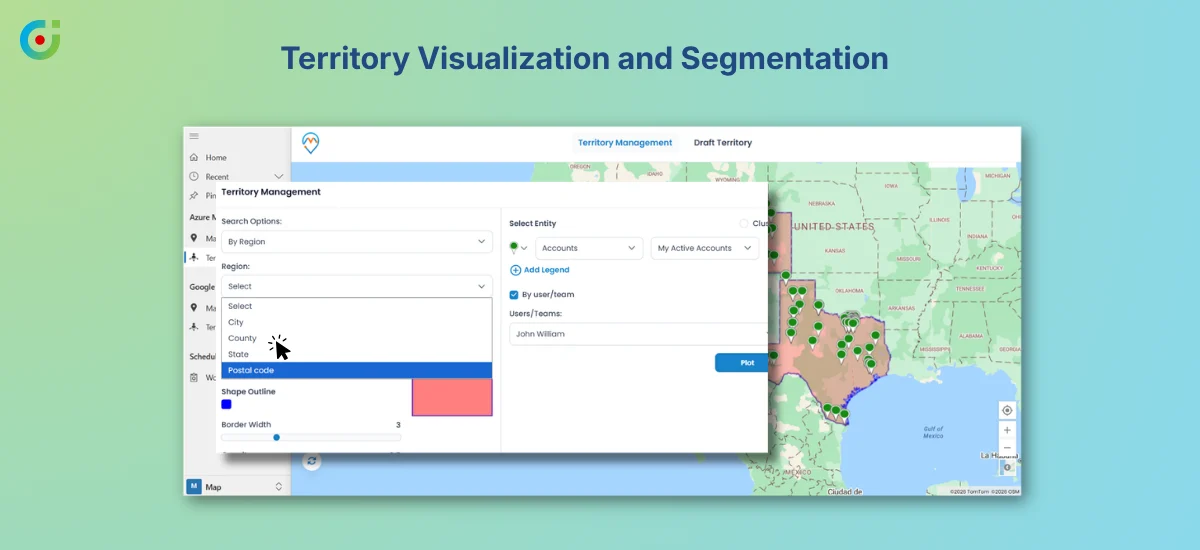
Territory planning is much easier when you can draw it rather than describe it. MappyField 365 lets you define geographic areas directly on the map and assign them to users or teams. You can segment regions for different workloads, campaign coverage, or service zones, all visually.
This is territory visualization, not a full management system. But seeing the boundaries drawn out on a real map makes it far easier to spot imbalances, overlaps, or gaps than any spreadsheet ever could. A manager reviewing regional assignments can see in thirty seconds whether the workload is distributed fairly and adjust accordingly.
Enhanced Record Interaction from the Map
The map isn’t just a read-only display — click any pin and a summary of that CRM record opens up right there, without navigating away. And if you spot a location that needs correcting, you can update the address directly in Dynamics 365, and it updates to the right spot immediately. Your address data stays accurate without you ever having to jump into a separate edit workflow.
This matters for data quality more than it might seem. Geo coordinates drift over time, businesses move, addresses get entered inconsistently, and records get imported with approximate locations. Being able to fine-tune location data from the map itself means teams can maintain accuracy as part of their regular workflow, not as a separate cleanup project.
Business Value: What Smarter Maps Enable
When you use a Dynamics 365 map tool like MappyField 365 day to day, the benefits aren’t abstract; they show up in how quickly your team moves. Field teams plan smarter routes and cover more ground.
Sales managers see concentration zones and coverage gaps they’d never catch in a list view. Service teams respond faster because proximity search surfaces nearby cases instantly. This way, territory assignments finally make sense, and keeping location data accurate no longer feels like extra work.
What used to take a whole meeting now only takes one look at the map. The planning that once meant spreadsheets and back-and-forth now happens in a few clicks. And since everything is inside the Dynamics 365 map, your team isn’t starting from scratch — they’re just doing more with what they already know.
Conclusion: Geography Is Now Part of the Workflow
Most teams don’t realize how much time and energy go into mentally translating CRM data into physical reality until they no longer have to.
AppJetty’s MappyField 365 doesn’t ask your team to work differently inside Dynamics 365. It just removes the part where someone has to guess where everything is, manually piece together a route, or miss a nearby account because the list didn’t mention it was two blocks away. Your CRM data is already there. The Dynamics 365 map just makes it usable in a way a screen full of rows never could.
If your team is still planning field operations from a list, MappyField 365 is worth a look. Try it with your own data and see the difference firsthand.