Data can sometimes feel overwhelming, even when it is visually plotted. While visualizations make data easier to understand, they don’t always make it easy to analyze.
In this blog, we will explore the Summary Card feature that many Dynamics map integration tools offer. For demonstration purposes, we will use MappyField 365 as an example.
What is the Summary Card Feature?
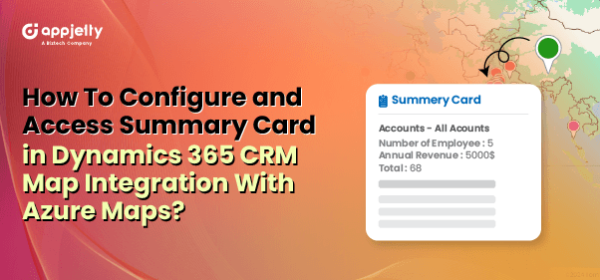
The Summary Card feature allows users to view detailed and summarized information about the data plotted on the map, such as potential revenue, net value, and more. By accessing aggregated information, users can quickly analyze and strategize for a particular region.
Here’s how you can configure and access the Summary Card feature:
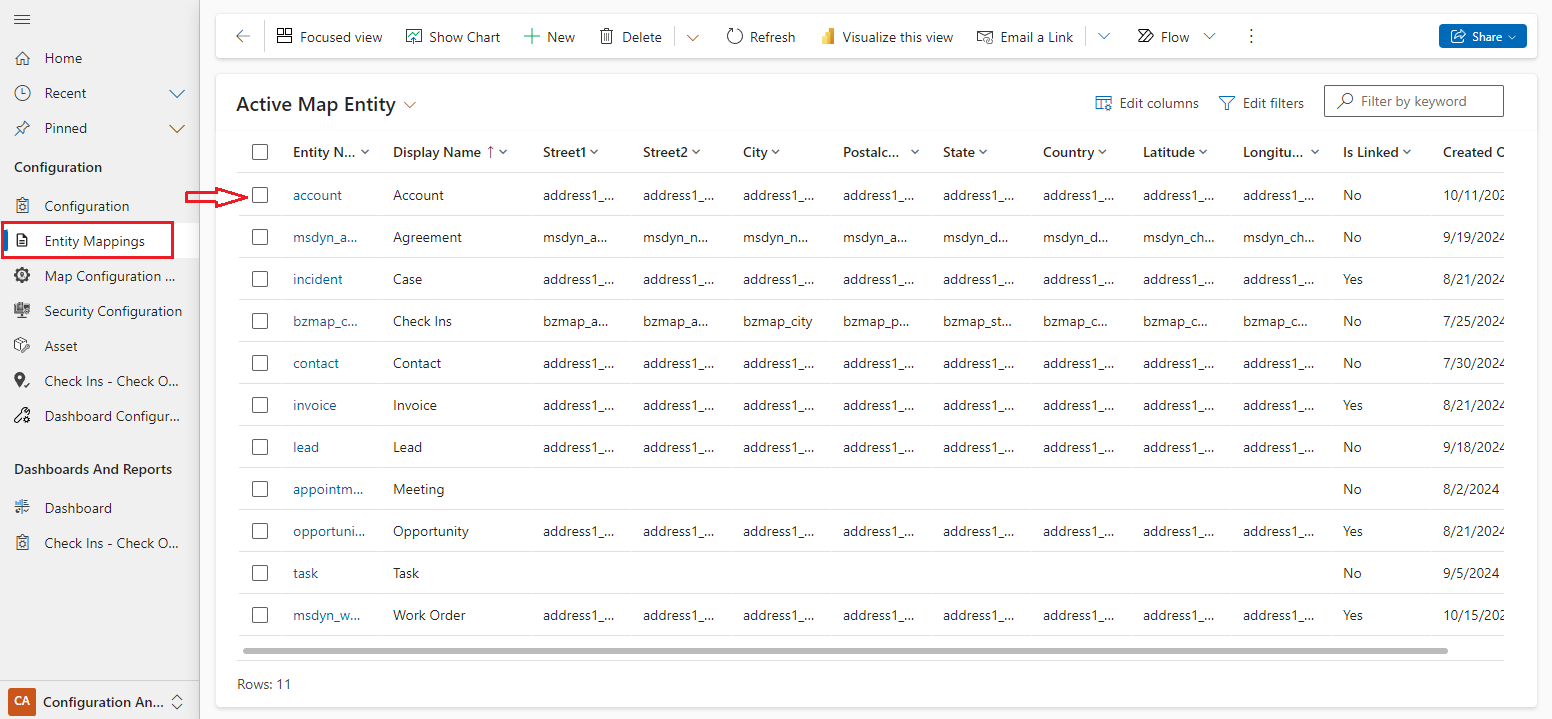
1. Configure the Summary Card details from ‘Entity Mappings.’
2. Plot the records on the map.
3. Click on the ‘Summary Card’ option under Advanced settings.
4. View the summarized details of the plotted records.
This feature enhances data-driven decision-making by providing quick insights into mapped data.
Summary Card Configurations
Step 1: Navigate to MappyField 365
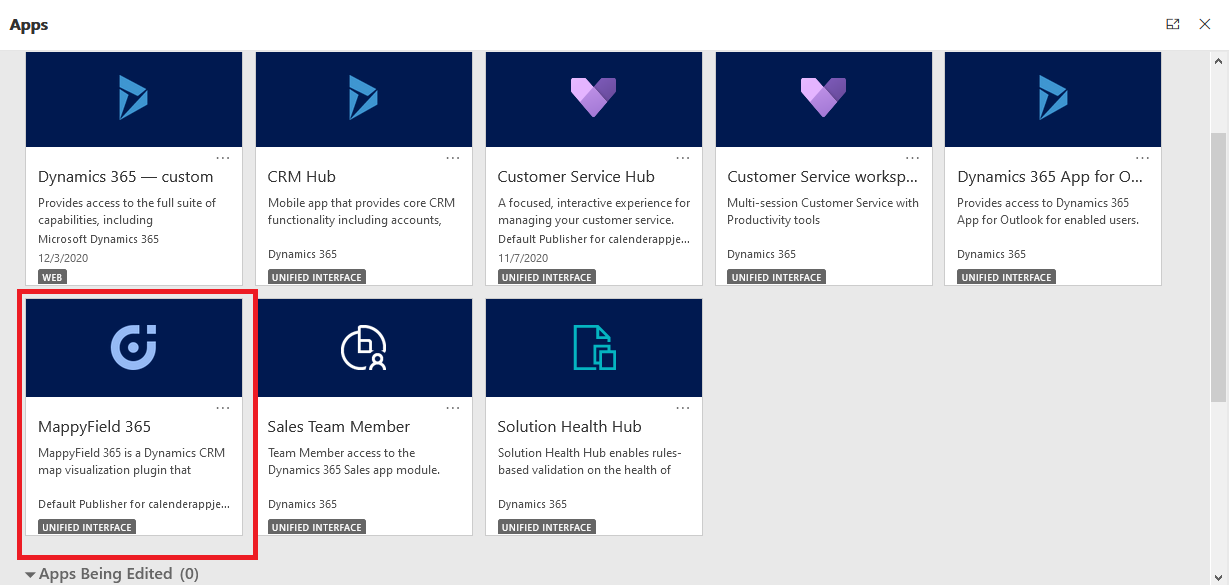
After logging into Dynamics 365, click on “MappyField 365” from the Dynamics 365 Apps dashboard.
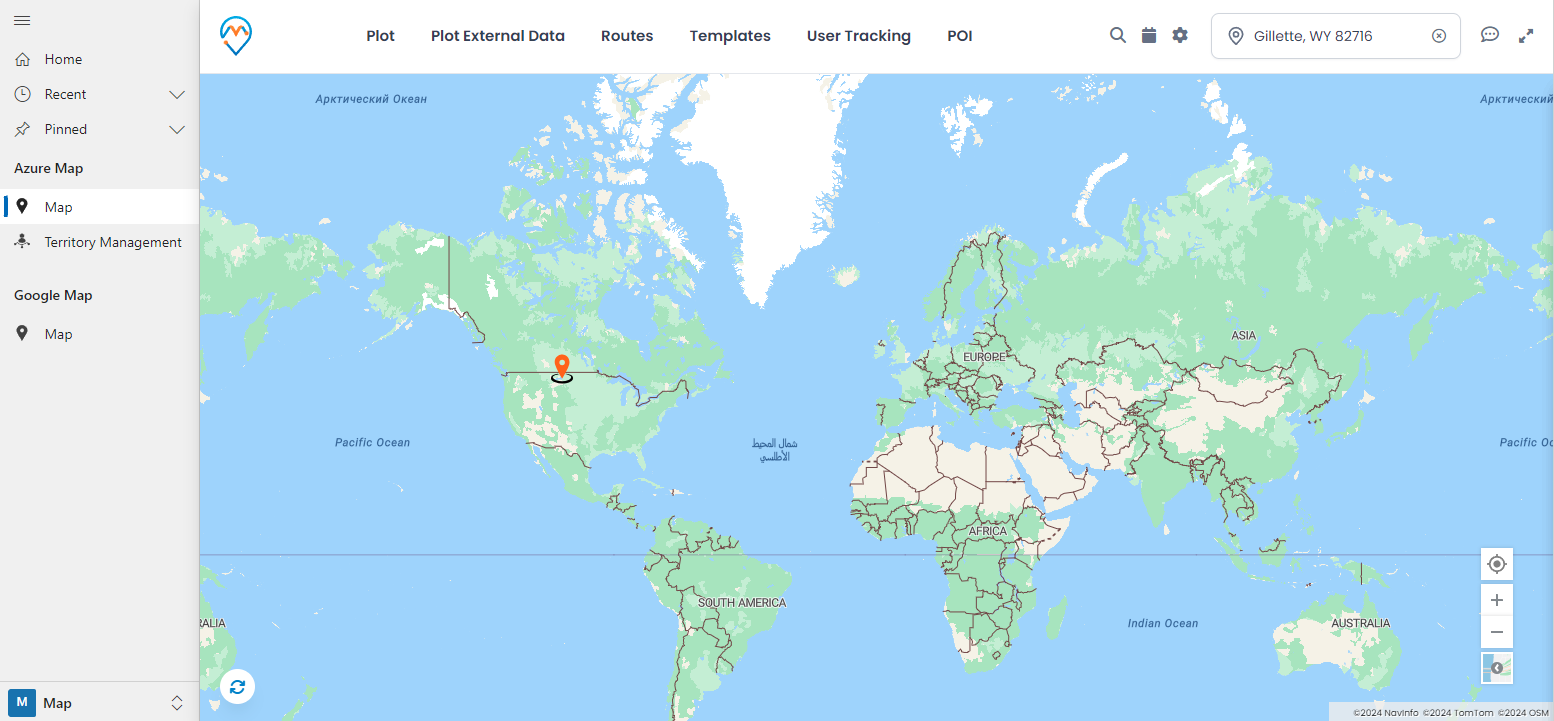
By clicking on ‘Entity Mappings,’ you will see the existing list of entities that are already configured. By clicking on ‘+New’ from the ribbon, you can add a new entity or edit and configure an existing one.
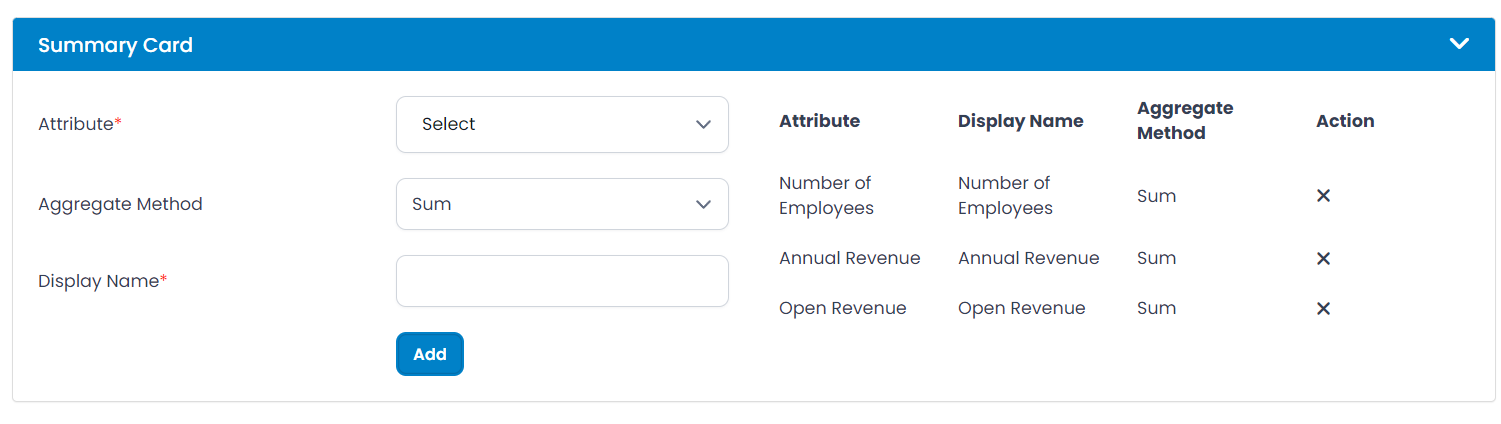
Scroll down to the ‘Summary Card’ section, select the attribute (field), and choose the aggregate method for that field.
We have selected the following fields:
→ Number of employees and Sum as the aggregate method
→ Annual Revenue and Average as the aggregate method
→ Open Revenue and Average as the aggregate method
Summary Card on map
Step 4: Navigate to MappyField 365
Let’s see how you can access a Summary Card on the map. After logging into Dynamics 365, click on ‘MappyField 365’ from the Dynamics 365 Apps dashboard.
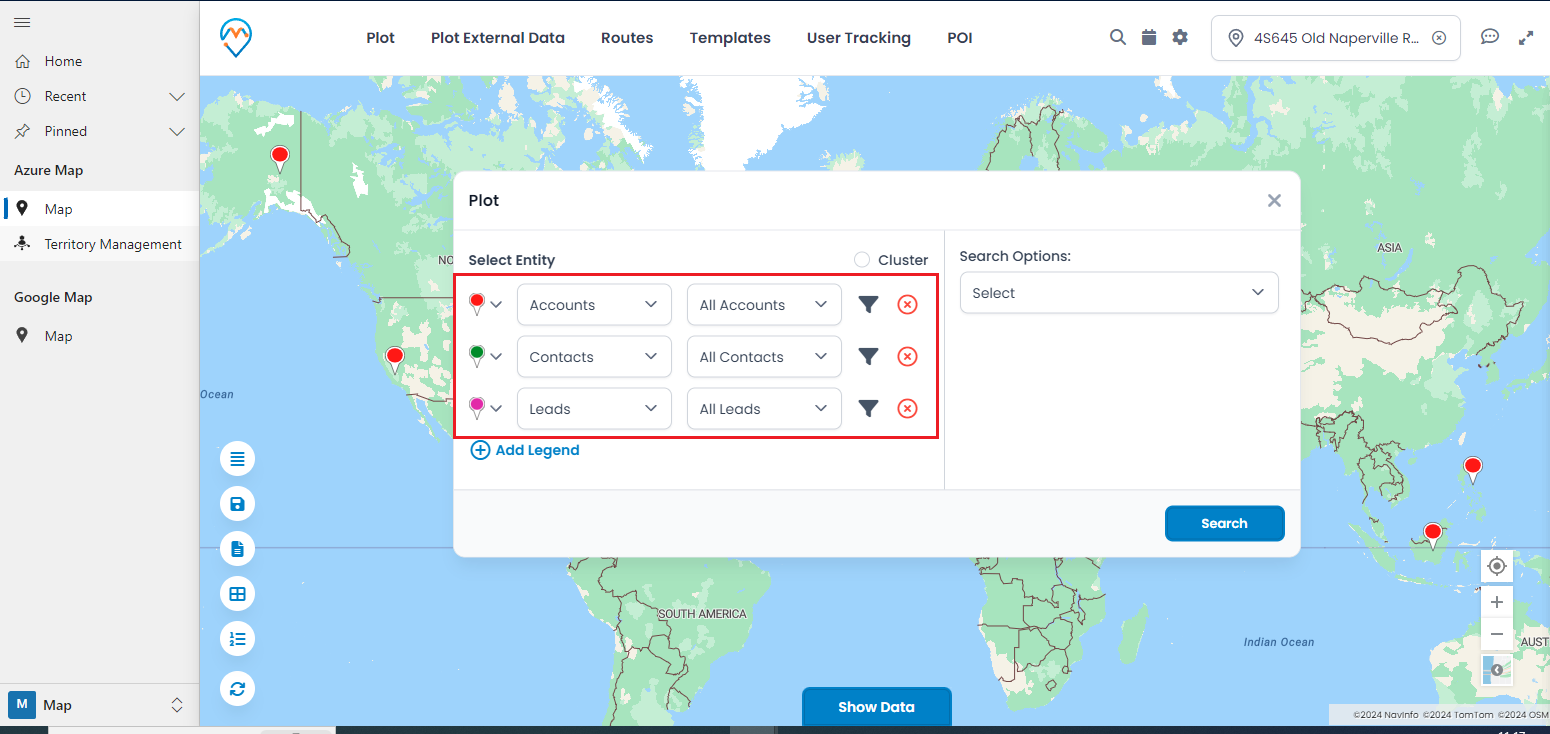
Now, plot the records on the map by selecting the CRM entities configured from Entity Mappings. Under the Plot tab, select the Entity and its Records view.
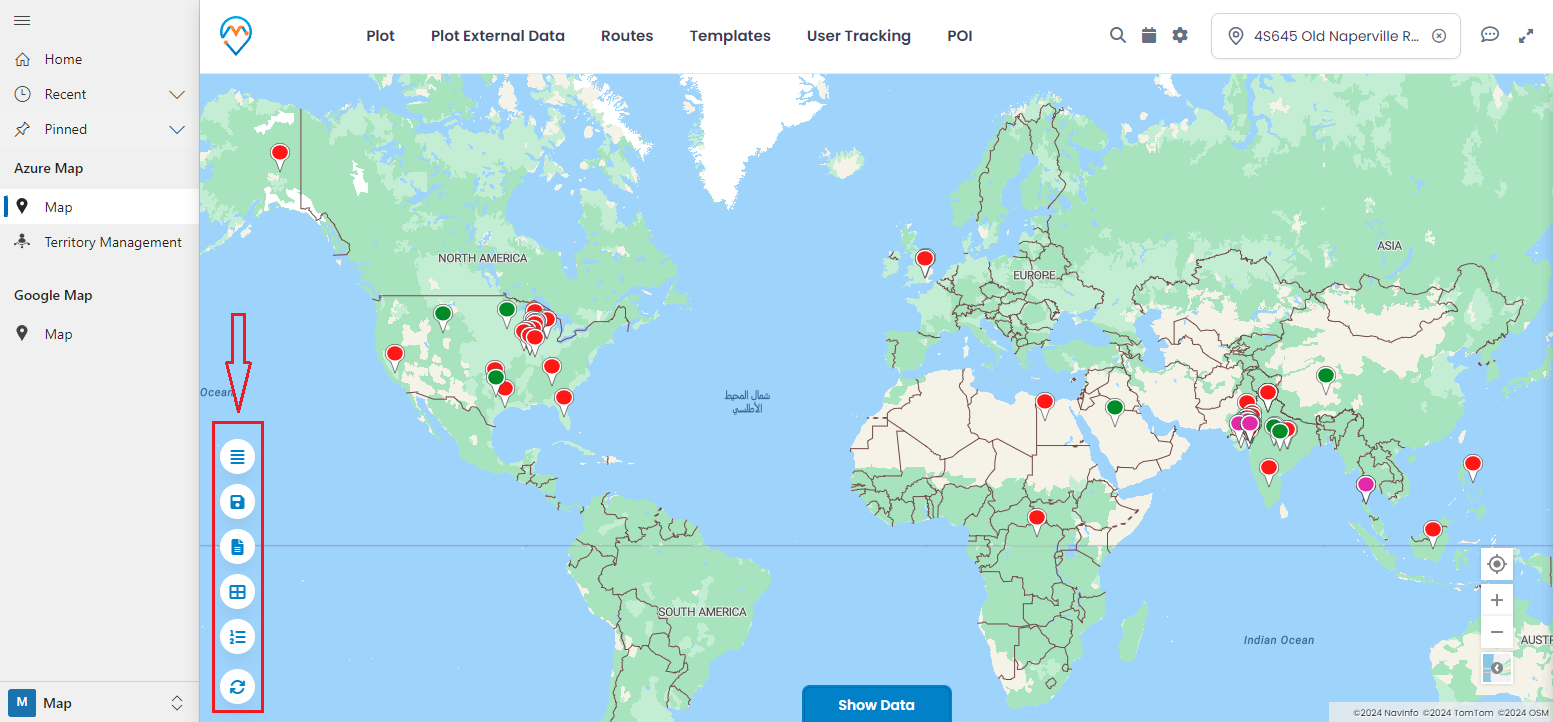
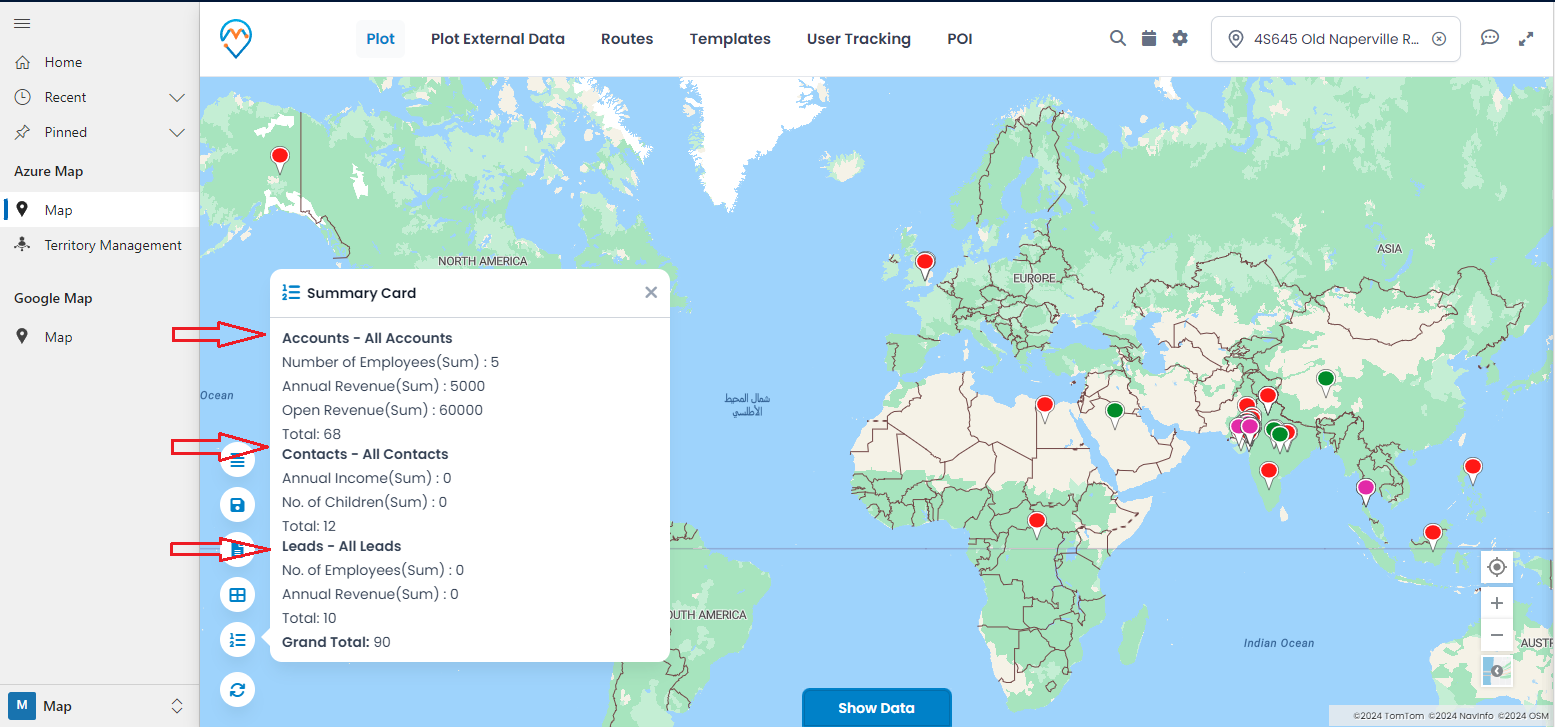
By clicking on the ‘Summary Card’ icon, you will see a popup with aggregated data of the plotted entities.
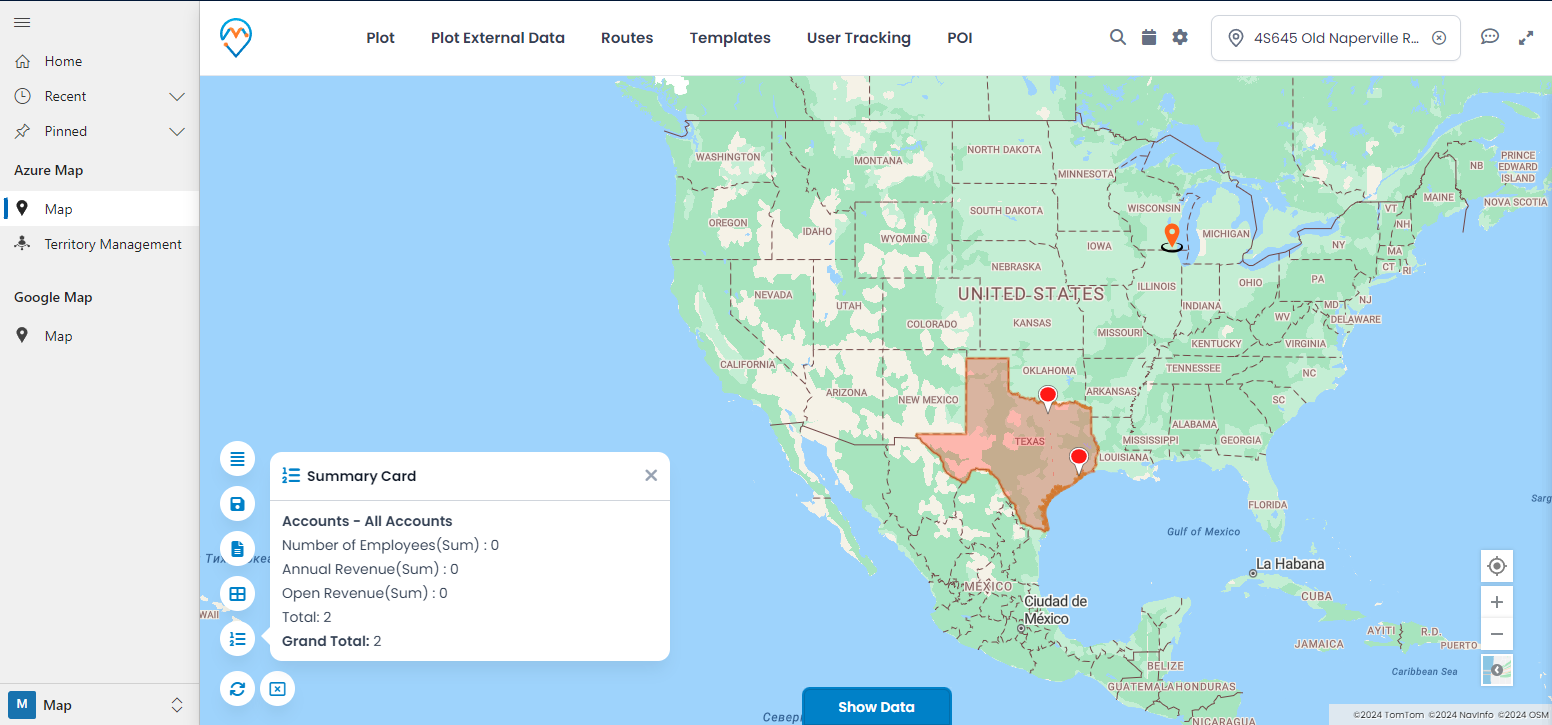
In this way, using AppJetty MappyField365 map integration with Dynamics CRM, you can manage all CRM entities on the map and perform many actions.
All product and company names are trademarks™, registered® or copyright© trademarks of their respective holders. Use of them does not imply any affiliation with or endorsement by them.