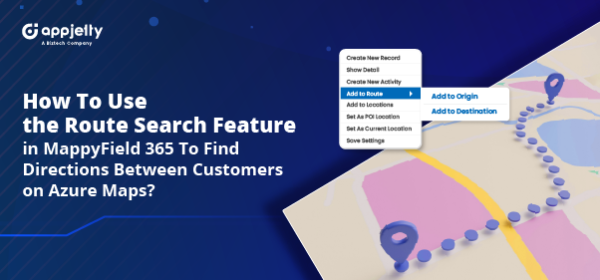
As a field executive, you must go out for client meetings or other activities at the client’s location. Microsoft Dynamics 365/CRM provides a default map that shows the location (pushpin) of any client or industry, but there are certain limitations. You cannot perform “Routes” directly; backend configurations are required. However, you must still navigate to other options to get the Routes.
“AppJetty MappyField 365” is an MS Dynamics CRM mapping app with Azure Maps integration that helps you quickly find Routes between client locations directly from the map. This eliminates the need to navigate to different options for finding Routes.
MappyField 365’s Route scheduling feature allows Sales Reps or Service Executives to use their time optimistically. They can easily decide to reach another client’s location quickly by scheduling Routes and effectively managing their travel time to cover all the places they need to visit.
For example, “Bianca,” a Sales Executive on the field for a product demo, must schedule her product demo with clients. From the map in MappyField 365, she can quickly search for Routes between the client’s locations by adding the records to the Route search option.
With MappyField 365, you can schedule Routes between more than two records/locations and customize the order per your needs. Users of MappyField 365 can search for Routes in three different ways:
- Context Menu: Right-clicking on the specific location in the Context Menu
- Records (Pushpins): Clicking on the required record (pushpin)
- Data Grid: Selecting the required records from the Data Grid
In this informative blog, we will explain how to schedule Routes between locations.
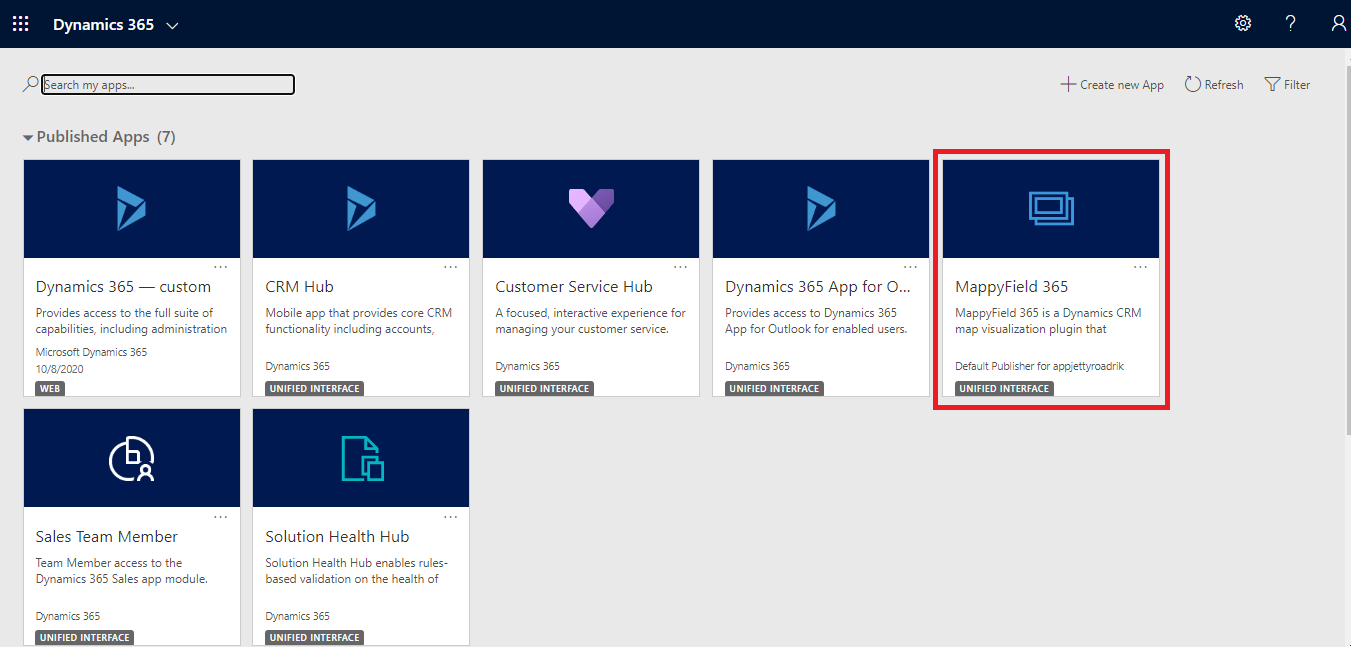
Step 1: Navigate to MappyField 365
Select ‘MappyField 365’ from the Dynamics 365 dashboard or app list.
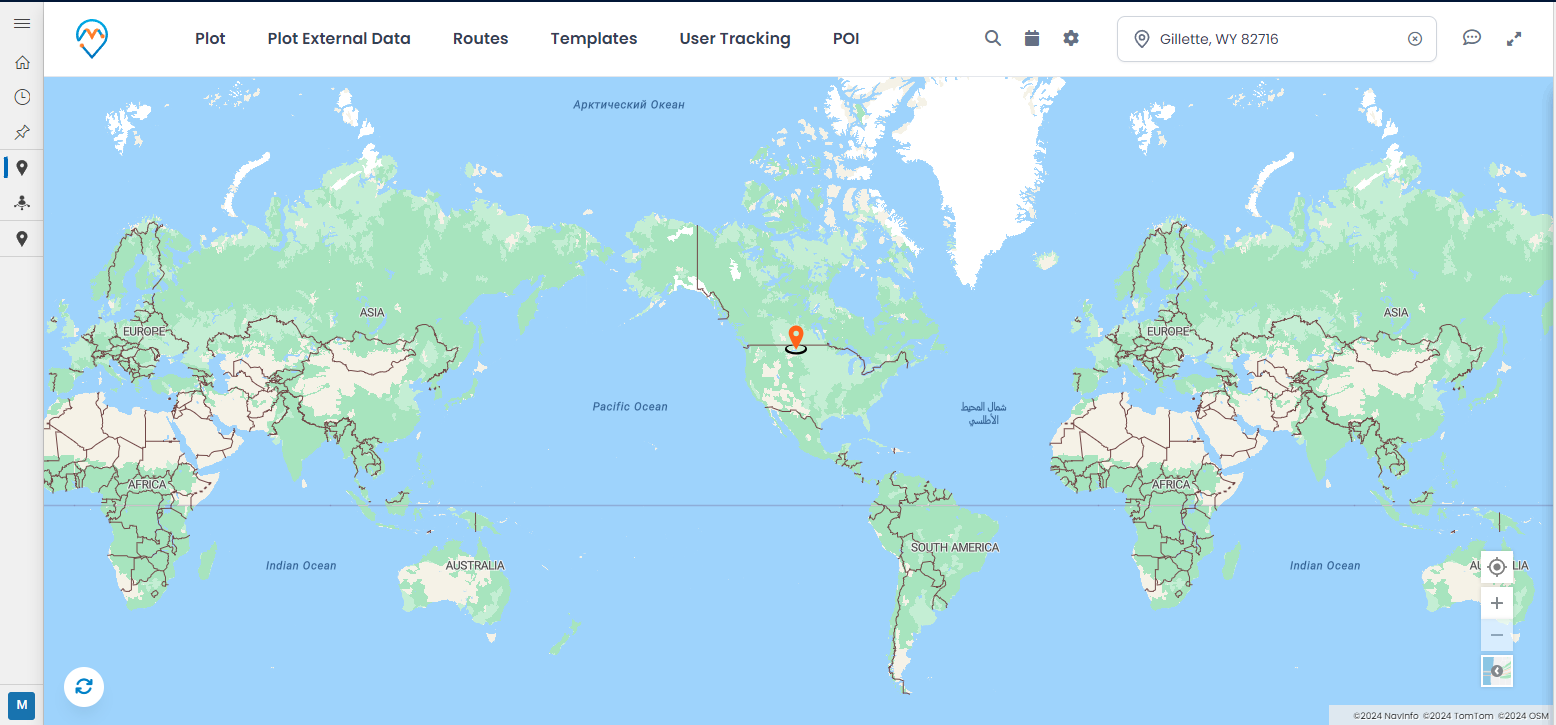
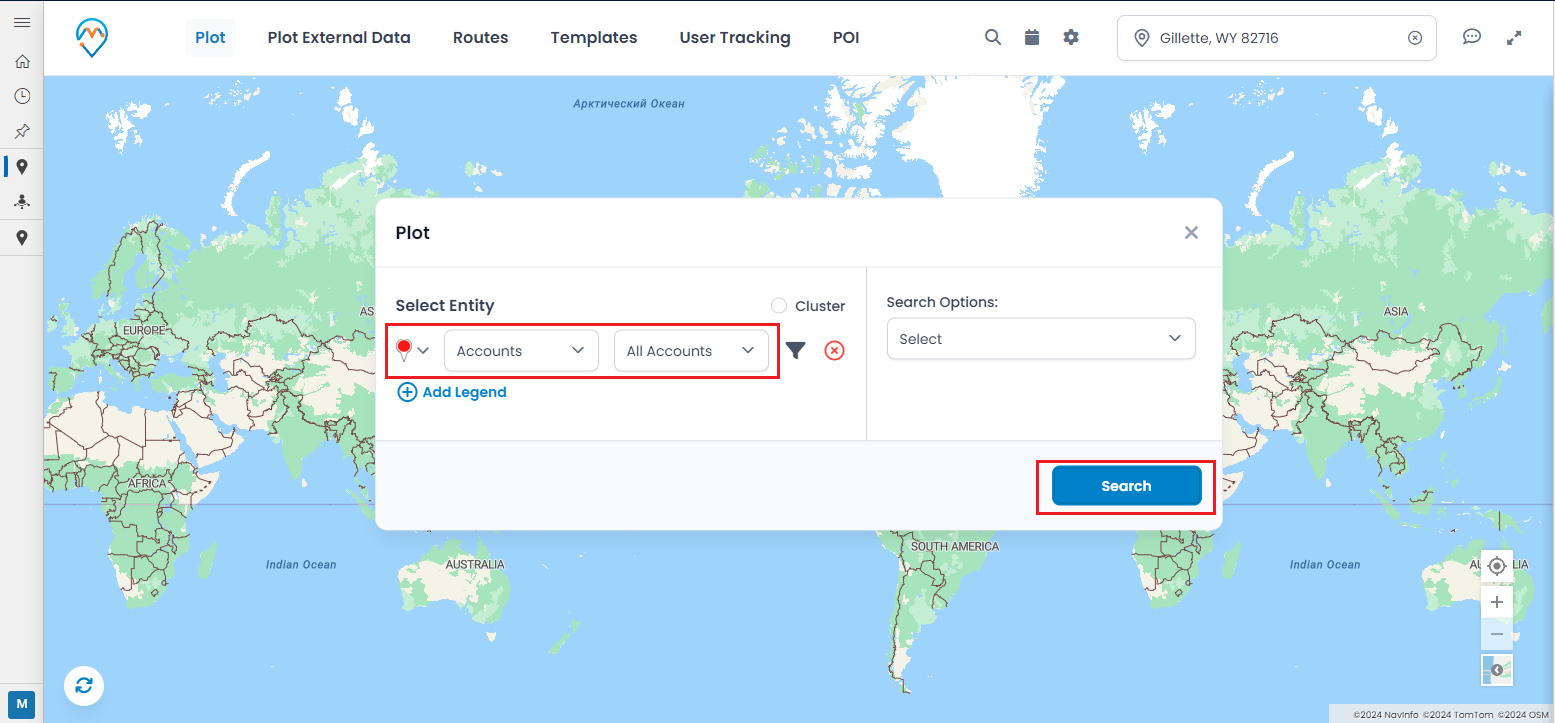
Click on the ‘Plot’ menu, where you can select the entity and its view, and then click on the ‘Search’ button to plot the records on the map.
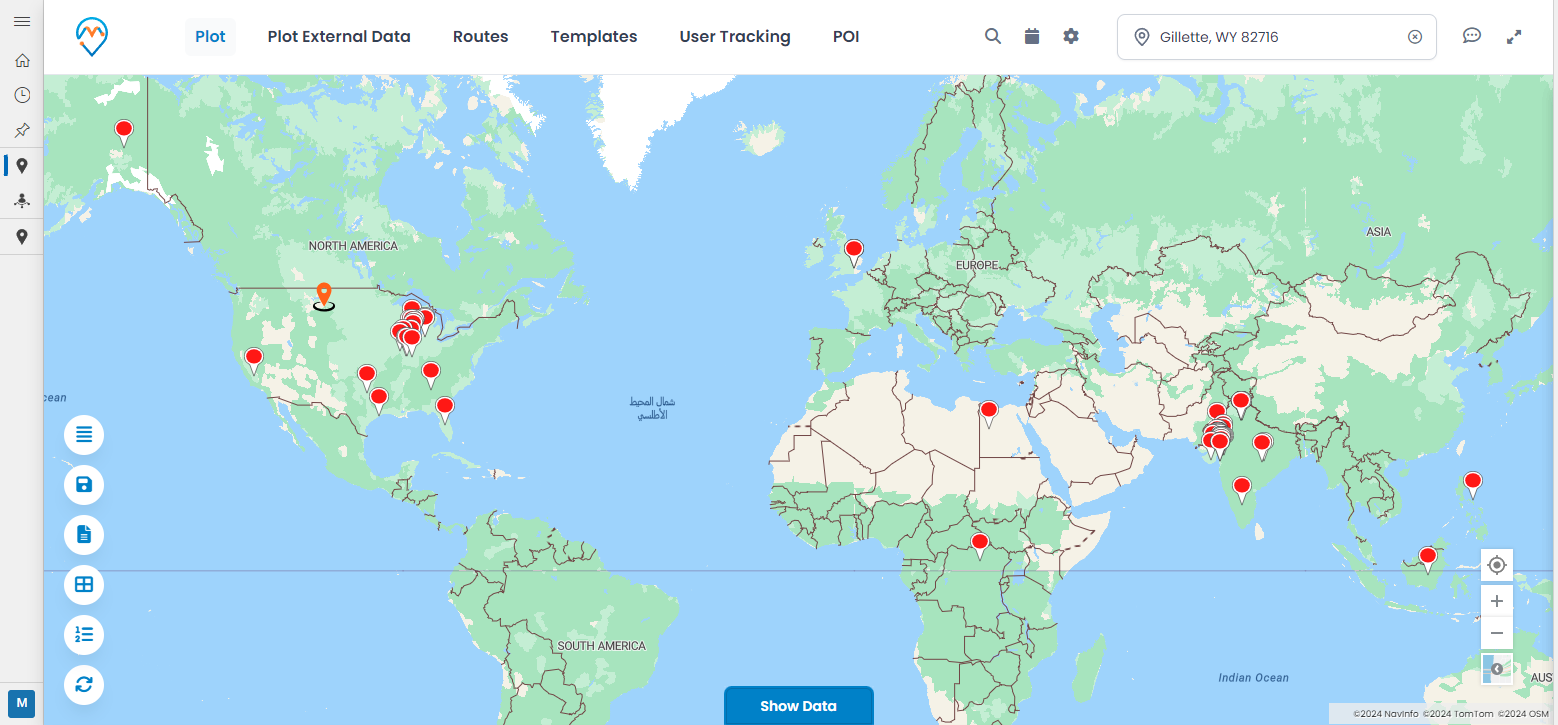
You can easily add the required records or specific locations in three different ways:
3.1 – By right-clicking on the specific area
3.2 – By clicking on the plotted records (pushpins)
3.3 – From the Data Grid
3.1: By right-clicking on the specific area
Right-click on the specific area, and the ‘Context Menu’ will open, allowing you to select the ‘Add to Route’ option.
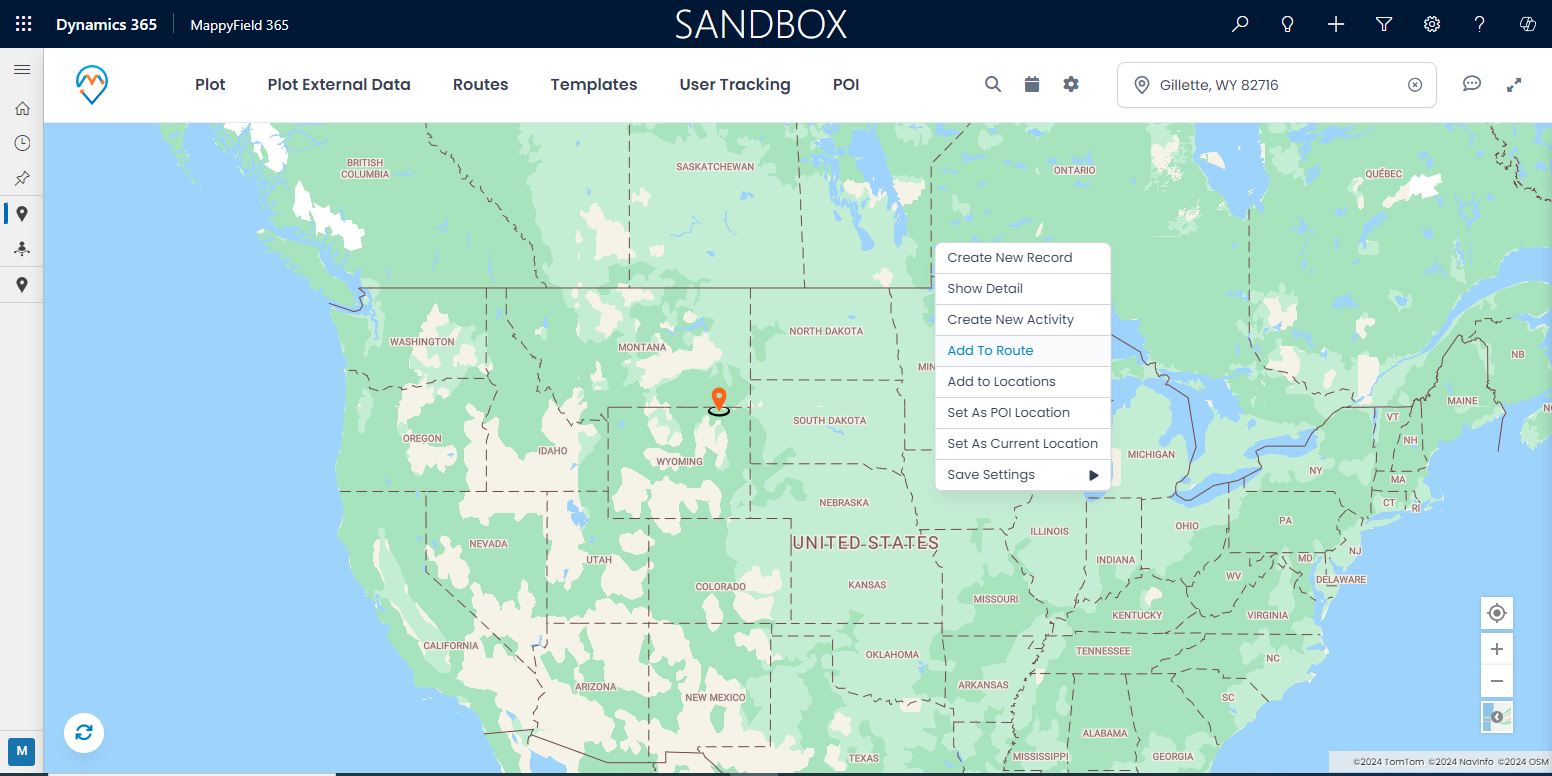
Similarly, you can select another location and right-click on it to add that location to the route search.
You can view the added routes under the “Routes” menu.
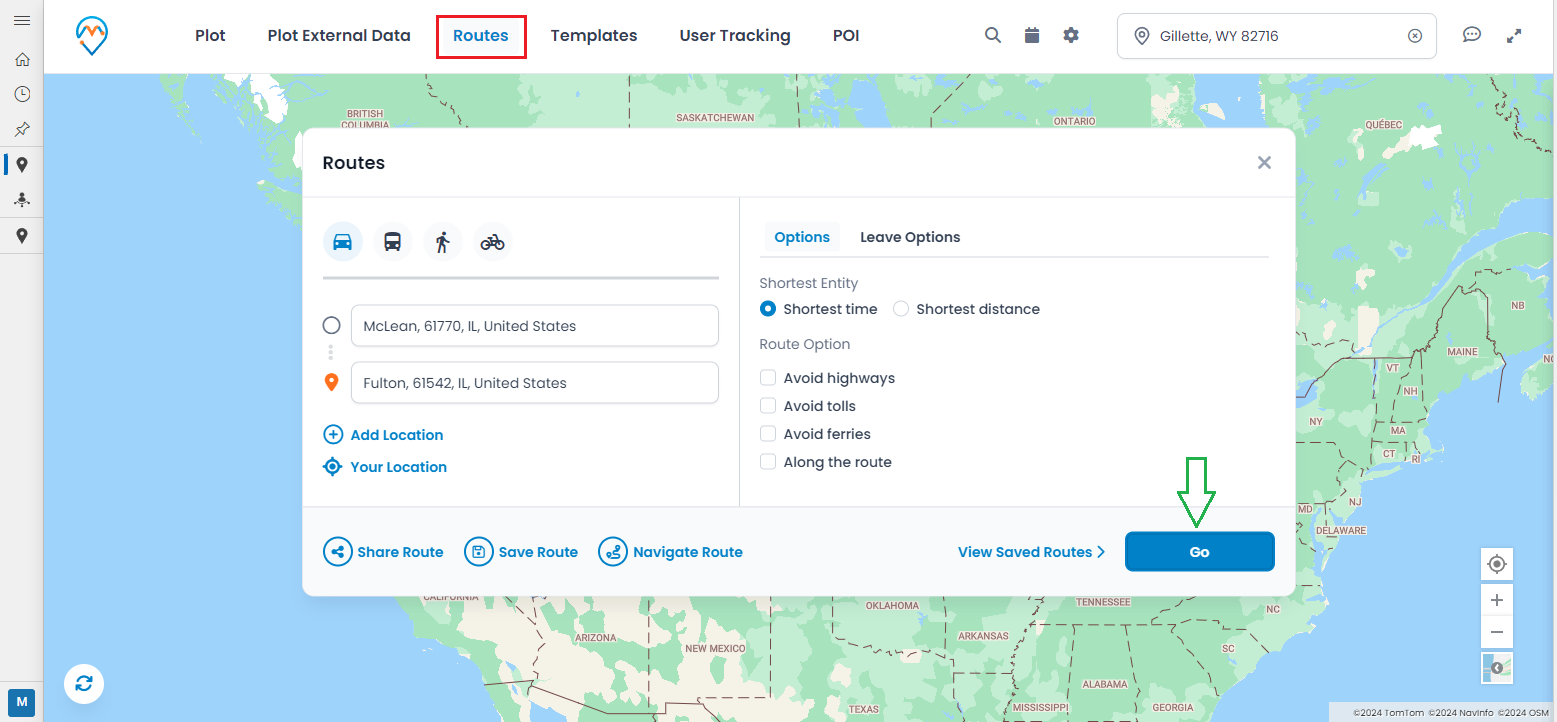
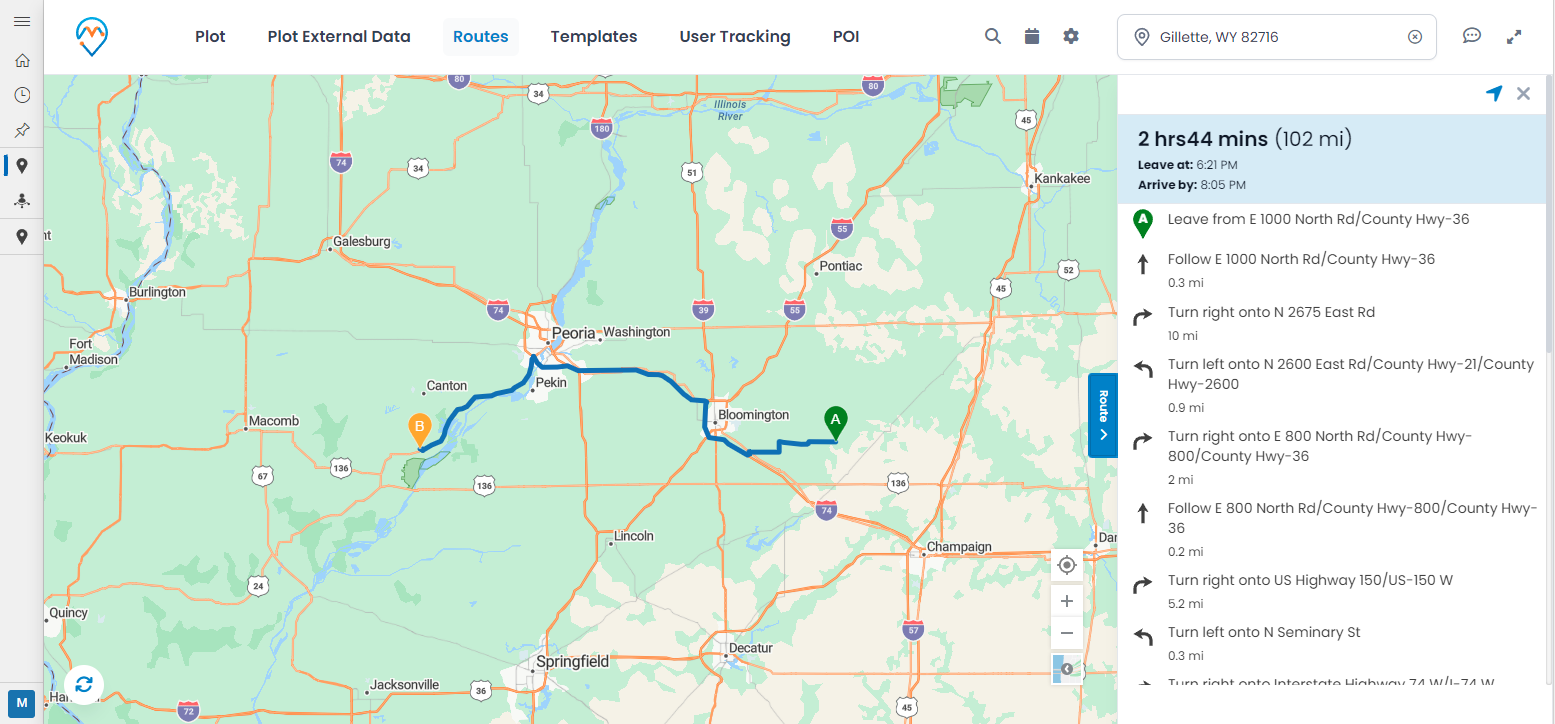
3.2: Add required records (pushpins)
You can search for the route between two clients’ locations and easily add specific records to the Routes to get directions on the map.
By clicking on the record (pushpin) that you want to add to the route search, you will see the ‘detailed card’ on the right side. In the detailed card, you will find options to perform various actions and activities.
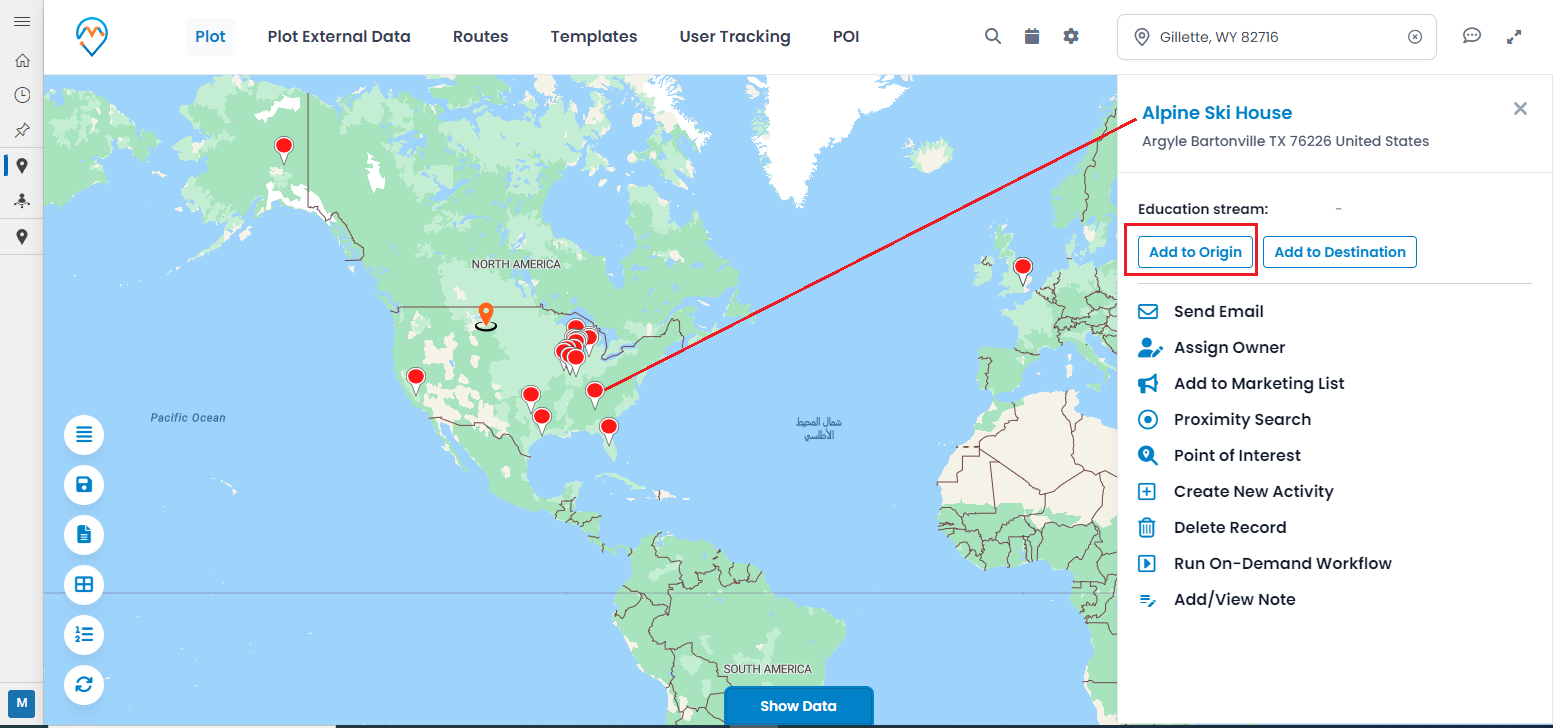
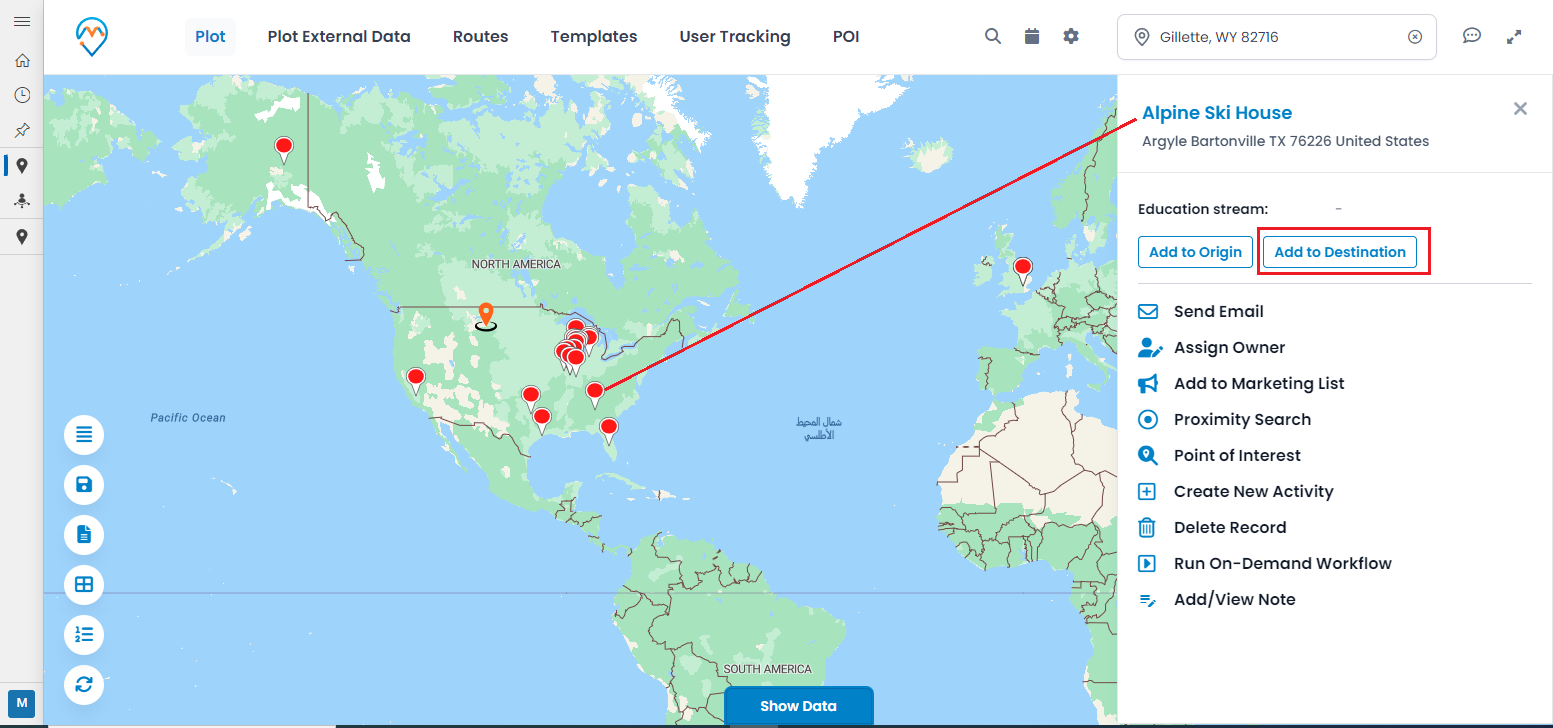
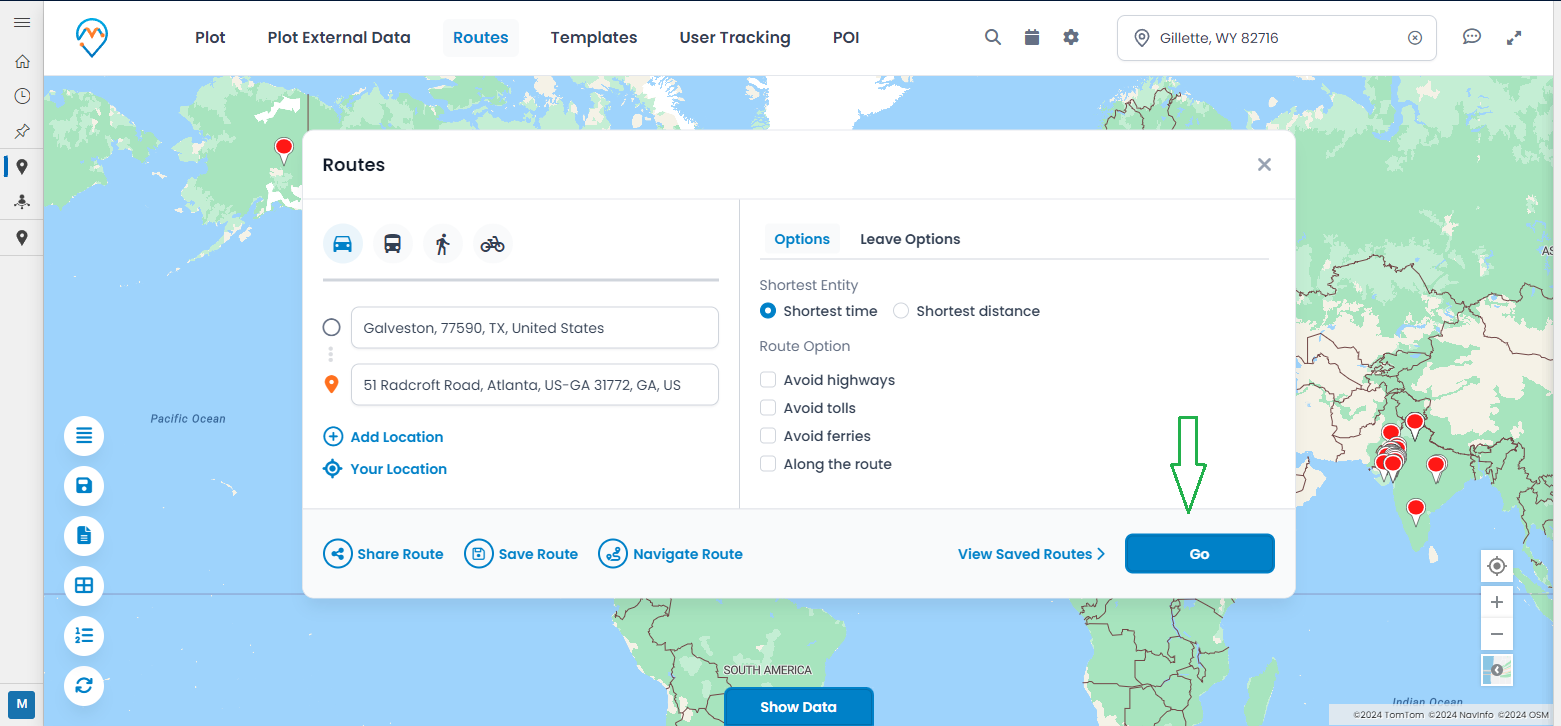
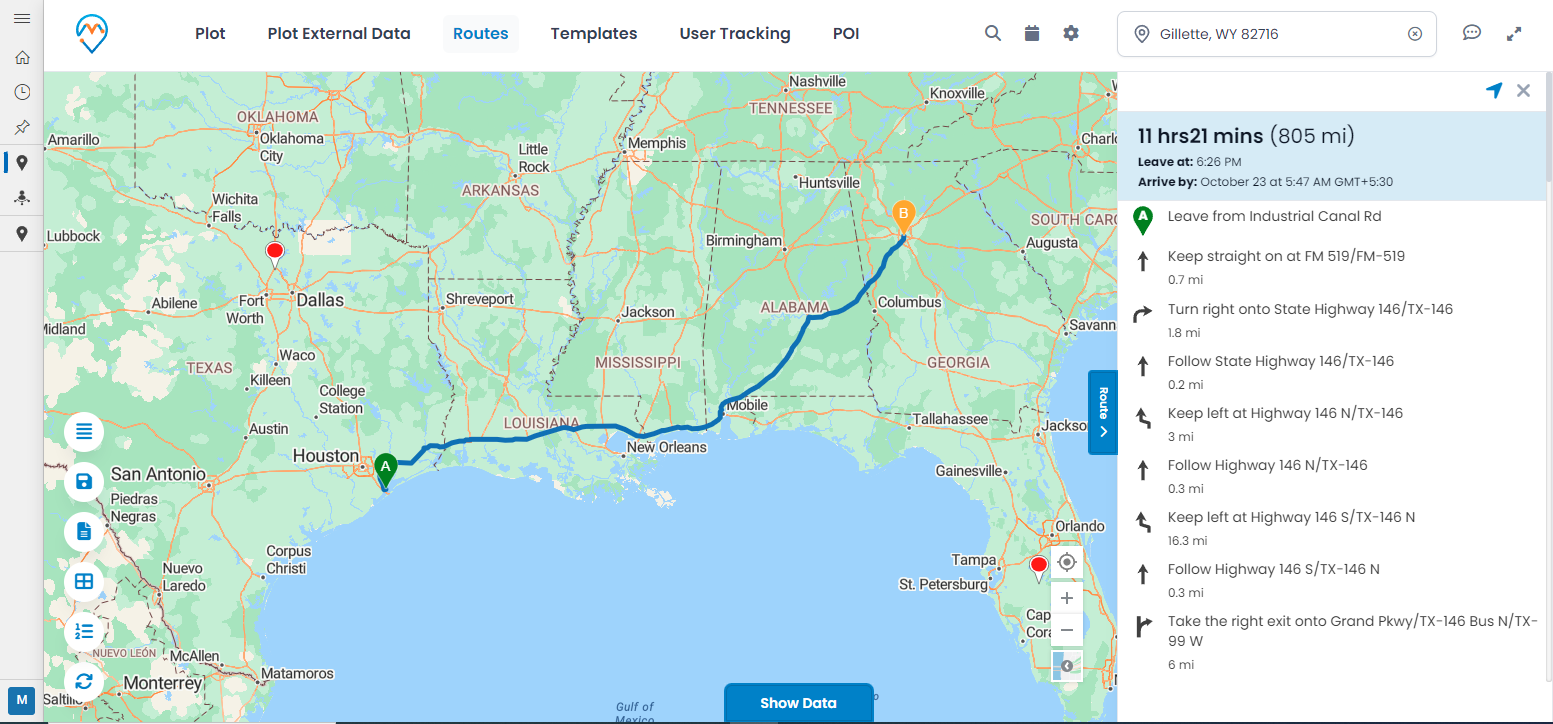
In this way, Bianca can add the clients’ locations to the routes and get directions between them.
You can add more than two records to the Route search. Click on a record, and its details card will open on the right side.
From the “Direction” dropdown, select the “Add to Destination” option to add the 3rd record to the Route search, and it will be marked as “C.”
You can view the selected record details under the “Routes” menu. You can also change the order of the routes by using drag-and-drop.
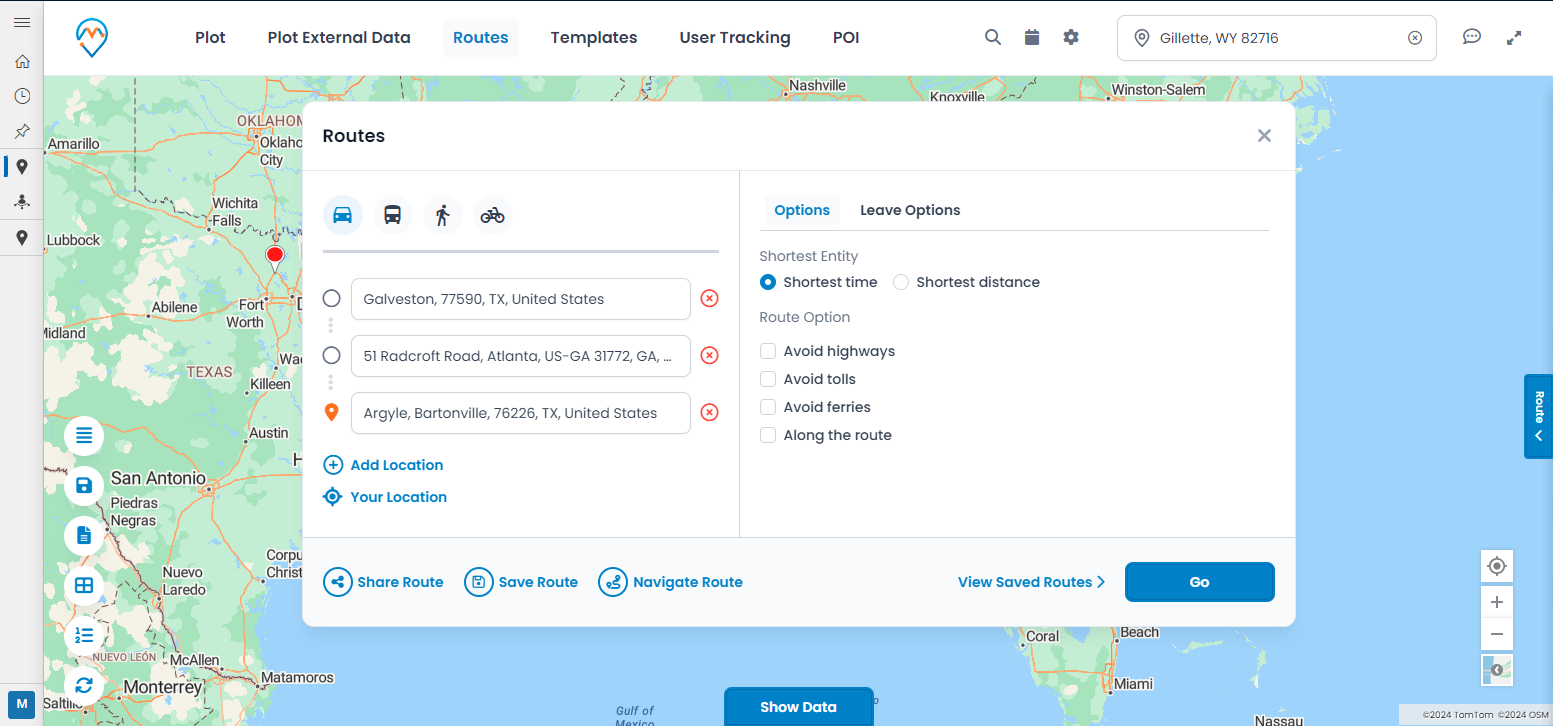
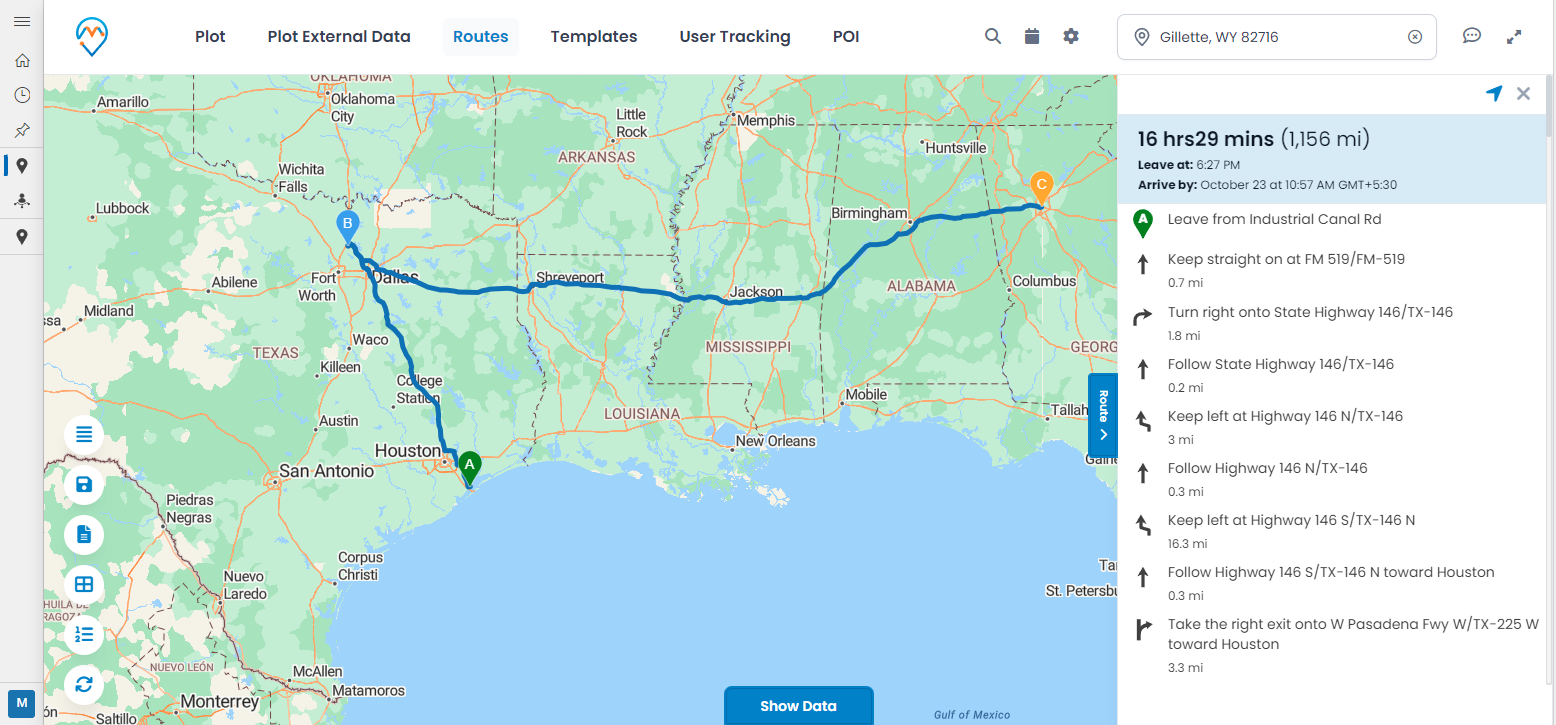
In this way, Bianca can add the new client meeting to her route directly from the map itself.
3.3: From the Data Grid
You can also add the record to the route from the ‘Data Grid.’
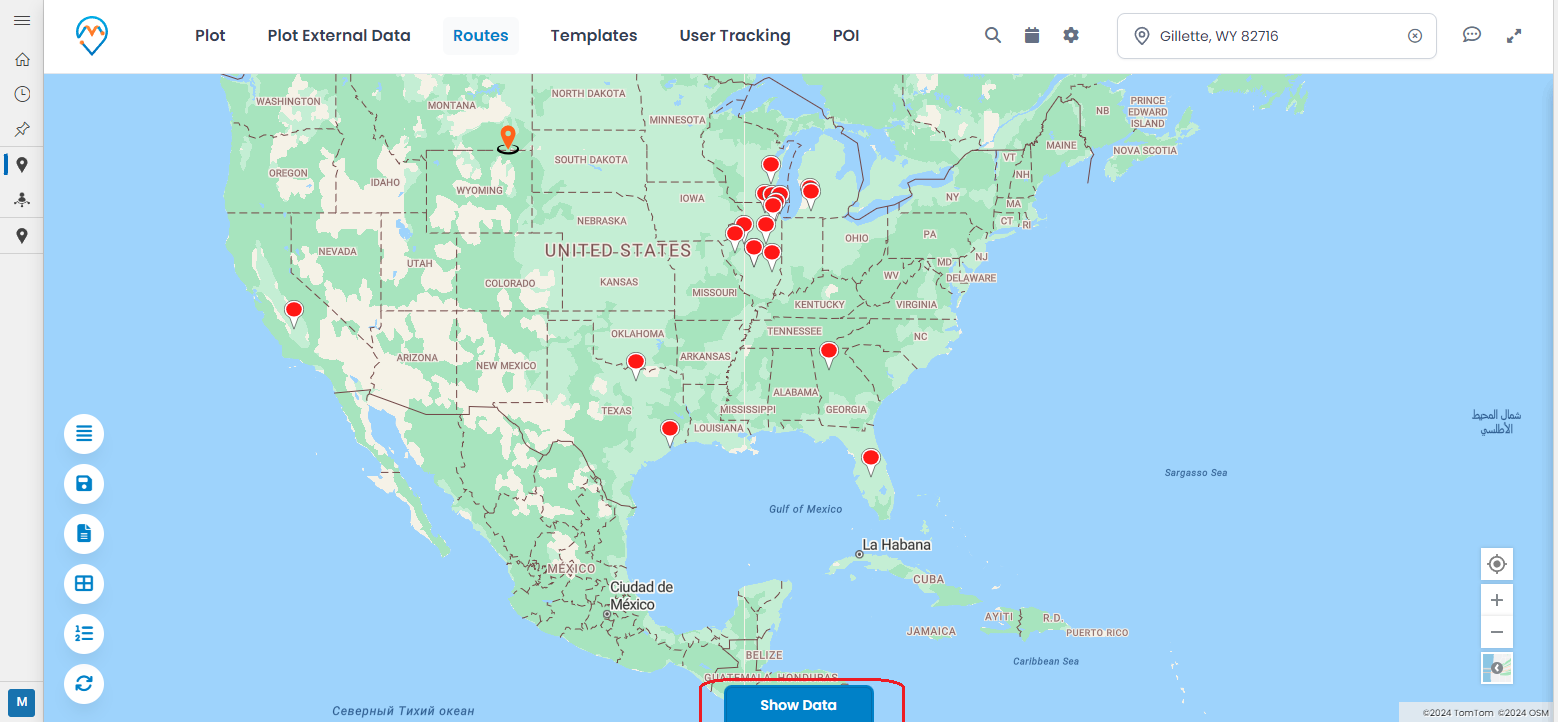
From the grid view, you can access column-wise details, making it easier to check and select the required records that you want to add to the route. The numbers of the selected records will be displayed at the bottom.
All product and company names are trademarks™, registered® or copyright© trademarks of their respective holders. Use of them does not imply any affiliation with or endorsement by them.